
16.2 Steps for Porting a PIC32WM_BZ6204 Module to PIC32CX2051BZ66048 SoC MCC Project
The following steps outline the complete process for migrating a project from the PIC32WM_BZ6204 module to the PIC32CX2051BZ66048 SoC.
- Launch the MPLAB® X IDE tool.Tip: The user must ensure to download and install the latest version of MPLAB X IDE Tool. The latest version ensures compatibility with Microchip devices and tools, allowing the user to develop for the newest hardware without issues. To download the latest version of the MPLAB X IDE tool, go to MPLAB® X IDE.
- In the opening window of the MPLAB X IDE, locate and open the PIC32WM_BZ6204 module application intended for migration.
- Open the project properties
option in MPLAB X IDE.
- From the “Set Project
Configuration” drop-down list, select Customize.
Figure 16-1. Customizing the PIC32CX2051BZ66048 Project Properties 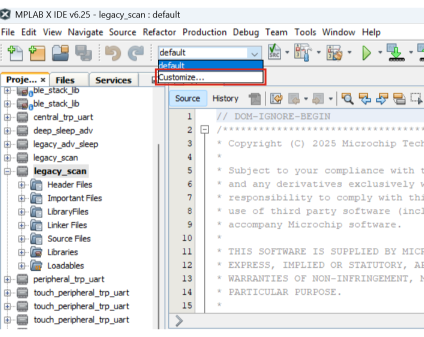
- From the “Set Project
Configuration” drop-down list, select Customize.
- In the Project Properties
window, update the device configuration:
- The user must update the device name. From the “Device:” field drop-down list, select PIC32CX2051BZ66048.
- From the “Packs:”
section, choose the latest version of the Device Family Pack (DFP).
Expand the “PIC32CX-BZ6_DFP” folder, select 1.3.38.Note: The user must select the suggested DFP version (1.3.38 or latest).
- The user must choose the latest CMSIS version. Under “Packs:” section, expand the “CMSIS” folder, select 6.2.0.
- The user must select the recommended compiler version. From the “Compiler Toolchain:” section, expand “XC32 [Download Latest]” field, select XC32 (v4.60 or latest) [C:\Program Files\Microchip\xc32\v4.60\bin]. To download the latest version of the MPLAB XC32 compiler, got to MPLAB® XC32 Compiler.
- Click Apply, then
click OK to ensure successful implementation of the configuration
adjustments.
Figure 16-2. Project Properties – Configuring Device, DFP, CMSIS and XC32 Compiler 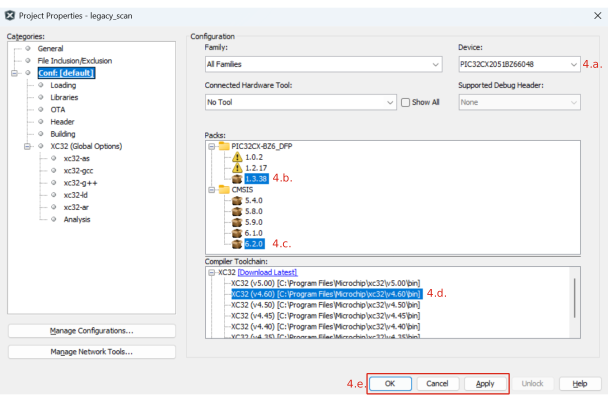
- Navigate to the application
configuration directory to verify the bsp folder. For example, go to
H3\wireless_apps_pic32_bz6\apps\ble\advanced_applications\ble_ancs_app\firmware\src\config\default.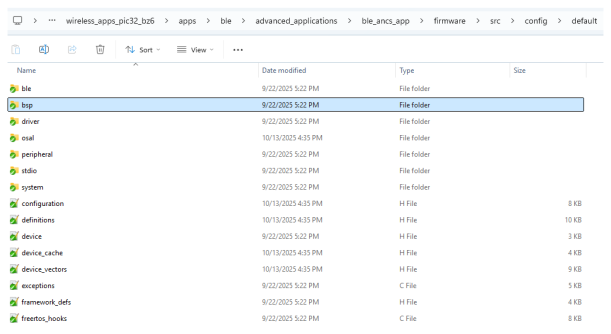 Note:
Note:- If the bsp folder is not available, skip this step and proceed directly to step 7.
- If the bsp folder is available, perform the following steps:
- To generate the project graph, follow steps 7 through 12.
- After generating the project graph, the user must remove the BSP Component.
- To remove the bsp component, perform the following steps:
- Select the BSP Component.
Figure 16-3. Selecting BSP Component 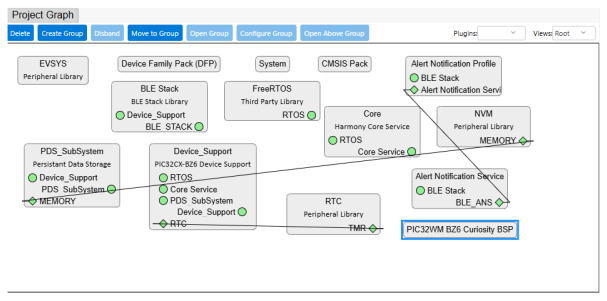
- Press Delete on the keyboard.
- The following pop-up appears to provide confirmation about
deactivating the BSP component.
Figure 16-4. Removing Module(s) Confirmation 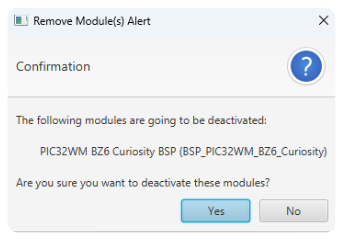
- Click Yes to continue.
- Select the BSP Component.
- The user must generate the project to reflect the PIC32CX2051BZ66048 SoC device change. For more details on project generation, follow steps 13 through 15.
- After completing the
project generation, the user must verify if the device name is updated
or not in the
definitions.hfile.Figure 16-5. PIC32CX2051BZ66048 SoC – Device Name Update 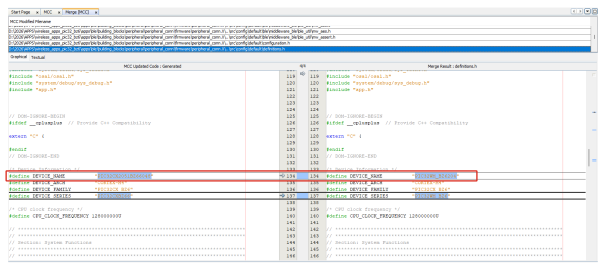
- If the device name is not updated, follow these steps:
Figure 16-6. PIC32CX2051BZ66048 SoC – Device Name Not Updated 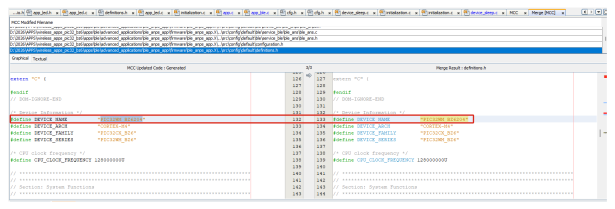
- The user must close the Merge [MCC] tab.
- The “Question”
pop-up appears and the user must click Yes to
continue.
Figure 16-7. Question – Closing Merge [MCC] Tab 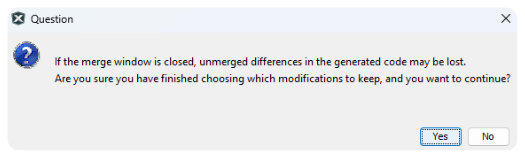
- The user must
close the MCC tab. The following pop-up appears and the
user must click YES.
Figure 16-8. MCC Alert – Closing MCC Tab 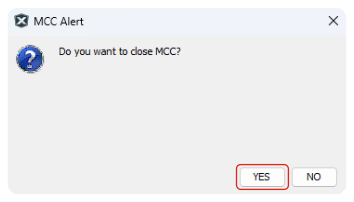
- The user must reopen MCC and regenerate the MCC project. To regenerate the MCC project, the user must perform steps 7 through 9.
- After completing
the regeneration, the user must verify the regenerated project
graph in the MCC tab.
Figure 16-9. Regenerated Project Graph 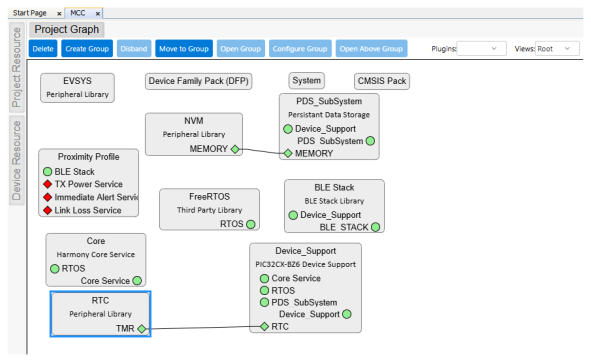
- As the pin
configuration differs between the PIC32WM_BZ6204 module and the PIC32CX2051BZ66048 SoC, update the pin assignments to
match the PIC32CX2051BZ66048 SoC
pinout in any application that uses these features (RGB LED,
user buttons and LEDs).
Table 16-1. PIC32CX2051BZ66048 SoC – RGB LED and User Buttons Configuration Pin Name Custom Name Function Direction Latch RB7 USER_LED GPIO Out High RB9 SWITCH1 GPIO In — RA4 User button GPIO In — RB3 RGB_LED_GREEN GPIO Out Low RB0 RGB_LED_RED GPIO Out Low RB5 RGB_LED_BLUE GPIO Out Low - From the
“Plugins:” drop-down list, select Pin Configuration.
Figure 16-10. Project Graph – Pin Configuration Settings 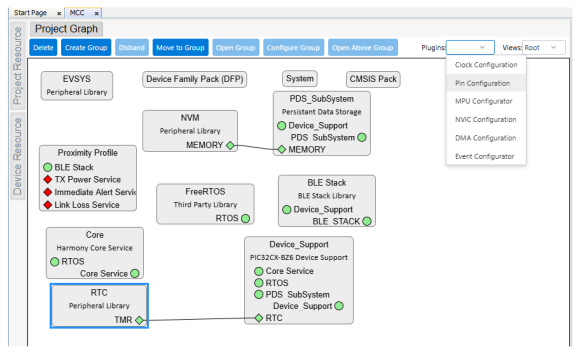
- For example, in
the Pin Settings tab, the user must perform the following
steps:
- In the “Pin ID” column, go to RB3 pin.
- In the “Function” column drop-down list, select GPIO.
- In the “Direction (TRIS)” column, click and change it to Out.
- In the “Latch (LAT)” column, click and change it to Low.
- In the
“Custom Name” column, change the name to
RGB_LED_GREEN.
Figure 16-11. PIC32CX2051BZ66048 SoC – Configuring RB3 GPIO Pin 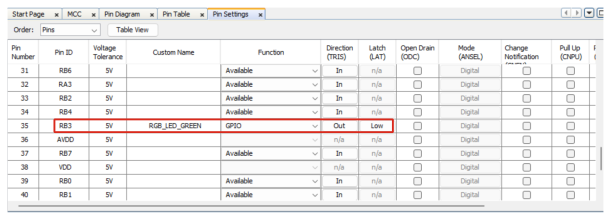 Note: This example shows how to configure the RB3 GPIO pin. The user must follow these steps to configure other pins of the PIC32CX2051BZ66048 SoC.
- If the device name is not updated, follow these steps:
- After the user completes
configuring the pins of the PIC32CX2051BZ66048 SoC, the user must proceed to regenerate
the project. For regeneration, follow steps 13 through 21.Note: If the user encounters any build errors related to pin configurations, the user must manually update the pin details by clicking on the respective error in the Output tab. For manually updating the pin configurations, see Table 16-1.
- Run the Microchip Code
Configurator (MCC) to begin the code configuration process.
- In the MPLAB X IDE
opening window, click MCC.
Figure 16-12. MPLAB X IDE Code Configurator (MCC) 
- The following pop-up appears about the MCC core update. The user must
update the core version to the latest version. To proceed with the
update, click Yes.
Figure 16-13. MCC Version Switching Confirmation 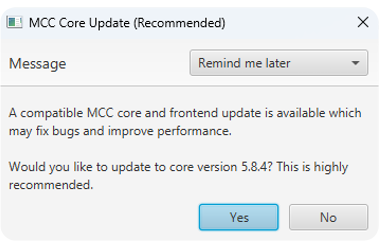
- The user must provide confirmation about device name switching. To
proceed with the device name switching, click Yes.
Figure 16-14. Device Name Switching Confirmation 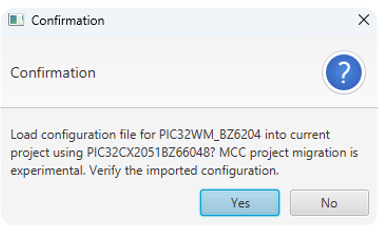
- In the MPLAB X IDE
opening window, click MCC.
- When the “Initializing project” pop-up appears, the user must wait for the
initialization process to complete.
Figure 16-15. MCC – Initializing Project 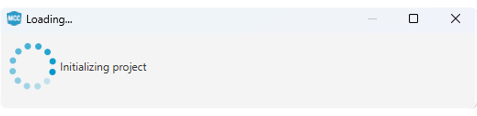
- The MCC now generates the project
graph and the user can view it in the Project Graph tab. Note: The user must wait until the MCC generates the project graph.
Figure 16-16. Project Graph 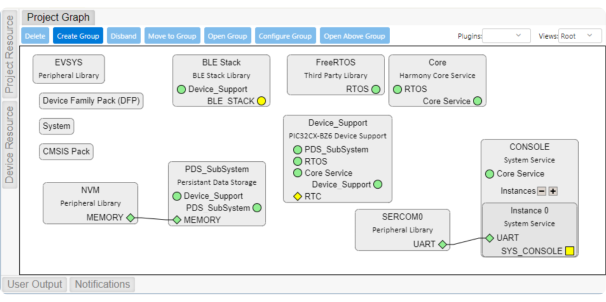
- The user clicks on the Device
Family Pack (DFP) from the project graph to see the DFP for the selected device.
- The user must click the Device Family Pack (DFP) to open the DFP configuration window.
- In the DFP configuration window, the user must expand the “Device Family Pack (DFP)” entry to display the version information.
Figure 16-17. DFP Confirmation 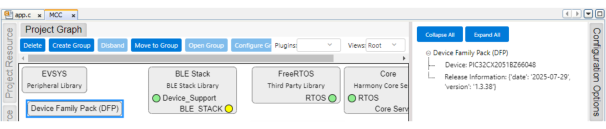
- The user verifies the package version, which is an essential step in ensuring
that the correct version is utilized. To accomplish this, the user must perform
the following steps:
- Click on the Device Resources tab to access the content manager.
- Click on the Content Manager (button at the top-right of the
Device Resources tab) to access the content manager
configuration options.
Figure 16-18. Device Resources Tab and Content Manager 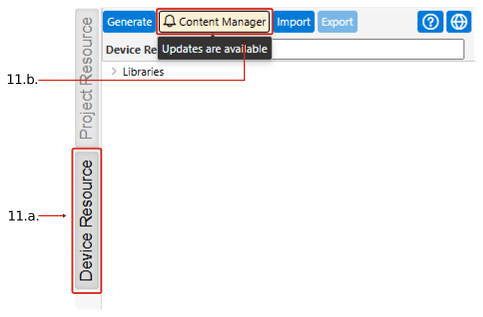
- The “Device” drop-down field allows the user to verify the type of device. In this scenario, it must be PIC32CX2051BZ66048.
- The “Content Type” drop-down field allows the user to verify the content
type. In this scenario, it must be HARMONY.
Figure 16-19. Device and Content Type Verification 
- To locate and select the
appropriate package version for the PIC32CX2051BZ66048 SoC, follow these steps for each applicable
package using the “Search” field:
- Locate the package using the “Search” field.
- For example, type bsp in the search bar and press Enter on the keyboard.
- The user must
select the latest version of the “bsp” package. For example,
select v3.24.0 or latest from the “Version” column
drop-down list.
Figure 16-20. Search bsp, Select bsp and Select Version  Important: Repeat this process for all applicable packages of the PIC32CX2051BZ66048 SoC. For more details on the applicable packages, see Applicable Harmony Packages – PIC32CX2051BZ66048 SoC table.
The following table lists all the applicable harmony packages of the PIC32CX2051BZ66048 SoC.Table 16-2. Applicable Harmony Packages – PIC32CX2051BZ66048 SoC Module Versions Core v3.16.0 or latest CSP v3.25.0 or latest BSP v3.24.0 or latest FreeRTOS-Kernel V11.1.0(1) harmony-services V1.5.0 or latest wireless_ble v1.5.0 or latest wireless_pic32cxbz_wbz v1.6.0 or latest wireless_system_pic32cxbz_wbz v1.8.1 or latest wireless_15_4_phy v1.4.0 or latest wireless_15_4_mac v1.2.0 or latest openthread mchp_harmony_wireless_thread_v1.3.0 or latest CMSIS_5 5.9.0 or latest touch V3.20.0 or latest Wireless_thread v1.3.0 or latest Note:- The user must ensure to use the correct version for the FreeRTOS-Kernel package. For more details, go to wireless_apps_pic32_bz6/package.yml.
- Click Apply to continue.
Figure 16-21. Applying the Changes 
- After clicking
Apply, wait for MCC to complete the update:
- Observe the
“Download In Progress” pop-up notification.
Figure 16-22. Package Download in Progress 
- Observe the
“Download Complete” pop-up notification.
Figure 16-23. Package Download Complete 
- Observe the
“Download In Progress” pop-up notification.
- After the package download completes, the “Loading...” pop-up appears, and the
user must wait for the process to complete.
Figure 16-24. Loading and Updating Project Content 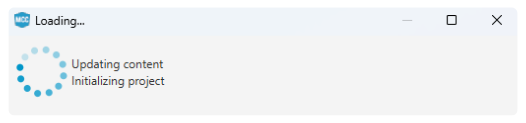
- The user must perform a force
update on all components. The following are the steps to perform a force
update:
- In the Resource
Management [MCC] tab, under the “Project Resources” field,
right-click on the Generate, then click Force Update on
All.
Figure 16-25. Force Update on All Components 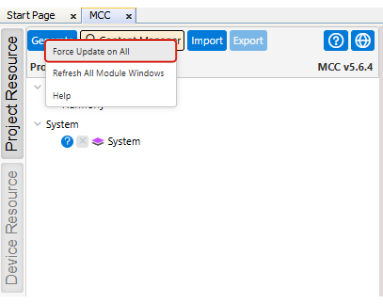
- Click Generate to
start the process.
Figure 16-26. Generating the Project 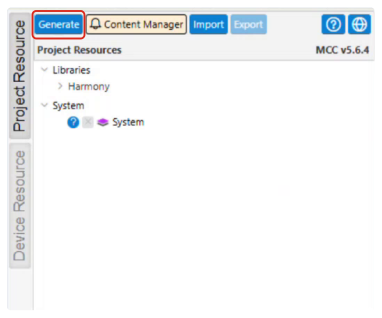
- In the Resource
Management [MCC] tab, under the “Project Resources” field,
right-click on the Generate, then click Force Update on
All.
- When the “MCC Generating” pop-up appears, the user must wait for the
initialization process to complete.
Figure 16-27. MCC Generating 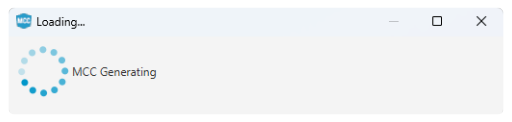
- After generating the code, the
MCC initiates a merging process. The merging process is not going to make
changes to the application files containing customized code. However, some
applications do not require certain mergers. Note: The merging process does not modify any application files with names beginning with
app_and does not merge the user modified files likeFreeRtos_hook.cfile, and more. - The user must thoroughly check to
ensure the generation process is complete.
Figure 16-28. Project Generation Complete 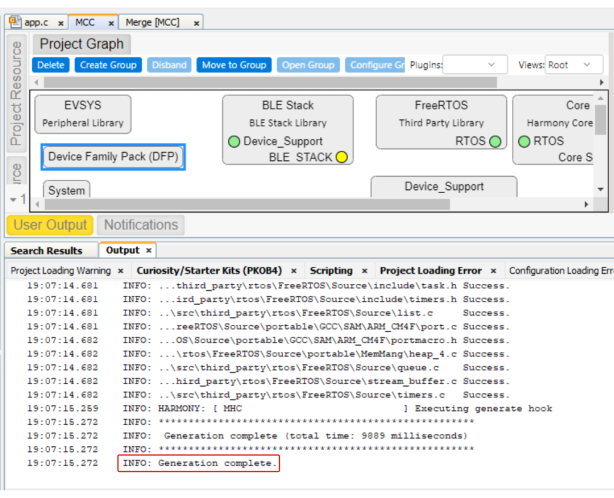
- The user must resolve the merge
conflicts and build the project. When MCC detects differences in generated
files, the MPLAB X IDE opens Merge [MCC] tab. The Merge [MCC] tab
displays two panes within the Graphical tab:
- MCC Updated Code: Generated (left pane): The newly generated output.
- Merge Result: (right pane): The file MPLAB X IDE saves after the
merge.
Figure 16-29. MCC Updated Code: Generated and Merge Result: Pane 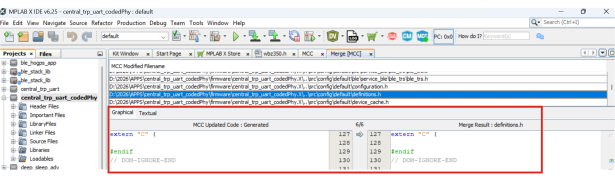
- The following are the different types of merge conflicts:
- Type A: Replace device
identifiers/specifications. The user must click the light-blue arrow
“(→)” in a highlighted block to update the “MCC Updated Code: Generated”
change into the “Merge Result:” file. For example, replace the PIC32WM_BZ6204 module with the PIC32CX2051BZ66048 SoC.
Figure 16-30. Type A Merge Conflict Example 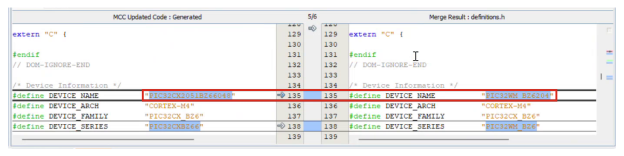
- Type B: Remove
unsupported functionalities that are highlighted in red color for the
PIC32CX2051BZ66048 SoC. The user must
click the “×” to remove the highlighted content from the “Merge Result:”
file.
Figure 16-31. Type B Merge Conflict Example 
- Type A: Replace device
identifiers/specifications. The user must click the light-blue arrow
“(→)” in a highlighted block to update the “MCC Updated Code: Generated”
change into the “Merge Result:” file. For example, replace the PIC32WM_BZ6204 module with the PIC32CX2051BZ66048 SoC.
- The following are the steps to
apply the merge changes:
- The user must confirm the
file name in the merge title bar. For example, “Merge Result:
definitions.h”. - The user must scroll to each highlighted difference in the file and take action as per the requirement.
- For each highlighted
difference, the user must take the required action:
- For type A, the user must click the blue arrow (→) to replace the change. For more details on merge conflict types, see Step 17.
- For type B, the user must click the red (×) to remove the change. For more details on merge conflict types, see Step 17
Important: The user must repeat this process for each file displayed in the Merge [MCC] tab.
- The user must confirm the
file name in the merge title bar. For example, “Merge Result:
- The user must review the highlighted differences in each file that the Merge
[MCC] tab shows and apply replace (→) or remove (×) action as per the
requirement. For more details, see Step 17 and Step 18.Note: The following figures provide example references of merge conflict scenarios in common project source and header files. The user must scroll through each file thoroughly and resolve all highlighted differences by applying replace (→) or remove (×) action as applicable.
- The following figure illustrates the merge conflicts scenarios in the
definitions.hheader file.Figure 16-32. Device Name Switching from PIC32WM_BZ6204 Module to PIC32CX2051BZ66048 (48L) SoC 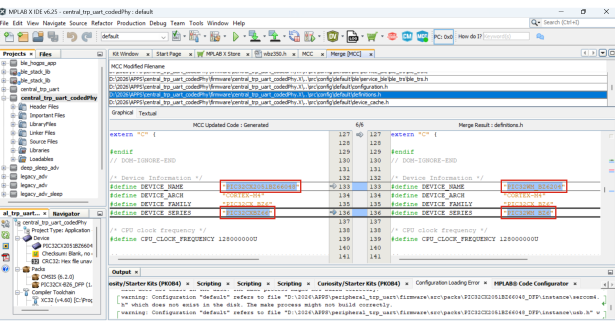
- The following figures illustrate the merge conflict scenarios in the
device_vectors.hheader file.Figure 16-33. SERCOM4 Peripheral Not Supported for PIC32CX2051BZ66048 (48L) SoC 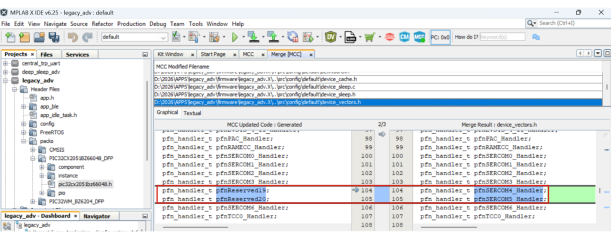
Figure 16-34. Ethernet Peripheral Not Supported for PIC32CX2051BZ66048 (48L) SoC 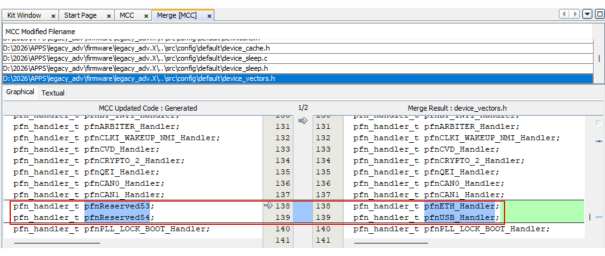
- The following figure illustrates the merge conflicts scenarios in the
plib_gpio.hheader file.Figure 16-35. GPIO Port Pins Not Supported for PIC32CX2051BZ66048 (48L) SoC 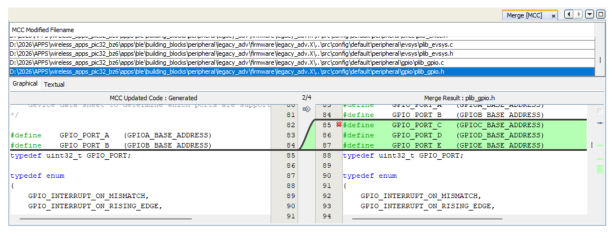
- The following figure illustrates the merge conflicts scenarios in the
initialization.csource file.Figure 16-36. Ethernet and USB VBUS Peripheral Not Supported for PIC32CX2051BZ66048 (48L) SoC 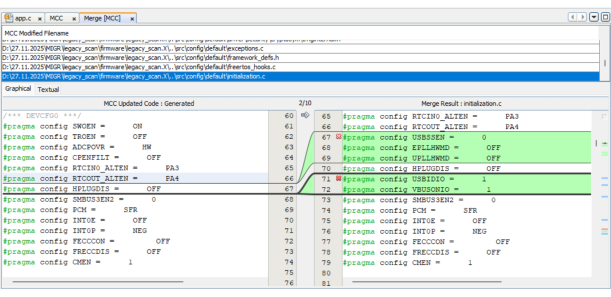
Figure 16-37. USB Peripheral Not Supported for PIC32CX2051BZ66048 (48L) SoC 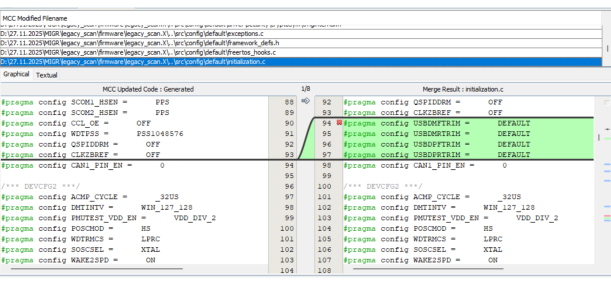
- The following figure illustrates the merge conflicts scenarios in the
plib_clk.csource file.Figure 16-38. USB Power-Down UPLL Peripheral Not Supported for PIC32CX2051BZ66048 (48L) SoC 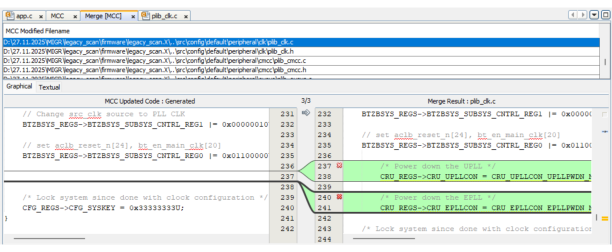
- The following figure illustrates the merge conflicts scenarios in the
- Clean and build the main
application, ensuring that the build is successful. From the drop-down list,
click Clean and Build Main Project.
Figure 16-39. Clean and Build Main Project 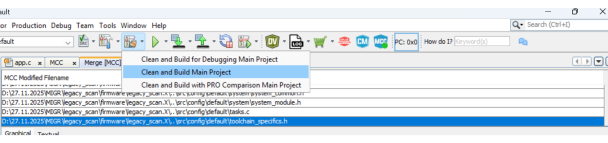
Figure 16-40. Clean and Build Main Project – Build Successful 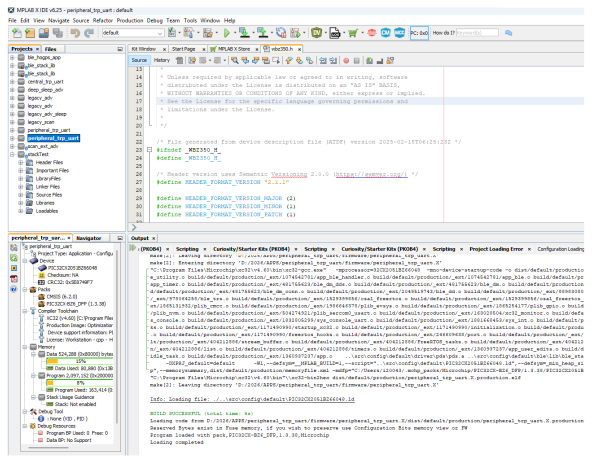
- The user must follow these steps to resolve any build errors:
- The user must click Clean and Build Main Project to build the project.
- If the build
process reports errors, the user must locate the errors in the
Output tab.
Figure 16-41. PMD Registers – SERCOM4 Not Supported for PIC32CX2051BZ66048 (48L) SoC 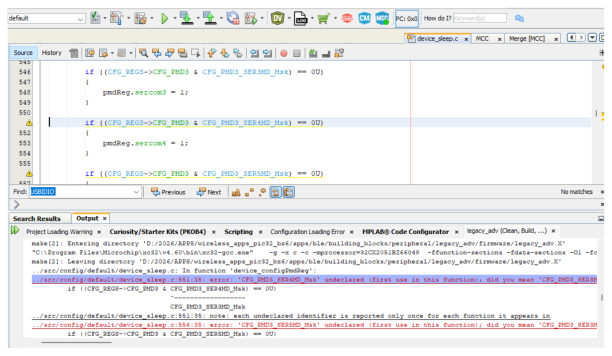
- The user must select an error entry to navigate to the referenced file and line.
- The user must
remove the unsupported code section that causes the error. Press
Delete on the keyboard.
Figure 16-42. PMD Registers – Deleting SERCOM4 Peripheral Not Supported for PIC32CX2051BZ66048 (48L) SoC 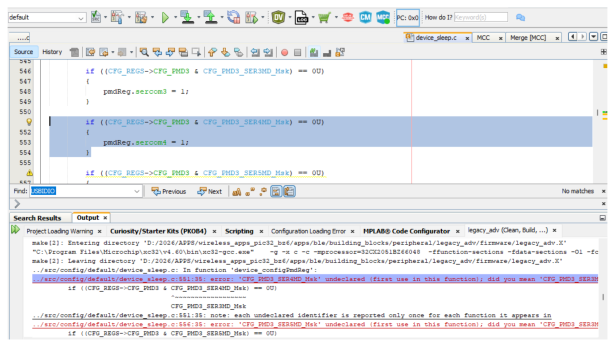
- The user must repeat steps ii to iv for each reported error.
- After resolving all reported errors, the user must click Clean and Build Main Project again.
- The user must
look for
BUILD SUCCESSFULmessage in the Output tab.Note: This example shows one unsupported-functionality error scenario in one particular package. The user must follow the same steps to remove other unsupported functionality that causes build errors for the PIC32CX2051BZ66048 SoC.
- The user must follow these steps to resolve any build errors: