
1.1.2 PIC32CM SG00/GC00 Curiosity Pro: Building and Running the CAN Bootloader Applications
Downloading and Building the Application
To clone or download this application from Github, go to the main page of this repository and then click Clone button to clone this repo or download as zip file. This content can also be download using content manager by following these instructions.
Path of the application within the repository is apps/can_bootloader/.
To build the application, refer to the following table and open the project using its IDE.
Bootloader Application
| Project Name | Description |
|---|---|
| bootloader/firmware/pic32cm_gc00_curiosity_pro.X | MPLAB X Project for PIC32CM SG00/GC00 Curiosity Pro |
Test Application
| Project Name | Description |
|---|---|
| test_app/firmware/pic32cm_gc00_curiosity_pro.X | MPLAB X Project for PIC32CM SG00/GC00 Curiosity Pro |
Setting Up PIC32CM SG00/GC00 Curiosity Pro
- PIC32MK MCJ Curiosity Pro is used for Host development kit
- PIC32CM SG00/GC00 Curiosity Pro is used for Target
development kit
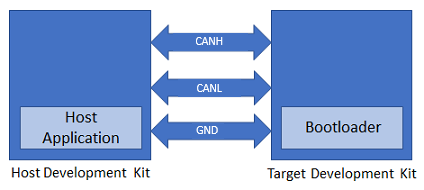
- Connect PIC32CM SG00/GC00 Curiosity Pro to another PIC32CM SG00/GC00 Curiosity
Pro as per the pin connections shown below
PIC32MK MCJ Curiosity Pro - 1 PIC32CM SG00/GC00 Curiosity Pro - 2 J504, CANH, PIN 1 J502, CANH, CAN0 J504, GND, PIN 2 J502, GND, CAN0 J504, CANL, PIN 3 J502, CANL, CAN0 - Connect the Debug USB port on the board to the computer using a micro USB cable
Building and Configuring CAN Host Applications
Using CAN NVM Host Application to Send the Application Binary to Target Development Kit
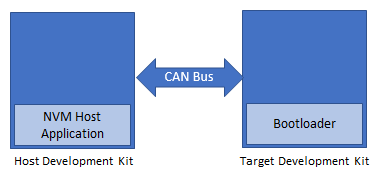
If the NVM Host development kit being used is other than PIC32CM SG00/GC00 Curiosity Pro then follow the steps mentioned in Configuring NVM Host Application Project.
- Open the NVM host application project
host_app_nvm/firmware/pic32mk_mcj_curiosity_pro.X in the
IDE.
- If a NVM host application project of different development kit is used then open that project in the IDE
- Build and program the NVM host application using the IDE on to the Host
development kit.
- The prebuilt test application image available under host_app_nvm/firmware/src/test_app_images/image_pattern_hex_pic32cm_gc00_curiosity_pro.h will be programmed on to the Target development kit with default host_app_nvm project configuration
- Jump to Running the Application.
Running the Application
- Open the bootloader project bootloader/firmware/pic32cm_gc00_curiosity_pro.X in the IDE.
- Build and program the application using the IDE on to the Target development kit.
- LED1 will be turned-on to indicate that bootloader code is running on the target
- LED1 will turn on when the bootloader does not find a valid application; i.e., the first word of the application (stack pointer), contains 0xFFFFFFFF
- If the test application is being programmed, open the Terminal application
(e.g., Tera Term) on the computer and configure the serial port settings for
Target development kit as follows:
- Baud: 115200
- Data: 8 Bits
- Parity: None
- Stop: 1 Bit
- Flow Control: None
- Press the Switch SW0 on the Host development kit to trigger programming of the application binary.
- Once the programming is complete:
- LED0 on the Host development kit will be turned on indicating success
- The Target development kit will be reset. Upon re-start, the bootloader will jump to the user application.
- If the test application is programmed then LED1 should start blinking
and the user should see below output on the Target development kit
console

- Press and hold the Switch SW0 to trigger Bootloader from test application
and the user should see below output.

- Press Reset button on the Host development kit to reprogram the application binary.
- Repeat Steps 4-5 once.
- This step is to verify that bootloader is running after triggering bootloader from test application in Step 6
Additional Steps (Optional)
Using CAN NVM Host Application
- To bootload any application other than host_app_nvm/firmware/src/test_app_images/image_pattern_hex_pic32cm_gc00_curiosity_pro.h refer to the Application Configurations
- Once the application is configured, refer to the Configuring NVM Host Application Project for setting up the host_app_nvm project
- Once done repeat the applicable steps mentioned in Running the Application