8.2.1.3 Project Generation with Thread CoAP MCC Component
Thread CoAP example solution application projects are available for reference at <Discover Path>\wireless_apps_pic32_bz6\apps\thread\advanced_applications\CoAP.
These projects can be generated by following the step-by-step procedure outlined in this
document.
Thread Applications are built on top of Thread stack and IEEE 802.15.4 Physical Layer for PIC32CX-BZ6 platform devices. The applications demonstrate the usage Thread stack, Thread Command line and Radio Co-Processor. Refer to the following link for MTD/FTD CLI, RCP and Thread UDP demo project generation and demonstration.
Recommended Readings
- Getting Started with Thread - See Microchip Thread SDK in Reference Documentation from Related Links.
Hardware Requirement
- PIC32-BZ6 Curiosity Board
- Type - C USB Cables
- PC
Software Requirement
Software Requirement for Thread SDK - See Microchip Thread SDK in Reference Documentation from Related Links.
Additionally, has a dependency on version v1.8.0 of MCC package
wireless_system_pic32cxbz_wbz.
Generating Project
-
Create a new harmony project. For more details, see Creating a New MCC Harmony Project from Related Links.
- Open the MPLAB Code Configurator by
clicking on “MCC” icon.
- The following figure illustrates the
opening window of the MPLAB Code Configurator.
Figure 8-6. MPLAB Code Configurator Window 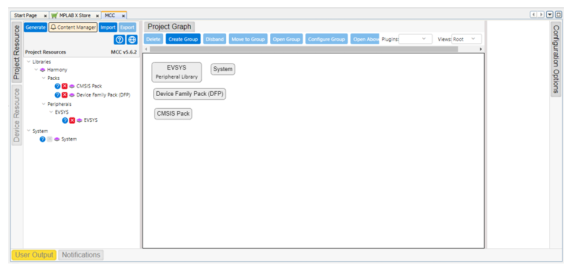
- The following figure illustrates the
opening window of the MPLAB Code Configurator.
- Click Plus Symbol on the THREAD
COAP APP SERVICE component in the Device Resources. The component is part of
Wireless>System Services.
Figure 8-7. Thread COAP Application Service 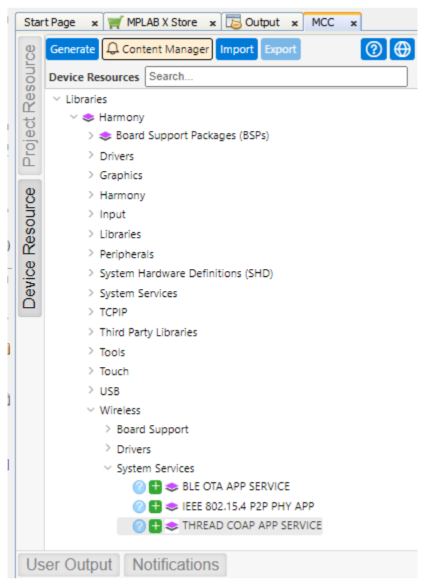
- Upon Thread CoAP Component being added to
project graph, the different component dependencies will be requested to be added. The
user has to select Yes to add all the dependent components.
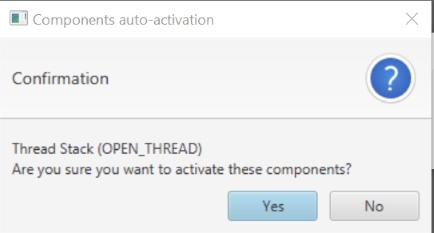
- Users are expected to select Yes for all dependent components.
- Right click on TIME module for
selecting the timer source, select any of the timer.
Figure 8-8. Selecting Timer Source 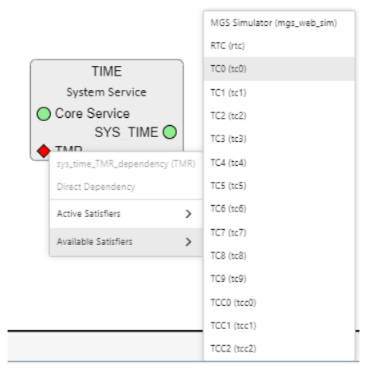
- The following figure illustrates the
component project graph.
Figure 8-9. Thread COAP Component Project Graph 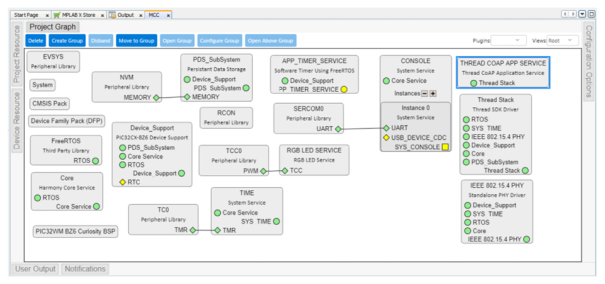
- Click on the ‘THREAD COAP APP
SERVICE‘, then use the configuration menu to set up the component according to user
needs. Follow the steps outlined in the Thread CoAP Component Configuration
section.
Figure 8-10. Thread CoAP Component Configuration 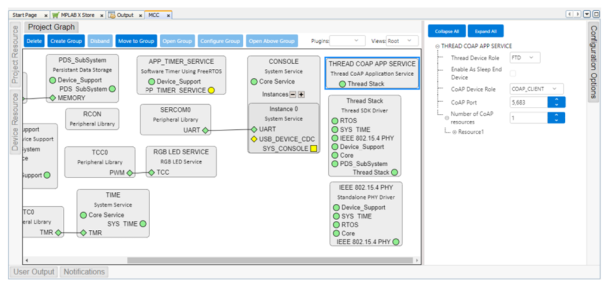
- This step is applicable only if the
device is enabled as a sleep end device. Select the clock configurations from the plugins
and make the following clock configuration changes. The following figure illustrates the
clock configuration changes.
Figure 8-11. Clock Configuration Changes 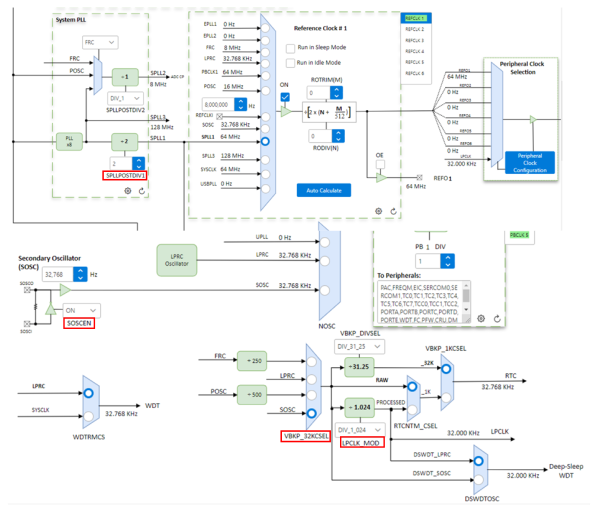
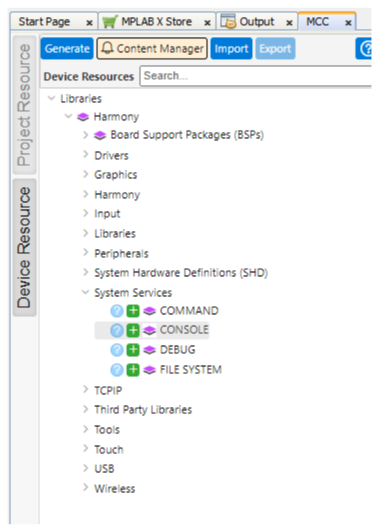
- Add a console component to facilitate
application console prints. Users can trigger the console by clicking on the
CONSOLE component. The component is a part of System Services.
- Right Click on instance0 UART
for selecting the UART source, Select SERCOM0.
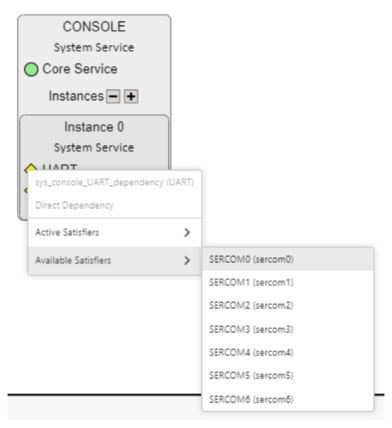
- Right Click on instance0 UART
for selecting the UART source, Select SERCOM0.
- Click on SERCOM 0 => Go to
configuration options => Change Receive pinout, Transmit pinout.
Figure 8-12. Change Receive Pinout 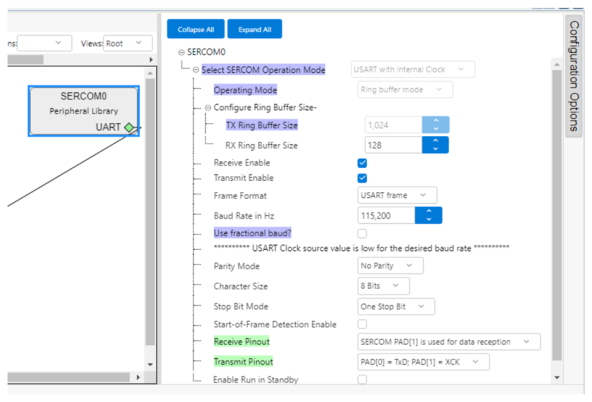
-
Perform the following to configure the “SERCOM0” to enable the Direct High Speed.
-
In Project Graph, click the System component to open Configuration Options.
-
To locate “SERCOM0 Direct (High Speed) Pin Enable (SCOM0_HSEN)”, navigate to System>Device & Project Configuration>PIC32WM_BZ6204 Device Configuration>Generate Fuse Settings>DEVCFG1
-
Select DIRECT from the drop-down list as illustrated in the following figure.
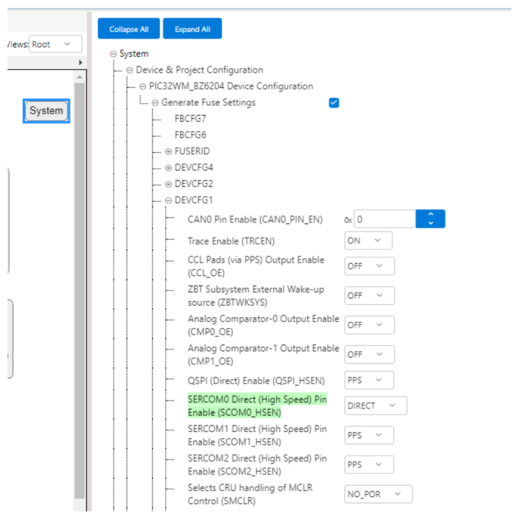
-
- Click on Generate Tab for Code
generation. Upon code generation, Thread CoAP Component related source files will be added
to the project. For more details on code generation, refer to MPLAB Code Configurator
(MCC) Code Generation from Related Links.
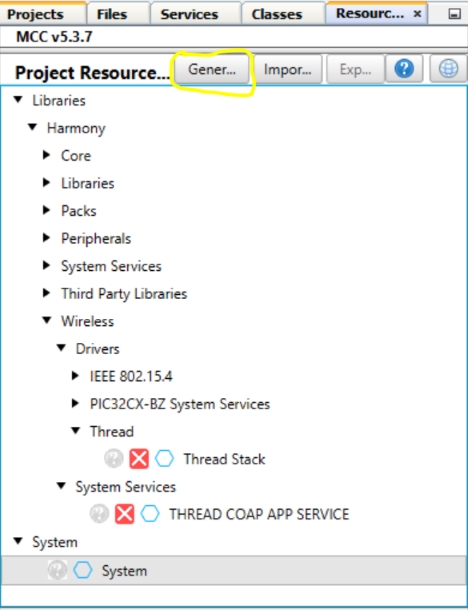
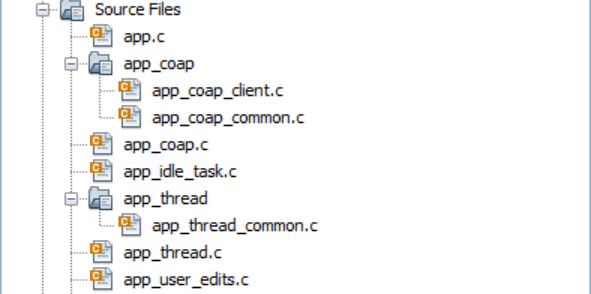
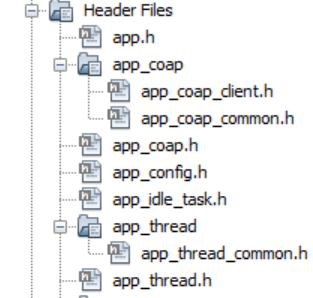
- Once Generation completes the header,
source files of Thread CoAP service will be added under Header and Source Files based on
the configuration.
app_user_edits.cfile changes: selected line should be commented by following edit step description. For more information, refer to User Action from Related Links.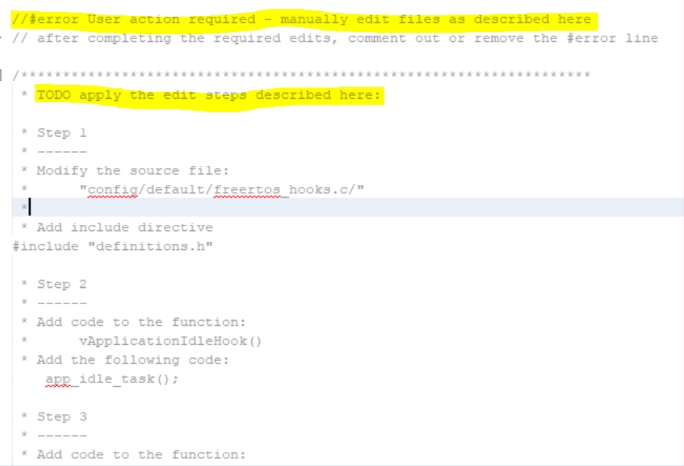
- According to user needs, the user can
modify the Thread network parameters configuration by altering the macros in the file
app_thread/app_thread_common.h. Additionally, the user can adjust
the Thread sleep period and active period by changing the macro values in the file
app_thread.h for APP_THREAD_DEVICE_SLEEP_PERIOD and
APP_TIMER_SED_TIMEOUT_PERIOD, if sleep is enabled. Also user can adjust data
polling period by changing the macro values in the file
src\config\default\driver\thread\inc\openthread_stack_config.h for
OPENTHREAD_CONFIG_MAC_ATTACH_DATA_POLL_PERIOD. Change the value to 100 for higher
response if sleep is enabled.


- Switch to MPLAB X IDE window and Build
Project. The project should compile successfully.