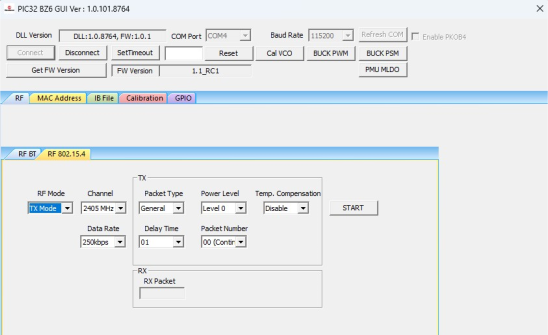
4.3.2 IEEE 802.15.4 RF Test Demonstration
In this demonstration, the user can transmit IEEE 802.15.4 packets, enter RX mode and CW mode with the PIC32-BZ6 by using the MCHPRT3.
Perform the following steps for the demonstration of the 802.15.4 packet transmission:
- Set up the connection between the PIC32-BZ6 Curiosity Board and PC. For more details, refer to Getting Started with MCHPRT3.
- In the RF 802.15.4 tab, perform the following steps:
- From the “RF Modes” drop-down list, select TX Mode.
- From the “Channel” drop-down list, select 2405 MHz for channel 11.
- From the “Packet Type” drop-down list, select Packet Type as General (default value) or Smallest.
- From the “Power Level” drop-down list, select Level 0. Note: Level 0: Uncalibrated maximum transmit power from the device, that is, the output power would be varied between devices. This Level 0 is provided only for testing purpose. For calibrated power level, Level 1 (11 dBm) to Level 15 (–3 dBm), 1 dBm power step per level.
- From the “Delay Time” drop-down list, select the Packet Delay Time (00-250) (the default value is 10).
- From the “Packet Number” drop-down list, select the Number of Transmitting Packet (00-250) (the default value is 00, Continuous Packet Transmission).
- From the “Temp. Compensation” drop-down list, select Enable or Disable. The output power compensation according to the ambient temperature.
3. Click START to transmit the 802.15.4 packet.
Note: The “Data Rate” must be set at 250 Kbps, and the “Delay Time” must be 01 for the standard 802.15.4 packet stream.
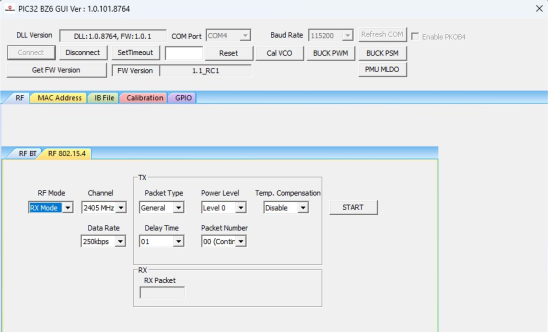
Perform the following steps for the demonstration of the 802.15.4 RX mode:
- Set up the connection between the PIC32-BZ6 Curiosity Board and PC. For more details, refer to Getting Started with MCHPRT3.
- In the RF 802.15.4 tab, perform the following steps:
- From the “RF Modes” drop-down list, select RX Mode.
- From the “Channel” drop-down list, select 2405 MHz for channel 11.
- From the “RX Data Rate” drop-down list, select Data Rate (250K, 500K, 1M and 2M), for example, select 250K.
- Click START to receive the 802.15.4 packet. The total number of received packets are available under the “RX Packet” drop-down list.
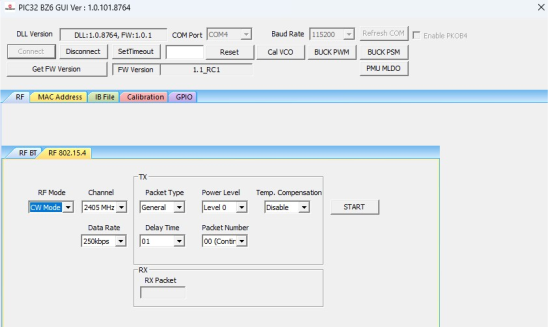
Perform the following steps for the demonstration of the 802.15.4 CW mode to transmit CW tone:
- Set up the connection between the PIC32-BZ6 Curiosity Board and PC. For more details, refer to Getting Started with MCHPRT3.
- In the RF 802.15.4 tab, perform the following steps:
- From the “RF mode” drop-down list, select CW Mode.
- From the “Channel” drop-down list, select 2405 MHz for channel 11.
- From the “Power Level” drop-down list, select Level 0.
- Click START to transmit the CW tone.