
5 OCPP Compliance Test Tool (OCTT) Server Setup
Before executing the binary file, you must configure the OCTT server.
-
Register as a user with the OCA.
To register an email address, contact the Microchip OCA Administrator at rajendra.mummadavarapu@microchip.com.
The server address is:
microchiptechnology-bab04e77407c10dd.octt.openchargealliance.org/#/login
Note: The server instance can vary, as Microchip holds several licenses. - Log in using your credentials.
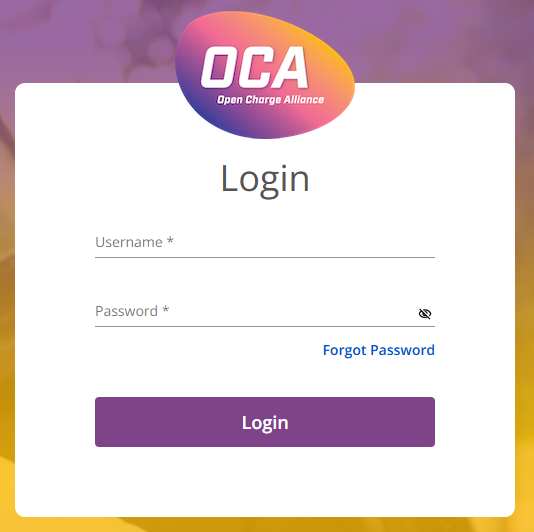
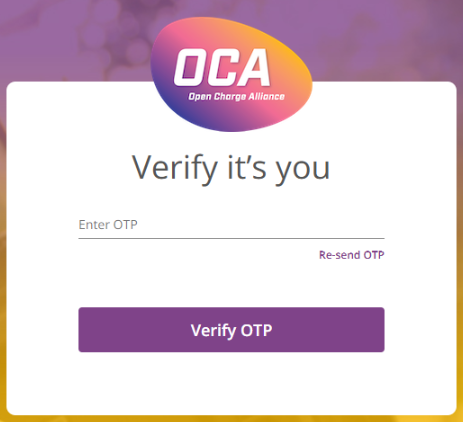
- You should receive a one-time
password (OTP). Enter it when prompted.
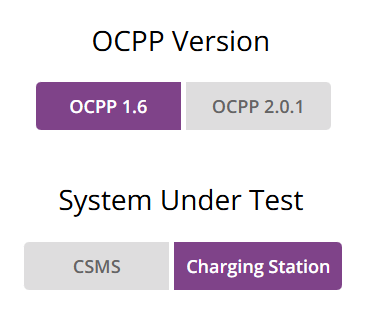
- Select the options shown below and
click Continue to proceed.
- Select the OCTT server configuration
settings. In this setup, the server has already been configured, and the
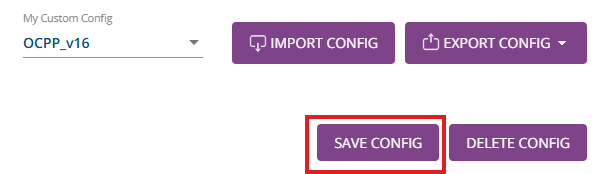
configuration has been saved as OCPP_v16.
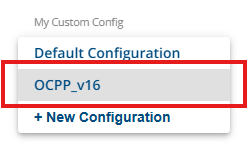 Note: If necessary, configuration files can be exported or imported. You may choose to use this existing configuration file or create a new one for customization. A backup configuration file, OCPP_v16.json, is included for that purpose in the demo repository and can be imported using the import option from demo_ocpp_v16_harmony/apps/firmware/src/output/OCPP_v1.6.json.
 - Click on SAVE CONFIG.
- The following screen appears:

- Click Start Session to proceed.