
3.10.1 Smart Lock Application on PIC32CM LS60 Smart Lock Reference Board
Description
The application showcases key-less secure access control and monitoring of a deadbolt through multiple methods:
- Capacitive Touch keypad
- Multiple unique user passkeys
- Smartphone App
- Secure bluetooth control
- Remote access control using Wi-Fi with AWS cloud
Modules/Technology Used
- Peripheral Modules
- ADC
- EIC
- EVSYS
- NVMCTRL
- PTC
- RTC
- SERCOM (SPI)
- SERCOM (USART)
- SERCOM (I2C)
- TC
- Drivers
- ATECC608
- System service
- TIME
- Tools
- Secure STDIO
- Libraries
- Touch Library
- Crypto Authentication Library
Hardware Used
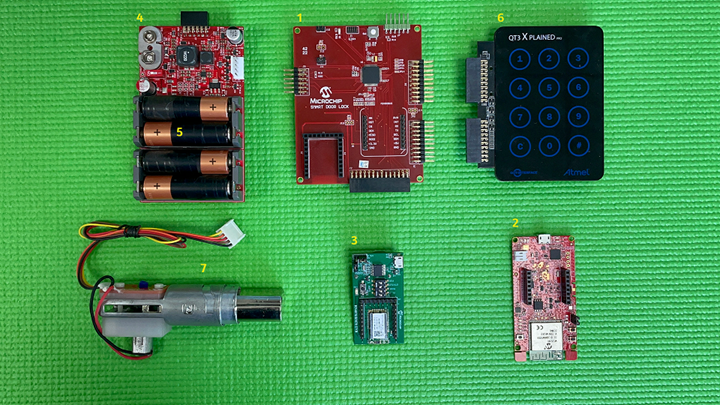
- PIC32CM LS60 Smart Lock Reference Board - 1.
- WFI32-IoT Development Board: EV36W50A - 2.
- BM70 Compact Demo Board: BM-70-CDB - 2.
- Power and Motor Control Board - 1.
- Four AA 1.5V alkaline batteries - 2.
- QT3 XPLAINED PRO EXTENSION KIT: ATQT3-XPRO - 1.
- Schlage Deadbolt with motor and custom printed interface for limit switch - 1.
- Contact Microchip technical support or local Microchip FAE for purchasing the Smart Door Lock kit bundle.
- Not provided as part of the Smart Door Lock kit bundle. Should be procured separately (through Microchip Direct or any third party vendor).
Software/Tools Used
This project has been verified to work with the following versions of software tools:
Refer to the Project Manifest present in harmony-manifest-success.yml under
the project folder firmware/src/config/default.
- Refer to the Release Notes to know the MPLAB X IDE and MCC Plug-in version
- Any Serial Terminal application, such as Tera Term terminal application.
Due to Microchip regularly updates tools, occasionally issue(s) could be discovered while using the newer versions of the tools. If the project does not seem to work and version incompatibility is suspected, it is recommended to double-check and use the same versions that the project was tested with. To download original version of MPLAB Harmony v3 packages, refer to the document How to Use the MPLAB Harmony v3 Project Manifest Feature (DS90003305).
Setup
The demo can be run in three different modes:
- Stand alone Touch keypad entry.
- Bluetooth control using BM70 Compact Demo Board and Smartphone application.
- Wi-Fi control using WFI32-IoT Development Board and AWS cloud.
Stand Alone Touch Keypad Entry
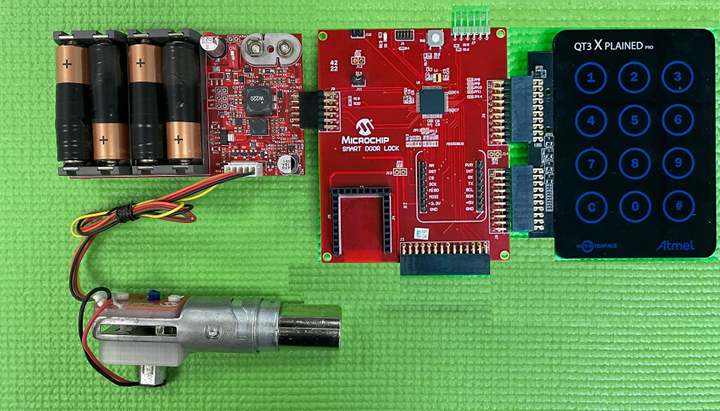
On powering the kit, the Smart Door Lock becomes functional and waits for the user input through the Touch Keypad to control the entry access. This kit allows up to five user-authenticated entries through the door lock, and each user has a user ID (1, 2, 3 , 4 and 5). Each user would require a passkey to enter through the Touch Keypad to open the lock.
User Entry/Passkey Authentication- Select a user ID (press any number from
2 to 5)1 and press
#. - Enter the 5-digit passkey2 corresponding to the
selected user and then press
#. - If the passkey is valid, the door opens.
- The door automatically relocks after 10 seconds.
- User ID 1 is for the temporary passkey generated using the mobile app. This user ID cannot be used without provisioning the mobile app.
- By default, all users (2, 3, 4 and 5)
have the same passkey -
12345.
The passkey of each user can be altered through the touch keypad using the steps outlined below.
- Long press
#button until all the touch LEDs blink in the Touch Keypad. - Enter the corresponding user ID which
needs to be changed and press
#1. - Enter the current passkey, and press
#to authenticate the user2. - Once authenticated, enter the new
passkey and press
#. - To reconfirm, enter the new passkey
again and press
#. - This configures the lock with the new Passkey.
- User ID 1 is for the temporary passkey generated using the mobile app.
- If this is the first-time
configuration, enter the default passkey (12345) for validation and press
#.
- Activate the touchpad using the palm.
- Only 5-digit passcodes can be stored.
However, any number of digits can be entered on the touch keypad; only the final 5
before pressing
#will be accepted.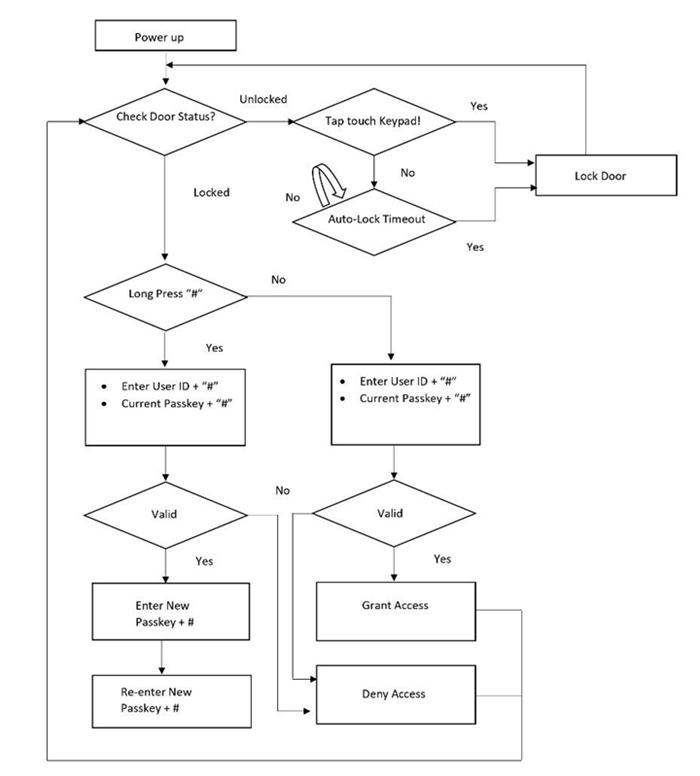
Bluetooth and Wi-Fi Control Using Smartphone
A custom Android application must be installed in the smartphone to control the door lock
module. Click here to download the .apk file for the app.
After installing the app, it needs to be provisioned so that the mobile and the door lock
device can be securely connected. Create a Microchip Technical
Support case for provisioning the smartphone with the bluetooth module.
Add the following details to the support case:
Case Reason: Hardware/Firmware SupportSubject: Smart Door Lock: Primary provisioning token requestPrimary Target Device: PIC32CM5164LS60064Case Description: < share BLE MAC ID of the BM70 board >.
Programming Hex File
Connect Atmel ICE or PICkit™ 4 or any other programmer that supports SWD programming to the J1 header on the PIC32CM LS60 Smart Lock reference board.
The pre-built hex file can then be programmed by following the below steps:
- Open MPLAB X IDE
- Close all existing projects in IDE, if any project is opened
- Go to
File>Import>Hex/ELF File - In the Import Image File window,
- Create Prebuilt Project,
- Click the Browse button to select the prebuilt hex file
- Select Device as PIC32CM5164LS60064
- Ensure the proper tool is selected under Hardware Tool and click the Next button
- Select Project Name and Folder,
- Select appropriate project name and folder and click the Finish button
- Create Prebuilt Project,
- In MPLAB X IDE, click the Make and Program Device button to program the device
- Follow the steps in Running the Demo section
Programming/Debugging Application Project
- Open the project
(
pic32cm_ls60_rd_smart_lock/firmware/pic32cm_ls60_rd_smart_lock/pic32cm_ls60_sdlgroup) in MPLAB X IDE - Ensure proper tool is selected to program/debug the application
- Build the code and program the device by clicking on the Make and Program button in MPLAB X IDE tool bar
- Follow the steps in Running the Demo section
- Windows OS has a maximum path length of 260 characters and a command-line limitation for Windows OS of 8191 characters. For details, see Path, File and Folder Name Restrictions section in MPLAB® X IDE User’s Guide.
- The TrustZone based project come with long path name. Therefore, the project build may fail due to exceeding Windows maximum path length.
- Workaround: Move the project folder to C:/ drive to reduce the project path length then open in MPLAB X IDE to build the project.
Running the Demo
- Upon completion of programming, the user needs to see the QT3 keypad light up and go back to sleep
- Activate the touchpad using the palm
- Select a user and enter the default
passkey
12345to open the deadbolt
12345.Reference
- For more details on the application usage, functionality and other details, refer to the PIC32CM LS60 Smart Door Lock User Guide.
Comments
- Getting Started with the PIC32CM LE00/LS60/LS60 Curiosity Pro Board
- Dual Developer Application Development Use Case with TrustZone on
SAM L11 Using MPLAB Harmony v3Note: Though this technical brief is on SAM L11 MCUs, the TrustZone concepts it describes applies to PIC32CM MC and PIC32CM LS60 MCUs.
- This application demo builds and
works out of box by following the instructions in Running the Demo section. If the
user needs to enhance/customize this application demo, should use the MPLAB Harmony v3
Software framework. Refer to the following links to setup and build the applications
using MPLAB Harmony.
- How to Setup MPLAB Harmony v3 Software Development Framework (DS90003232)
- How to Build an Application by Adding a New PLIB, Driver, or Middleware to an Existing MPLAB Harmony v3 Project (DS90003253)
- MPLAB Harmony v3 is configurable through MPLAB Code Configurator (MCC). Refer to the below links for specific instructions to use MPLAB Harmony v3 with MCC.