
3.1.1 Getting Started With the PIC32CM JH01 MCU Using the MCU Sample Kit 1
Description
This application demonstrates the basic feature of LED Toggling and Switch Press on the PIC32CM JH01 MCU using the MCU sample kit 1 on Proto board.
The LED toggles on a timeout basis and prints the LED toggling rate on the serial terminal through USB to UART bridge. The periodicity of the timeout will change from 500 milliseconds to 1 second, 2 seconds, 4 seconds, and back to 500 milliseconds every time the user presses the Switch on Proto board.
Modules/Technology Used
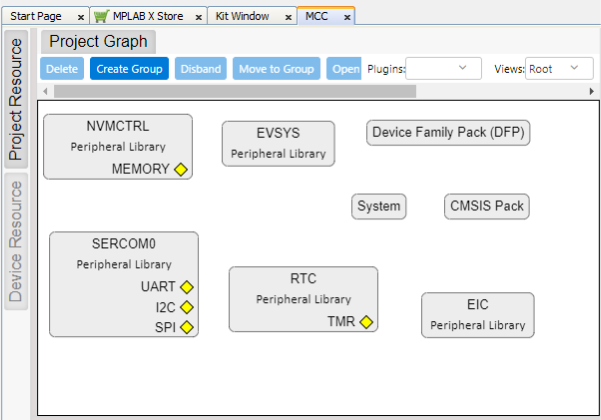
- Peripheral Modules
- EIC
- RTC
- GPIO
- DMAC
- SERCOM (USART)
Hardware Used
- MCU Sample Kit 1 (PIC32CM JH01 MCU)
- MPLAB SNAP or any Programmers/Debuggers (SWD)
- USB to UART Bridge
- Capacitor - 100 μF (filtering)
- Resistor - 1 kΩ (led current limiting)
- Resistor - 10 kΩ (pull-up)
- LED
- Switch
- Proto board
Software/Tools Used
This project has been verified to work with the following versions of software tools:
- MPLAB X IDE v6.25
- MPLAB Code Configurator Plugin v5.5.2
- MPLAB XC32 Compiler v4.60
- PIC32CM-JH_DFP v1.4.224
- USB to UART Bridge Driver CP2102 or any USB to UART Bridge Driver
Refer to the Project Manifest present in
harmony-manifest-success.yml under the project folder
firmware/src/config/mcu_sample_kit1.
- Refer to the Release Notes to know the MPLAB X IDE and MCC Plug-in version
- Any Serial Terminal application, such as Tera Term/PuTTY terminal application
Due to Microchip regularly updates tools, occasionally issue(s) could be discovered while using the newer versions of the tools. If the project does not seem to work and version incompatibility is suspected, it is recommended to double-check and use the same versions that the project was tested with. To download original version of MPLAB Harmony v3 packages, refer to the document How to Use the MPLAB Harmony v3 Project Manifest Feature (DS90003305).
Hardware Setup
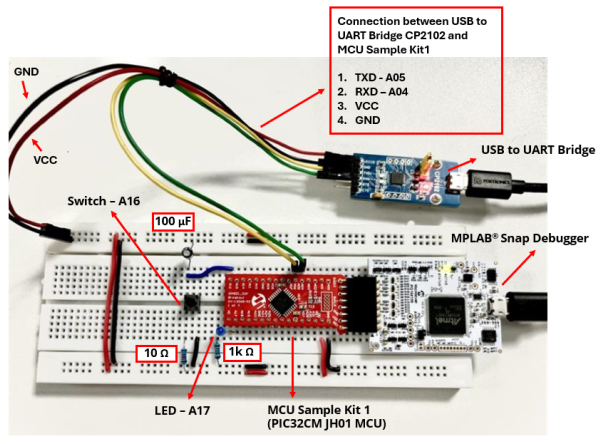
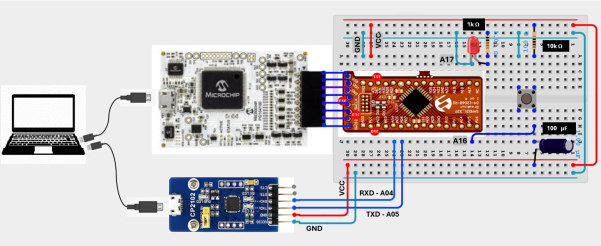
- Place the MCU Sample Kit 1 (PIC32CM JH01 MCU) on the Proto board.
- MPLAB Snap allows the
In-Circuit Debugger/Programmer to be used for debugging and programming
the application.Note: The MCU Sample Kit 1 (PIC32CM JH01 MCU) does not have a built-in debugger, so the MPLAB Snap is used for programming the application.
- Connect the MPLAB Snap to the programming header (J13) on the MCU Sample Kit 1 (PIC32CM JH01 MCU).
- Connect the MPLAB Snap to the host PC using a Type-A male to micro-B USB cable.
- Connect the user LED to pin A17 and the switch to pin A16 on the Proto board.
- Establish the connection
between the USB to UART Bridge and the MCU Sample Kit 1 (PIC32CM JH01 MCU) on the
Proto board using the following connections.
- TXD to A05
- RXD to A04
- VCC to VDD
- GND to GND
- Connect the USB to UART
bridge driver to the host PC using a Type-A male to micro-B USB
cable.
Connection Diagram
Programming Hex File
The pre-built hex file can be programmed by following the below steps.
Steps to program the hex file
- Open MPLAB X IDE
- Close all existing projects in IDE, if any project is opened
- Go to
File>Import>Hex/ELF File - In the Import Image File
window,
- Create Prebuilt Project,
- Click the Browse button to select the prebuilt hex file
- Select Device as PIC32CM5164JH01032
- Ensure the proper tool is selected under Hardware Tool and click the Next button
- Select Project
Name and Folder,
- Select appropriate project name and folder
- Click the Finish button
- Create Prebuilt Project,
- In MPLAB X IDE, click the Make and Program Device button to program the device
- Follow the steps in Running the Demo section
Programming/Debugging Application Project
- Open the project
(
mcu_sample_kit1_pic32cm_jh01_get_start/firmware/
                                get_start_pic32cm_jh01_mcu_sample_kit1.X
) in MPLAB X IDE - Right click on the project (get_start_pic32cm_jh01_mcu_sample_kit1) and click Set as Main Project button
- Ensure
MPLAB
                                SNAP
is selected as hardware tool to program/debug the application - Build the code and program the device by clicking on the Make and Program button in MPLAB X IDE tool bar
- Follow the steps in Running the Demo section
Running the Demo
- Open the Tera Term/PuTTY terminal application on the PC (from the Windows® Start menu by pressing the Start button)
- Set the baud rate to
115200Note: Ensure the USB to UART Bridge Driver is installed.
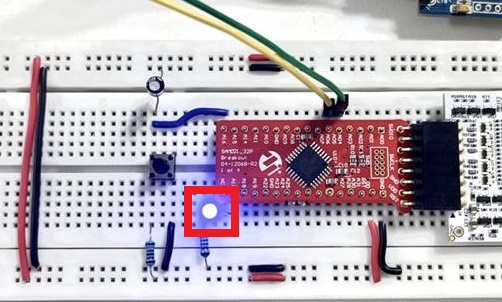
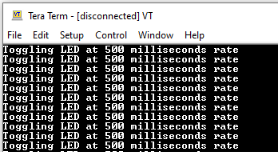
- An LED on the Proto board
connection toggles continuously on every timeout basis as shown in the
below figure
- The default periodicity
of the timeout is 500 milliseconds
- Press the switch on the
Proto board connection to change the default periodicity of the timeout
to one second and the LED toggling rate is displayed on the serial
terminal
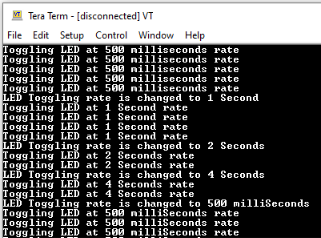
- Every subsequent pressing of the switch on the Proto board connection changes the periodicity of the timeout to 2 seconds, 4 seconds, 500 milliseconds, and back to 1 second in cyclic order
Comments
- Reference Training Module: Getting Started with Harmony v3 Peripheral Libraries on SAMC2x MCUs.
- This application demo
builds and works out of box by following the instructions in Running the
Demo section. If the user needs to enhance/customize this application
demo, the user need to use the MPLAB Harmony v3 Software framework.
Refer to the following links to setup and build the applications using
MPLAB Harmony.
- How to Setup MPLAB Harmony v3 Software Development Framework (DS90003232)
- How to Build an Application by Adding a New PLIB, Driver, or Middleware to an Existing MPLAB Harmony v3 Project (DS90003253)
- Video - How to Set up the Tools Required to Get Started with MPLAB® Harmony v3 and MCC
- Create a new MPLAB Harmony v3 project using MCC
- Update and Configure an Existing MHC-based MPLAB Harmony v3 Project to MCC-based Project