
1.4 Microchip Bluetooth Data (MBD) Application Help
Microchip Bluetooth Data (MBD) Application
Microchip Bluetooth Data (MBD) iOS/Android Application available in stores.
Microchip Bluetooth Data (MBD) Application Steps
- To start the OTAU process, the user needs to have the upgradable firmware bin
file that is generated in the previous step. The user can send this file by
email and then download it on the MBD app. The following screenshots show how to
save the downloaded file on the MBD app.
- iOS Mobile
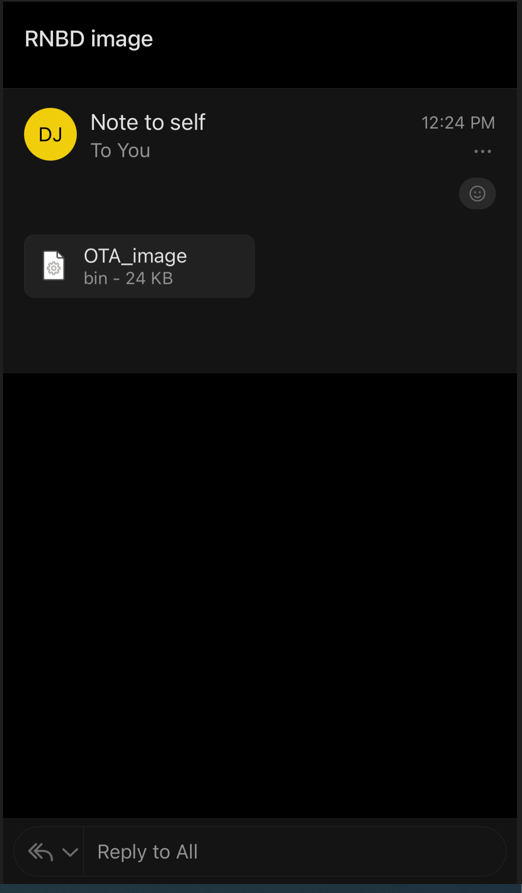
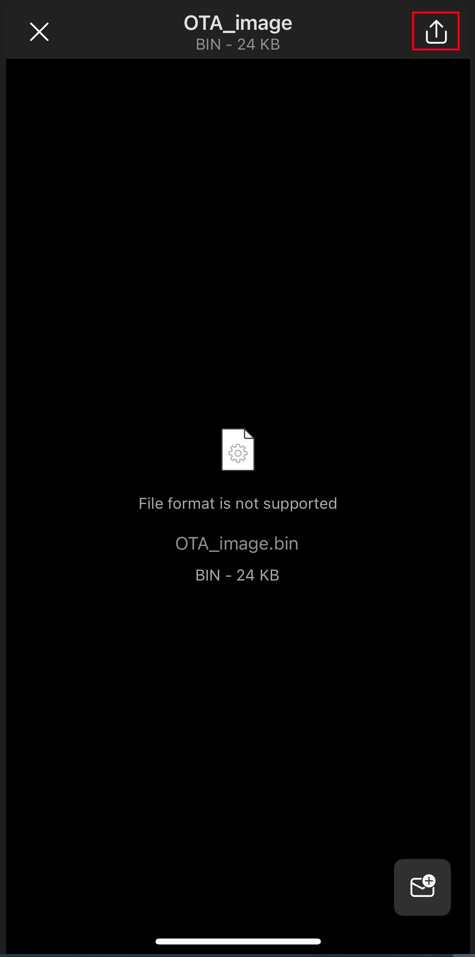
- Click the binary file attached and then select the Share
button located at the top right corner, as shown in the
screenshot below
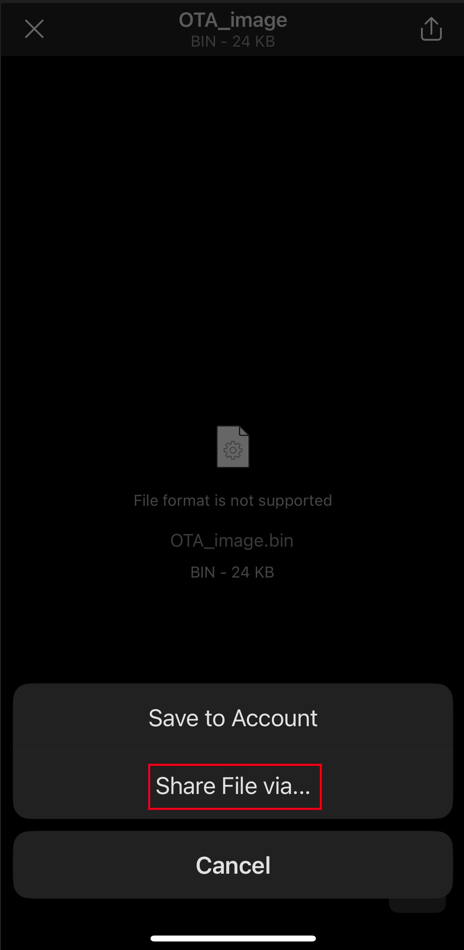
- After clicking the Share button, select the Share
File Via option and then choose Microchip Bluetooth
Data (MBD) app from the list of available options
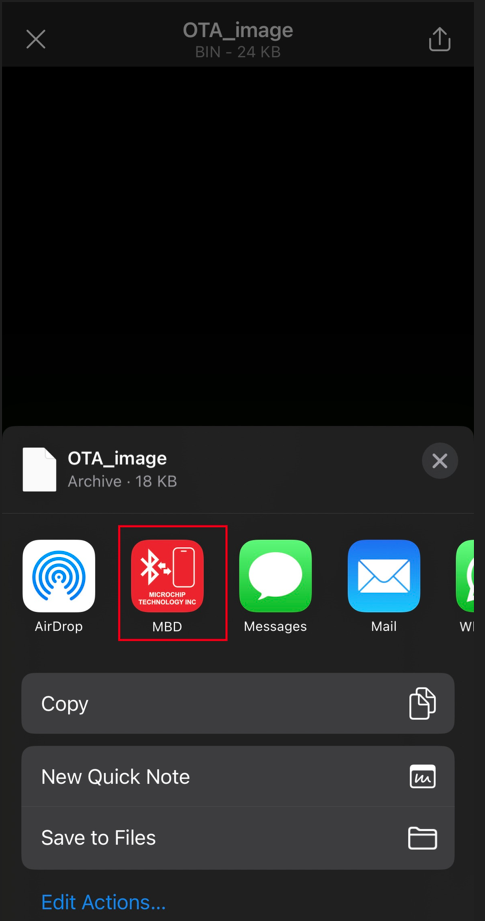
- By following these steps, the binary file will be saved to the phone and will be available in the list of binaries to select from MBD app
- Click the binary file attached and then select the Share
button located at the top right corner, as shown in the
screenshot below
- iOS Mobile
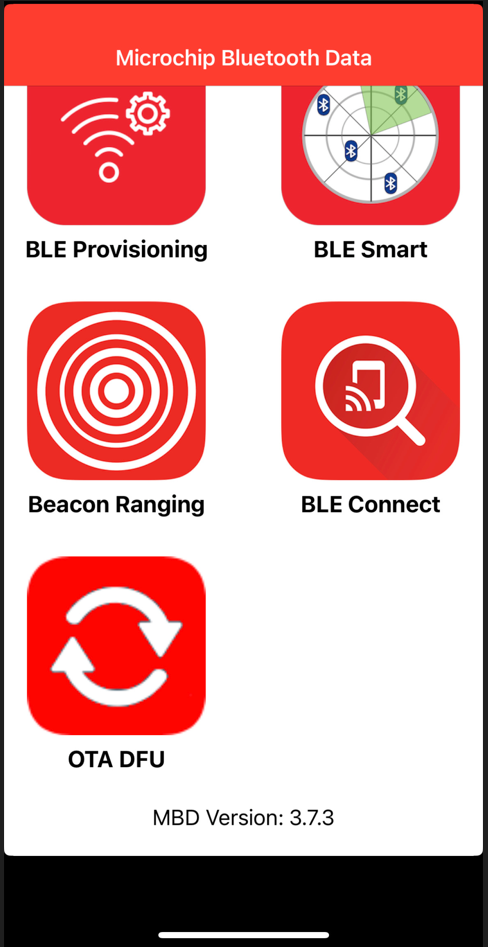
- Turn on mobile Bluetooth and select OTA DFU tab of Microchip Bluetooth
Data App on the mobile device.
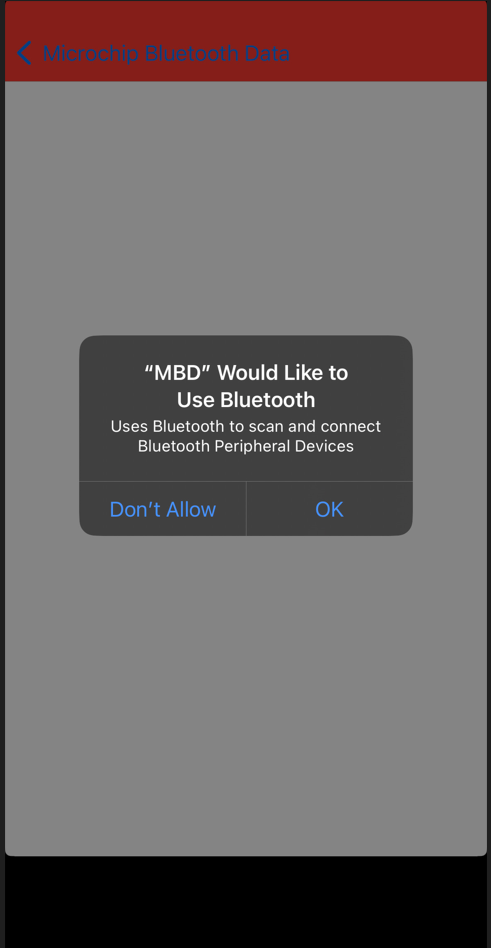
- MBD app will request for permission to use Bluetooth and press OK in the
pop-up window to grant the app access to the device's Bluetooth
functionality.
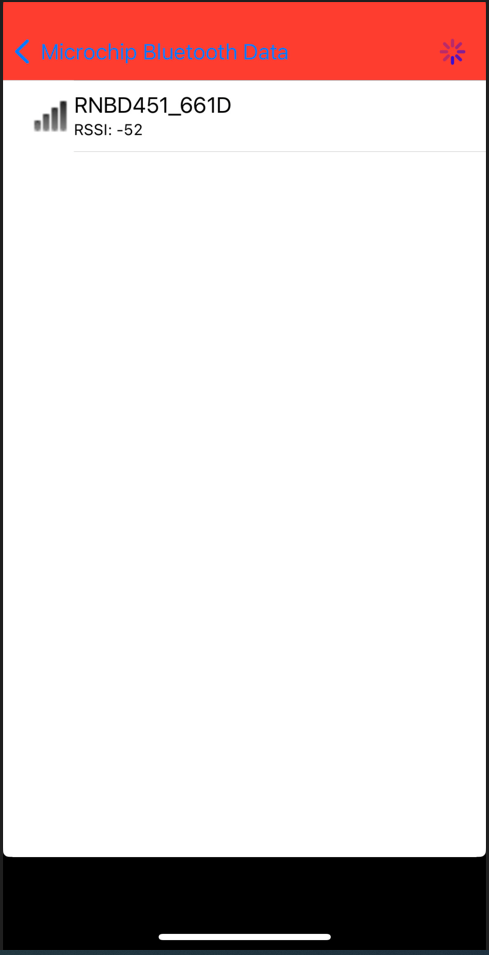
- Power On the OTA capable target device as per the hardware setup mentioned
earlier. Once the device is powered on, it should begin advertising. Click
SCAN button in mobile app and the device will be visible in scanned
list.
- Click the intended device from
the scanned list. Mobile app will establish a connection with OTA Target
device.
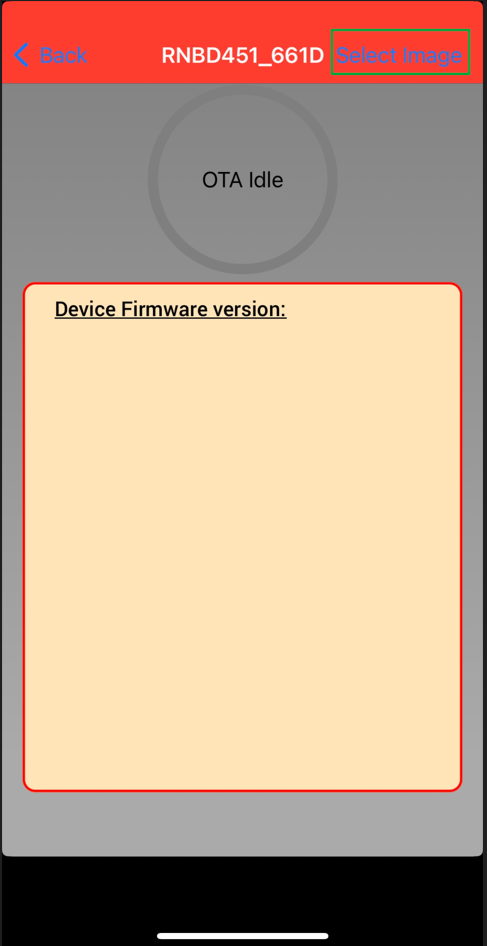
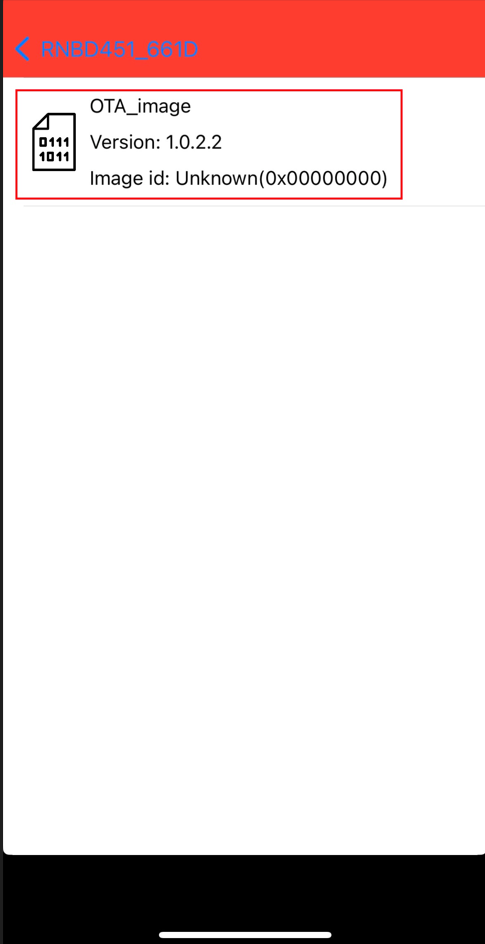
- Click Select Image option to choose the available firmware file.
- The OTAU firmware image file
copied in the Step 1 will be visible on screen. Click that image.
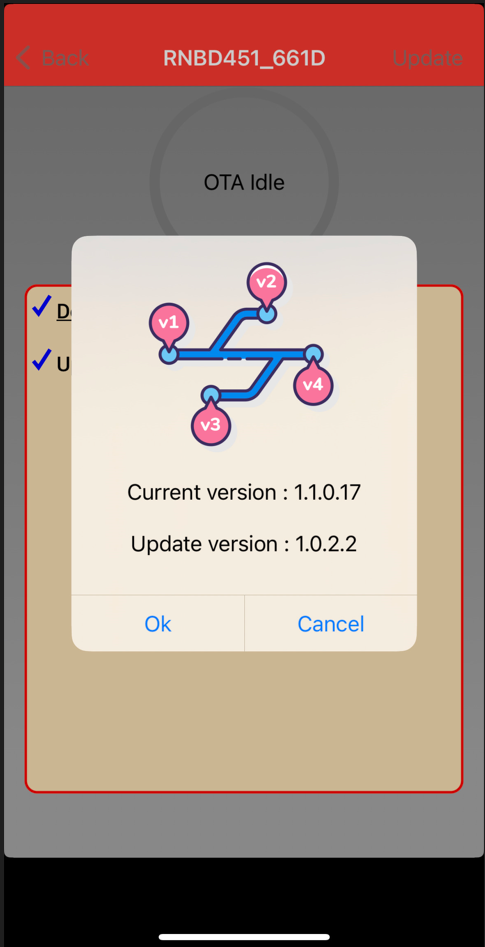
- After confirming the firmware version, user should press the OK button
within the MBD app to proceed with any necessary updates or changes.
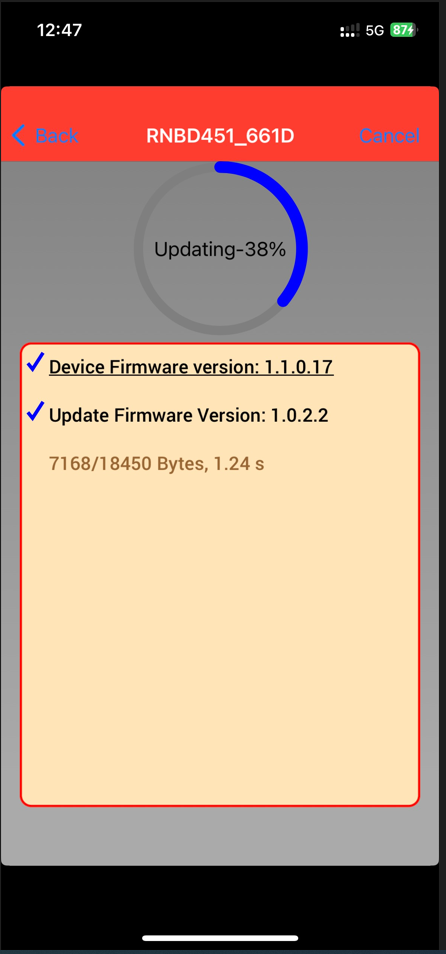
- MBD app will begin to show the progress of the update on the screen. This may
take a few seconds to complete, depending on the size of the firmware update.
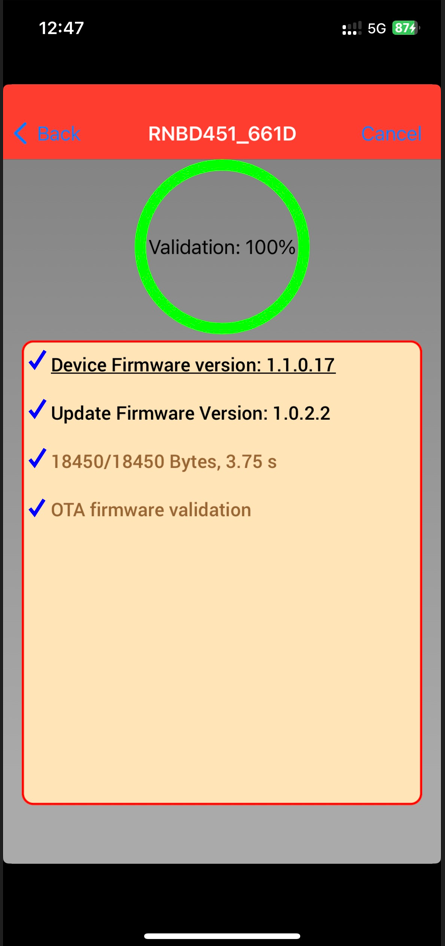
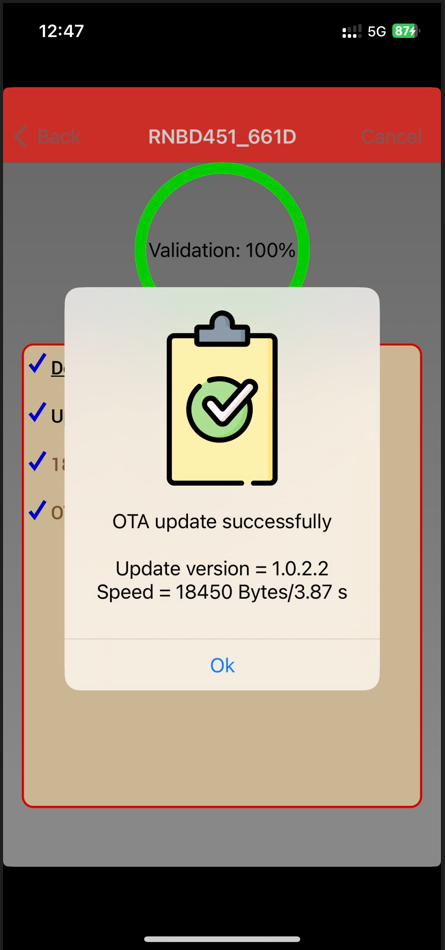
- The mobile app will display OTA Update successfully when the image
transfer is complete. Press OK and then device will perform
authentication of the image. If the verification passes, the device will show
the status to the user and MBD app will disconnect automatically.
- Android Mobile
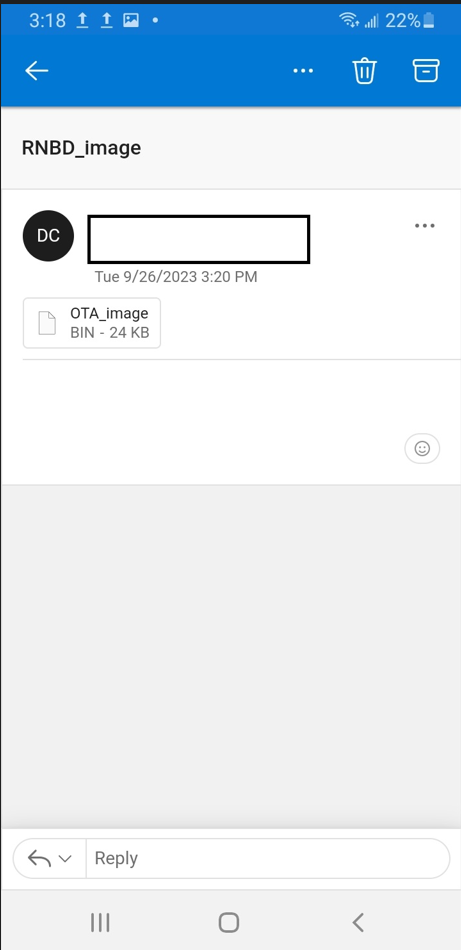
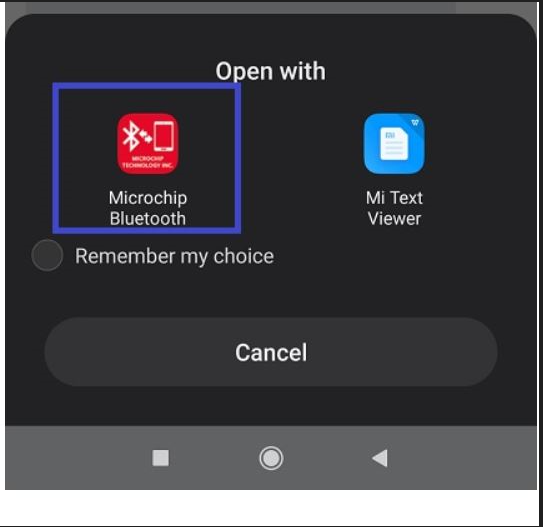
- Click the binary file
attached and then select Open with MBD app option, as shown in the
screenshot below
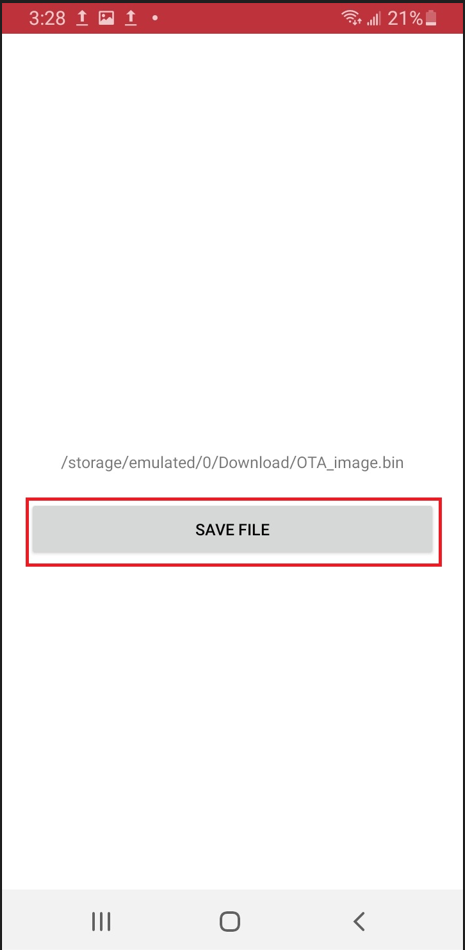
- Click Save button
as shown below
To do the firmware update process, simply follow the same steps as before starting from Step 2. Additionally, ensure that the necessary Bluetooth permissions are enabled for the MBD app during MBD app installation process.
During Step 5, the user should wait for the Connected message to appear on the screen before proceeding to Step 6 (only for Android Devices).
- Click the binary file
attached and then select Open with MBD app option, as shown in the
screenshot below