
1.1.2 PIC32CXMTSH-DB Evaluation Kit: Building and Running the I2C EEPROM Bootloader Applications
Downloading and Building the Application
To clone or download this application from GitHub, go to the main page of this repository and then click Clone button to clone this repo or download as zip file. This content can also be download using content manager by following these instructions.
Path of the application within the repository is apps/i2c_eeprom_bootloader/.
To build the application, refer to the following table and open the project using its IDE.
Bootloader Application
| Project Name | Description |
|---|---|
| bootloader/firmware/pic32cx_mtsh_db.X | MPLAB X Project for PIC32CXMTSH-DB Evaluation Kit |
Programmer Application
| Project Name | Description |
|---|---|
| app_programmer/firmware/pic32cx_mtsh_db.X | MPLAB X Project for PIC32CXMTSH-DB Evaluation Kit |
Setting Up PIC32CXMTSH-DB Evaluation Kit
-
To run the demo, the following additional hardware are required:
- Install the EEPROM 3 Click on to the mikroBUS 1
- Connect the Debug USB port on the board to the computer using a micro USB cable
Setting Up the Host Script
-
Refer to the UART Host Script Help for setting up the uart_host.py utility used to send the application binary from host PC
- There will be no reset command sent from host after programming by default
- Reboot command has to be sent separately only after successful programming to trigger bootloader from programmer application
Running the Application
- Open the bootloader project bootloader/firmware/pic32cx_mtsh_db.X in the IDE.
- Ensure that the
app_programmer/firmware/pic32cx_mtsh_db.X is added as a loadable
project to bootloader application.
- As the I2C EEPROM may not have any valid binary required by bootloader for the first time. Adding the app_programmer as loadable allows MPLAB X to create a unified hex file and program both these applications in their respective memory locations based on their linker script configurations.
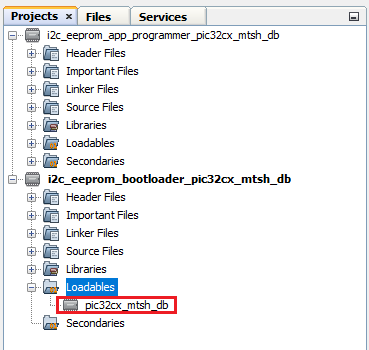
- Build and program the bootloader application using the IDE.
- Once programming is done,
bootloader starts execution and directly jumps to application space to run the
programmer application.
- LED_RED starts blinking every 500 ms indicating that the programmer application is running
- Open the programmer application project app_programmer/firmware/pic32cx_mtsh_db.X in the IDE.
-
Update app_programmer/firmware/src/app.c to reduce the LED blink duration from 500 ms to 100 ms as below.
APP_TIMER_DelayMs(100); - Clean and Build the project to generate the binary (Do not program the binary).
- Run the uart_host.py
from command prompt to program the updated programmer application binary in
I2C
EEPROM.
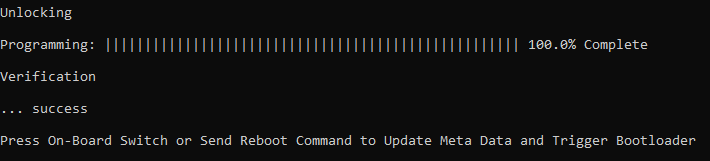
python <harmony3_path>/bootloader_apps_serial_memory/tools/uart_host.py -v -i <COM PORT> -d PIC32CX_MT -a 0x1002000 -f <harmony3_path>\bootloader_apps_serial_memory\apps\i2c_eeprom_bootloader\app_programmer\firmware\pic32cx_mtsh_db.X\dist\pic32cx_mtsh_db\production\pic32cx_mtsh_db.X.production.bin - Following figure shows output of
successfully programming the programmer application.
- LED_RED should still be blinking every 500 ms
- To update the firmware, the user
can either:
- Scroll Down button, then press RESET twice, OR
- Run uart_host.py from the command prompt to send a Reboot command, then press RESET. This process updates the MetaData and triggers the Bootloader, which programs the updated binary from QSPI Flash to Internal Flash.
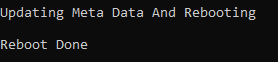
- Once Firmware Update is
successful, LED_RED should start blinking every 100 ms indicating updated
programmer application running.
- If there was any error, the user may need to power cycle the device to retry firmware upgrade
- Update
app_programmer/firmware/src/app.c to revert LED blink duration to
500 ms from 100 ms as
below.
APP_TIMER_DelayMs(500); - Clean and Build the project to generate the binary (Do not program the binary).
- Repeat Step 8-9.
- The user should see LED_RED still blinking every 100 ms
- Press the Switch SCROLL_DOWN and then Reset button to update MetaData and trigger Bootloader to program the updated binary from I2C EEPROM to Internal Flash.
- Once Firmware Update is
successful, LED_RED should start blinking every 500 ms indicating updated
programmer application running.
- If there was any error, the user may need to power cycle the device to retry firmware upgrade
Additional Steps (Optional)
-
To bootload any other application refer to the Application Configurations
Note: This application should have programming capabilities to I2C EEPROM. - Once done, repeat the applicable steps mentioned in Running the Application