
5.3 MPLAB® for VS Code® Setup to Use XC-DSC Language Tools
Find Visual Studio (VS) Code at Download Visual Studio Code, select the download for your operating system, and install it on your PC. Launch VS Code to search for and install MPLAB for VS Code in the Extension Marketplace (Ctrl + Shift + X).
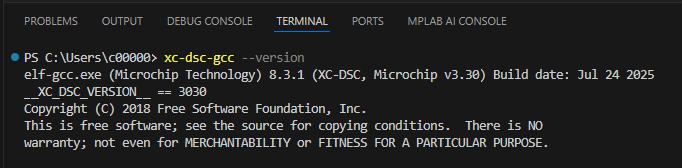
To verify that your compiler is visible to VS Code, use the integrated terminal to check the compiler version. If the Terminal is not visible, select (Ctrl + Shift +`). Then click in the terminal and enter xc-dsc-gcc --version. If there is an error, check that (1) the compiler is in the system Path and (2) the MPLAB extensions are updated to the latest versions.
For information on using MPLAB for VS Code extensions, see Get Started for MPLAB® X IDE Users New to Visual Studio Code (VS Code®).