
5.2.1.3 BLE Scanning Extended Advertisements
This section explains the scanning of Extended Advertisements
(ADV_EXT_IND, ADV_AUX_IND) on the PIC32-BZ6 Curiosity board. For a successful scan of Extended
Advertisement user needs to have a broadcaster transmitting these Advertisements. In
BLE, a central or observer always starts with scanning.
Using the “scan_ext_adv” application example in combination with “ext_adv” example will enable users to test features like long range (Coded PHY) and sending data (1M, 2M, Coded PHY) over extended advertisements
Users can choose to either run the precompiled Application Example hex file provided on the PIC32-BZ6 Curiosity Board or follow the steps to develop the application from scratch.
It is recommended to follow the examples in sequence to understand the basic concepts before progressing to the advanced topics.
Recommended Readings
-
Getting Started with Application Building Blocks – See Building Block Examples from Related Links.
-
Getting Started with Peripheral Building Blocks – See Central Devices from Related Links.
-
FreeRTOS and BLE Stack Setup – See Central - FreeRTOS BLE Stack and App Initialize from Related Links.
-
BLE Software Specification – See MPLAB® Harmony Wireless BLE in Reference Documentation from Related Links.
Hardware Requirement
| S. No. | Tool | Quantity |
|---|---|---|
| 1 | PIC32-BZ6 Curiosity Board | 2 |
| 2 | Micro USB cable | 2 |
SDK Setup
Refer to Getting Started with Software Development from Related Links.
Software Requirement
To install Tera Term tool, refer to the Tera Term web page in Reference Documentation from Related Links.
Smart phone App
None
Programming the Precompiled Hex File or Application Example
Using MPLAB® X IPE:
- Central Device – Import and
program the precompiled hex file:
<Discover Path>\wireless_apps_pic32_bz6\apps\ble\building_blocks\central\scan_ext_adv\precompiled_hex\scan_ext_adv.X.production.signed.hex. - Peripheral Device – Import and
program the precompiled hex file:
<Discover Path>\wireless_apps_pic32_bz6\apps\ble\building_blocks\peripheral\ext_adv\precompiled_hex\ext_adv.X.production.signed.hex. - For detailed steps, refer to
Programming a Device in MPLAB® IPE in
Reference Documentation from Related Links.Note: Ensure to choose the correct Device and Tool information.
Using MPLAB® X IDE:
- Perform the following the steps mentioned in Running a Precompiled Example. For more information, refer to Running a Precompiled Application Example from Related Links.
- Central Device – Open and program
the application
scan_ext_adv.Xlocated in<Discover Path>\wireless_apps_pic32_bz6\apps\ble\building_blocks\central\scan_ext_adv\firmware. - Peripheral Device – Open and
program the application
ext_adv.Xlocated in<<Discover Path>\wireless_apps_pic32_bz6\apps\ble\building_blocks\peripheral\ext_adv\firmware. -
For more details on how to find the Discover path, refer to Download Application Example from Discover in Running a Precompiled Application Example from Related Links.
Demo Description
This application example enables users to do scanning of extended advertisements
(ADV_EXT_IND, ADV_AUX_IND PDU's). Scanning of
CODED PHY (125 kbps) is enabled by default in the application. After programming the
application example, on Reset “ExtAdv Scan Enable Success” will be printed in the
terminal window and if there is a broadcaster sending extended advertisements the
Blue LED will toggle. If this broadcaster is another PIC32WM-BZ6204UE module programmed with “ext_adv.X”
example it will print the application data sent in auxiliary packet -
ADV_AUX_IND on TeraTerm. Toggling of Blue LED denotes the
reception of extended advertisements.
- Baud Rate/Speed – 115200 (as configured in SERCOM configuration)
- Parity – None
- Data Bits – 8
- Stop Bits – 1
- Flow Control – None
Testing
Users must use another PIC32-BZ6 Curiosity board configured as BLE Extended Advertisements, see BLE Extended Advertisements from Related Links.
This section assumes that a user has already programmed the ext_adv
and scan_ext_adv application on two PIC32-BZ6 Curiosity boards.
- Board 1 – PIC32-BZ6 Curiosity board programmed with Ext
Adv.
- Open TeraTerm and
configure as mentioned below:Terminal Settings
- Baud Rate/Speed – 115200 (as configured in SERCOM configuration)
- Parity – None
- Data Bits – 8
- Stop Bits – 1
- Flow Control – None
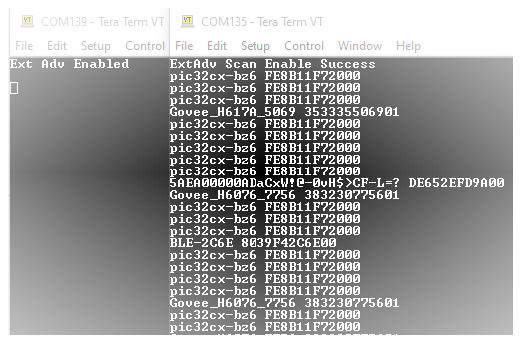
- Reset the board, Upon reset, “Ext Adv Enable” message is displayed on the TeraTerm.
- Open TeraTerm and
configure as mentioned below:
- Board 2 – PIC32-BZ6 Curiosity Board Programmed with Scan Ext
Adv.
- Open TeraTerm and
configure as mentioned below:Terminal Settings
- Baud Rate/Speed – 115200 (as configured in SERCOM configuration)
- Parity – None
- Data Bits – 8
- Stop Bits – 1
- Flow Control – None
- Reset the board. Upon reset, “ExtAdv Scan Enable Success” message is displayed on the TeraTerm.
- ext_adv scan will output all the extended advertisement and display the device name with MAC address will be displayed as soon the PIC32WM-BZ6204UE module performs an extended advertisement scan.
- Open TeraTerm and
configure as mentioned below:
Blue LED is toggled when the observer device receives these extended advertisements. Sometimes, the PIC32CX-BZ6 device appears twice simultaneously on Tera Term. During this time, the User LED toggles rapidly, indicating no actual toggle occurred.
Developing the Application from Scratch using MCC
- Create a new harmony project. For more details, see Creating a New MCC Harmony Project from Related Links.
- Import component configuration –
This step helps users setup the basic components and configuration required to
develop this application. The imported file is of format
.mc4and is located in the path<Discover Path>\wireless_apps_pic32_bz6\apps\ble\building_blocks\central\scan_ext_adv\firmware\scan_ext_adv.X\.Note: Import and export functionality of component configuration will help users to start from a known working setup of configuration. - Accept dependencies or satisfiers when prompted.
- Verify if the project graph
window has all the expected configuration.
Figure 5-20. Project Graph 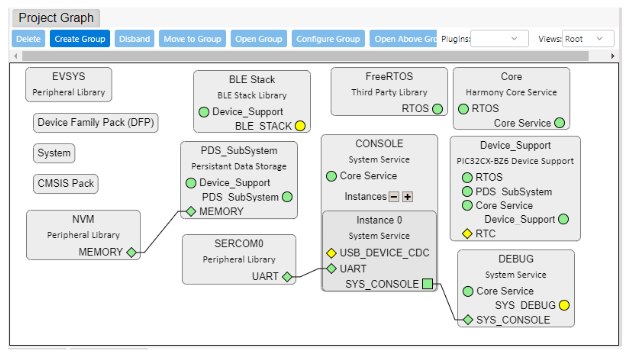
Verifying Scan Configuration
- Click on the BLE_Stack
component in project graph, to open component configuration and configure as
illustrated in the following figure.
Figure 5-21. BLE Stack Configuration 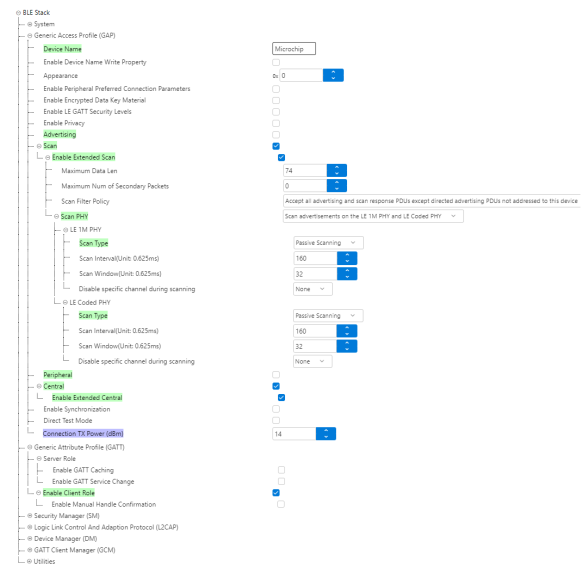
Generating a Code
For more details on code generation, refer to MPLAB Code Configurator (MCC) Code Generation from Related Links.
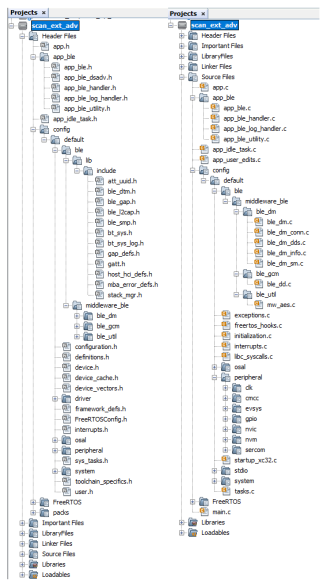
Files and Routines Automatically Generated by the MCC
.C.initialization.c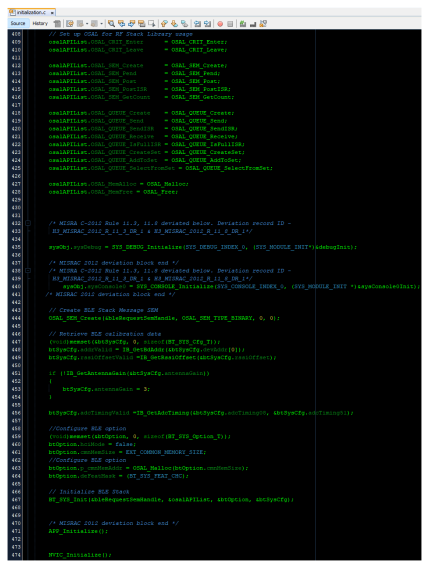
app_ble.c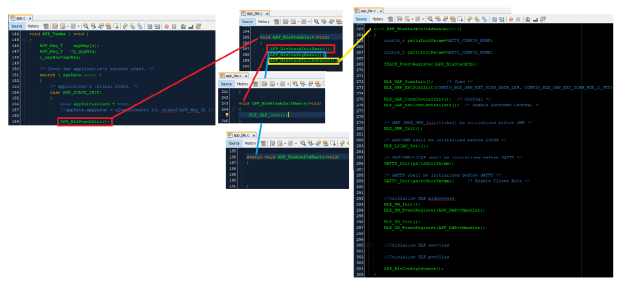
Configuration for scanning extended advertisements is autogenerated
Autogenerated, Advertisement Data Format| Source Files | Usage |
|---|---|
app.c | Application State machine, includes calls for Initialization of all BLE stack (GAP,GATT, SMP, L2CAP) related component configurations |
|
| Source Code for the BLE stack related
component configurations, code related to function calls from
app.c |
|
| GAP, GATT, SMP and L2CAP Event handlers |
app_user_edits.c | User code change instruction |
Note:app.cis auto generated and has a state machine based application code sample. Users can use this template to develop their application.
Header Files
ble_gap.h(Header Files\config\default\ble\lib\include\) - This header file contains BLE GAP functions and is automatically included in theapp.cfile
Function Calls
MCC generates and adds the code to initialize the
BLE Stack GAP, GATT, L2CAP and SMP in APP_BleStackInit()
function
APP_BleStackInit()is the API that will be called inside the applications initial stateAPP_STATE_INITinapp.c
User Application Development
Include
- Include the user action. For more information, refer to User Action from Related Links.
definitions.hin all the files where UART will be used to print debug information
Note:definitions.his not specific to just UART peripheral, instead it must be included in all application source files where peripheral functionality will be exercised
Enabling Scanning of Extended Advertisement
-
BLE_GAP_SetExtScanningEnable (
BLE_GAP_SCAN_MODE_OBSERVER,
                            &extScan
);
APP_STATE_INIT in
app.c// Enable Scanning the Ext Adv
uint16_t ret;
BLE_GAP_ExtScanningEnable_T extScan;
extScan.duration = 0x0;
extScan.enable = true;
extScan.filterDuplicates = BLE_GAP_SCAN_FD_ENABLE;
extScan.period = 0x0000;
ret = BLE_GAP_SetExtScanningEnable(BLE_GAP_SCAN_MODE_OBSERVER, &extScan );
if (ret == MBA_RES_SUCCESS)
SERCOM0_USART_Write((uint8_t *)"ExtAdv Scan Enable Success\r\n", 28);app.c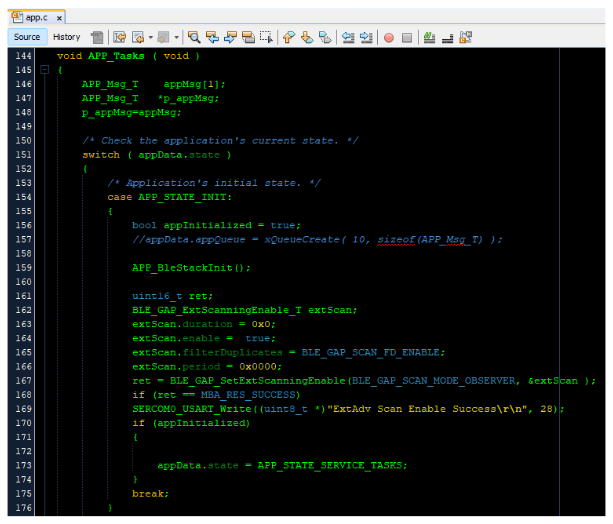
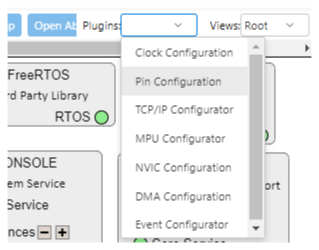
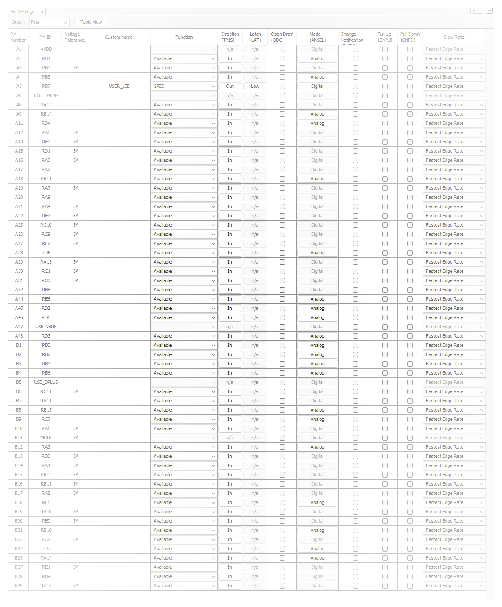
Configuring LED
Scanning Results
-
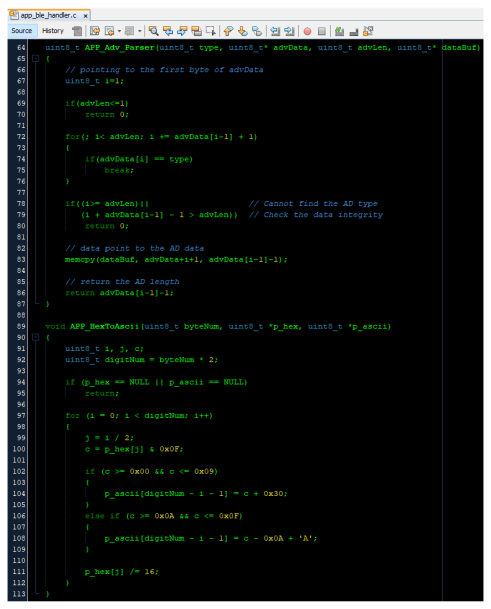
The APP_Adv_Parser() function is used to extract the device name and the APP_HexToAscii() function is used to print the device name in a readable form. The code for the functions is below:
uint8_t APP_Adv_Parser(uint8_t type, uint8_t* advData, uint8_t advLen, uint8_t* dataBuf)
{
    // pointing to the first byte of advData
    uint8_t i=1;

    if(advLen<=1)
        return 0;

    for(; i< advLen; i += advData[i-1] + 1)
    {
        if(advData[i] == type)
            break;
    }

    if((i>= advLen)||                    // Cannot find the AD type
       (i + advData[i-1] - 1 > advLen))  // Check the data integrity
        return 0;

    // data point to the AD data
    memcpy(dataBuf, advData+i+1, advData[i-1]-1);

    // return the AD length
    return advData[i-1]-1;
}

void APP_HexToAscii(uint8_t byteNum, uint8_t *p_hex, uint8_t *p_ascii)
{
    uint8_t i, j, c;
    uint8_t digitNum = byteNum * 2;

    if (p_hex == NULL || p_ascii == NULL)
        return;

    for (i = 0; i < digitNum; i++)
    {
        j = i / 2;
        c = p_hex[j] & 0x0F;

        if (c >= 0x00 && c <= 0x09)
        {
            p_ascii[digitNum - i - 1] = c + 0x30;
        }
        else if (c >= 0x0A && c <= 0x0F)
        {
            p_ascii[digitNum - i - 1] = c - 0x0A + 'A';
        }

        p_hex[j] /= 16;
    }
}
BLE_GAP_EVT_EXT_ADV_REPORTevent is generated upon finding advertisements on legacy channels
// code snippet to print ext adv data
   uint8_t adLen, adContent[BLE_GAP_ADV_MAX_LENGTH];
 uint8_t printLen, printBuf[50];
// GPIO will toggle if it can scan any EXT ADV PDU
 USER_LED_Toggle();
 memset(adContent, 0 , BLE_GAP_ADV_MAX_LENGTH);
 memset(printBuf, 0, sizeof(printBuf));
 printLen = 0;
 // Check the advertisement if it contains Complete name field
 adLen= APP_Adv_Parser(0x09, p_event->eventField.evtExtAdvReport.advData,
 p_event->eventField.evtExtAdvReport.length, adContent);
 //Found
 if(adLen)
 {
 // Print out the Complete name
 memcpy(printBuf, adContent, adLen);
 printLen = adLen;
printBuf[printLen++] = ' ';
// Print out the BD address
APP_HexToAscii(GAP_MAX_BD_ADDRESS_LEN,p_event->eventField.evtAdvReport.addr.addr, printBuf+printLen);
printLen+=GAP_MAX_BD_ADDRESS_LEN*2;

printBuf[printLen++] = '\r';
printBuf[printLen++] = '\n';
SERCOM0_USART_Write(printBuf, printLen);

}app_ble_handler.c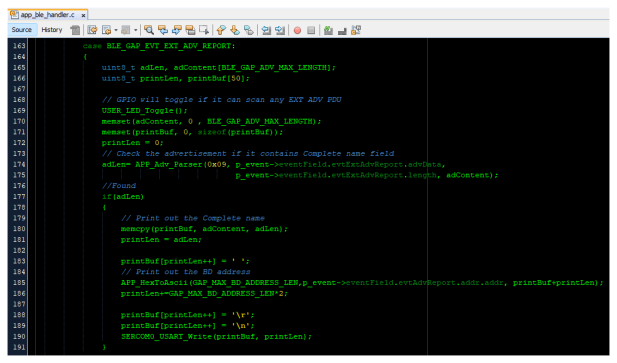
Where to Go from Here
See Central Devices from Related Links.