
1.2.7.1.2 Manual Calibration
The calibration constants must be calculated according to the metrology library documentation. A spreadsheet is included in the distribution package to make the procedure easier. This spreadsheet calculates the proper values of the CAL_x registers and generates the commands to be sent to the board through the serial console to update the registers. This section explains how to calibrate the board using the spreadsheet. These are the steps to follow:
- Follow the instructions described in the previous chapter, ensuring that the board is properly configured, paying special attention to the configuration related to the hardware connected to the metrology inputs.
- Open the
METROLOGY_CONFIGURE_CALIBRATE_CALCULATE.xlsx spreadsheet, and go to the
"Step-by-step guide" sheet, and follow the steps. Note: The steps described may slightly change depending on the version of the Excel file.
- Configure the input sources and the meter tester if used (meter form, voltage, current, and so on). In this example, a PIC32CXMTC board will be calibrated using a WECO tester, configured to generate 30A and 220V to each phase, at 50 Hz. Phase shift between voltage vectors is 120º, and phase shift between voltage and current vectors is 60º for each phase, but any convenient values of voltage, current and phase angle may be used.
- Write these values in the yellow
cells.
Figure 1-65. Input Sources Configuration 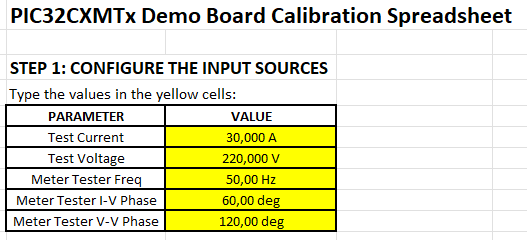
- If voltage-to-voltage phase
correction is desired, write “1” in the yellow cells. If enabled, the metrology
library will correct the phase shift between the voltage vectors. Then select
channels to calibrate, in this case, for PIC32CXMTC channels A, B and C are
selected.
Figure 1-66. Voltage-to-Voltage Phase Correction and Channel Selection 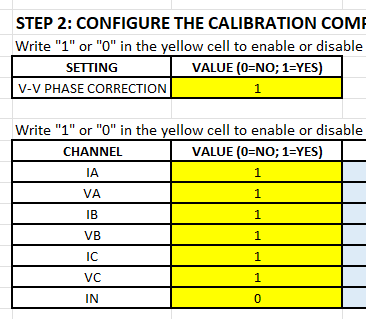
- Set the calibration constants to the
default values (unity gain and zero phase adjustments). To do that, copy the green
and purple cells from STEP 3 to the metrology console. The constants can be sent as
groups using the DCM command.
Figure 1-67. Set Default Values, Individually or as Groups 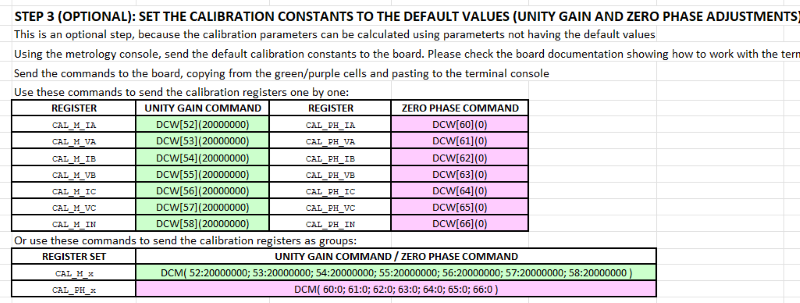
>DCM( 52:20000000; 53:20000000; 54:20000000; 55:20000000; 56:20000000; 57:20000000; 58:20000000 )
Set 52 Is Ok !
Set 53 Is Ok !
Set 54 Is Ok !
Set 55 Is Ok !
Set 56 Is Ok !
Set 57 Is Ok !
Set 58 Is Ok !
>DCM( 60:0; 61:0; 62:0; 63:0; 64:0; 65:0; 66:0 )
Set 60 Is Ok !
Set 61 Is Ok !
Set 62 Is Ok !
Set 63 Is Ok !
Set 64 Is Ok !
Set 65 Is Ok !
Set 66 Is Ok !
>
The previous Console output shows the Group Register write commands. Registers can be written one by one, using the commands in the first table from STEP 3. This is useful if not all channels are being configured and just certain channels need to be set to the default values.
- Energize the board, applying the established configuration (in the WECO software, this is done through the JOG command), and wait for the meter tester to stabilize the voltage and current sources.
- On Terminal, enter the following
commands: PAR[U], PAR[I], PAR[A], DCR, DSR and DAR. Then, copy and paste the results
to the blue cells.
Figure 1-68. Read the Measured Parameters From the Board (Commands PAR) 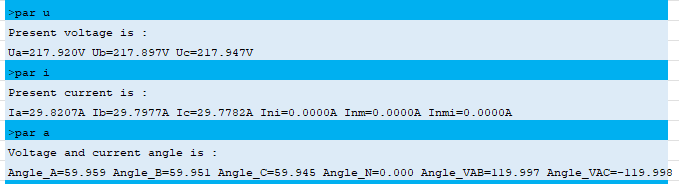
Figure 1-69. Read DSP_CONTROL Registers (Command DCR) 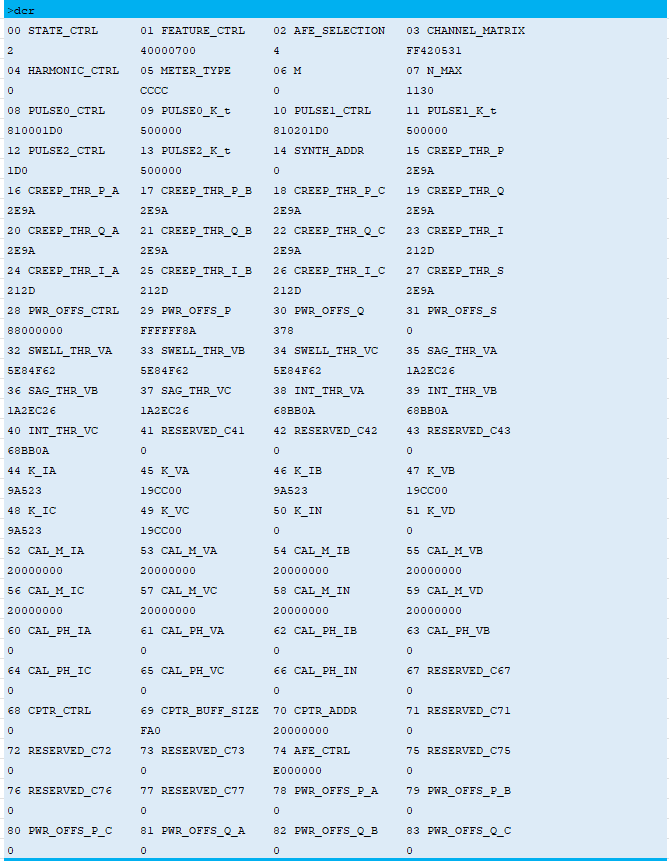
Figure 1-70. Read DSP_STATUS Register (Command DSR) 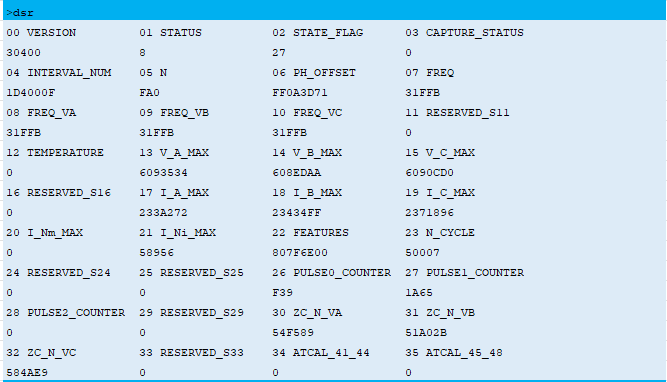
Figure 1-71. Read DSP_ACC Register (Command DAR) 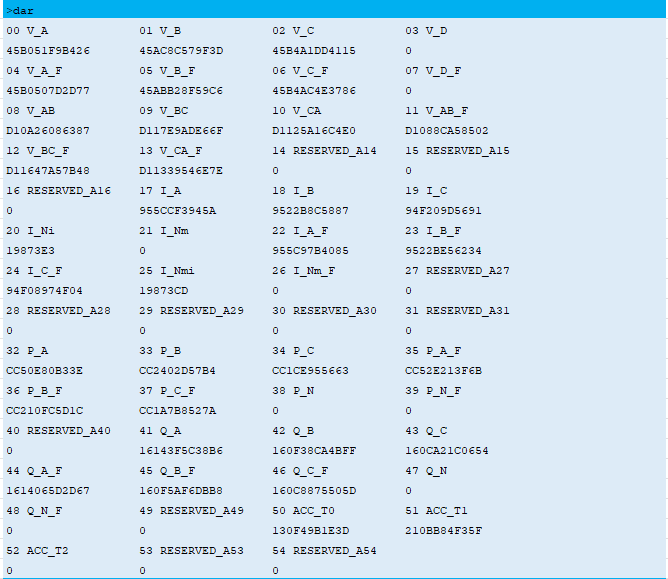
- The spreadsheet calculates the
calibration constants (the CAL_x registers) and generates the commands to be sent to
the board through the serial console. The user can choose between:
- Sending the calibration
constants as groups using the DCM command; able to send multiple commands at
the same time. To do that, copy the green and purple cells to the metrology
console.
Figure 1-72. Set Calibration Constants as Groups 
>DCM(52:20314A3F; 53:204E2A66; 54:20378E9C; 55:204F0A40; 56:203CD20D; 57:204D2A95) Set 52 Is Ok ! Set 53 Is Ok ! Set 54 Is Ok ! Set 55 Is Ok ! Set 56 Is Ok ! Set 57 Is Ok ! >DCM(60:FFF611A8; 61:0; 62:FFF628F3; 63:FFFF67BA; 64:FFF6733C; 65:1B95F) Set 60 Is Ok ! Set 61 Is Ok ! Set 62 Is Ok ! Set 63 Is Ok ! Set 64 Is Ok ! Set 65 Is Ok ! > - Sending the calibration
constants one by one by using the DCW command. To do that, copy the green
and purple cells to the metrology console.
Figure 1-73. Set Calibration Constants Individually 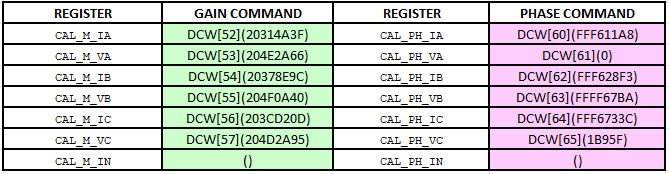
- Sending the calibration
constants as groups using the DCM command; able to send multiple commands at
the same time. To do that, copy the green and purple cells to the metrology
console.
- Read the control registers (command
DCR) to check that the calibration registers were successfully updated (values in
bold):
>DCR 00 STATE_CTRL 01 FEATURE_CTRL 02 HARMONIC_CTRL 03 METER_TYPE 2 700 0 CCC 04 M 05 N_MAX 06 PULSE0_CTRL 07 PULSE1_CTRL 0 1130 810601D0 810201D0 08 PULSE2_CTRL 09 P_K_t 10 Q_K_t 11 I_K_t 110401D0 500000 500000 500000 12 S_K_t 13 CREEP_THR_P 14 CREEP_THR_Q 15 CREEP_THR_I 500000 2E9A 2E9A 212D 16 CREEP_THR_S 17 PWR_OFFS_CTRL 18 PWR_OFFS_P 19 PWR_OFFS_Q 2E9A 0 0 0 20 PWR_OFFS_S 21 SWELL_THR_VA 22 SWELL_THR_VB 23 SWELL_THR_VC 0 5EAB918 5EAB918 5EAB918 24 SAG_THR_VA 25 SAG_THR_VB 26 SAG_THR_VC 27 K_IA 1A2EC26 1A2EC26 1A2EC26 4D291 28 K_VA 29 K_IB 30 K_VB 31 K_IC 19CC00 4D291 19CC00 4D291 32 K_VC 33 K_IN 34 CAL_M_IA 35 CAL_M_VA 19CC00 4D291 FCF598F 2114B35A 36 CAL_M_IB 37 CAL_M_VB 38 CAL_M_IC 39 CAL_M_VC FD3B6B1 21131224 FCF598F 2114B35A 40 CAL_M_IN 41 CAL_PH_IA 42 CAL_PH_VA 43 CAL_PH_IB 20000000 FFF9AAD4 0 FFE72DEF 44 CAL_PH_VB 45 CAL_PH_IC 46 CAL_PH_VC 47 CAL_PH_IN 28A7B0 FFF9AAD4 28A7B0 0 48 CPTR_CTRL 49 CPTR_BUFF_SIZE 50 CPTR_ADDR 51 Reserved1 3F00 0 0 0 52 Reserved2 53 Reserved3 54 ATS_CTRL_20_23 55 ATS_CTRL_24_27 0 0 1010103 7010101 56 ATS_CTRL_28_2B 57 Reserved4 58 PWR_OFFS_P_A 59 PWR_OFFS_P_B 3 0 0 0 60 PWR_OFFS_P_C 61 PWR_OFFS_Q_A 62 PWR_OFFS_Q_B 63 PWR_OFFS_Q_C 0 0 0 0 > - Wait for about 2 seconds to let the DSP data to be stabilized.
- On Terminal, enter PAR commands to read the measurements and check that the obtained values are accurate.
- Repeat steps 8 through 12 to recalibrate the meter again if the accuracy does not meet the specification requirement.
- When accuracy meets the requirement,
save the calibration constants into non-volatile memory by using the terminal
command DCS.
Figure 1-74. Correct Results After Calibration 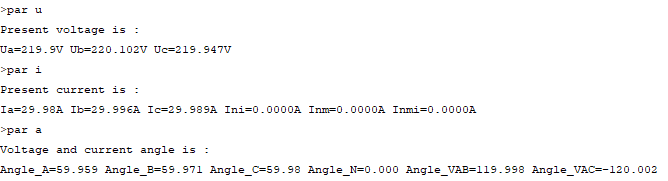
>DCS
Save Data Is Ok !
>