
3.9.3 BLE Fitness Tracker Application on PIC32CM LS00 Curiosity Nano + Touch Evaluation Kit
Description
This application demonstrates a wearable health monitoring solution based on Microchip products. It measures and displays the user’s heart rate (in beats per minute - bpm) on a low-power e-paper display and transmits the data to the Microchip Bluetooth Data (MBD) Android or iOS mobile application through Bluetooth Low Energy (BLE).
The application is designed using Arm TrustZone with separate Secure and Non-Secure domains, as described below:
Secure Application:
The Secure application reads the heart rate information from the MikroElektronika Heart Rate 9 Click board. It then sends the heart rate data to the RNBD451 Bluetooth module, which transmits the data to the Microchip Bluetooth Data (MBD) mobile application. The Secure application shares the computed heart rate value with the Non-Secure application through a Non-Secure Callable (NSC) interface.
Non-Secure Application:
The Non-Secure application receives the heart rate value from the Secure domain using the NSC interface and displays it on the MikroElektronika E-Ink E-Paper Display 2.9" (296 × 128). After updating the display, the Non-Secure application places the system into Standby mode to conserve power. The device remains in Standby until the user presses the switch SW0 to start the next heart rate measurement cycle.
Modules/Technology Used
- Secure Application:
- Peripheral Modules
- Port
- EIC
- PM
- Sys Tick
- SERCOM (SPI)
- SERCOM (USART)
- RNBD451
- Secure STDIO Library
- Peripheral Modules
- Non-Secure
Application:
- Peripheral Modules
- Port
- PM
- Sys Tick
- SERCOM (USART)
- Peripheral Modules
Hardware Used
Software/Tools Used
This project has been verified to work with the following versions of software tools:
Refer to the Project Manifest present in
harmony-manifest-success.yml under the project folder
firmware/src/config/pic32cm_ls00_cnano.
- Refer to the Release Notes to know the MPLAB X IDE and MCC Plug-in version
- Install Microchip Bluetooth Data Android App in the Android mobile or
- Install Microchip Bluetooth Data iOS App in the iOS mobile
Due to Microchip regularly updates tools, occasionally issue(s) could be discovered while using the newer versions of the tools. If the project does not seem to work and version incompatibility is suspected. It is recommended to double-check and use the same versions that the project was tested with. To download original version of MPLAB Harmony v3 packages, refer to the document How to Use the MPLAB Harmony v3 Project Manifest Feature (DS90003305).
RNBD451 Add On Board Setup
- Connect the PIC32CM LS00 Curiosity Nano + Touch evaluation kit to the host PC as a USB device through a Type-A male to micro-B USB cable connected to Micro-B USB (Debug USB) port
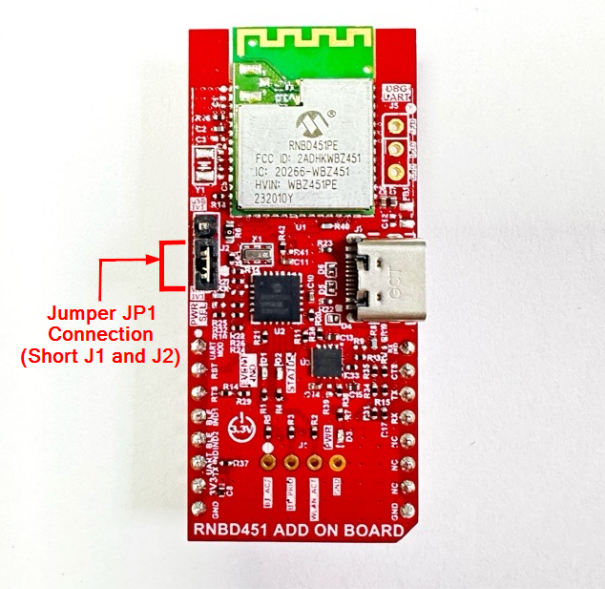
- Adjust the PWR SEL (Power
Supply Selection) Jumper JP1 to the mikro 3V3 setting (i.e., short J1
and J2), designated for the mikroBUS interface on the RNBD451 Add-On
Board as indicated in the below image. By doing so, this configuration
enables the RNBD module to draw power directly from the MCU's power
supply. This eliminates the necessity of using an additional USB cable
to power up the RNBD451 Add-On Board.
Setup
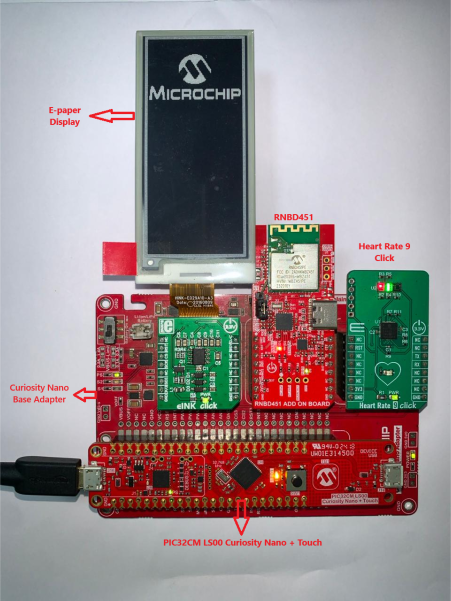
- Mount PIC32CM LS00 Curiosity Nano + Touch evaluation kit on CNANO56_HOST_CONN (U3) connector of Curiosity Nano Base board
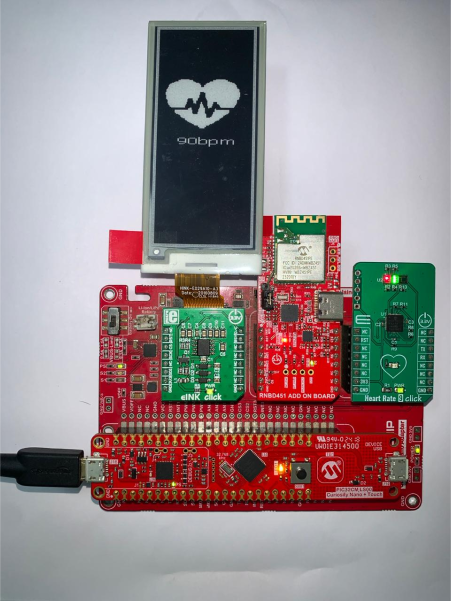
- Mount Heart Rate 9 click board on mikroBUS 3 connector of Curiosity Nano Base board
- Mount the E-Ink E-Paper display 2,9" 296x128 dots display(E-Ink click + E-Ink E-Paper 2.9 296x128 display) on the mikroBUS 1 connector of Curiosity Nano Base board
- Mount the RNBD451 Add On Board on to mikroBUS 2 connector of Curiosity Nano Base board
- Power the PIC32CM LS00
Curiosity Nano + Touch evaluation kit from a host PC through a Type-A
male to Micro-B USB cable connected to Micro-B port (J105)
Programming Hex File
The prebuilt hex file can be programmed by following the below steps.
- Open MPLAB X IDE
- Close all existing projects in IDE, if any project is opened
- Go to
File>Import>Hex/ELF File - In the Import Image File
window,
- Create Prebuilt
Project,
- Click the Browse button to select the prebuilt hex file
- Select Device as PIC32CM5164LS00048
- Ensure the proper tool is selected under Hardware Tool and click the Next button
- Select Project
Name and Folder,
- Select appropriate project name and folder and click the Finish button
- Create Prebuilt
Project,
- In MPLAB X IDE, click the Make and Program Device button to program the device
- Follow the steps in Running the Demo section
Programming/Debugging Application Project
- Open the group projects
(
pic32cm_ls00_ble_fitness_tracker/firmware/ble_fitness_tracker_pic32cm_ls00_cnanogroup) in MPLAB X IDE - Ensure
PIC32CM
                                LS00 Curiosity Nano + Touch
is selected as hardware tool to program/debug the application - Build the code and program the device by clicking on the Make and Program button in MPLAB X IDE tool bar
- Follow the steps in Running the Demo section
Running the Demo With BLE
Before proceeding, install the Microchip Bluetooth Data in an Android or iOS Smartphone.
- Enable Bluetooth and location from Smartphone settings.
- Perform reset by unplugging and re-plugging the power cable of PIC32CM LS00 Curiosity Nano + Touch evaluation kit.
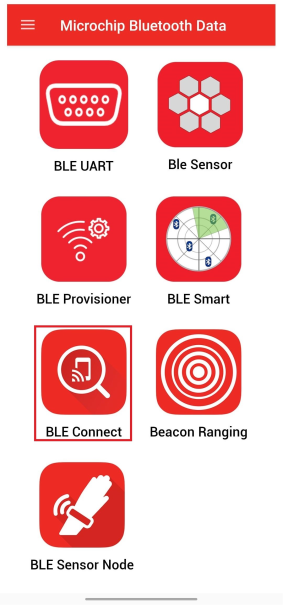
- Parallelly, open the
Microchip Bluetooth Data (MBD) Android or iOS app from the Smartphone and
tap on Bluetooth Connect icon on the dashboard. If prompted, allow the
application to turn on Bluetooth.
- After power-up, the application displays the Microchip logo on the E-Ink E-Paper display 2,9" 296x128 dots display and initializes the Heart Rate sensor.
- After successful initialization of the Heart Rate sensor, two integrated LEDs on the Heart Rate 9 Click lights up.
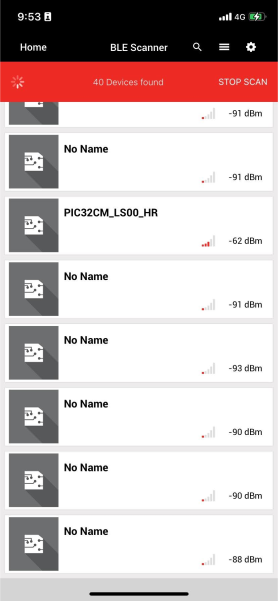
- Scan for Bluetooth devices by
tapping START SCAN option on the MBD APP.The RNBD451 device should appear as
PIC32CM_LS00_HRin the list of Bluetooth devices.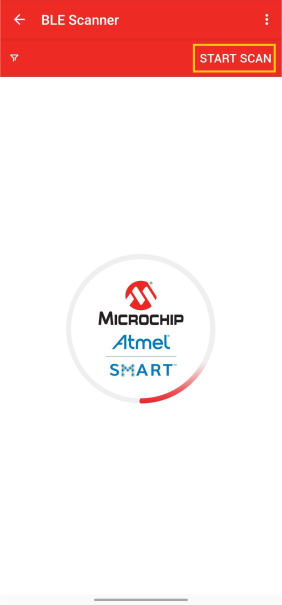
- Stop the scan and connect the
MCHP BLE device by clicking on PIC32CM_LS00_HR.This will establish a connection between the MBD BLE application and the RNBD451 BLE device.
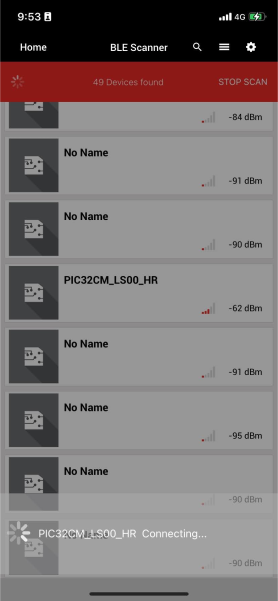
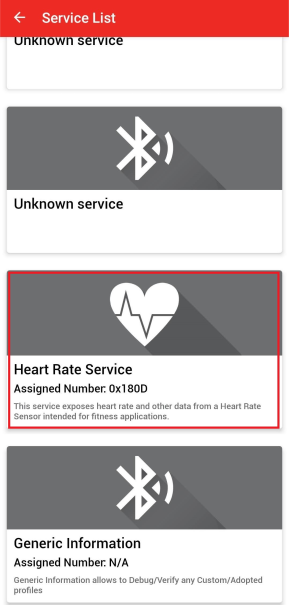
- Once BLE device is connected,
the application shows the different services screen. Scroll down and tap on
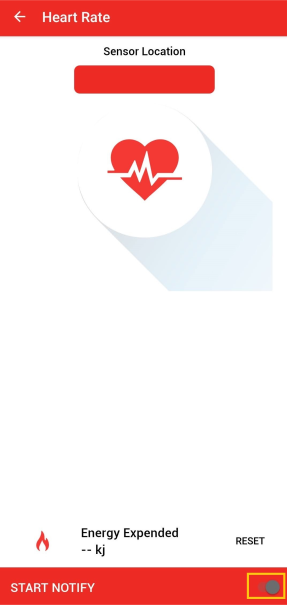
the Heart Rate Service, it will redirect to Sensor Location screen.
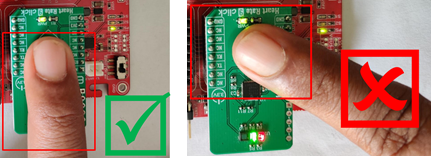
- Press the switch SW0 and keep
the finger on Pulse Detection Indicator on the Heart Rate 9 Click sensor as
shown in the figure below, do not push or put pressure on the sensor (the
Heart Rate values may not be accurate).
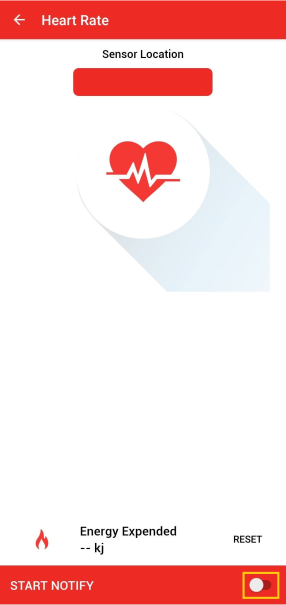
- In the bottom right corner of
the Sensor Location screen, disable and enable the Notify Button.
 Note: Ensure Smartphone screens are not turned off and do not switch to any other App(s) on the Smartphone.
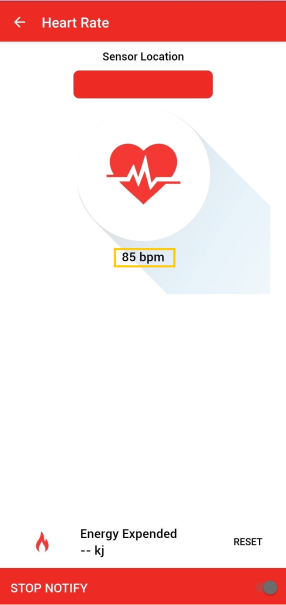
 - The Heart Rate value (in bpm
- beats per minute) gets displayed on the Sensor Location screen as shown in
the figure below.
- The Non-Secure application turns on the LED0 on PIC32CM LS00 Curiosity Nano + Touch evaluation kit once the Heart Rate Information is received from the Secure application.
- The Non-Secure application displays the received Heart Rate on the E-Ink E-Paper Display 2.9" (296x128 dots).
- The application puts the CPU into Standby mode once the Heart Rate is successfully displayed on the E-Ink E-Paper Display 2.9" (296x128 dots).
- User can press the switch SW0 again to wake up the CPU and start measuring the Heart Rate.
Comments
- Reference Training Module: Arm TrustZone Getting Started Application on PIC32CM LS60 (Arm Cortex-M23) MCUs
- This application demo
builds and works out of box by following the instructions in Running the
Demo section. If the user needs to enhance/customize this application
demo, should use the MPLAB Harmony v3 Software framework. Refer to the
following links to setup and build the applications using MPLAB
Harmony.
- How to Setup MPLAB Harmony v3 Software Development Framework (DS90003232)
- How to Build an Application by Adding a New PLIB, Driver, or Middleware to an Existing MPLAB Harmony v3 Project (DS90003253)
- Video - How to Set up the Tools Required to Get Started with MPLAB® Harmony v3 and MCC
- Create a new MPLAB Harmony v3 project using MCC
- Update and Configure an Existing MHC-based MPLAB Harmony v3 Project to MCC-based Project