
2.2.2 Connection Procedure
Follow these steps:
- Plug a USB cable between your PC and the target SAM device’s USB port.
- Perform a power-on reset.
- Ensure that a corresponding COM port is available on the host machine operating system. If not, make sure that the necessary USB drivers are installed or try to update the USB CDC driver for your device.
- After connection, the USB Device
Manager displays a new item.
- On a Windows® host:
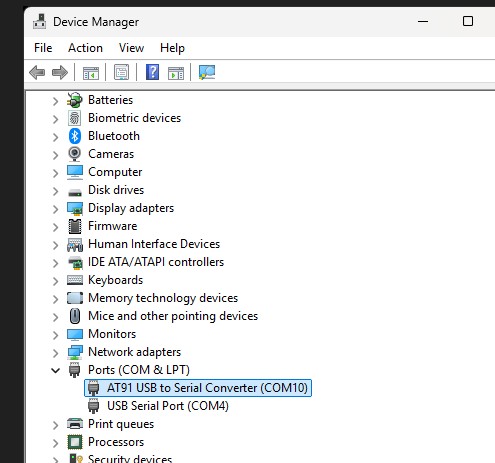
- On a Linux® host operating
system, use
ls /dev/tty*to locate the device, for example/dev/ttyACM0:Figure 2-2. Linux Terminal Console 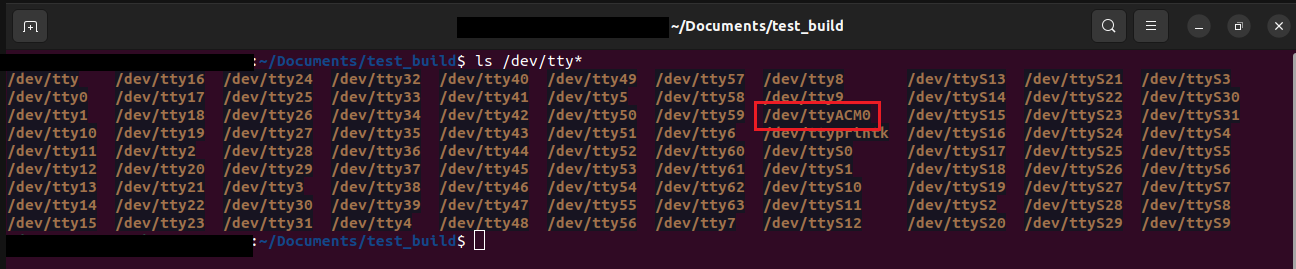
- On a Windows® host:
- To verify if the USB communication
link to the target’s SAM-BA® Monitor is established, open the
hyper terminal/emulator on the communication port related to the target and type
V#. The ROM code version of the device will be displayed.Figure 2-3. Tera Term Console (Windows) 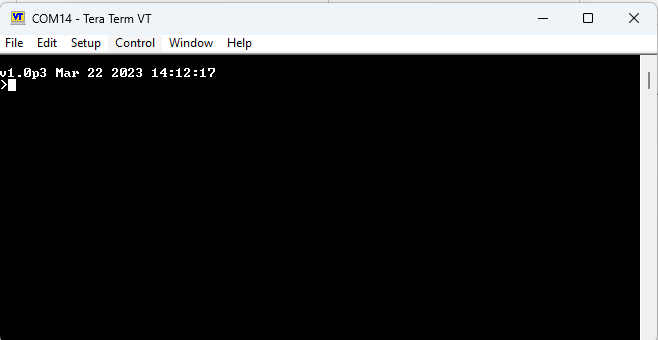
Figure 2-4. Emulator Console (Linux) 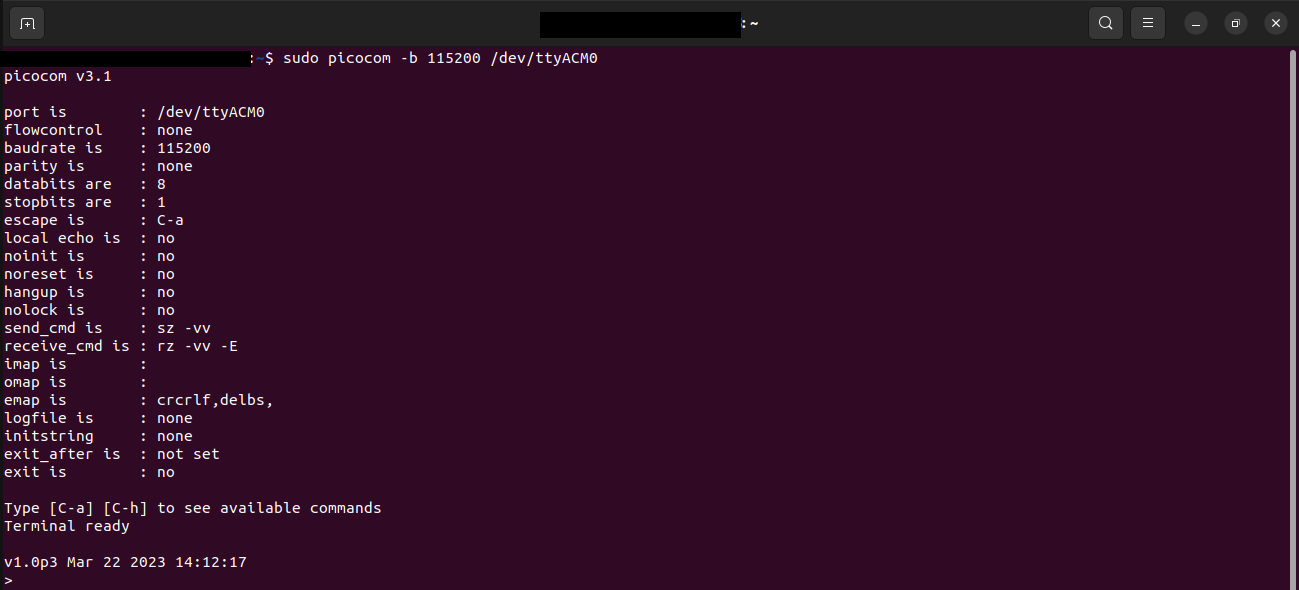
Note:
- Make sure the USB COM port is not open in any terminal emulator/console.
- Open the current terminal session in the SAM-BA installation directory, or add the installation path to the system path environment variable to allow execution from any terminal session. Refer to Appendix 3: Configuring the path Variable on a Linux® Machine.