Launch the GUI by double-clicking the file named
SolarBatteryChargerGUI.exe, located in the folder where the files were
unzipped.
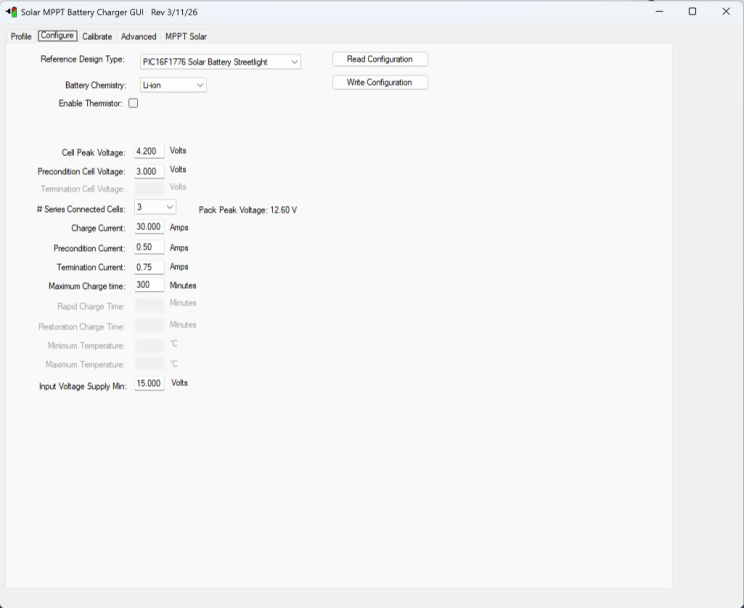
When the Solar Battery Charger GUI window
appears, select the Configure tab and update all settings according to the
specific parameters of the battery (Figure 2-1). Note that all voltage
parameters are specified per cell, not per battery pack.Figure 2-1. Solar Battery Charger
GUI
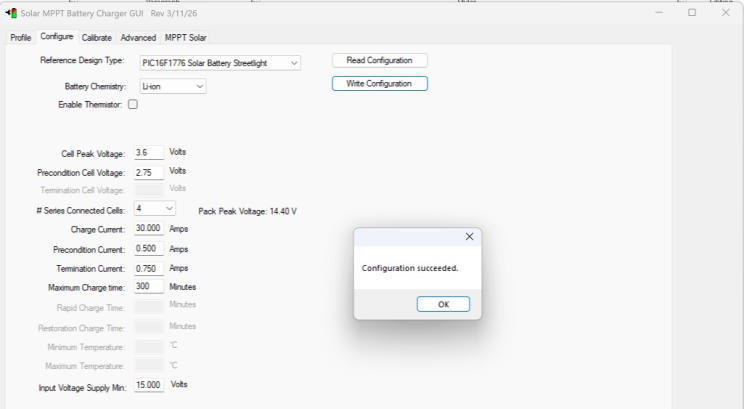
After all parameters have been entered correctly,
click Write Configuration. If all range checks are satisfied and the data is
successfully transferred to the target memory and validated, a “Configuration
succeeded.” message will appear (Figure 2-2).
Figure 2-2. Configuration
Succeeded Confirmation
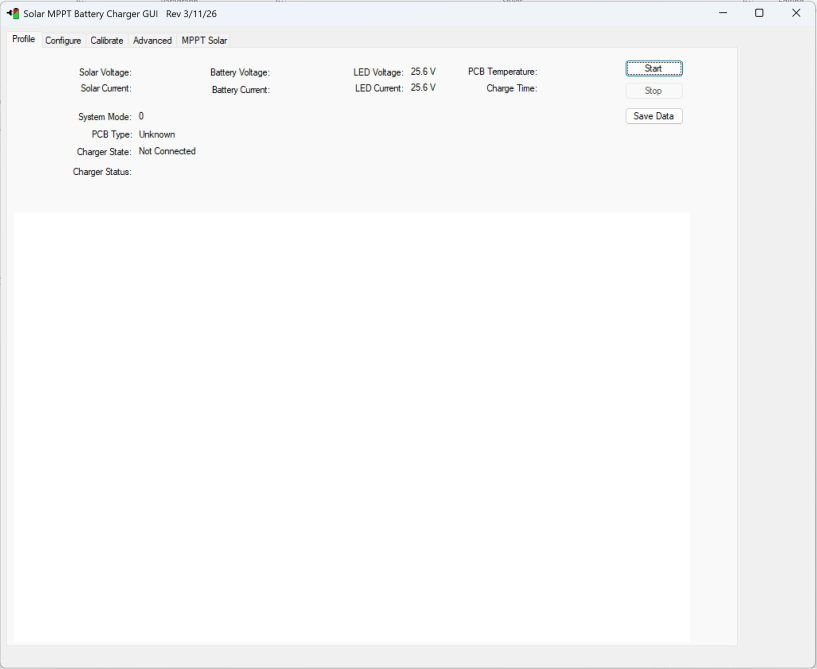
Select the Profile tab and click
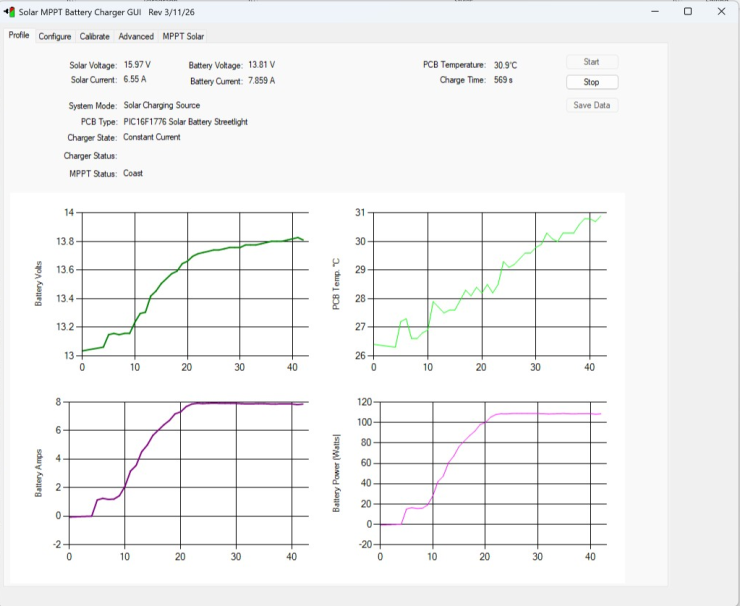
Start (Figure 2-3).Figure 2-3. Profile TabThe firmware will attempt to start the converter. Once the connection is
established, the GUI will update the telemetry data once per second (Figure 2-4).Figure 2-4. Telemetry Data
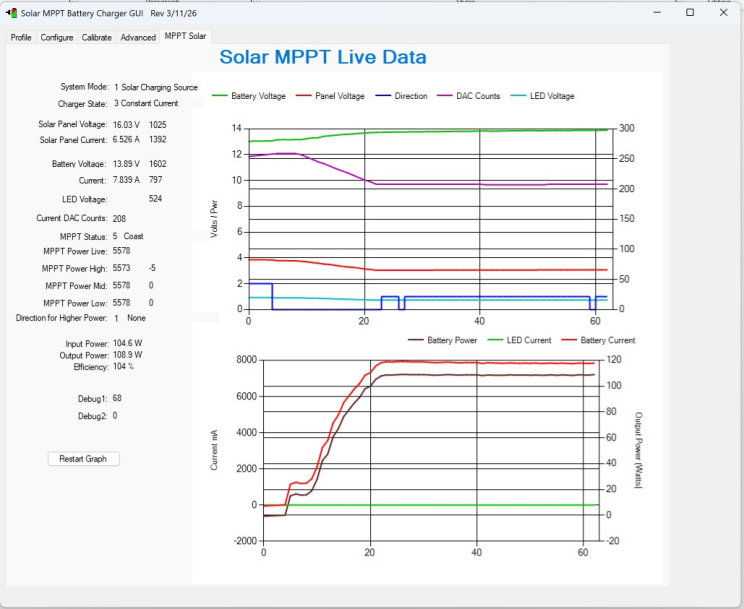
Select the MPPT Solar tab to view
complete information about the MPPT routine, input and output power and graphs of
multiple parameters (Figure 2-5).
Figure 2-5. Solar MPPT Live Data
DS70005659A
The online versions of the documents are provided as a courtesy. Verify all content and data in the device’s PDF documentation found on the device product page.