
1.3.6 SAMA7D65-Curiosity Board: Building and Running the OTA Bootloader With Serial Flash Media Applications
Downloading and Building the Application
To clone or download this application from Github, go to the main page of this repository and then click Clone button to clone this repo or download as zip file.
Path of the application within the repository is apps/ble/mpu/sama7d65_serial_flash/.
To build the application, refer to the following table and open the project using its IDE.
OTA Bootloader
| Project Name | Description |
|---|---|
| ota_bootloader/sam_a7d65_curiosity.X | MPLABX Project for SAMA7D65-Curiosity Board |
OTA Application
| Project Name | Description |
|---|---|
| ota_app/sam_a7d65_curiosity.X | MPLABX Project for SAMA7D65-Curiosity Board |
Setting Up SAMA7D65-Curiosity Board
To run the demo, the following additional hardware are required:
Short J2-1 and J2-2 using jumper in the RNBD451 Add On Board
Insert RNBD451 Add On Board board into MIKROBUS 1 Connector
Connect the UART Debug port (J35) on the target curiosity board to the computer using a FTDI-USB cable
Connect the USBA port J3 on the target curiosity board to the computer using a Type-C USB cable (to power the board)
Close (Short) jumper J39 (QSPI BOOT) on the target curiosity board
Setting Up the Host Scripts
- Refer to the OTA Bootloader Host Script Help for settings up python scripts which are used in order to update the application binary image
Running the Application
Open the Terminal application (Ex.:Tera Term) on the computer.
Configure the serial port settings as follows:
- Baud: 115200
- Data: 8 Bits
- Parity: None
- Stop: 1 Bit
- Flow Control: None
Open the bootloader project ota_bootloader/sam_a7d65_curiosity.X in the IDE.
Build the project to generate the harmony_bootloader.bin binary (Do not program the binary).
Open the application project ota_app/sam_a7d65_curiosity.X in the IDE.
Build the project to generate the harmony.bin binary (Do not program the binary).
Download and unzip SAM-BA.
Open the command prompt and change the current directory to <harmony3_path>/bootloader_apps_ota/deps/at91bootstrap_binaries_sam_a7d65_curiosity/bootloader/qspi_flash/ and run the below command:
<sam-ba_path>/sam-ba.exe -p usb -b sama7d65-curiosity -t 5 -a qspiflash -c erase::0x40000 -c write:boot.binChange the current directory to <harmony3_path>/bootloader_apps_ota/apps/ble/mpu/sama7d65_serial_flash/ota_bootloader/sam_a7d65_curiosity.X/dist/default/production/ and run the below command:
<sam-ba_path>/sam-ba.exe -p usb -b sama7d65-curiosity -t 5 -a qspiflash -c erase:0x40000:0xa0000 -c write:harmony_bootloader.bin:0x40000Change the current directory to <harmony3_path>/bootloader_apps_ota/apps/ble/mpu/sama7d65_serial_flash/ota_app/sam_a7d65_curiosity.X/dist/default/production/ and run the below command to generate the metadata binary metadata.bin:
python <harmony3_path>/bootloader_apps_ota/tools/generate_metadata.py -f harmony.binRun the below command to program the metadata binary metadata.bin:
<sam-ba_path>/sam-ba.exe -p usb -b sama7d65-curiosity -t 5 -a qspiflash -c erase:0x180000:0x1000 -c write:metadata.bin:0x180000Run the below command to program the ota application binary harmony.bin:
<sam-ba_path>/sam-ba.exe -p usb -b sama7d65-curiosity -t 5 -a qspiflash -c erase:0x200000:0x8000 -c write:harmony.bin:0x200000Reset or Power cycle the device. Green LED will be blinking to indicate that the OTA application is running.
- Observe the below message on console:
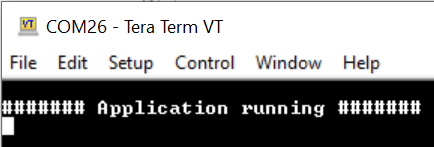
Open the OTA application project ota_app/sam_a7d65_curiosity.X in the IDE:
Update ota_app/src/app.c to update printf() message from ####### Application running ####### to ####### New Application running ####### as below:

Clean and Build the OTA application project to generate the binary (Do not program the binary).
Go to the <harmony3_path>/bootloader_apps_ota/apps/ble/mpu/sama7d65_serial_flash/ota_app/sam_a7d65_curiosity.X/dist/default/production/ directory and open the command prompt to run the below command:
python <harmony3_path>/bootloader_apps_ota/tools/ota_host_mcu_header.py -p 0x0 -j 0x0 -l 0x0 -f harmony.bin- This command adds OTA Host MCU Header to the application binary. If command executed successful then "image.bin is generated successfully" message display on the command prompt.
- Note: Memory addresses are configured from MCC harmony and it is not used from above command.
Run the below command:
python <harmony3_path>/bootloader_apps_ota/tools/ota_rnbd_header.py -f image.bin- This command adds OTA RNBD Header to the image.bin and generates RNBD_image.bin application binary. If command executed successful then "RNBD_image.bin is generated successfully" message display on the command prompt.
Refer to the Send application binary using MBD App to program RNBD_image.bin application binary to the target.
Once Firmware Update is successful:
- Green LED still blinking indicating that the OTA application is running
- Observe the below message on console:
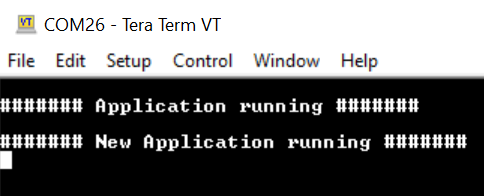
Repeat Step 15-20.
- Observe Green LED still blinking
- Observe message printed on console
Additional Steps (Optional)
If required, the following commands need to be executed to set up boot configuration on the SAMA7D65 Curiosity board:
sam-ba -p usb -d sama7d65 -a bootconfig -c writecfg:bscr:EMULATION_ENABLED
sam-ba -p usb -d sama7d65 -a bootconfig -c resetemul
sam-ba -p usb -d sama7d65 -a reset
sam-ba -p usb -d sama7d65 -a bootconfig -c writecfg:bcp-otp:FLEXCOM6_USART_IOSET4,QSPI0_IOSET1_AT25,NFC_IOSET1_PMECC0xc2605007,SDMMC1_IOSET1
To bootload any other application refer to the Configuring an application to be bootloaded for MPUs