
5.4.6 USB CDC Peripheral Transparent UART
This application demonstrates a combined USB and Bluetooth Low Energy (BLE) peripheral solution implemented using the PIC32-BZ6 Curiosity Board. It integrates a USB Communication Device Class (CDC) virtual COM port interface and BLE connectivity, providing seamless bidirectional data exchange between a USB host (such as a PC terminal application) and a remote BLE central device (mobile phone).
The application works in two primary data-flow modes:
- USB-to-BLE: Data entered from a USB host via the CDC COM port is received by the PIC32-BZ6 device and then transmitted wirelessly using BLE to a connected central device.
- BLE-to-USB: Data received wirelessly via BLE from the connected central device is relayed by the PIC32-BZ6 device over the USB CDC interface to the USB host.
This solution was implemented using Microchip’s MPLAB X Integrated Development Environment (IDE) and Harmony software framework enabling handling of simultaneous USB and BLE communications
Users can choose to either run the precompiled Application Example hex file provided on the PIC32-BZ6 Curiosity board and experience the demo.
Recommended Readings
-
Getting Started with Application Building Blocks – See Building Block Examples from Related Links.
- Getting Started with Peripheral Building Blocks – See Peripheral Devices from Related Links.
-
BLE Software Specification – See MPLAB® Harmony Wireless BLE in Reference Documentation from Related Links.
- FreeRTOS and BLE Stack Setup – See Peripheral - FreeRTOS BLE Stack and App Initialize from Related Links.
Hardware Required
| S. No. | Tool | Quantity |
|---|---|---|
| 1 | PIC32-BZ6 Curiosity Board | 1 |
| 2 | USB cable | 1 |
| 3 | Android/iOS Smartphone | 1 |
SDK Setup
Refer to Getting Started with Software Development from Related Links.
Software
To install Tera Term tool, refer to the Tera Term web page in the Reference Documentation from Related Links.
Smartphone App
Microchip Bluetooth Data iOS/Android app available in stores
Programming the Precompiled Hex File or Application Example
Using MPLAB® X IPE:
- Import and program the
precompiled hex file:
<Discover Path>\wireless_apps_pic32_bz6.\apps\ble\peripheral_applications \ usb_cdc_peripheral_trp_uart \precompiled_hex\ usb_cdc_peripheral_trp_uart.X.production.signed.hex - For detailed steps, refer to
Programming a Device in MPLAB® IPE in
Reference Documentation from Related Links.Note: Ensure to choose the correct Device and Tool information.
Using MPLAB® X IDE:
- Perform the following the steps mentioned in Running a Precompiled Example. For more information, refer to Running a Precompiled Application Example from Related Links.
- Open and program the application:
<Discover Path>\wireless_apps_pic32_bz6\apps\peripheral_applications\usb_cdc_peripheral_trp_uart\firmware\usb_cdc_peripheral_trp_uart.X -
For more details on how to find the Discover path, refer to Download Application Example from Discover in Running a Precompiled Application Example from Related Links.
Demo Description
This demonstration illustrates a dual-interface USB and BLE peripheral solution implemented on the PIC32-BZ6 Curiosity Board. It highlights the integration of Bluetooth® Low Energy (BLE) peripheral functionality built on top of a USB CDC peripheral, facilitating seamless two-way communication between a USB host and a BLE central device.
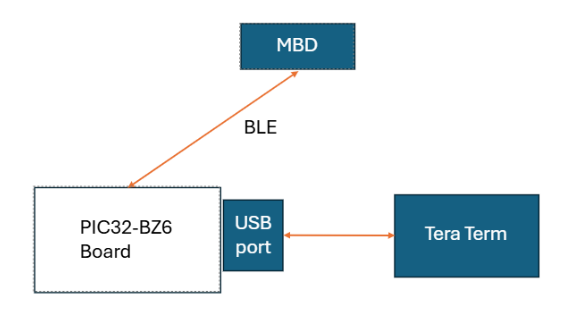
The application uses Microchip’s BLE Transparent UART Profile and Service, allowing data to be transparently exchanged over the BLE connection without additional formatting or parsing. USB data received via the CDC virtual COM port is immediately relayed over BLE using notifications, while incoming data from the BLE central device is directly forwarded to the USB host, showcasing efficient bidirectional communication.
Testing
- Connect a Type-C cable between the DBG USB (J100) port on the Curiosity board and the PC to power up the board.
- The jumper (J102) must be open for USB device applications.
- Use the Target USB (J103) connector on the board to connect the USB Device to the USB Host PC.
- RGB_LED (D800) turning Green indicates USB Device Configuration Set Complete event (the USB device functionality has been activated by the USB Host).
- Program the precompiled hex file or application example as mentioned.
- Open Tera Term:
- Set the “Serial Port” to USB Serial Device.
- Speed to 115200.
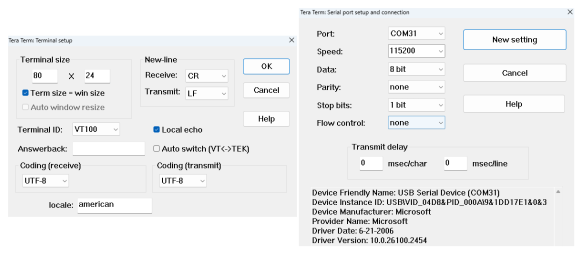 Note: The PIC32-BZ6 board features an MCP2200 chip that provides both USB-to-UART and PKOB4 communication ports. When USB is enabled, three COM ports typically appear. Among these, the USB-to-UART port will always have a lower COM number than the PKOB4 port. For example, in my case, COM39 is the USB-to-UART port, COM40 is the PKOB4 port, and COM41 represents the actual USB interface. Therefore, for testing purposes, COM41 should be selected.For more details on how to set the “Serial Port” and “Speed”, refer to COM Port Setup in Running a Precompiled Application Example from Related Links.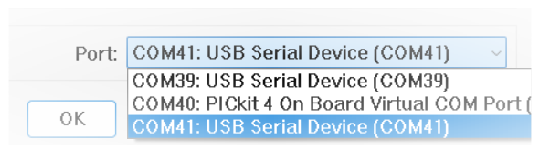
- Press the NMCLR Button on the Curiosity board.
- Open the Microchip Bluetooth
Data (MBD) app on your smartphone and select “BLE UART” sub app.
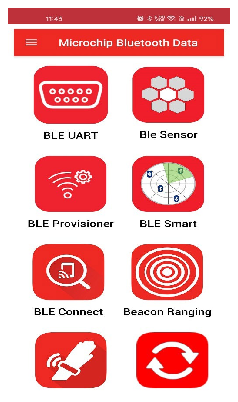
- Select “PIC32CXBZ”.
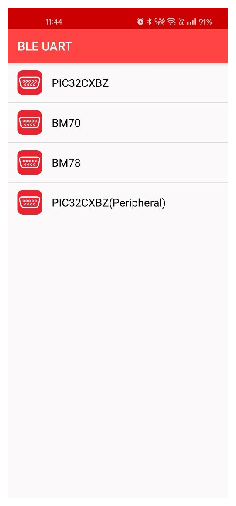
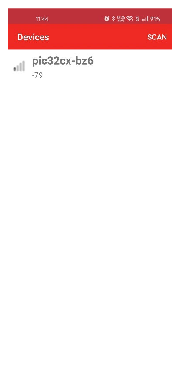
- Press Scan for
advertisements. A device with the name “pic32cx-bz6” will appear. Select the
device and establish connection.
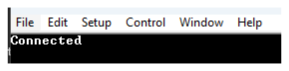
- Upon connection the serial
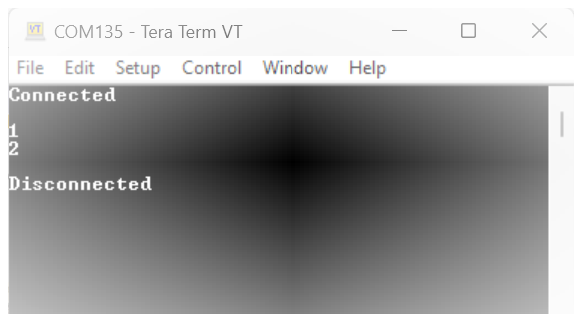
terminal will display the “Connected” log.
- In MBD, select the “Text
Mode” from the bottom tab and start exchanging data bidirectionally between
the serial terminal and mobile application.
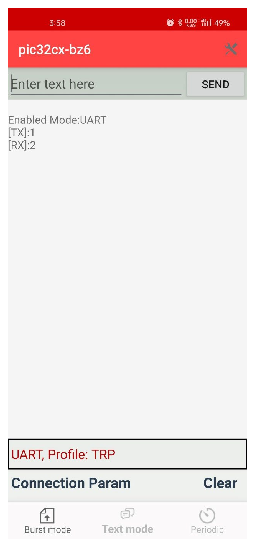
- Console log.
Developing the Application from Scratch using the MPLAB Code Configurator
- Create a new harmony project. For more details, see Creating a New MCC Harmony Project from Related Links.
- Import component configuration –
This step helps users setup the basic components and configuration required to
develop this application. The imported file is of format
.mc4and is located in the path “<Discover Path>\wireless_apps_pic32_bz6\apps\ble\advanced_applications\usb_cdc_peripheral_trp_uart\firmware\usb_cdc_peripheral_trp_uart.X”. - Accept dependencies or satisfiers when prompted.
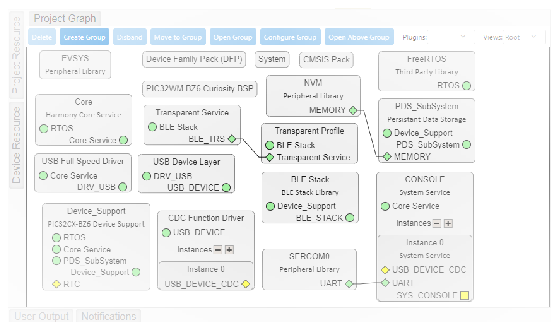
- Verify if the Project Graph
window has all the expected configuration
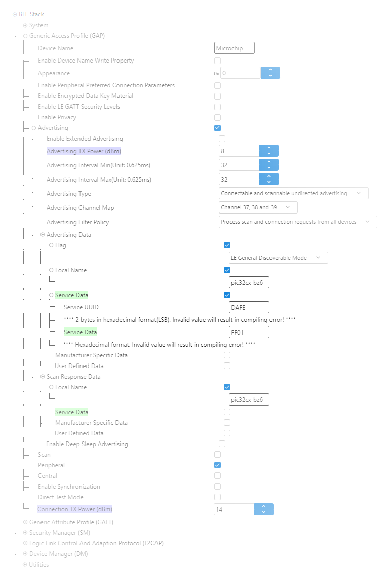
Verifying Advertisement, Connection and Transparent UART Profile Configuration
-
Select the BLE Stack component in the Project Graph.
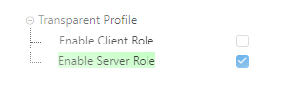
- Select Transparent Profile
component in project graph and verify the following:
Verifying USB Device Layer Configuration
-
Select USB Device Layer component in the Project Graph.
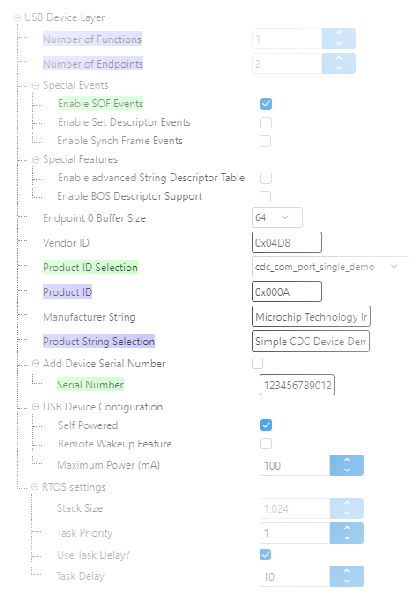
Verifying CDC Function Driver Instance 0 Configuration
-
Select Instance 0 within the CDC Function Driver component in the Project Graph.
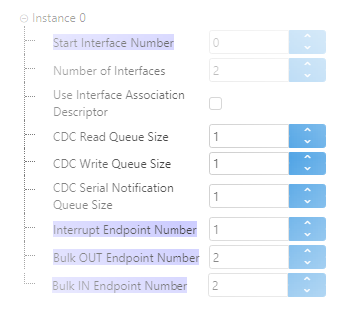
Verifying SERCOM Configuration
-
Select the SERCOM0 component in the project graph and verify the following:
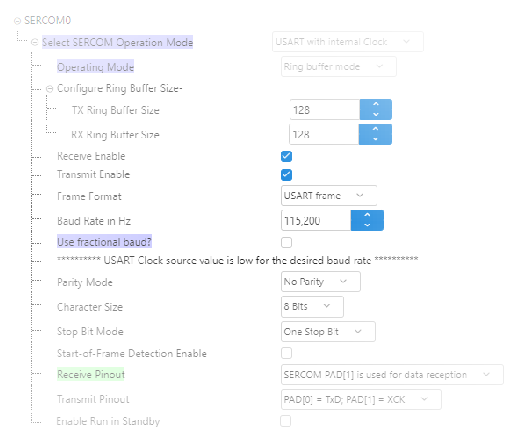
Verifying the Pin Configuration
-
Select Pin Configuration under Plugins in the Project Graph:
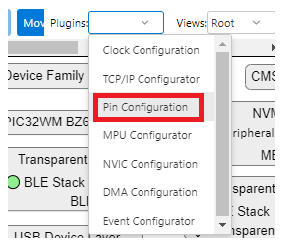
- Verify the Pin Settings:
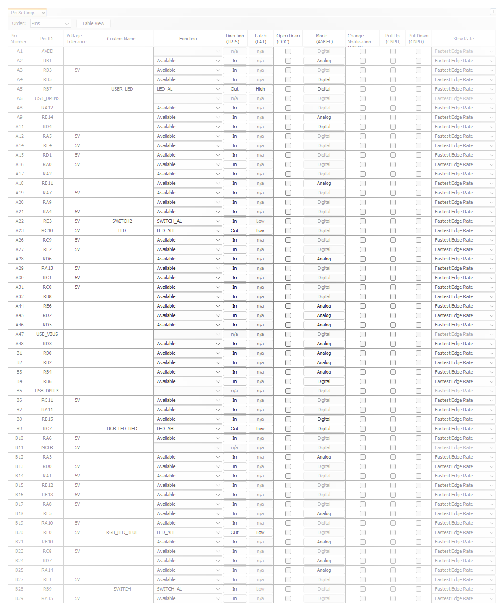
Generating Code
For more details on code generation, refer to MPLAB Code Configurator (MCC) Code Generation from Related Links.
Files and Routines Automatically generated by the MCC
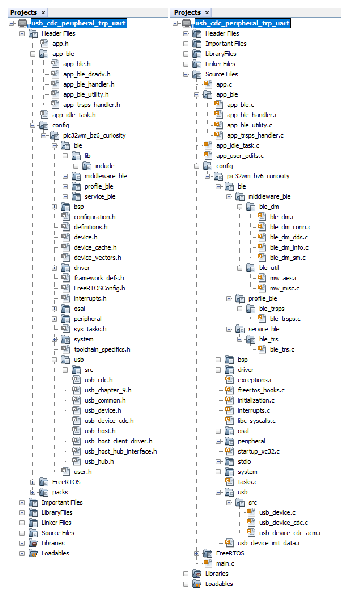
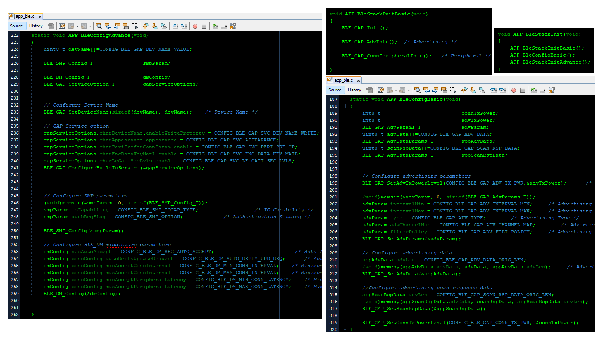
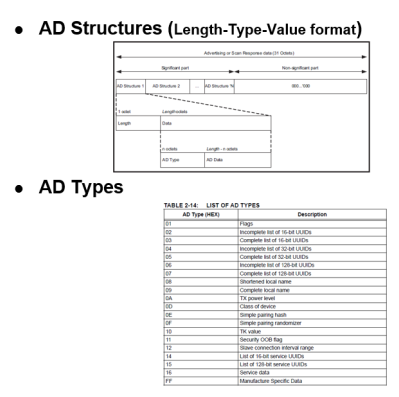
| Source Files | Usage |
|---|---|
app.c | Application State machine, includes calls for Initialization of all BLE stack (GAP,GATT, SMP, L2CAP) related component configurations |
app_ble\app_ble.c | Source Code for the BLE stack related component configurations, code related to function calls from app.c |
app_ble\app_ble_handler.c | GAP, GATT, SMP and L2CAP Event handlers |
app_ble\app_trsps_handler.c | All transparent UART server related event handlers |
ble_trsps.c | All transparent server functions for user application |
app.c is autogenerated and has a state
machine based Application code sample, users can use this template to develop
their application.Header Files
ble_gap.h: This header file contains BLE GAP functions and is automatically included in the app.c fileble_trsps.h: This header file associated with API’s and structures related to BLE Transparent Client functions for Application User
Function Calls
- MCC generates and adds the code
to initialize the BLE Stack GAP, GATT, L2CAP and SMP in
APP_BleStackInit()function
APP_BleStackInit()is the API that will be called inside the Applications Initial State -APP_STATE_INITinapp.c
User Application Development
The initialization sequence, event driven mechanisms, and data path implementations between USB and BLE are described in detail in this section. The application supports bidirectional data transfer: data entered over the USB CDC interface from a USB host is received and transmitted over BLE to a central device (“USB to BLE”), and data received from a central BLE device gets forwarded to the USB host via the USB CDC interface (“BLE to Socket”).
Include
ble_trsps.hinapp.c, BLE Transparent UART Server related API's are available hereosal/osal_freertos_extend.hinapp_trsps_handler.ccontain OSAL related APIsdefinitions.hmust be included in all the files where UART will be used to print debug informationNote:definitions.his not specific to just UART but instead must be included in all the application source files where any peripheral functionality will be exercised.
Initialization of USB and BLE
- The following USB CDC variables
are defined in the APP_DATA struct in
app.hand initialized in the APP_Initialize function inapp.c.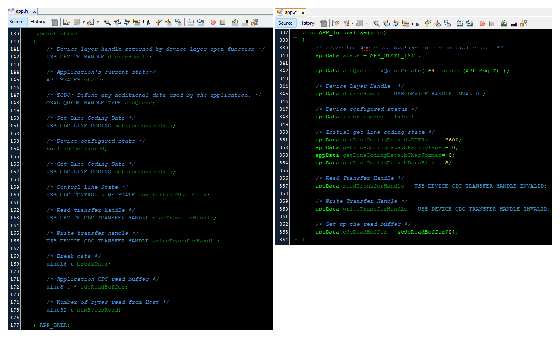
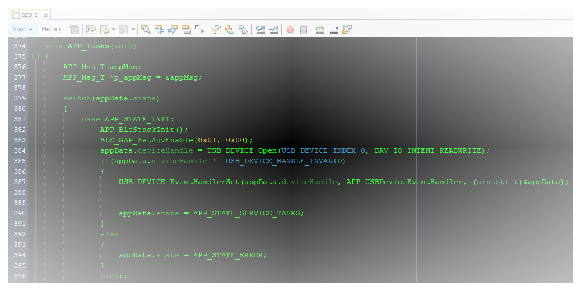
- In the APP_Tasks, the
APP_STATE_INIT function will initialize the BLE, start advertising,
and open the USB device for reading and writing. If successful, the USB device
layer event handler will be regestered as APP_USBDeviceEventHandler.
- The APP_STATE_ERROR state
is defined in
app.h.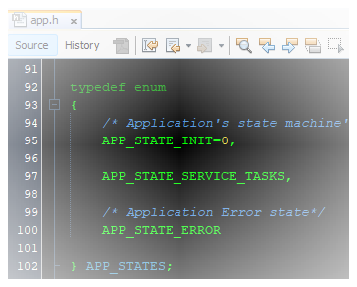
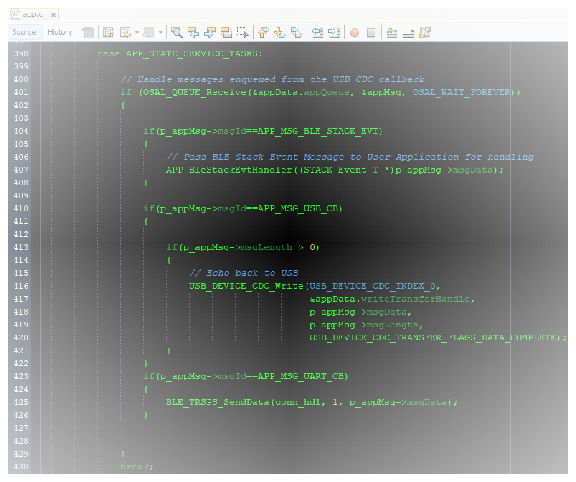
- Once the USB is opened and the BLE stack is initialized, the system enters the
APP_STATE_SERVICE_TASKS state, which handles BLE and custom events.
Simultaneously, the registered USB event handlerwill capture the device layer
USB related events. The custom events APP_MSG_USB_CB and
APP_MSG_UART_CB are defined in
app.hand are used in the data paths.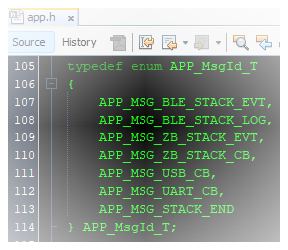
USB Device Layer Event Handler
- The APP_USBDeviceEventHandler
function was registered as the event handler in the initialization. This
function captures USB device layer events, namely, when the device is
configured, power to the USB is detected or removed, if the device was suspended
or resumed or reset. This mechanism allows the USB to be reset and remain
operational. Meaning if the TGT USB power is removed and reattached, then the
device will continue to operate as usual.
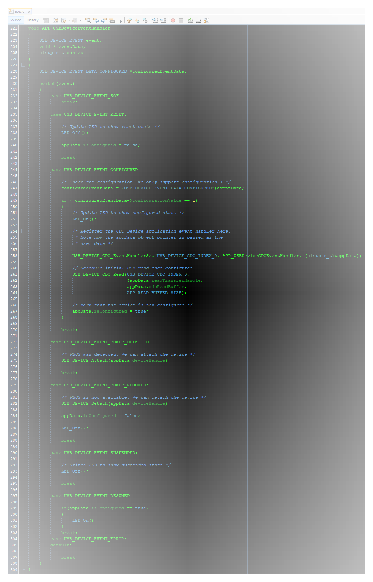
The initial operation will flow from USB_DEVICE_EVENT_POWER_DETECTED to USB_DEVICE_EVENT_CONFIGURED once power is given to the TGT USB, then some reset or power removal will allow the device to get configured again.
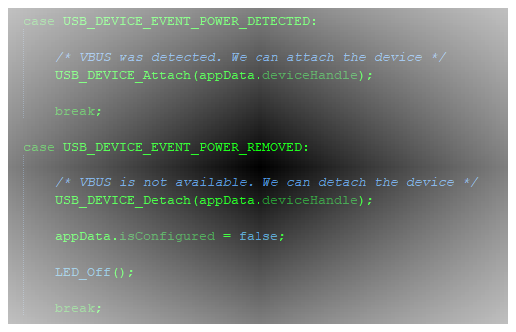
- The
USB_DEVICE_EVENT_POWER_DETECTED and
USB_DEVICE_EVENT_POWER_REMOVED events will attach/detach the USB
device.
-
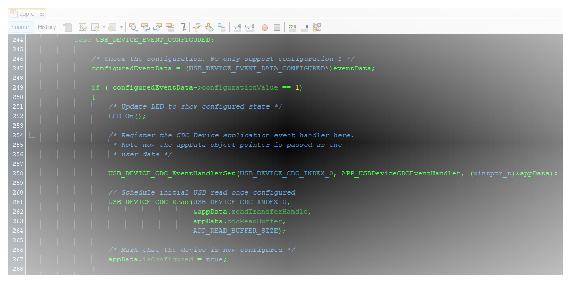
The USB_DEVICE_EVENT_CONFIGURED event will register the CDC application event handler as APP_USBDeviceCDCEventHandler. The initial USB read will be scheduled as well.
Connected & Disconnected Events
- In
app_ble_handler.c, BLE_GAP_EVT_CONNECTED event will be generated when a BLE connection is established. - On connection, the connection handle associated with the peer peripheral device
needs to be saved for data exchange after a BLE connection.
- p_event->
eventField.evtConnect.connHandlehas this information
- p_event->
- The custom event APP_MSG_USB_CB will be scheduled so that the “Connected”
message will be sent to the USB host via the CDC interface. The message is
copied to the
appMsg.msgDatabuffer.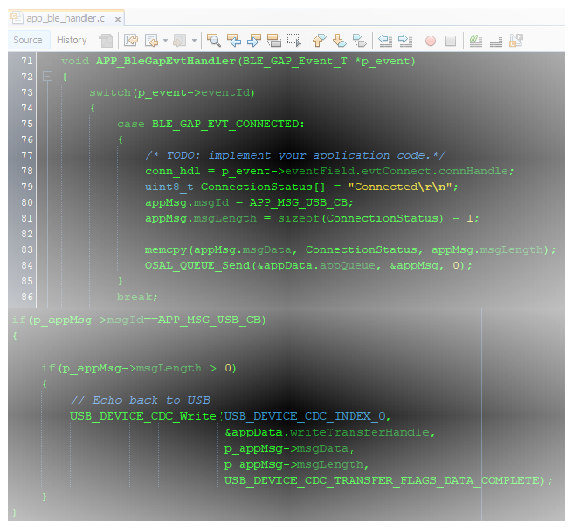
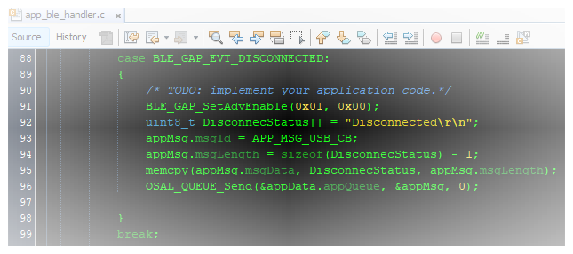
- BLE_GAP_EVT_DISCONNECTED event will be generated when a BLE connection is established.
- Advertising will begin upon disconnection.
- Similar to the connected event, the APP_MSG_USB_CB event willbe scheduled
so the “Disconnected” message can be sent to the USB host via the CDC interface.
USB CDC Application Layer Event Handler
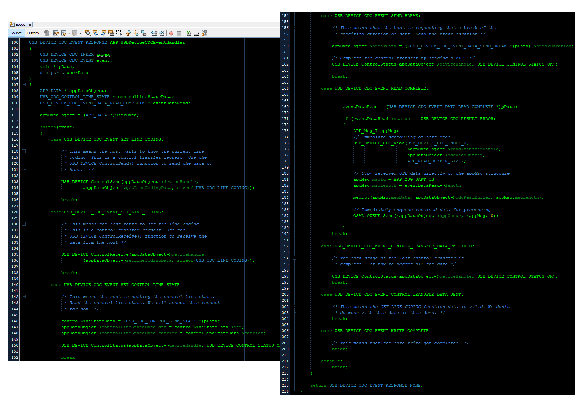
- The
APP_USBDeviceCDCEventHandler function was registered as the event
handler in the USB_DEVICE_EVENT_CONFIGURED event callback. Various events
are handled in this function.
“BLE to USB” Data Path
-
The “BLE to Socket" data path is initiated when BLE packet is received from the connected central device. This packet is copied to the
appMsg.msgDatabuffer and the custom event APP_MSG_USB_CB is scheduled to allow the packet to be sent to the USB host via the CDC interface. -
The BLE packet is received in the BLE_TRSPS_EVT_RECEIVE_DATA event in
app_trsps_handler.c.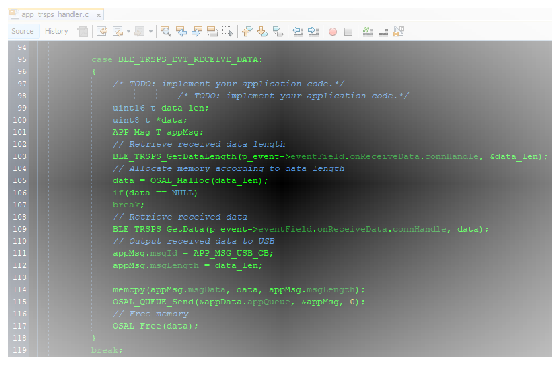
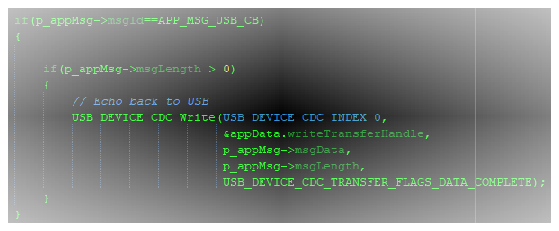
-
The custom APP_MSG_USB_CB event will send the BLE packet over the USB CDC interface to the host.
“USB to BLE” Data Path
-
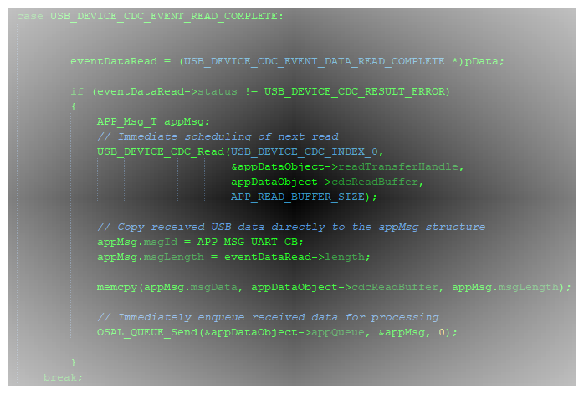
The “USB to BLE” data path is initiated when data is read on the USB CDC interface. The data is copied to the appMsg.msgData buffer and the custom event APP_MSG_UART_CB is scheduled to allow one byte of data to be sent to the central device via BLE.
-
The event USB_DEVICE_CDC_EVENT_READ_COMPLETE is raised when data is read on the CDC interface. The application will also schedule another USB_DEVICE_CDC_READ to allow the event to be raised again.
-
The custom APP_MSG_UART_CB event will send only one byte of the data to the central connected device via BLE.
