
5.4.5 BLE and TCP/IP TCP Server Transparent UART
This section explains how to create a peripheral device and a TCP/IP TCP server on the PIC32-BZ6 Curiosity board. The setup will enable users to send and receive data from a Central device which can be a smart phone with MBD (Microchip Bluetooth Data) application to another TCP/IP client.
Users can choose to either run the precompiled Application Example hex file provided on the PIC32-BZ6 Curiosity Board or follow the steps to develop the application from scratch.
It is recommended to follow the examples in sequence to understand the basic concepts before progressing to the advanced topics.
Recommended Readings
-
Getting Started with Application Building Blocks – See Building Block Examples from Related Links.
-
Getting Started with Peripheral Building Blocks – See Peripheral Devices from Related Links.
- See BLE Connection from Related Links.
- See BLE Transparent UART from Related Links.
- BLE Software Specification – See MPLAB® Harmony Wireless BLE in Reference Documentation from Related Links.
Hardware Requirement
| S. No. | Tool | Quantity |
|---|---|---|
| 1 | PIC32-BZ6 Curiosity Board | 1 |
| 2 | LAN8720A PHY Daughter Board | 1 |
| 3 | Micro USB cable | 1 |
| 4 | Ethernet cable | 1 |
SDK Setup
Refer to Getting Started with Software Development from Related Links.
Software Requirement
- To install Tera Term tool, refer to the Tera Term web page in Reference Documentation from Related Links.
Smart phone App
- Microchip Bluetooth Data (MBD)
Programming the Precompiled Hex File or Application Example
Using MPLAB® X IPE:
- Import and program the precompiled hex
file: <Discover Path>\wireless_apps_pic32_bz6
\apps\ble\peripheral_applications\tcpip_tcp_server_trp_uart\precompiled_hex\tcpip_tcp_server_trp_uart.X.production.signed.hex. - For detailed steps, refer to Programming a Device in MPLAB®
IPE in Reference Documentation from Related Links.Note: Ensure to choose the correct Device and Tool information.
Using MPLAB® X IDE:
- Perform the following the steps mentioned in Running a Precompiled Example. For more information, refer to Running a Precompiled Application Example from Related Links.
- Open and program the application
<Discover Path>\wireless_apps_pic32_bz6\apps\ble\peripheral_applications\tcpip_tcp_server_trp_uart\firmware\tcpip_tcp_server_trp_uart.X. - For more details on how to find the Discover path, refer to Download Application Example from Discover in Running a Precompiled Application Example from Related Links.
Demo Description
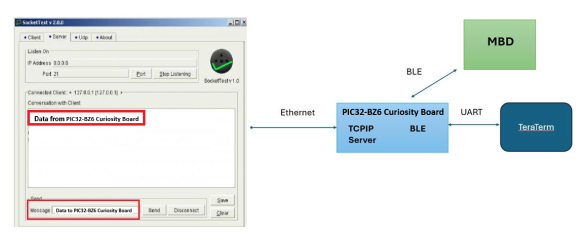
This application demonstrates the capability of the PIC32WM-BZ6204UE module to connect to a smartphone via Bluetooth Low Energy (BLE). It showcases the use of the MPLAB Harmony TCP API to implement a TCP server on port 9760. The MBD application can communicate with a client application running on a host computer (such as SocketTest or PacketSender) that is connected to the TCP server on the PIC32WM-BZ6204UE. For this demonstration, the SocketTest utility is used. A simple block diagram of the demo is shown below:
Testing
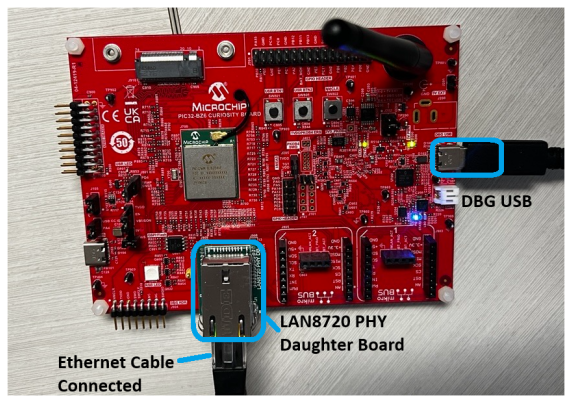
- Connect the USB Type-C cable between
DEBUG USB port on the board and host PC. Connect LAN8720 PHY Daughter board to PIC32-BZ6 curiosity board as shown below. Establish a connection
between the router/switch with the Curiosity board through the RJ45 connector, using the
Ethernet cable.
- Program the precompiled hex file or application example as mentioned.
- Open Tera Term:
- Set the “Serial Port” to USB Serial Device.
- Speed to 115200.
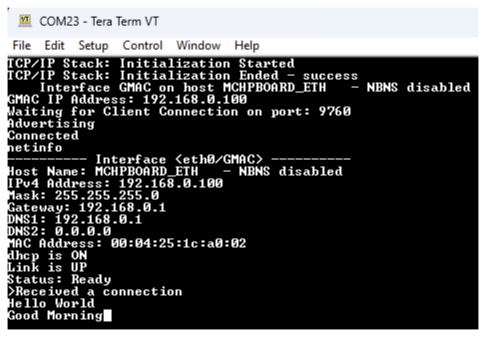
- Press the NMCLR button on the curiosity board to start advertisements. TeraTerm should display the following message.
- Verify the TCP/IP Stack initialization
console messages.
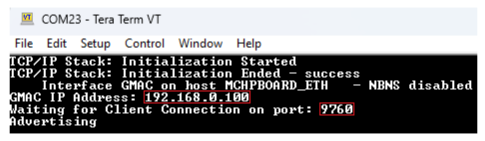 Note: The TCP/IP stack will initialize first before the BLE stack. The full initialization of TCP/IP may take a few seconds as it is waiting for the IP and opening the server. Ensure the IP address and port are displayed before attempting to connect to the server.
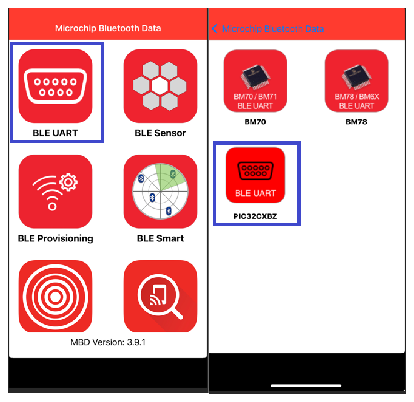
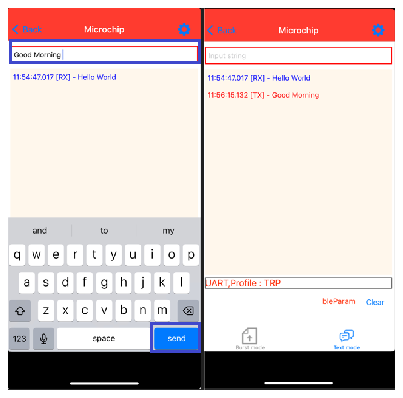
 - Open MBD on your smart phone and follow
the following images.
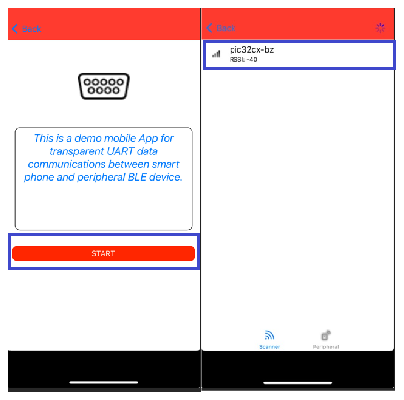
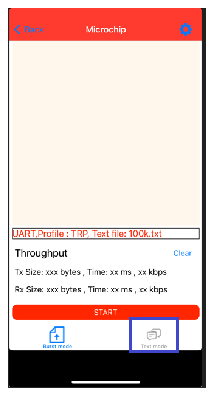
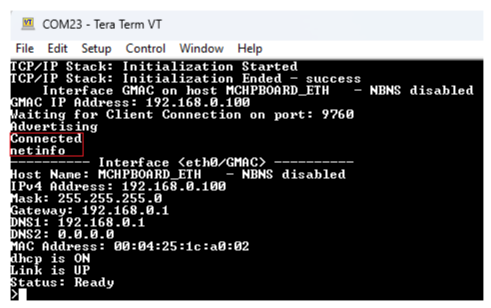
- After the BLE connection is established,
verify the “Connected” message on the console. You can type the “netinfo” command to
display more details, as shown below.
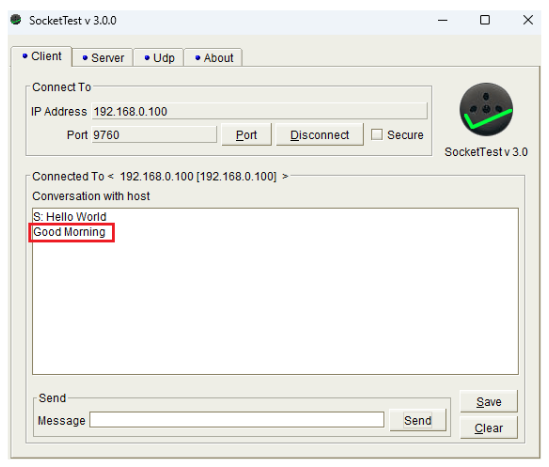
- For TCP Server test, a TCP Client
application is required to run on the host computer (SocketTest,
PacketSender etc). In this demonstration, we use SocketTest utility.
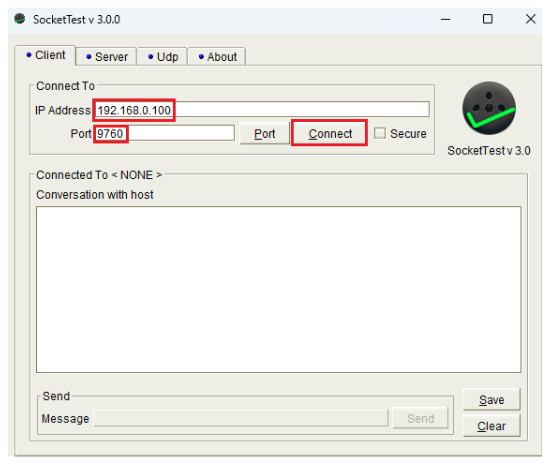
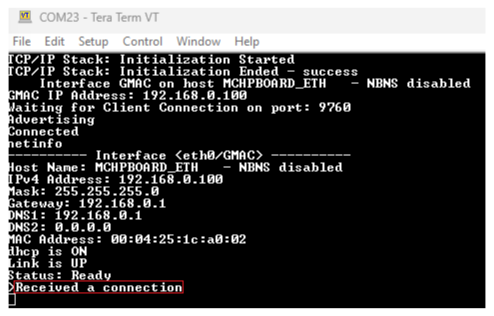
- A message will be displayed when the server receives a connection.
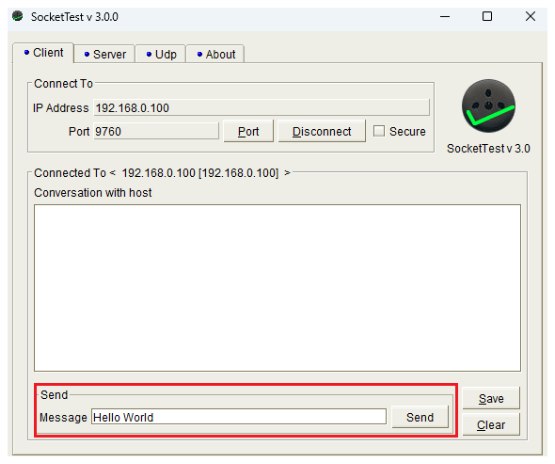
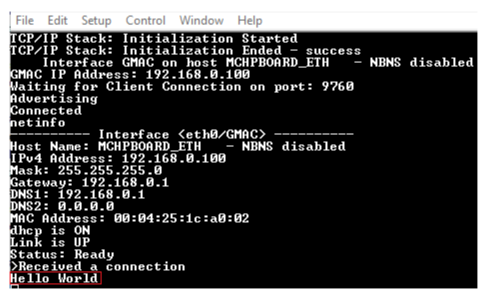
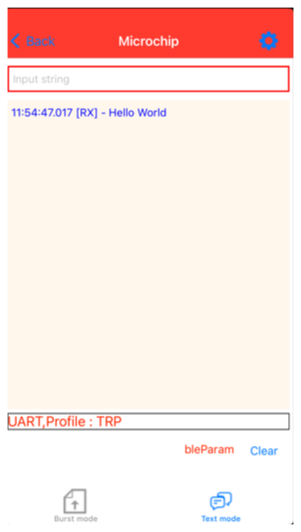
- Send a message from client to the TCPIP
server and it can be displayed on the utility, Tera term and MBD app.
- Similarly, the MBD app can send a message
to the client. The TCP/IP stack will then forward the message to the client.
- To disconnect the Curiosity board and the MBD running on your smart phone, do either one
of the following:
- Press the NMCLR button on the PIC32WM-BZ6204UE Curiosity Board.
- Go back to the “SCAN” page in MBD.
- Upon successful disconnection, the PIC32WM-BZ6204UE Curiosity Board automatically advertises again.
Developing the Application from Scratch using the MPLAB Code Configurator
- Create a new harmony project. For more details, see Creating a New MCC Harmony Project from Related Links.
- Import component configuration – This
step helps users setup the basic components and configuration required to develop this
application. The imported file is of format
.mc4and is located in the path “<Discover Path>\wireless_apps_pic32_bz6\apps\ble\peripheral_applications\tcpip_tcp_server_trp_uart \firmware\ pic32wmbz6_curiosity_freertos.X \ tcpip_tcp_server_freertos.mc4”. - Accept dependencies or satisfiers when prompted.
- Verify if the Project Graph window has
all the expected configuration
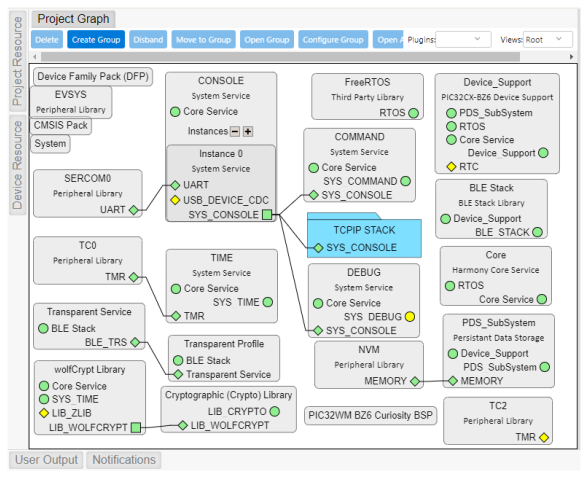
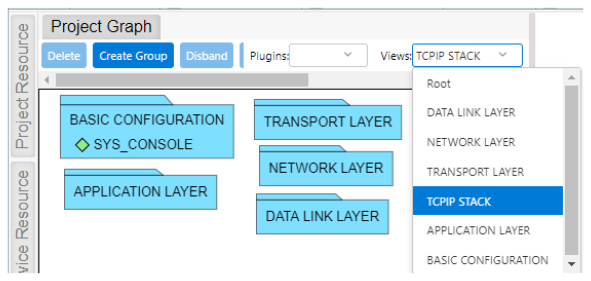
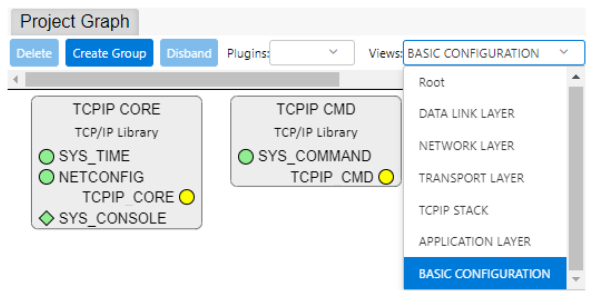
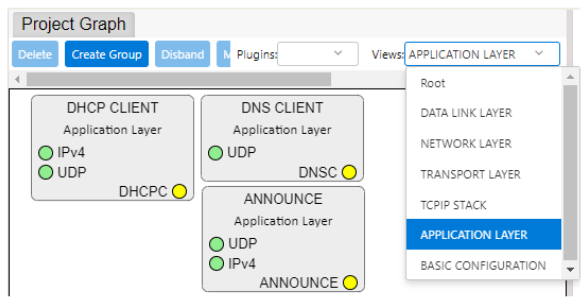
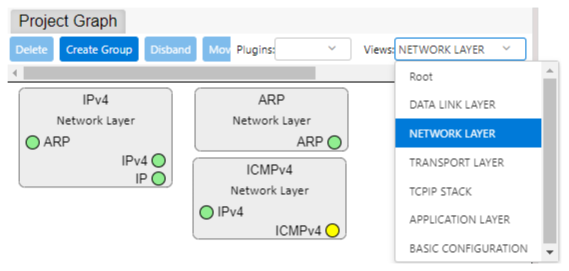
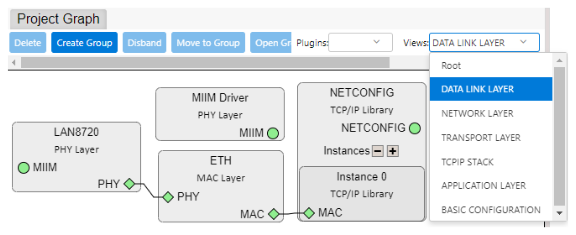
Verifying Advertisement, Connection and Transparent UART Profile Configuration
-
Select the BLE Stack component in the Project Graph and verify the following in the Configuration Options panel.
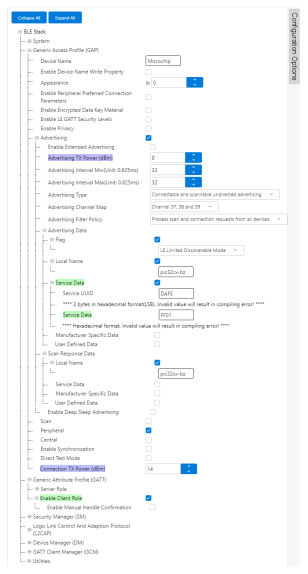
- Select Transparent Profile component in project graph and verify the following:
Verifying FreeRTOS Configuration
-
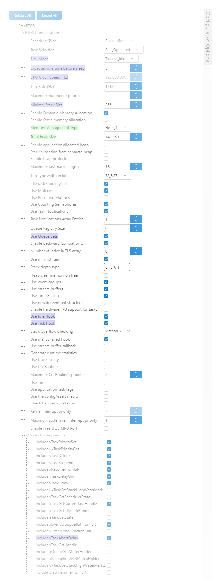
Select the FreeRTOS component in the Project Graph and verify the following:
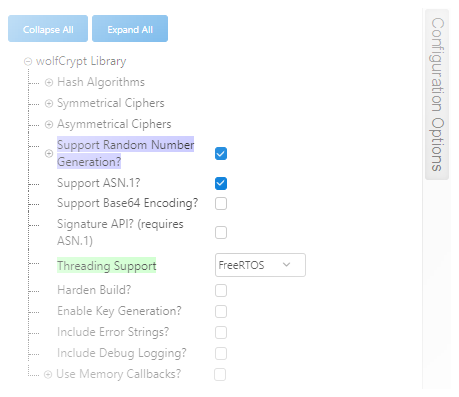
Verifying wolfCrypt Configuration
-
Select the wolfCrypt Library component in the Project Graph and verify the following:
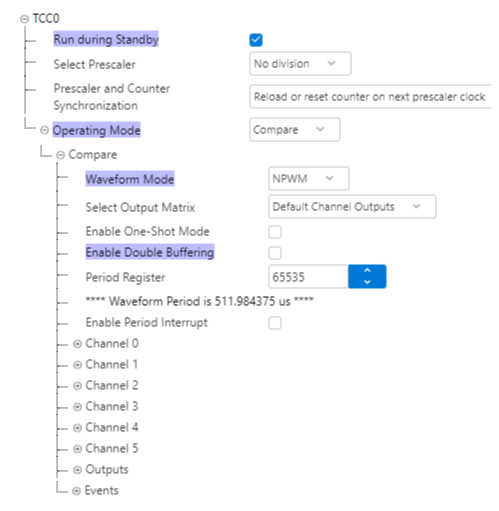
Verifying TC2 Configuration
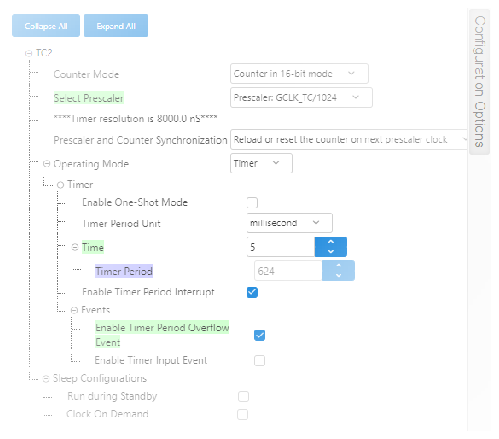
-
Select the TC2 component in the Project Graph and verify the following:
Verifying the MIIM Driver Configuration
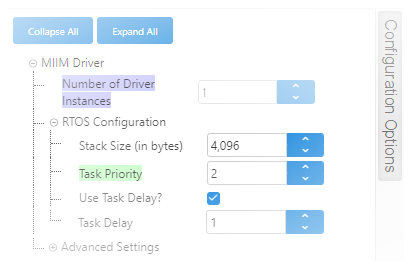
-
Select the DATA LINK LAYER view and select the MIIM Driver component. Verify that the task priority is 2:
Verifying the TCP Configuration
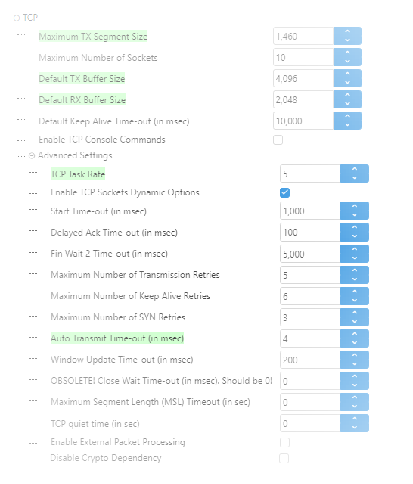
-
Select the Transport Layer view and select the TCP component. Verify the following:
Verifying the TCPIP Core Configuration
-
Select the Basic Configuration view and select the TCPIP Core component and verify the following:
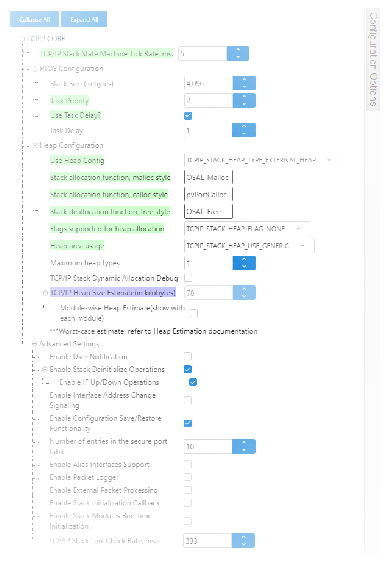
Verifying TCP/IP Stack Configuration
-
Select TCP/IP Configurator under Plugins in the Project Graph. For more details of TCP/IP Configuration plugin, refer to TCP/IP Configuration in Reference Documentation from Related Links.
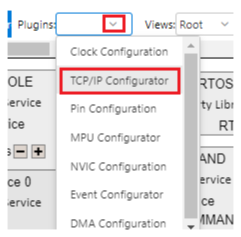
- TCP/IP configuration for PIC32WM-BZ6204UE module is detailed below.
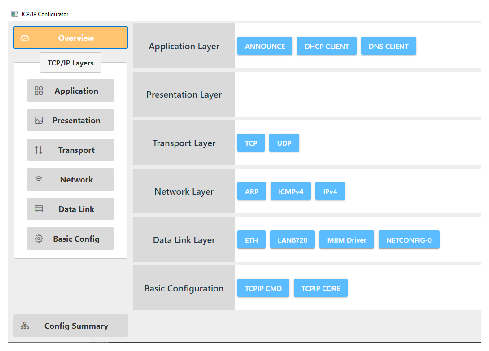
The Application Layer modules enabled in the demo are as follows:
- Application Layer Modules:
- ANNOUNCE to discover the Microchip devices within a local network.
- DHCP Client to discover the IPv4 address from the nearest DHCP Server.
- DNS Client provides DNS resolution capabilities to the stack.
- Application Layer Modules:
Verifying SERCOM Configuration
-
Select the SERCOM0 component in the project graph and verify the following:
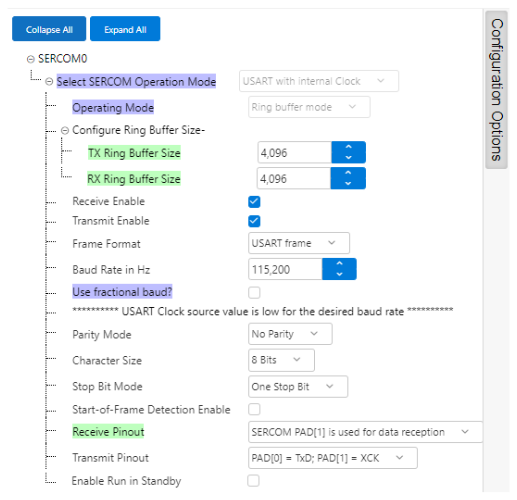
Verifying Clock Configuration
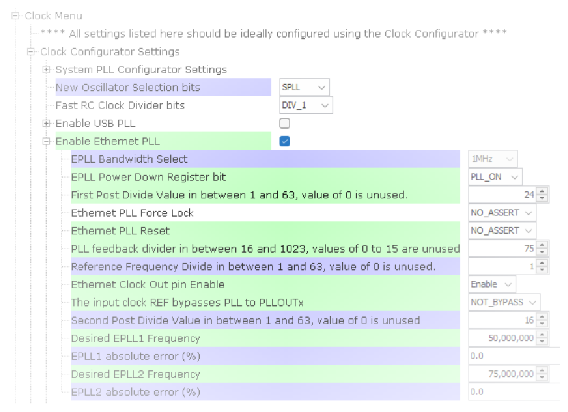
| Ref. Clock | Reference Frequency Divider | EPLL Feedback Divider | VCO (MHz) | Post Divider 1/2 | EPLL OUT 1/2 (MHz) | Closed Loop Bandwidth | Bandwidth Select |
|---|---|---|---|---|---|---|---|
| 16 | 1 | 100 | 1600 | 32 | 50 | 1 MHz | 010 |
| 16 | 1 | 75 | 1200 | 24 | 50 | 1 MHz | 010 |
| 16 | 2 | 200 | 1600 | 32 | 50 | 400 KHz | 001 |
| 16 | 2 | 150 | 1200 | 24 | 50 | 400 KHz | 001 |
| 16 | 2 | 100 | 800 | 16 | 50 | 400 KHz | 001 |
| 16 | 4 | 400 | 1600 | 32 | 50 | 400 KHz | 001 |
| 16 | 4 | 300 | 1200 | 24 | 50 | 400 KHz | 001 |
| 16 | 4 | 200 | 800 | 16 | 50 | 400 KHz | 001 |
Where,
- EPLL Feedback Divider is EPLLCON.EPLLREFDIV[5:0]
- Reference Frequency Divider is EPLLCON.EPLLFBDIV[9:0]
- Post Divider 1 is EPLLCON.EPLLPOSTDIV1[5:0]
- Post Divider 2 is APLLCON.EPLLPOSTDIV2[5:0]
- Bandwidth select is EPLLBSWSEL[2:0]
Verifying the Pin Configuration
-
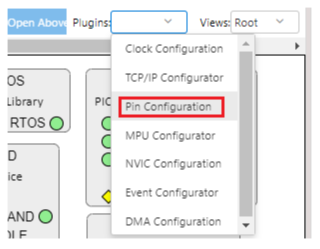
Select Pin Configuration under Plugins in the Project Graph:
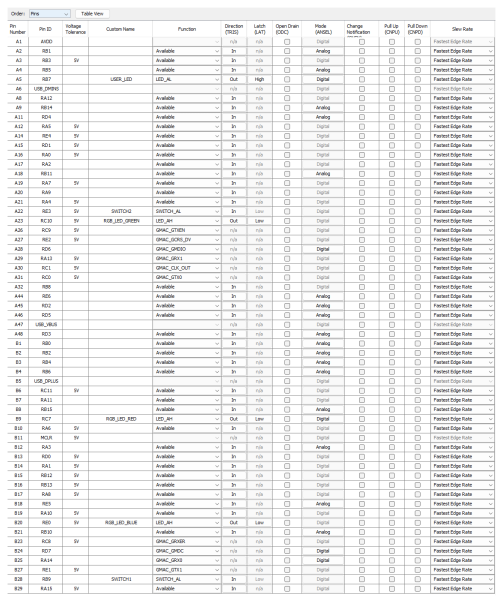
- Verify the Pin Settings: where RC7, RC10 and RE0 are related to the RGB LED.
-
Ethernet PHY daughter board Header pin descriptions are shown below:
Table 5-77. Ethernet PHY Daughter Board Header Pin Description J908 and J909 Pin Pin on RMII header Pin Description of Ethernet PHY Daughter Board Header Pin on PIC32WM-BZ6204UE Module J908-1 TX_EN Ethernet Transmit Enable GMAC_GTXEN/RPC9 J908-2 TXDO Ethernet Transmit Data 0 GMAC_GTX0/RPC0 J908-3 TXD1 Ethernet Transmit Data 1 GMAC_GTX1/RPE1 J908-4 NC Not connected NC J908-5 NC Not connected NC J908-6 GND Ground GND J908-7 XTALI Clock output NC J908-8 CLK_IN Clock input GMAC_GREFCLKOUT/RPC1 J908-9 GND Ground GND J908-10 +3V3 Input power supply VDD J908-11 NC Not connected NC J908-12 NC Not connected NC J909-13 WAKE Wake CVD5/RMII_WAKE/DRP_CTRL/GFX_LCDD1/RPB1
(Not connected by default. Mount R724 to connect)
J909-14 NC Not connected NC J909-15 RXD1 Ethernet Receive Data 1 GMAC_GRX1/RPA13 J909-16 RXD0 Ethernet Receive Data 0 GMAC_GRX0/RPA14 J909-17 RX_ER Ethernet Receive Error GMAC_GRXER/RPC8 J909-18 CRS_DV Ethernet Rx Data Valid Input GMAX_GCRS_DV/GFX_GPIO1/RPE2 J909-19 MDC Ethernet Management Data Clock Output GMAC_GMDC/GFX_GPIO2/RPD7 J909-20 MDIO Ethernet Management Data Input Output GMAC_GMDIO/GFX_LCD_GPIO5/RPD6 J909-21 INT Interrupt output RED_LED/RMII_INT/GFX_PWM2/RPC7
(Not connected by default. Mount R726 to connect)
J909-22 RST System Reset RMII_RST/LBO/RPD0 J909-23 EN Enable RMII_EN/MIKRO2_PWM/GFX_IRQ3/RPC11
(Not connected by default. Mount R722 to connect)
J909-24 NC Not connected NC Note:- These are Peripheral Pin Select (PPS) pins. The user can configure them for any of the supported peripheral functions based on the end user application.
- Pin PE2, PD7, PD6 are shared between Ethernet RMII and Graphic Connector
Generating Code
For more details on code generation, refer to MPLAB Code Configurator (MCC) Code Generation from Related Links.
Files and Routines Automatically generated by the MCC
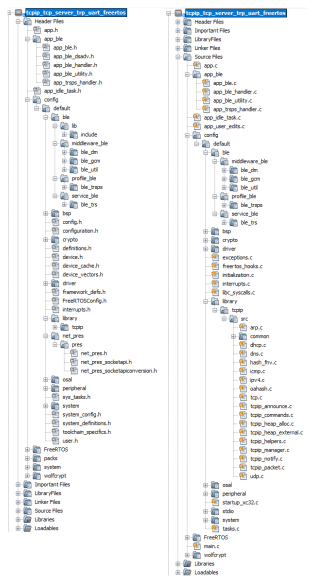
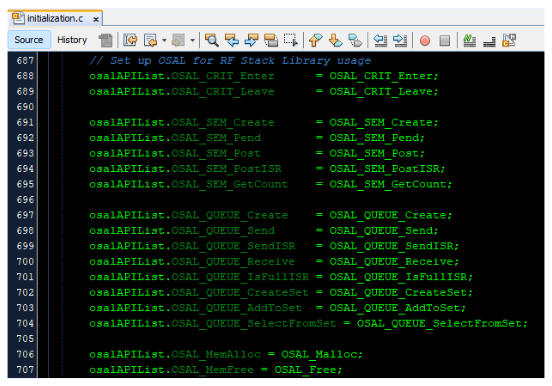
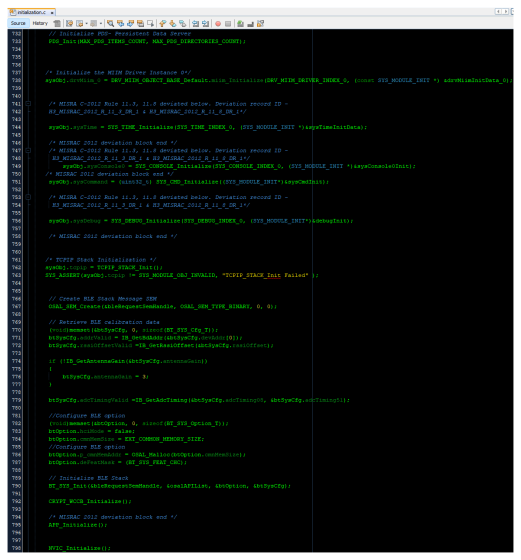
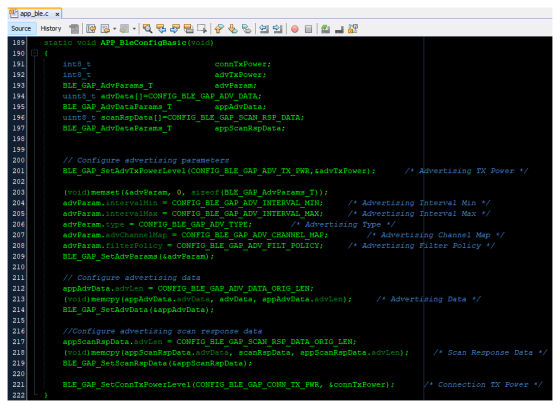
| Source Files | Usage |
|---|---|
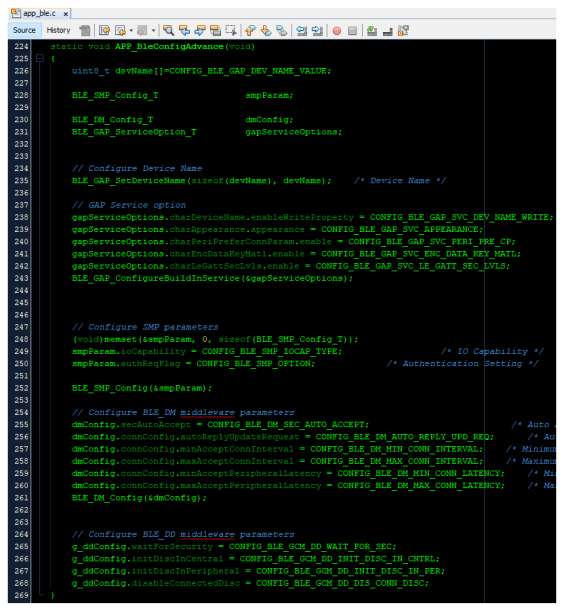
app.c | Application State machine, includes calls for Initialization of all BLE stack (GAP,GATT, SMP, L2CAP) related component configurations |
app_ble\app_ble.c | Source Code for the BLE stack related component configurations, code related to function calls from app.c |
app_ble\app_ble_handler.c | GAP, GATT, SMP and L2CAP Event handlers |
app_ble\app_trsps_handler.c | All Transparent UART Server related Event handlers |
ble_trsps.c | All Transparent Server Functions for user application |
app.c is autogenerated and has a state machine
based Application code sample, users can use this template to develop their
application.Header Files
ble_gap.h: This header file contains BLE GAP functions and is automatically included in the app.c fileble_trsps.h: This header file associated with API’s and structures related to BLE Transparent Client functions for Application User
Function Calls
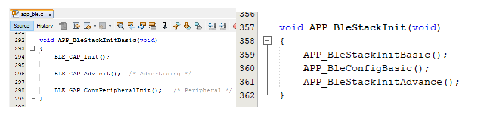
- MCC generates and adds the code to
initialize the BLE Stack GAP, GATT, L2CAP and SMP in
APP_BleStackInit()function
APP_BleStackInit()is the API that will be called inside the Applications Initial State --APP_STATE_INITinapp.c
User Application Development
The initialization sequence, event driven mechanisms, and data path implementations between the two stacks are described in detail in this section. The application supports bidirectional data transfer: TCP packets received from a client are forwarded to a BLE central device (“Socket to BLE”), and BLE packets from the central device are sent to the TCP client (“BLE to Socket”). Key implementation details, including required header files, event handling, and buffer management strategies, are also discussed to guide developers in integrating and debugging the system. This demo only supports one BLE connection and one TCP connection at a time.
Include
ble_trsps.hinapp.c, BLE Transparent UART Server related API's are available hereosal/osal_freertos_extend.hinapp_trsps_handler.ccontain OSAL related APIsdefinitions.hmust be included in all the files where UART will be used to print debug informationNote:definitions.his not specific to just UART but instead must be included in all the application source files where any peripheral functionality will be exercised.
Initialization of TCP/IP and BLE Stacks
- The TCP/IP stack will initialize before
the BLE stack.
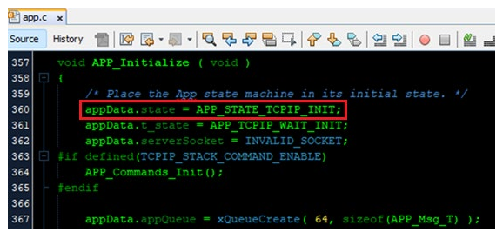
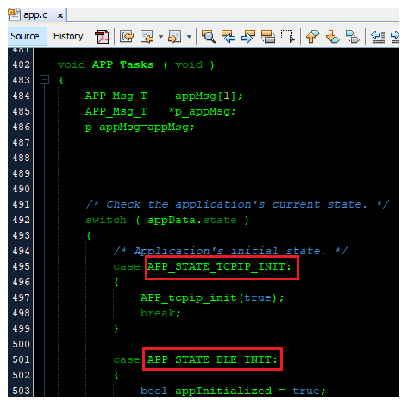
- The TCP/IP initialization will progress through a separate state machine. The states are
defined in
app.h.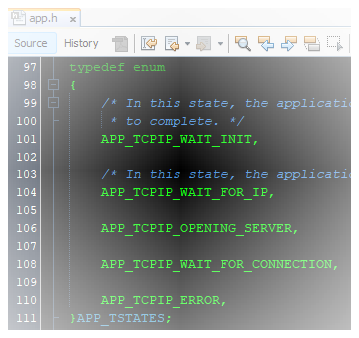
-
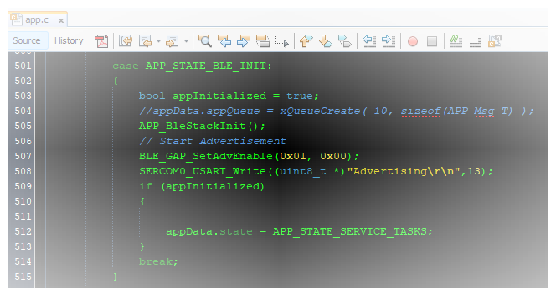
The BLE stack will initialize after the TCP/IP stack. Advertising will begin after initialization with BLE_GAP_SetAdvEnable(0x01, 0x00);.
-
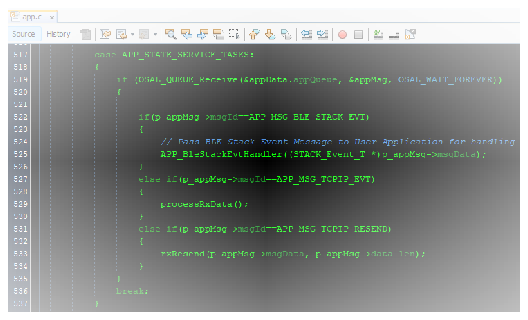
Once both stacks are initialized, the system enters the APP_STATE_SERVICE_TASKS state, which handles BLE and custom TCP/IP events. The custom events APP_MSG_TCPIP_EVT and APP_MSG_TCPIP_RESEND are defined in
app.hand are used in the “Socket to BLE” data path described below.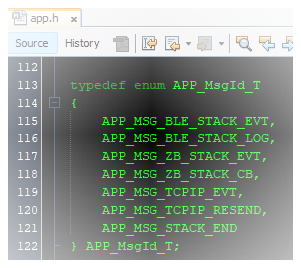
Connected & Disconnected Events
- In
app_ble_handler.c, BLE_GAP_EVT_CONNECTED event will be generated when a BLE connection is established. - On connection, the connection handle associated with the peer peripheral device needs to
be saved for data exchange after a BLE connection.
-
p_event->
eventField.evtConnect.connHandlehas this information.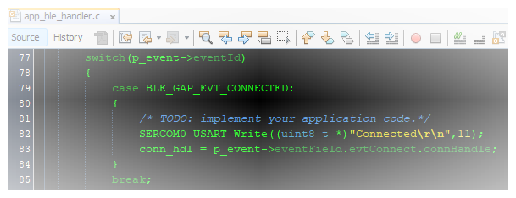
-
-
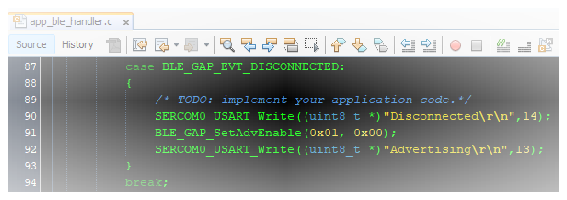
BLE_GAP_EVT_DISCONNECTED event will be generated when a BLE connection is established.
- Advertising will begin upon disconnection.
TCP/IP Event Handling
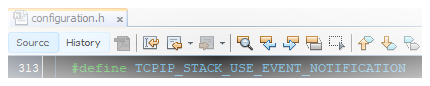
- The TCP/IP stack is running in a separate task. To allow the task to raise events, the
following build option can be defined:
-
The function “TCPIP_TCP_SignalHandlerRegister” can be used to register an event handler for specific events.
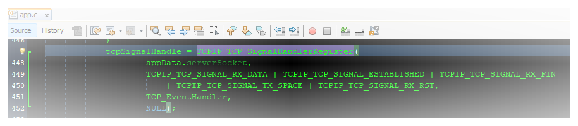
- The event handler can process signal
established/finished and TX/RX related events.
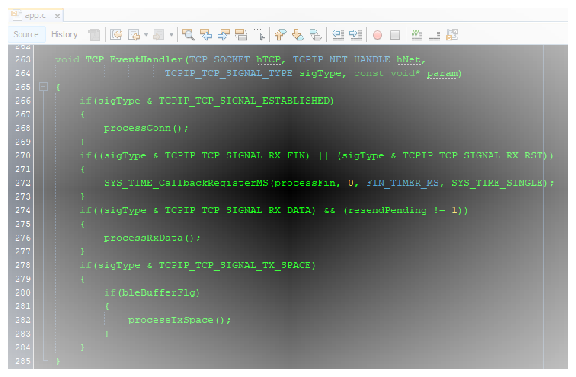
Signal Established and Finished TCP Events
-
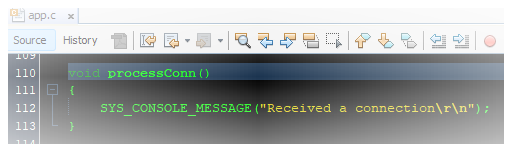
The event flag “TCPIP_TCP_SIGNAL_ESTABLISHED” will be raised when a client connected to the server. The application will print a message notifying that a connection was made.
-
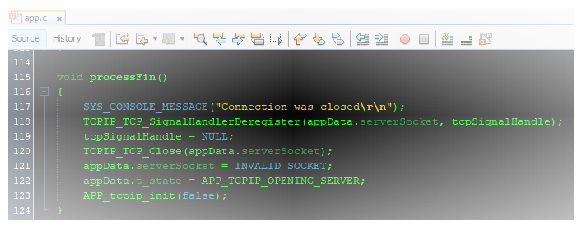
The event flags “TCPIP_TCP_SIGNAL_RX_FIN” or “TCPIP_TCP_SIGNAL_RX_RST” will be raised when a connection to the client is lost. The application will start a timer to allow the system to process any unfinished tasks before closing the socket and cleaning up the resources.
-
After cleanup,
appData.t_stateis set to “APP_TCPIP_OPENING_SERVER” and APP_tcpip_init() is called to wait for a new client connection.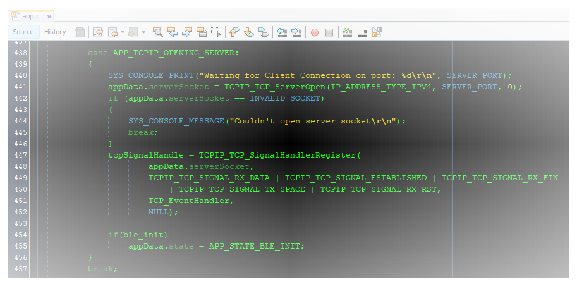
“BLE to Socket” Data Path
-
The “BLE to Socket" data path is initiated when BLE packet is received from the connected central device. This packet is put onto the TCP TX FIFO and it is sent over the socket to the client.
-
The BLE packet is received in the “BLE_TRSPS_EVT_RECEIVE_DATA” event in
app_trsps_handler.c.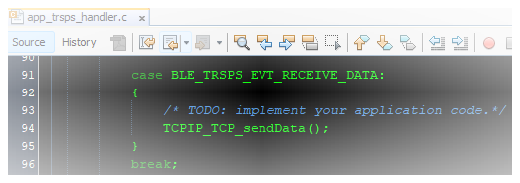
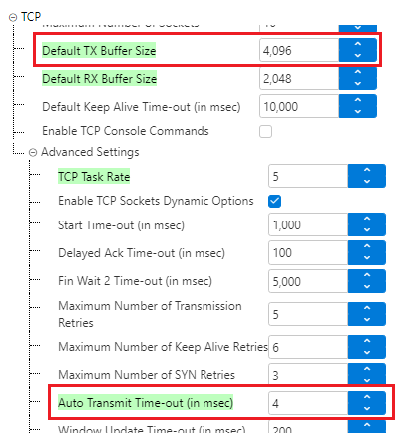
- The application will send the BLE packet over TCP. If the TX FIFO is full, the data is buffered until the “TCPIP_TCP_SIGNAL_TX_SPACE” event signals that space is available.The TX FIFO will flush when it is half full or when a timeout expires. The timeout is determined by the Auto Transmit Time-out in the TCP component in the project graph. To send out the BLE data, this timeout is set to 4ms which is faster than the BLE connection time at 7.5ms. The TX FIFO size has been set to 4096.
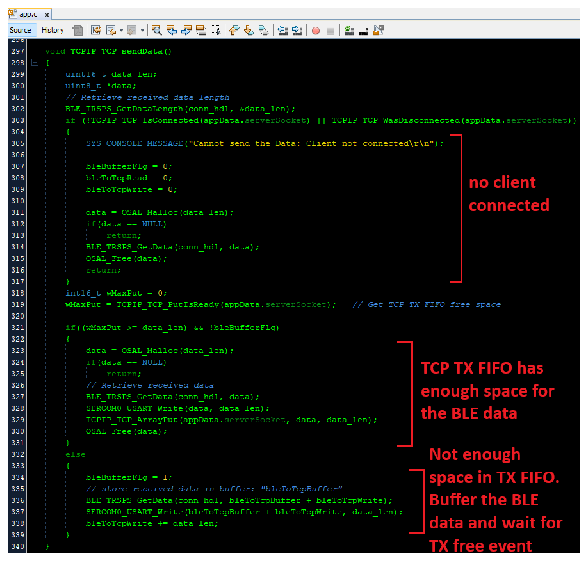
 If the TX FIFO cannot hold the BLE packet, the data is buffered in the “bleToTcpBuffer” and sent when “TCPIP_TCP_SIGNAL_TX_SPACE” is raised. Buffered data is sent over the socket until the buffer is cleared.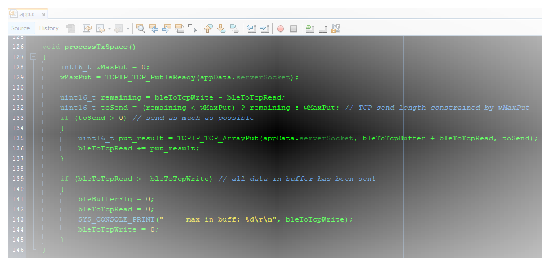
“Socket to BLE” Data Path
-
The “Socket to BLE” data path is initiated when a TCP packet is received from the connected client. This packet is then sent over BLE.
-
The event “TCPIP_TCP_SIGNAL_RX_DATA” is raised when a TCP packet has been received.
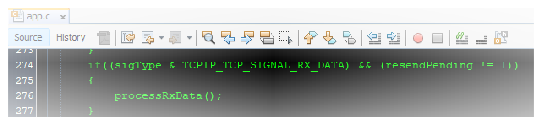
-
The application will attempt to send the entire received packet from TCP over BLE but is constrained by the max BLE packet size.If the data is too large to send in a single BLE packet, then only the max BLE packet will be sent. Since the TCP/IP stack will only raise one event for the received packet, a custom event is made to send the remaining TCP data.
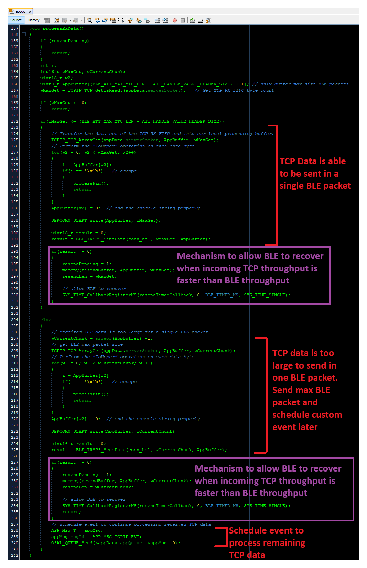
 The event handler will recall the processRxData() function to finish sending the TCP data.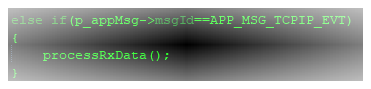
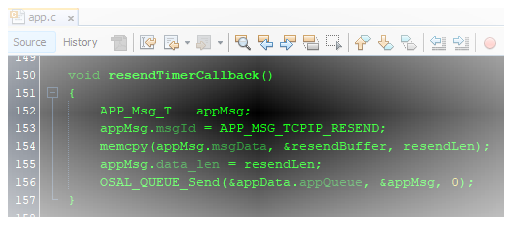
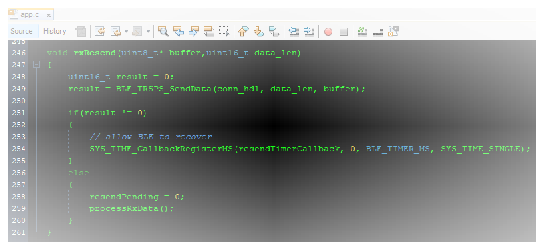
- Since the throughput of wired TCP/IP communication is greater than the throughput of wireless BLE communication, there is a mechanism to allow the BLE stack to recover if the “BLE_TRSPS_SendData” function fails. BLE_TRSPS_SendData will return 0 on success. Anything other than a return of 0 is some type of failure.The TCP data that failed to send over BLE is buffered and timer is set to allow BLE stack to recover. This buffer is named “resendBuffer” and is the size of the maximum BLE packet.
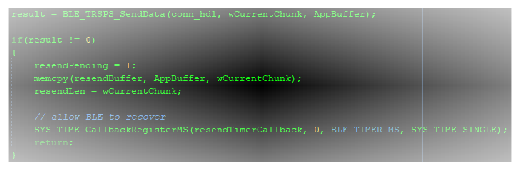
 Only the failed packet will be buffered and resent. The flag “resendPending” pauses the processing of incoming TCP data to ensure data is sent over BLE in order. When the timer expires, an event is triggered to retry sending the buffered data. The timer value is set to 10ms in BLE_TIMER_MS.If sending still fails, the timer is reset and the process repeats. If successful, the flag is cleared, and any remaining TCP data is processed.
Where to go from here
BLE Sensor App utilizes the Transparent UART building block, see BLE Sensor from Related Links.