
3.5.4 Smart PID Fan Control With AWS IoT on PIC32CM JH VL Curiosity Nano+ Touch Evaluation Kit
Description
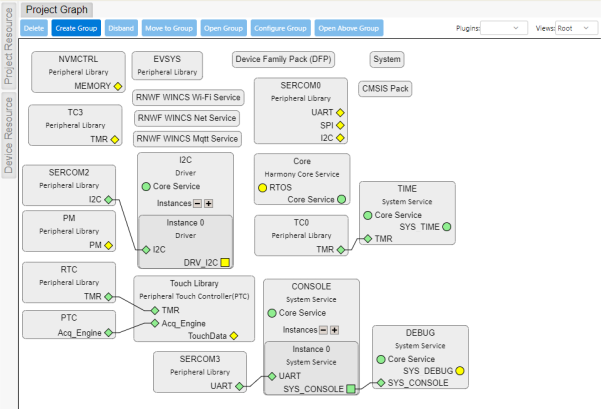
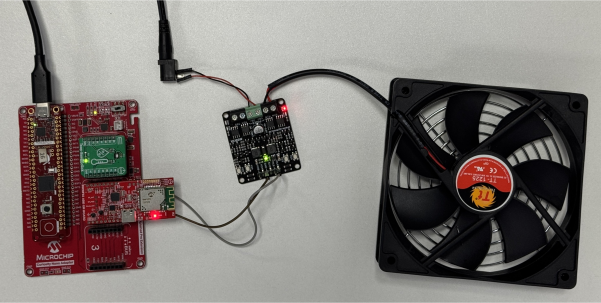
This application demonstrates the automatic control of the fan/motor which can adjust its speed based on the real-time temperature data which will be sent to the cloud (Amazon AWS). It is developed with the help of PIC32CM JH-Value Line Curiosity Nano + Touch evaluation kit, Curiosity Nano base for Click Boards, RNWF02 Wi-Fi module, Temp&Hum 13 click and Motor Driver.
The fan/motor is controlled using the Timer/Counter (TC) module to generate Pulse Width Modulation (PWM) signals, allowing for precise and efficient speed regulation. To achieve stable and efficient control, the system uses a Proportional-Integral-Derivative (PID) algorithm. PID is a widely used control technique that continuously calculates an error value (the difference between a desired set-point and the actual measured value) and applies corrections based on proportional, integral, and derivative terms. This helps the system respond quickly to changes, eliminate steady-state errors, and maintain smooth operation.
- Automatic mode
- Manual mode
Mode switching is conveniently managed through message payloads sent through Amazon AWS, enabling seamless remote control and integration with cloud-based services. This application is ideal for smart environments, offering both autonomous and user-driven motor/fan management for enhanced convenience and performance.
Automatic mode:
In Automatic mode, fan/motor speed is precisely regulated by a PID algorithm, ensuring optimal performance and consistent temperature control. The PWM value is dynamically adjusted in response to real-time temperature changes, resulting in corresponding variations in fan/motor speed. This intelligent control mechanism helps maintain a comfortable environment while optimizing energy usage. Additionally, the system operates autonomously, reducing the need for manual intervention and providing a seamless user experience.
Manual mode:
In Manual mode, users can select from three predefined speed settings: LOW, MEDIUM, and HIGH. This mode offers users the flexibility to manually adjust the fan/motor speed according to the preferences or specific requirements. The straightforward control interface makes it easy for users to switch between speed levels, allowing for personalized comfort. Manual mode is ideal for situations where users prefer direct control over the fan/motor operation rather than relying on automated adjustments.
Modules/Technology Used
- Peripheral Modules
- DMAC
- EVSYS
- NVIC
- NVMCTRL
- Power Manager (PM)
- PORT
- PTC
- RTC
- SERCOM0 (USART)
- SERCOM2 (I2C)
- SERCOM3 (USART)
- SYSTICK
- TC
- Drivers
- I2C
- System Services
- Core
- Console
- Debug
- Time
- Library
- Touch
- Wireless System Services
- RNWF WINCS Wi-Fi Service
- RNWF WINCS Net Service
- RNWF WINCS MQTT Service
Hardware Used
Software/Tools Used
This project has been verified to work with the following versions of software tools:
Refer to the Project Manifest present in
harmony-manifest-success.yml under the project folder
firmware/src/config/pic32cm_jh_vl_cnano.
- Refer to the Release Notes to know the MPLAB X IDE and MCC Plug-in version
- Any Serial Terminal application, such as Tera Term/PuTTY terminal application
Due to Microchip regularly updates tools, occasionally issue(s) could be discovered while using the newer versions of the tools. If the project does not seem to work and version incompatibility is suspected, it is recommended to double-check and use the same versions that the project was tested with. To download original version of MPLAB Harmony v3 packages, refer to the document How to Use the MPLAB Harmony v3 Project Manifest Feature (DS90003305).
Setup
- Mount PIC32CM JH-Value Line Curiosity Nano + Touch evaluation kit on Curiosity Nano Footprint of Curiosity Nano Base board
- Mount Temp&Hum 13 Click board on mikroBUS socket 1 connector of Curiosity Nano Base board
- Mount RNWF Add-on Board on mikroBUS socket 2 connector of Curiosity Nano Base board
- Connect the PIC32CM JH-Value Line Curiosity Nano + Touch evaluation kit to the host PC as a USB device using a Type-A male to Type-C USB cable, with the Type-C end plugged into the Debug USB port
- Connect Pin 8 (PWM3) and
Pin 19 (GND) in the Xplained Pro Extension of Curiosity Nano Base board
to Pin M1A and Pin GND of Dual Channel DC Motor Driver MDD3A
respectively. Note: Since the RNWF02 Add-on Board (Wi-Fi module) operates on 3.3V, the operating voltage of PIC32CM JH Value Line Curiosity Nano+ Touch evaluation kit is changed to 3.3V instead of 5V with the help of MPLAB X project properties.
Hardware Modification:
- Connect a 12V DC Fan to
Terminal M1A and M1B and connect a 12V power supply socket to Terminals
(POWER) VB+ and VB-.
Programming Hex File
The pre-built hex file can be programmed by following the below steps.
- Open MPLAB X IDE
- Close all existing projects in IDE, if any project is opened
- Go to
File>Import>Hex/ELF File - In the Import Image File
window,
- Create Prebuilt
Project,
- Click the Browse button to select the prebuilt hex file
- Select Device as PIC32CM6408JH00064
- Ensure the proper tool is selected under Hardware Tool and click the Next button
- Select Project
Name and Folder,
- Select appropriate project name and folder and click the Finish button
- Create Prebuilt
Project,
- In MPLAB X IDE, click the Make and Program Device button to program the device
- Follow the steps in Running the Demo section
Programming/Debugging Application Project
- Open the project
(
pic32cm_jh_vl_cnano_smart_pid/firmware/pic32cm_jh_vl_cnano.X) in MPLAB X IDE - Ensure
PIC32CM JH
                                VL Curiosity Nano
is selected as hardware tool to program/debug the application - Build the code and program the device by clicking on the Make and Program button in MPLAB X IDE tool bar
- Follow the steps in Running the Demo section
Running the Demo
- Open the Tera Term/PuTTY terminal application on the PC (from the Windows® Start menu by pressing the Start button)
- Set the baud rate to 115200
- To Reset the device, run
this command:
ipecmd.exe -P32CM6408JH00064 -TPNEDBG -OKfrom the following location:C:/Program Files/Microchip/MPLABX/v6.25/mplab_platform/mplab_ipe - In AWS Console, go to
IoT Core>MQTT test client. Enter the topic filter name/smart_pid_aws/under Subscribe to a topic, and click Subscribe button.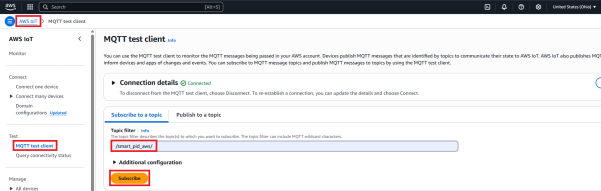
- The user needs to update
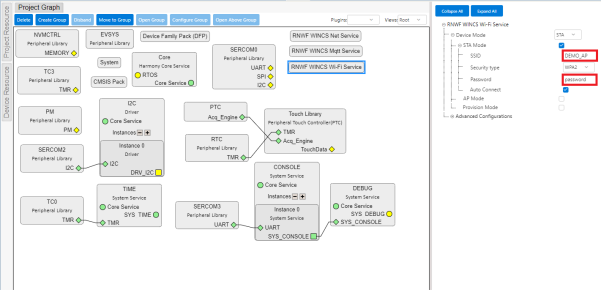
the SSID name and password of the Wi-Fi router or mobile hotspot to
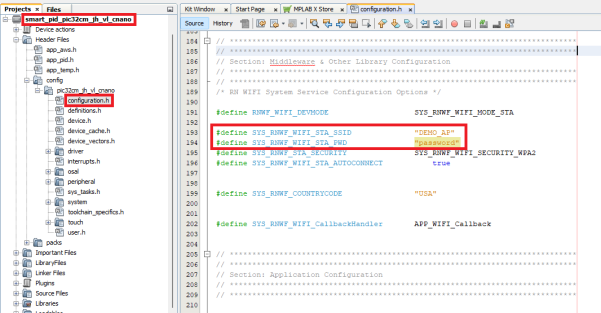
DEMO_AP and password, respectivelyNote: The Wi-Fi SSID and Password is configured through MCC under RNWF WINCS Wi-Fi Service configuration or the user can modify the credentials manually in the configurations.h file of the pic32cm_jh_vl_cnano_smart_pid project as below.
- MCC
Configuration:
- Manual
Configuration:
- MCC
Configuration:
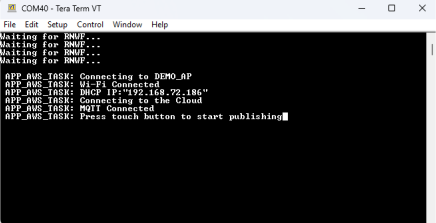
- Wait for the
initialization prints in the serial port terminal
- Once MQTT is connected, a
message as
Press touch button to start publishingwill be displayed in the terminal and once it is displayed, the user needs to place the finger on the touch button (highlighted below) of the PIC32CM JH Value Line Curiosity Nano+ Touch evaluation kit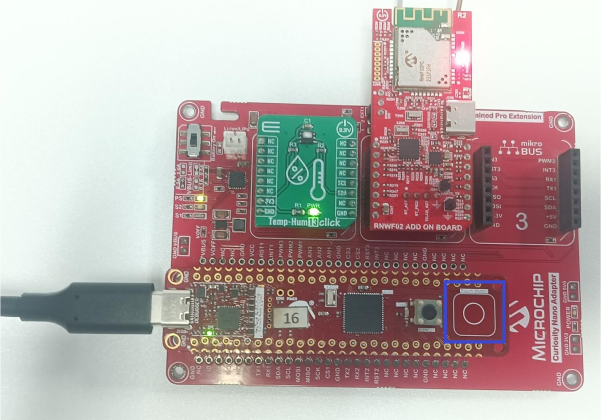
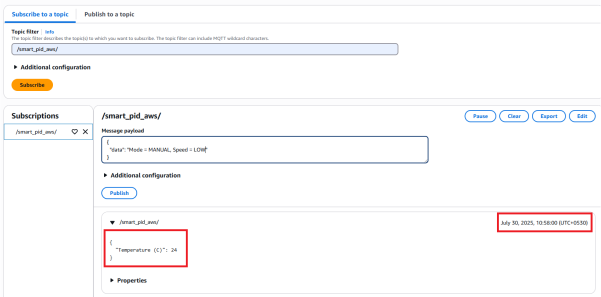
- The temperature values
will be published to the AWS cloud
- By default, the demo is running in AUTO (automatic) mode, and the fan will start to operate if the temperature starts to increase. The speed at which the fan rotates varies depending on the increase in the temperature.
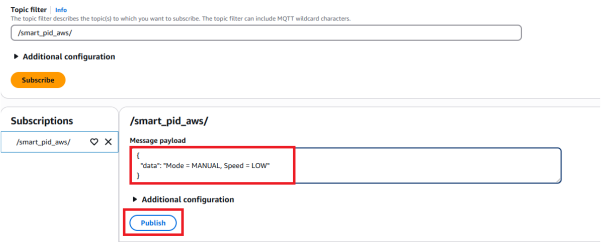
- To switch to MANUAL mode,
the user needs to edit the message payload as shown below,
{
"data": "Mode = MANUAL, Speed = LOW"
}
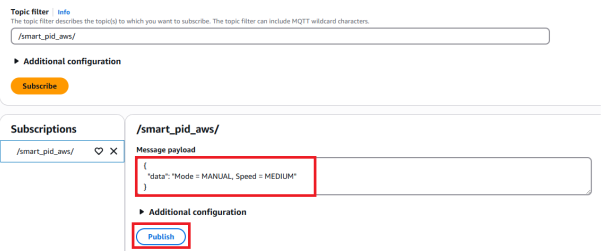
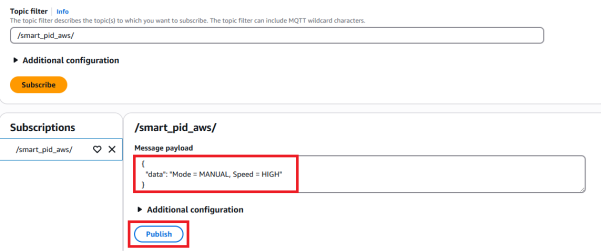
- To operate the fan in
medium speed, user needs to enter MEDIUM in speed. Same need to be done
if the user needs to operate the fan in HIGH speed.
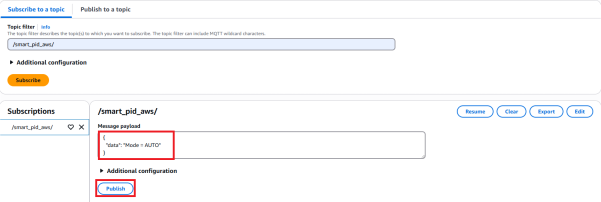
- To operate the fan in
AUTO (automatic) mode again, the user needs to edit the mode as AUTO
(the user need not enter the speed as the fan is operated automatically
using PID controller).
- The user need to change
the SET_TEMPERATURE macro
(
smart_pid_pic32cm_jh_vl_cnano>Source
                                Files>app_pid.c
) as per the room temperature.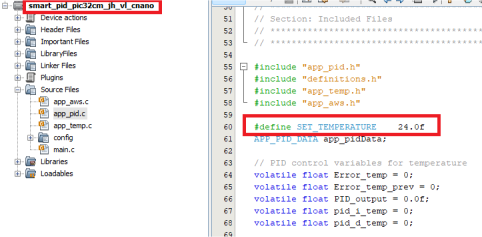
Create the own AWS account
- Create AWS account.
- Go to Amazon AWS and follow instructions to create the own AWS account
- Additional details can be found at Create and activate a new AWS account
- Secure root account with MFA (multi-factor authentication).
- This is an important step to better secure the root account against attackers. Anyone logging in not only needs to know the password. However, a constantly changing code generated by an MFA device.
- AWS recommends several MFA device options at the link Multi-Factor Authentication (MFA) for IAM.
- The quickest solution
is a virtual MFA device running on a phone. These apps provide the
ability to scan the QR code AWS will generate to set up the MFA
device.
- Return to Amazon AWS and click the Sign in to the Console.
- If it asks for an IAM username and password, select the Sign-in using root account credentials link.
- Enter the email and password for the AWS account.
- Under Find Services search for IAM and select it to bring up the Identity and Access Management options.
- Click the Activate MFA (Multi-factor Authentication) on the root account.
- Creating an admin IAM user AWS best practices recommend not using the root account for standard administrative tasks, but to create a special admin user for those tasks. See lock-away-credentials.
- Follow the instructions at Create an administrative user for creating an admin user.
- Enable MFA (multi-factor authentication) for the admin user. See Require multi-factor authentication (MFA).
Creating Device Certificate to AWS IoT Cloud Service
- Login to the AWS account
- Go to AWS IoT Core services
- Under
Manage>All
                            devices>Things
, click Create Things - Select Create single thing and click the Next button
- Enter the thing name of user choice (e.g., smart_pid) and leave the other configurations as they are and then click the Next button
- Click the Auto-generate a new certificate and click the Next button
- In the Attach policies to certificate section click the Create policy (located at top right corner). The user will be redirected to a new window to create a Policy
- Under Create Policy section, enter a new policy name of user choice (e.g., smart_pid_policy)
- Under policy document section,
- Select Allow in Policy effect
- Select * in Policy Action to select all the policy actions
- Enter * in Policy resource to select all the resources and click Create button
- Once the policy is created,
go back to Create things window and add the policy (here
smart_pid_policy) that is created and click Create thing - A pop-up window will appear
and download Device certificate, Key files and Root CA certificates and
click DoneNote: These files and certificates cannot be downloaded again once the pop-up windows is closed.
- Select the thing
smart_pidand copy the ARN (from AWS) and paste it inMCC>RNWF WINCS Mqtt Service>Cloud Configuration>User Namefor IoT Connect, Publish, Subscribe and Receive policies - Under
Security>Policies, selectsmart_pid_policy - Under
IoT>Connect>Domain Configurationscopy the Domain Name and paste it in the following places:MCC>RNWF WINCS Mqtt Service>Cloud Configuration>Cloud URLMCC>RNWF WINCS Mqtt Service>Enable TLS>Server Name
Uploading Device Certificate to RNWF Add on Board
- Use the Certificate And Key Utility to upload the
Private Key and Device Certificate for AWS IOT Cloud ServiceNote: Refer to the Windows Send To Utility for Windows Machine.
Comments
- Reference Training Module: Getting Started with Harmony v3 Peripheral Libraries on SAMC2x MCUs
- This application demo
builds and works out of box by following the instructions in Running the
Demo section. If the user needs to enhance/customize this application
demo, should use the MPLAB Harmony v3 Software framework. Refer to the
following links to setup and build the applications using MPLAB
Harmony.
- How to Setup MPLAB Harmony v3 Software Development Framework (DS90003232)
- How to Build an Application by Adding a New PLIB, Driver, or Middleware to an Existing MPLAB Harmony v3 Project (DS90003253)
- Video - How to Set up the Tools Required to Get Started with MPLAB® Harmony v3 and MCC
- Create a new MPLAB Harmony v3 project using MCC
- Update and Configure an Existing MHC-based MPLAB Harmony v3 Project to MCC-based Project