
3.2.3 Low Power Acoustic Detection With Integrated Data Logging on PIC32CM GV VL Curiosity Nano+ Touch Evaluation Kit
Description
This demonstration aims to showcase the detection of acoustic noise and low power monitoring using the PIC32CM GV-Value Line Curiosity Nano+ Touch evaluation kit, in conjunction with the Curiosity Nano Explorer for the microphone and SPI EEPROM and PAC1944 Power Monitor.
The application operates in a two distinct functionalities: Acoustic Detection with Data Logging and Low Power Monitoring, based on the user-controlled Touch button.
- Acoustic Detection: Following a device reset, set the RTC time and date before entering the Datalog mode. The system enters acoustic detection mode only when the Touch button is pressed. The LED is turned ON and the system continuously monitors the environment for acoustic noise events during that time. Upon detecting an event, it records the event time using the RTC and stores it as a log entry in the EEPROM through SPI communication. The system writes real-time log entries to the EEPROM. The logged data is read back from the EEPROM through SPI and displayed on the terminal through UART for user review.
- Low Power Monitoring: To enter the low-power standby sleep mode, the system requires a touch input during data logging. Once the Touch button is pressed again, the LED turns OFF, indicating that the system has exited Datalog mode and entered low-power standby sleep mode. In this state, if any interrupt is generated during this state, the device wakes up immediately and returns to Active mode. The microcontroller unit (MCU) significantly reduces power consumption by disabling non-essential peripherals and lowering the clock frequency. This mode showcases the low-power capabilities of the PIC32CM GV-Value Line Curiosity Nano+ Touch evaluation kit.
Modules/Technology Used
-
Peripherals
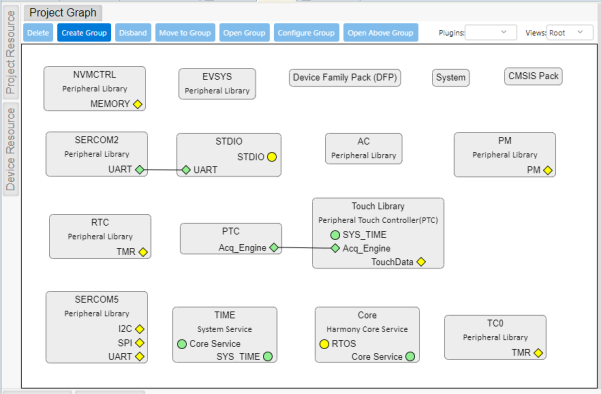
- AC
- TC
- RTC
- EVSYS
- NVMCTRL
- PM
- PORT
- SYSTICK
- SERCOM2 - UART
- SERCOM5 - SPI
- Core
- System Services
- TIME
- Touch
- PTC
- Touch library
The following figure provides the MCC Harmony project graph with all the components.
Hardware Used
Software/Tools Used
- PAC194x/PAC195x Demo Application (v1.0.2.6)
Refer to the Project Manifest present in
harmony-manifest-success.yml under the project folder
firmware/src/config/pic32cm_gv_vl_cnano.
- Refer to the Release Notes to know the MPLAB X IDE and MCC Plug-in version
- Any Serial Terminal application, such as Tera Term/PuTTY terminal application
Due to Microchip regularly updates tools, occasionally issue(s) could be discovered while using the newer versions of the tools. If the project does not seem to work and version incompatibility is suspected, it is recommended to double-check and use the same versions that the project was tested with. To download original version of MPLAB Harmony v3 packages, refer to the document How to Use the MPLAB Harmony v3 Project Manifest Feature (DS90003305).
Hardware Setup
- Mount the PIC32CM GV-Value Line Curiosity Nano+ Touch evaluation kit onto the Curiosity Nano Explorer board.
- To program the firmware, connect the PIC32CM GV-Value Line Curiosity Nano+ Touch evaluation kit to the host PC using a Type-A male to Type-C USB cable. Plug the cable into the Type-C USB (Debug USB) port on the evaluation kit.
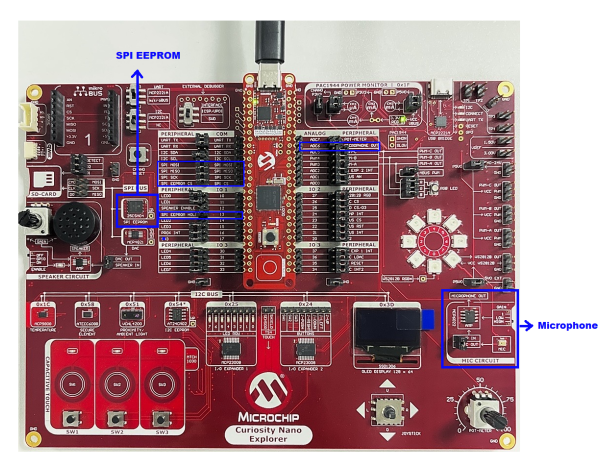
- Ensure the jumper connections are properly made for the SPI EEPROM lines
and the microphone between the PIC32CM GV-Value Line Curiosity Nano+
Touch evaluation kit and the Curiosity Nano Explorer board, as
follows:
- PA11 - SPI EEPROM HOLD
- PB02 - SPI MOSI
- PB00 - SPI MISO
- PB03 - SPI SCK
- PA08 - UART TX
- PA09 - UART RX
- PA02 - SPI EEPROM CS
- PA05 - MICROPHONE
OUT
- After flashing the firmware onto the PIC32CM GV-Value Line Curiosity Nano board, proceed with the following hardware connections.
- Connect the Curiosity Nano Explorer Kit USB Bridge port to the host PC using a Type-A male to Type-C USB cable. Plug the cable into the Type-C USB (Debug USB) port on the explorer board.
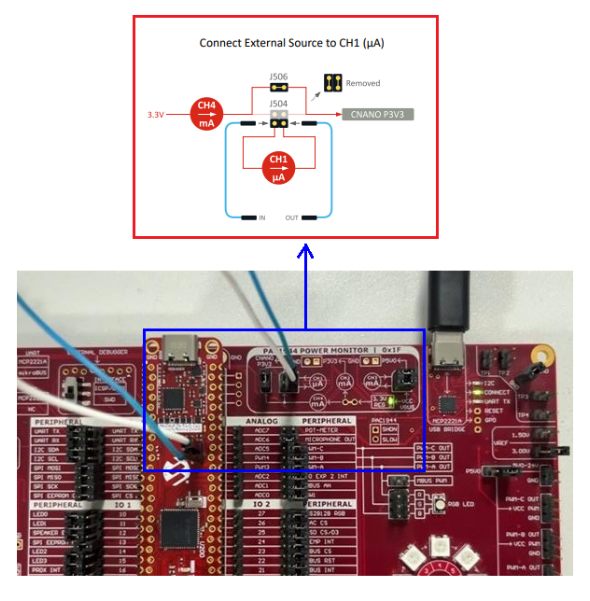
- To monitor the MCU Power consumption, made the connection between
PIC32CM GV-Value Line Curiosity Nano+ Touch evaluation kit to PAC1944
Power Monitor (CH1) on the Curiosity Nano Explorer Board as below.
Programming Hex File
The pre-built hex file can be programmed by following the below steps.
- Open MPLAB X IDE
- Close all existing projects in IDE, if any project is opened
- Go to
File>Import>Hex/ELF File - In the Import Image File
window,
- Create Prebuilt Project,
- Click the Browse button to select the prebuilt hex file
- Select Device as PIC32CM3204GV00064
- Ensure the proper tool is selected under Hardware Tool and click the Next button
- Select Project
Name and Folder,
- Select appropriate project name and folder and click the Finish button
- Create Prebuilt Project,
- In MPLAB X IDE, click the Make and Program Device button to program the device
- Follow the steps in Running the Demo section
Programming/Debugging Application Project
- Open the project
(
pic32cm_gv_vl_cnano_low_power_acoustic_logger/firmware/pic32cm_gv_vl_cnano.X) in MPLAB X IDE - Then, right click on the
project (
low_power_acoustic_logger) and click Set as Main Project button - Ensure
PIC32CM GV
                                VL Curiosity Nano
is selected as hardware tool to program/debug the application - Build the code and program the device by clicking on the Make and Program button in MPLAB X IDE tool bar
- Follow the steps in Running the Demo section
Running the Demo
- Ensure that a connection is established between the USB Bridge port of the Curiosity Nano board and the host PC using a USB cable.
- Open the Tera Term/PuTTY terminal application on the PC (from the Windows® Start menu by pressing the Start button)
- Set the baud rate to 115200
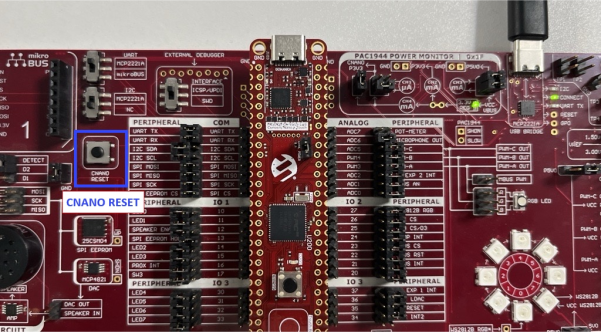
- Reset the device by pressing
the CNANO RESET button on the Curiosity Nano Explorer board
- The device will start running
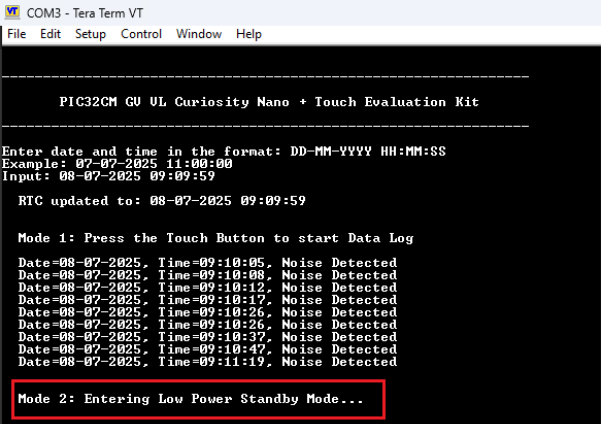
the demo and the terminal will display the following message
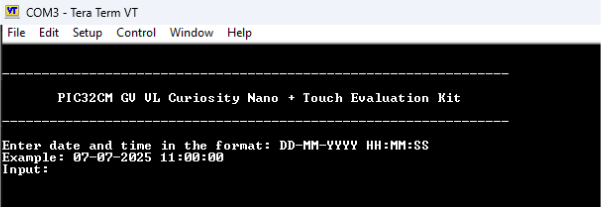
- Before entering the Datalog
mode, set the RTC time and date in the following format:
DD-MM-YYYY HH:MM:SS(e.g.,08-07-2025 14:30:00).Note: The RTC is not synchronized with any external network or real-time source in this application. Therefore, the current date and time are not automatically updated. Instead, the system uses the date and time manually provided by the user through the serial terminal. The RTC then continues from this manually set value to log acoustic detection events.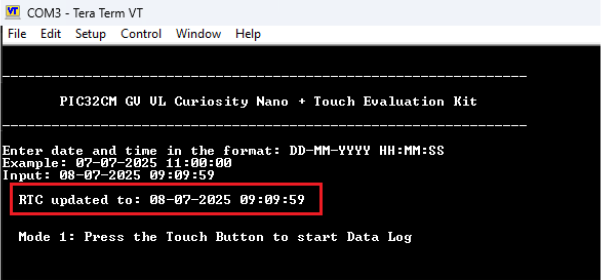
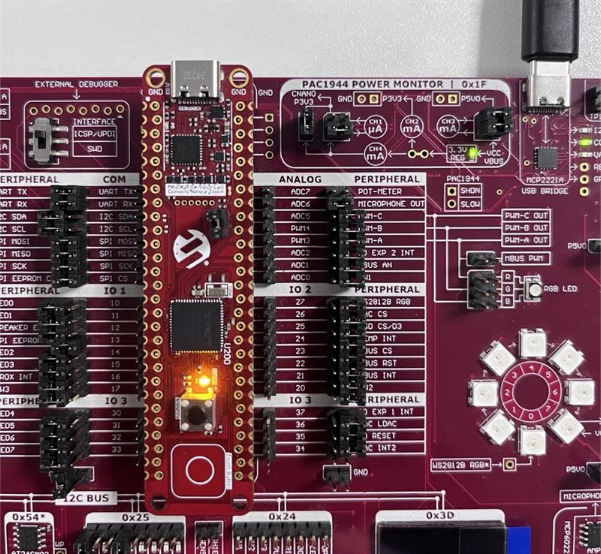
- Press the Touch button
on the PIC32CM GV-Value Line Curiosity Nano+ Touch evaluation kit to enter
Data log mode. The LED turns ON, and the microphone on the Curiosity Nano
Explorer Board continuously monitors the acoustic events along with their
timestamps.
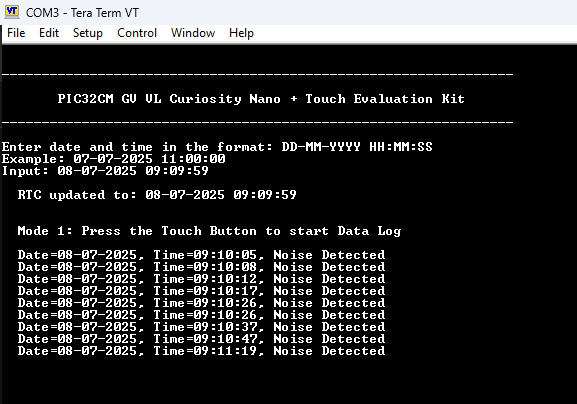
- The system captures and
stores acoustic data logs with timestamps in the EEPROM through SPI, and the
observed logs are printed on the terminal through UART
- To enter Low Power Standby
Sleep mode, press Touch button again during data logging. The LED
turns OFF, and the system displays the following message on the
terminal.
- Ensure the connection between the PIC32CM GV-Value Line Curiosity Nano+ Touch evaluation kit and the PAC1944 Power Monitor - CH1 on the Curiosity Nano Explorer board as mentioned in the above hardware setup.
- To monitor the power
consumption of the device, open the PAC194x 5x Demo Application and follow
the steps below:
- Ensure the message
Board connectedappears at the bottom-left of the Status section. - Select and set the
Average N AVG Valuesto 20. (The value can be adjusted based on the desired sampling accuracy). - Click the Start Acquisition button.
- Monitor the power
consumption on Current Avg (mA) in the Real Data section of CH1.
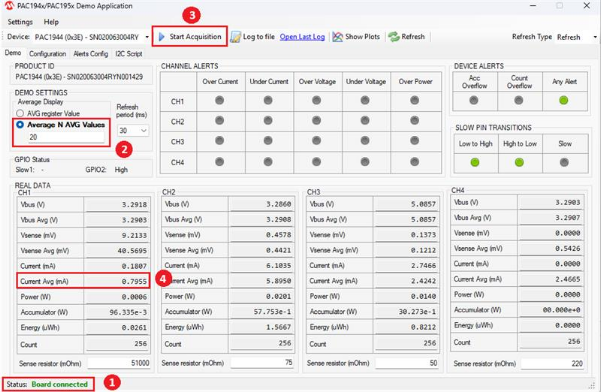
- Once the Start Acquisition button is clicked, Real data of power consumption will appear in the Current Avg (mA) section.
- Ensure the message
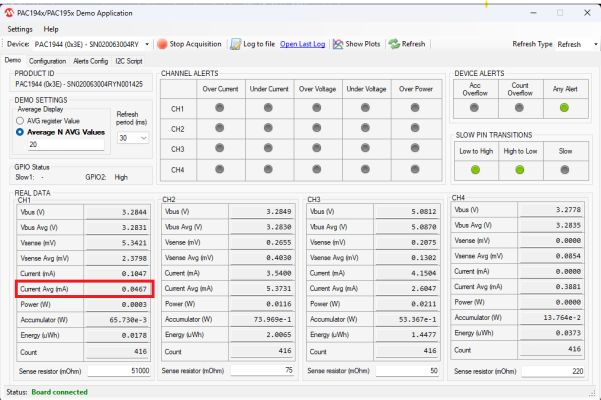
- The image below shows the
device's power consumption in standby mode as 46 µANote: The average value is considered when measuring the power consumption of the device due to the instant value is not stable. Then, the power consumption of the device in Standby mode is 46 µA.
 Note: The following clock configuration is optimized to achieve low power consumption of the PIC32CM GV-Value Line Curiosity Nano+ Touch evaluation kit MCU with the necessary peripheral functionality.
- Main Clock: DFLL configured at 48 MHz and used as the source for GCLK0.
- GCLK1: Sourced from XOSC32K and runs at 1024 kHz.
- GCLKx: Sourced from OSCULP32K and runs at 32.768 kHz.
- Peripheral Clock
configurations:
- RTC, SYSCTRL_DFLL48, TC0, EVSYS, and AC are clocked at 1024 Hz (via GCLK1)
- PTC clocked at 32,768 Hz (via GCLK2)
- SERCOM2 and SERCOM5 are clocked at 48 MHz (via DFLL through GCLK0)
- To generate an interrupt that
wakes the device from Standby mode to Active mode. This action increases
power consumption, and the device immediately returns to Standby mode after
device wakes up.Note: The power consumption is lower in Standby mode than in Active mode.
Comments
- Reference Training Module: Getting Started With MPLAB® Harmony v3 Peripheral Libraries on PIC32CM GV-VL (Arm® Cortex®-M0+) MCUs
- Reference Video: Low Power Acoustic Detection with Data Logging on PIC32CM GV-VL Curiosity Nano+Touch Evaluation Kit
- This application demo
builds and works out of box by following the instructions in Running the
Demo section. If the user needs to enhance/customize this application
demo, should use the MPLAB Harmony v3 Software framework. Refer to the
following links to setup and build the applications using MPLAB
Harmony.
- How to Setup MPLAB Harmony v3 Software Development Framework (DS90003232)
- How to Build an Application by Adding a New PLIB, Driver, or Middleware to an Existing MPLAB Harmony v3 Project (DS90003253)
- Video - How to Set up the Tools Required to Get Started with MPLAB® Harmony v3 and MCC
- Create a new MPLAB Harmony v3 project using MCC
- Update and Configure an Existing MHC-based MPLAB Harmony v3 Project to MCC-based Project