This application demonstrates the use of the MCP25625 CAN Click board for
transmitting and receiving CAN data with the PIC32CM GV-Value Line Curiosity
Nano+ Touch evaluation kit. The mikroBUS interface on the Curiosity Nano
Explorer provides a seamless connection to the MCP25625 Click board, ensuring
reliable communication between the microcontroller and the CAN transceiver.
The application is built using the System Hardware Definition (SHD) feature,
which automatically configures and enables the necessary peripheral access for
the Curiosity Nano Explorer. This includes the SPI interface and GPIO
connections required for communication with the MCP25625 Click board, as well as
the UART interface used for data display.
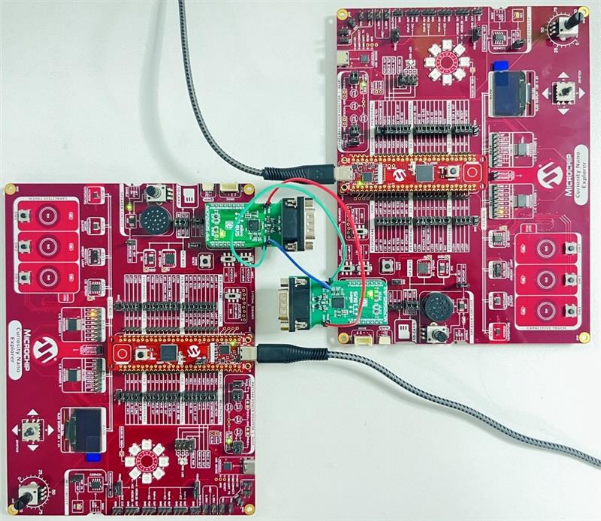
To demonstrate CAN communication, the setup consists of two hardware
configurations:
Transmitter Setup: PIC32CM
GV-Value Line Curiosity Nano+ Touch evaluation kit and MCP25625 CAN Click
board mounted on the Curiosity Nano Explorer board, configured to send CAN
messages
Receiver Setup: PIC32CM
GV-Value Line Curiosity Nano+ Touch evaluation kit and MCP25625 CAN Click
board mounted on the Curiosity Nano Explorer board, configured to receive
CAN messages
Both setups are connected through the CAN bus using the CAN_H and CAN_L lines,
and both setups are capable of transmitting and receiving CAN messages.
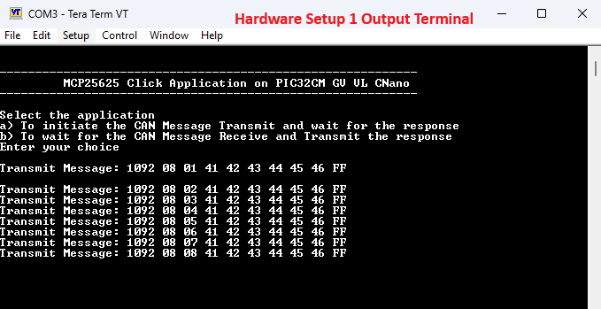
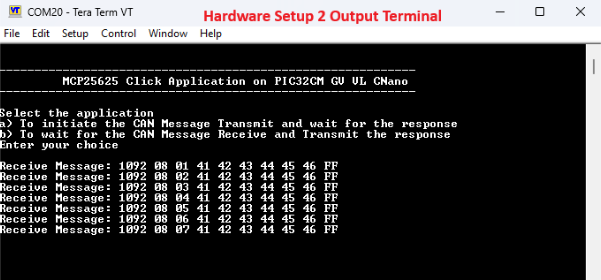
The transmitted and received CAN messages are displayed on a serial terminal
through UART, allowing users to easily monitor the flow of CAN data. This demo
highlights the integration of SHD with MPLAB Harmony, simplifying peripheral
setup and reducing manual configuration effort while showcasing end-to-end CAN
communication using MCP25625 Click boards.
Modules/Technology
Used
Peripherals
PORT
SYSTICK
SERCOM5 -
SPI
SERCOM2 -
UART
Core
SHD
PIC32CMGV-CURIOSITY-NANO-EXPLORER
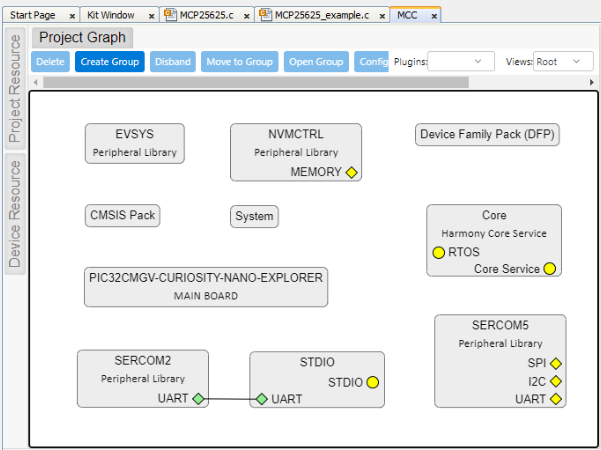
The following figure provides the MCC Harmony project graph with all the
components.
This project has been verified to work with the following versions of software
tools:
Refer to the Project Manifest present in
harmony-manifest-success.yml under the project folder
firmware/src/config/pic32cm_gv_vl_cnano.
Refer to the Release
Notes to know the MPLAB X IDE and MCC Plug-in version
Any Serial Terminal
application, such as Tera Term/PuTTY terminal application
Due to Microchip regularly updates tools, occasionally issue(s) could be
discovered while using the newer versions of the tools. If the project does not
seem to work and version incompatibility is suspected, it is recommended to
double-check and use the same versions that the project was tested with. To
download original version of MPLAB Harmony v3 packages, refer to the document
How to Use the MPLAB Harmony v3 Project Manifest
Feature (DS90003305).
Hardware Setup
Place the PIC32CM
GV-Value Line Curiosity Nano+ Touch evaluation kit on the Curiosity Nano
Explorer board
Mount the MCP25625 on
mikroBUS Socket 1 of the Curiosity Nano Explorer board
Ensure the jumper
connections are properly made for the SPI lines and the mikroBUS between
the PIC32CM GV-Value Line Curiosity Nano+ Touch evaluation kit and the
Curiosity Nano Explorer board, as follows:
PB02 - SPI
MOSI
PB00 - SPI
MISO
PB03 - SPI
SCK
PA25 - MBUS
CS
PB13 - MBUS
RST
PB06 - MBUS
AN
Connect the jumper pins
between the two MCP25625 mikroBUS setups for the following signals:
CANH
CANL
GND
Connect the PIC32CM
GV-Value Line Curiosity Nano+ Touch evaluation kit to the host PC using
a Type-A male to Type-C USB cable. Plug the cable into the Type-C USB
(Debug USB) port on the evaluation kit.
Programming Hex File
The pre-built hex file can be programmed by following the below steps.
Steps to program the hex file
Open MPLAB X IDE
Close all existing
projects in IDE, if any project is opened
Go to
File>Import>Hex/ELF File
In the Import Image File
window,
Create Prebuilt
Project,
Click the
Browse button to select the prebuilt hex
file
Select
Device as PIC32CM3204GV00064
Ensure
the proper tool is selected under Hardware Tool and
click the Next button.
Select Project
Name and Folder,
Select
appropriate project name and folder and click the
Finish button
In MPLAB X IDE, click the
Make and Program Device button to program the device
Follow the steps in
Running the Demo section
Programming/Debugging
Application Project
Open the project
(pic32cm_gv_vl_cnano/pic32cm_gv_vl_cnano_mikroe_click/pic32cm_gv_mcp25625/firmware/pic32cm_gv_vl_cnano.X)
in MPLAB X IDE.
Then, right click on the
project (mcp25625_click_pic32cm_gv_vl_cnano) and click
Set as Main Project button
Ensure PIC32CM
GV-VL CNANO is selected as hardware tool to program/debug
the application
Build the code and
program the device by clicking on the Make and Program button in
MPLAB X IDE tool bar
Follow the steps in
Running the Demo section
Note: Repeat the above Hardware Setup, Programming Hex
File, Programming/Debugging Application Project on the second hardware
setup.
Running the Demo
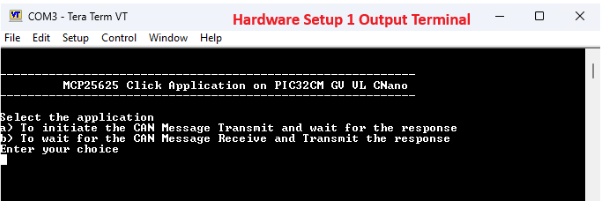
Open the Tera Term/PuTTY
terminal application on the PC (from the Windows® Start menu by pressing
the Start button)
Set the baud rate to
115200
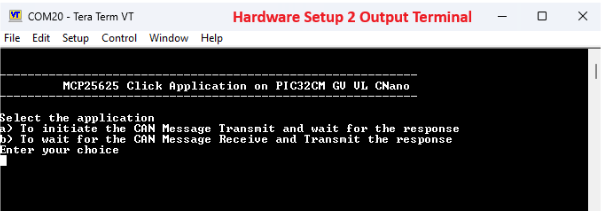
Repeat the above two
steps for the second hardware setup (Setup-2)
Enter a character
a on one Tera terminal application to initiate the
CAN Message Transmit
Enter a character
b on another Tera terminal application to wait for
the CAN Message Receive.
In both the Tera terminal
windows, the user will see the CAN message transmission and reception
continuously
Instructions to Add MCP25625
Functionality to the Application
The user could use this demonstration as an example to add MCP25625 functionality
to the MPLAB Harmony v3-based application. Follow the below steps.
If the user has not downloaded the pic32cm_gv_mcp25625
demo yet, click here to download, otherwise go to the next
step.
Unzip the downloaded .zip file.
From the unzipped folder
pic32cm_gv_mcp25625/firmware/src, copy the folder
click_routines to the folder firmware/src under the MPLAB Harmony v3
application project.
Open MPLAB X IDE.
Open the application project.
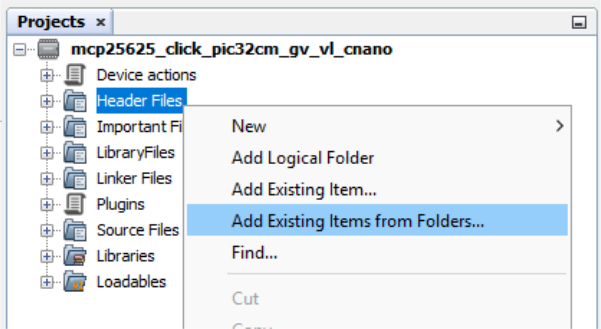
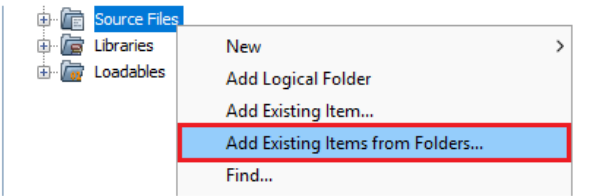
In the project explorer, right click on the Header Files folder and add a
sub folder, click_routines, by selecting Add Existing Items from
Folders...
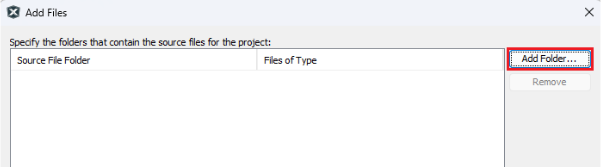
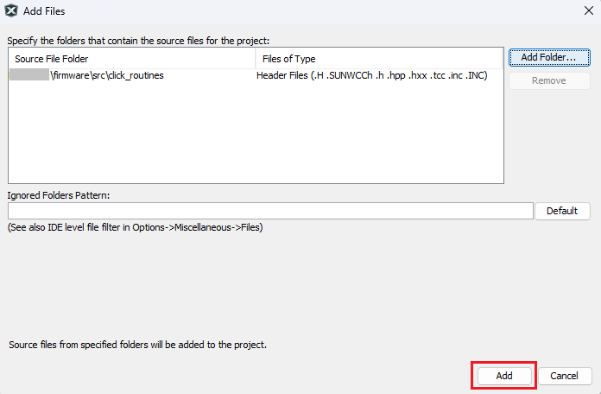
Click the Add
Folder... button.
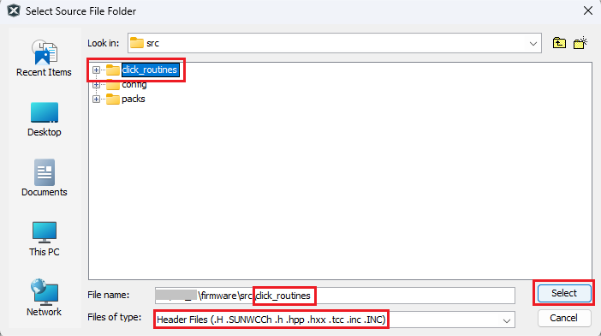
Select the click_routines
folder and select Files of Types as Header Files.
Click the Add button
to add the selected folder.
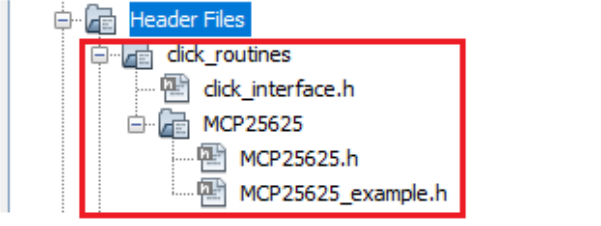
The MCP25625 click example
header files gets added to the project.
In the project explorer,
right click on the Source Files folder and add a sub folder, click_routines,
by selecting Add Existing Items from Folders...
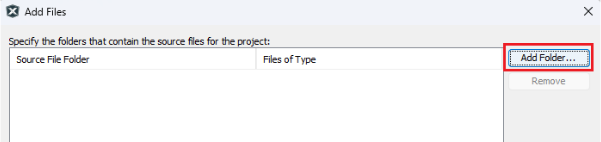
Click the Add
Folder... button.
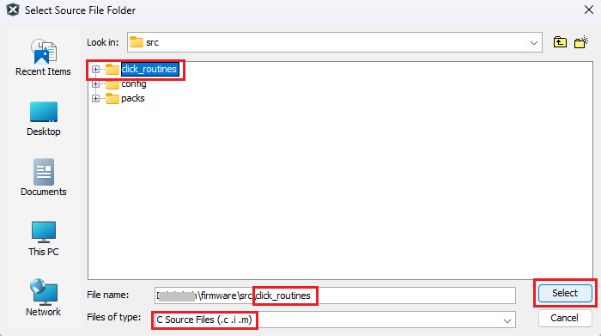
Select the click_routines
folder and select Files of Types as Source Files.
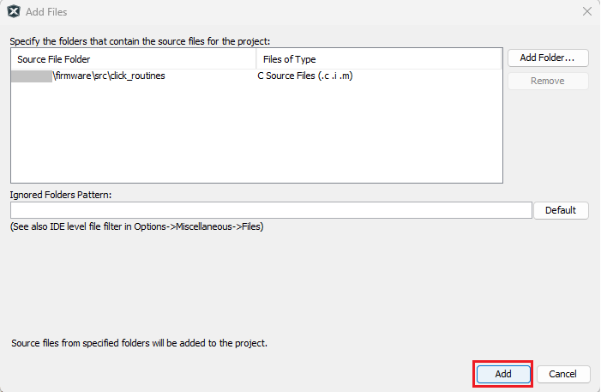
Click the Add button
to add the selected folder.
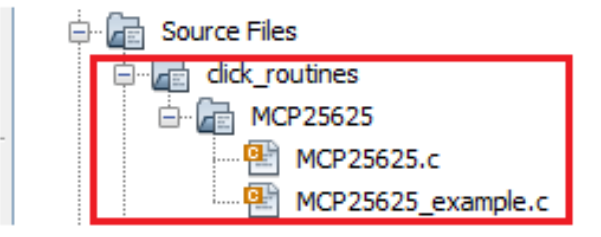
The MCP25625 click example
source files gets added to the project.
The MCP25625 Click example
requires specific peripheral and pin configurations. The exact configuration
depends on the PIC32CM GV-Value Line Curiosity Nano board used in
conjunction with the Curiosity Nano Explorer board, which provides
connectivity to the MCP25625 Click board.
Configure the SHD:
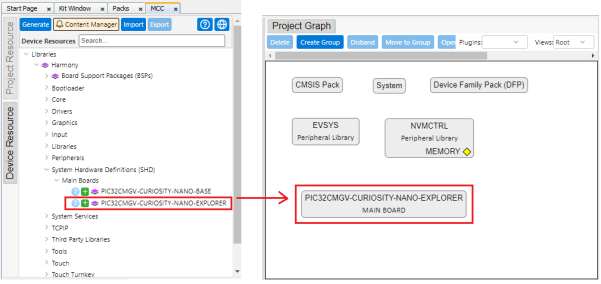
Add the SHD component of
PIC32CMGV-Curiosity-Nano-Explorer block to the MCC
project graph.
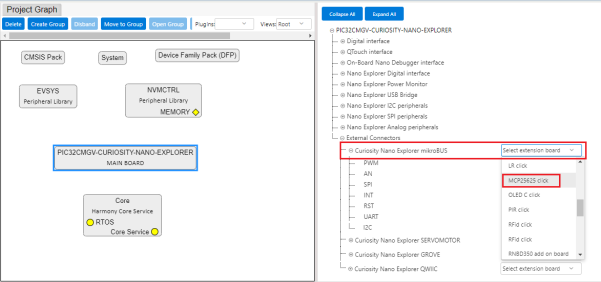
Select
PIC32CMGV-Curiosity-Nano-Explorer block in the project
graph. In the Configuration Options window, go to
External Connectors>Curiosity Nano Explorer
                                            mikroBUS
and select MCP25625 click.
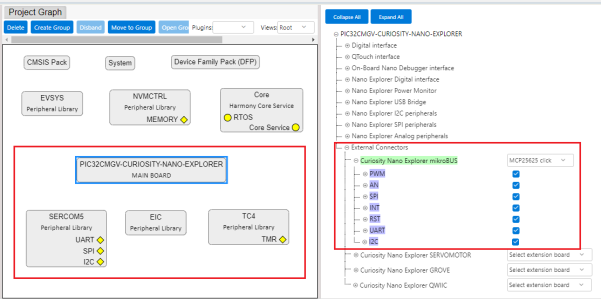
MCC
automatically adds the peripheral configuration to the
Project Graph after MCP25625 selection.
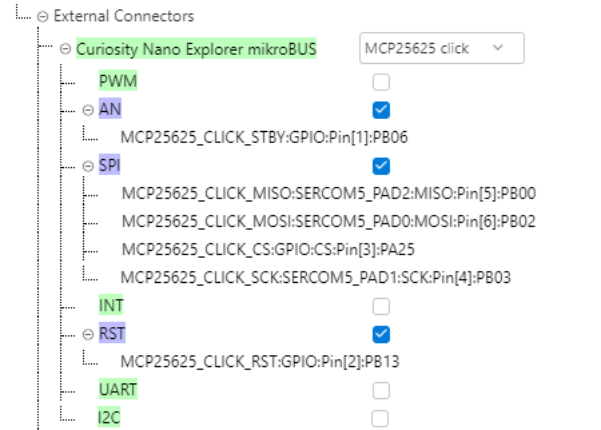
For Curiosity Nano Explorer mikroBus - MCP25625
configuration, only the AN, SPI, RST configurations are
required.
Disable additional, unused configurations (PWM, INT, UART
and I2C) in the Curiosity Nano Base mikroBUS
1 Configuration Options window.
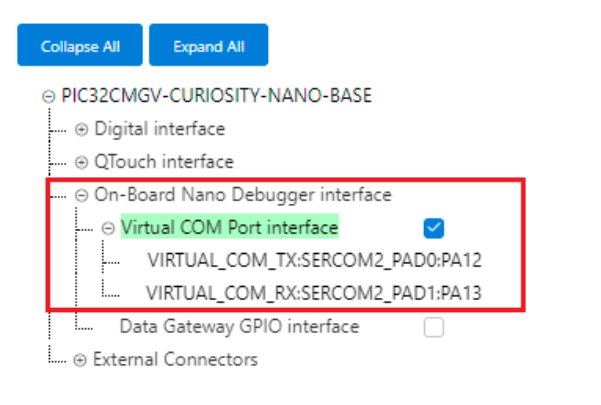
Enable the
Virtual COM Port interface in the On-Board Nano Debugger
interface
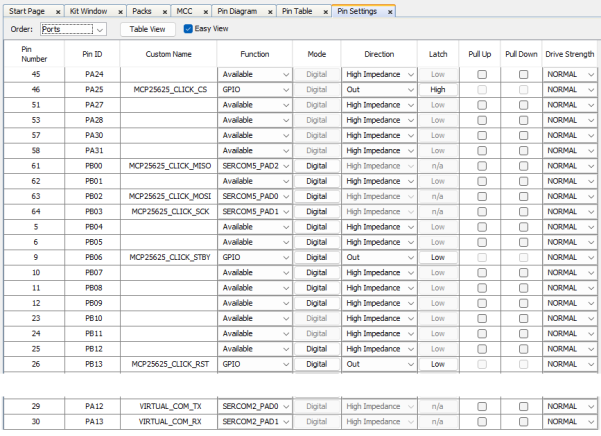
Users can
view the pin configuration for RST, AN, UART, and SPI lines
in the pin settings window, which are used for CAN
communication.
Map Generic
Macros:
After
generating the project, following the above
configuration, map the generic macros used in the
click routines to the Harmony PLIB APIs of the
32-bit MCU the project is running on.
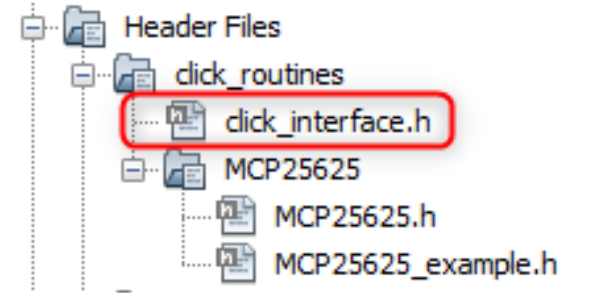
The
generic macros should be mapped in the
click_interface.h header file. As an example, the MCP25625 click routines for
the example on PIC32CM GV-Value Line Curiosity Nano
evaluation kit uses the following Harmony PLIB APIs.
The click_routines folder contain an example C
source file mcp25625_example.c. The user could use
mcp25625_example.c as a reference to add MCP25625
functionality to the application.
This application demo
builds and works out of box by following the instructions in Running the
Demo section. If the user needs to enhance/customize this application
demo, should use the MPLAB Harmony v3 Software framework. Refer to the
following links to setup and build the applications using MPLAB
Harmony.