
3.8.5 Secure Firmware Upgrade With PIC32CM LS60 Curiosity Pro Evaluation Kit
Description
This application demonstrates the Secure Firmware Upgrade on the PIC32CM LS60 microcontroller (MCU) through UART.
The application contains three projects:
-
host_app_nvm: Sends the encrpyted firmware through UART to the client.
-
bootloader: Receives the encrypted application firmware, decrypts and verifies the firmware. After verification, the received firmware will be executed.
-
test_app: Firmware to be transferred and programmed on the client side.
Implementation
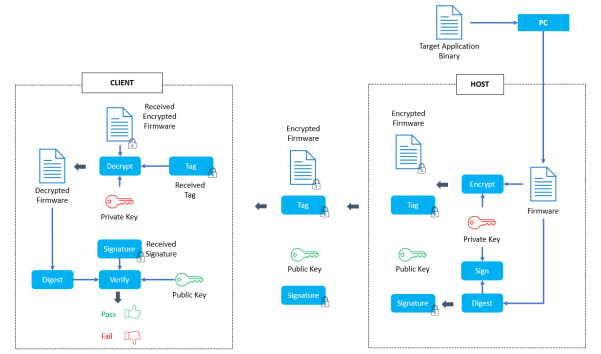
The Secure Firmware Upgrade process is initiated on the Host through a series of steps as follows:
- The Target Firmware is encrypted utilizing the Private Key
- Authentication Tag is encrypted using the same Private Key
- To authenticate the Target Firmware on the client side, a Hash Function is applied to generate a Firmware Digest
- The Firmware Digest is then signed with the Private Key to produce a digital signature for the firmware
- A Public Key is derived to facilitate the verification of the firmware, based on the Private Key
For the Client, the Secure Firmware Upgrade is executed through the following procedures:
- The Encrypted Firmware is decrypted with the Private Key, which is verified by the decrypted Authentication Tag
- Decrypted image is programmed into the target Flash memory
- A Digest is computed for the received firmware
- The firmware's integrity is authenticated by using the Public Key in conjunction with the Received Signature and the Calculated Digest
Modules/Technology Used
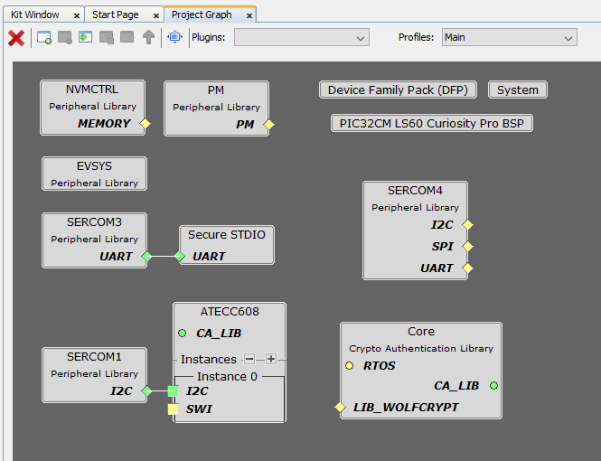
- Peripheral Modules
- NVMCTRL
- EVSYS
- NVIC
- PORT
- Power Manager (PM)
- SERCOM - UART
- SERCOM - I2C
- Drivers
- ATECC608 Driver
- Middleware Libraries
- Crypto Authentication Libary
Hardware Used
Software/Tools Used
This project has been verified to work with the following versions of software tools:
- For Host, refer to the Project Manifest
for Secure and NonSecure projects present in
harmony-manifest-success.yml under the project folder
firmware/{host_app_nvm_secure or
              host_app_nvm}/src/config/pic32cm_ls60_cpro
. - For Client, refer to the Project
Manifest for Secure and NonSecure projects present in
harmony-manifest-success.yml under the project folder
firmware/{bootloader_secure or
                bootloader}/src/config/pic32cm_ls60_cpro
. - Refer to the Release Notes to know the MPLAB X IDE and MCC Plug-in version.
- Any Serial Terminal application, such as Tera Term terminal application.
Due to Microchip regularly updates tools, occasionally issue(s) could be discovered while using the newer versions of the tools. If the project does not seem to work and version incompatibility is suspected. It is recommended to double-check and use the same versions that the project was tested with. To download original version of MPLAB Harmony v3 packages, refer to the document How to Use the MPLAB Harmony v3 Project Manifest Feature (DS90003305).
Hardware Setup
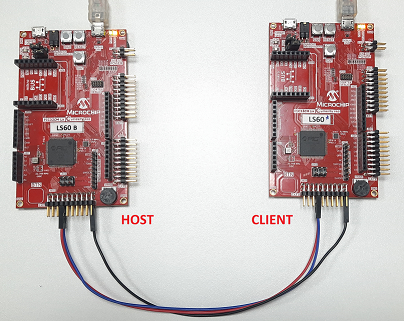
- Connect the UART lines (TX and RX) and
Ground (GND) between the PIC32CM LS60 Curiosity Pro evaluation kits as per the pin
connections shown below.
Host Extension 3 (EXT3) Client Extension 3 (EXT3) TX, PIN 14 RX, PIN 13 RX, PIN 13 TX, PIN 14 GND, PIN 2 GND, PIN 2 - Connect a micro-USB cable to the DEBUG USB port on both PIC32CM LS60 Curiosity Pro evaluation kit to power the board and for programming and debugging.
Programming Methods
- The device can be programmed in two
ways:
- Refer Method 1: Programming using the prebuilt hex file
- Refer Method 2: Programming by building the application project
Programming Hex File
Steps to program the hex file- Perform Prerequisites steps mentioned above, if not done already
- Open MPLAB X IDE
- Close all existing projects in IDE, if any project is opened
- Go to
File>Import>Hex/ELF File - In the Import Image File window,
- Create Prebuilt Project,
- Click the Browse button to select the prebuilt hex file
- Select Device as PIC32CM5164LS60100.
- Ensure the proper tool is selected under Hardware Tool and click the Next button.
- Select Project Name and Folder,
- Select appropriate project name and folder and click the Finish button
- Create Prebuilt Project,
- In MPLAB X IDE, click the Make and Program Device button to program the device
- Follow the steps in Running the Demo section
Programming/Debugging Application Project
- Open the host project
(
firmware/host_app_nvm_secure/host_app_nvm_secure.X) in MPLAB X IDE - Ensure
PIC32CM LS60 Curiosity
                Pro evaluation kit
is selected as hardware tool to program/debug the application - Build the code and program the device by clicking on the Make and Program Device button in MPLAB X IDE tool bar
- Open the client project
(
firmware/bootloader_secure/bootloader_secure.X) in MPLAB X IDE - Ensure
PIC32CM LS60 Curiosity Pro evaluation kitis selected as hardware tool to program/debug the application - Build the code and program the device by clicking on the Make and Program Device button in MPLAB X IDE tool bar
- Debugging the project can be done by clicking on the Debug Main Project button in MPLAB X IDE tool bar
- Follow the steps in Running the Demo section
Running the Demo
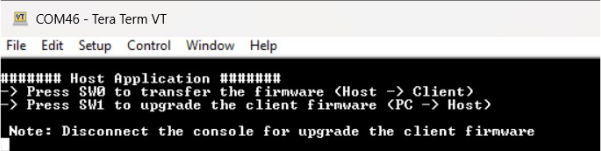
- Host:
- Open a standard terminal application on the computer, such as Putty or Tera Term, and configure the virtual COM port.
- Set the serial baud rate to 115200 baud in the terminal application.
- Wait for the initialization prints in
the serial port terminal. If it does not show any prints, press the RESET
button on the Evaluation Board which resets the development board.
- Client:
- Open a standard terminal application on the computer, such as Putty or Tera Term, and configure the virtual COM port.
- Set the serial baud rate to 115200 baud in the terminal application.
- Wait for the initialization prints in
the serial port terminal. If it does not show any prints, press the RESET
button on the Evaluation Board which resets the development board.

- Disconnect or close the serial console for the Host MCU to give the access for Host PC to transfer the client firmware.
- Press the switch SW1 on the Host
Evaluation Board to receive the Client firmware from the PC.
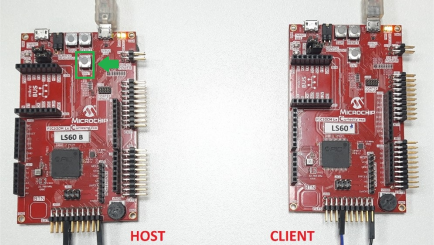 Note: LED1 on the Host Evaluation Board will illuminate to indicate that the Host MCU is prepared for the client firmware reception.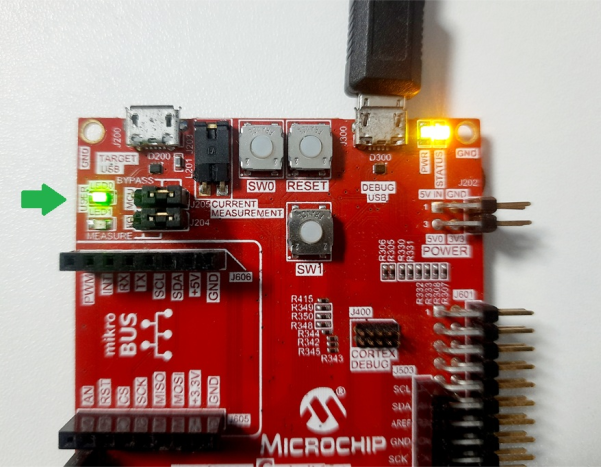
- Open the command prompt and run the
python script (
btl_host.py) as used to transfer the target application binary file with the configuration bits to the Host MCU board.Command: python /bootloader/tools/btl_host.py -v -i (COM PORT) -d PIC32CM -a 0x9000 -f (location of .bin file) /pic32cm_ls60_secure_firmware_upgrade/hex/test_app/test_app_secure.X.production.bin -c /pic32cm_ls60_secure_firmware_upgrade/scripts/application_user_configurations_out.txt (location of application_user_configurations_out.txt file)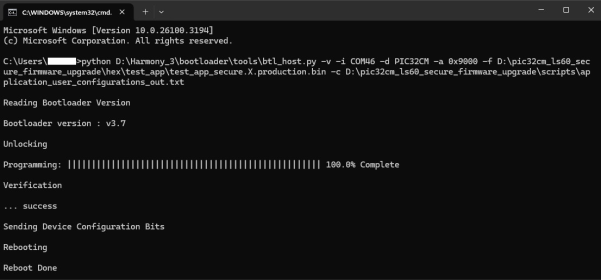
- Reopen the serial console for the Host Evaluation Board.
- Press the switch SW0 on the Host
Evaluation Board to upgrade the Client firmware. The progress of the firmware upgrade will
be displayed in the terminal console.
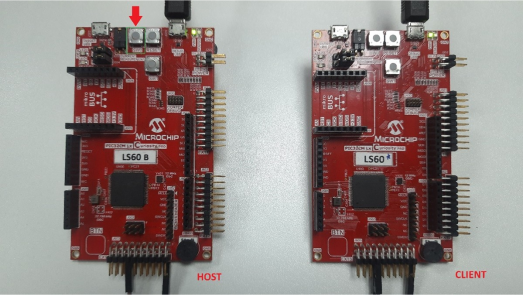 Note: The LED0 on the Host Evaluation Board will illuminate to indicate that the Host MCU has initiated the secure firmware upgrade on the client.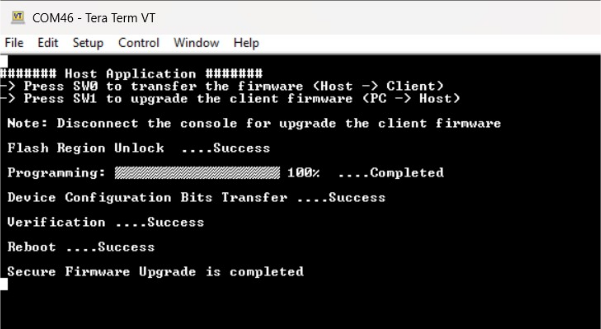
- Once the firmware update is completed,
the LED0 on the Host Evaluation Board will be turned off.
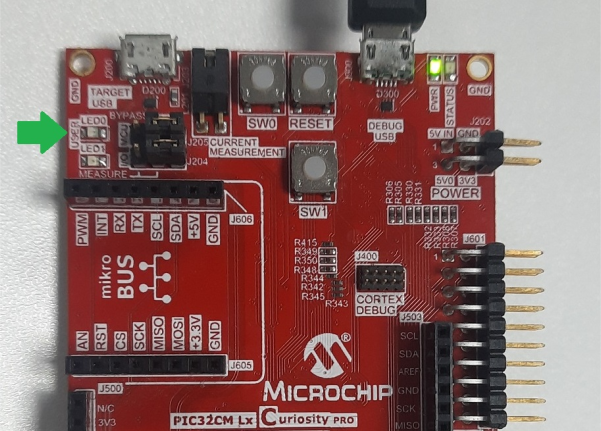
- On the Client Evaluation Board, the LED0
will start blinking and display the start-up message on the terminal console.
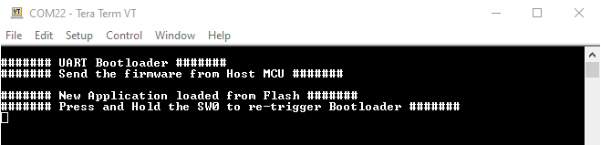
- Press the switch SW0 on the Client
Evaluation Board to trigger the bootloader from test application.
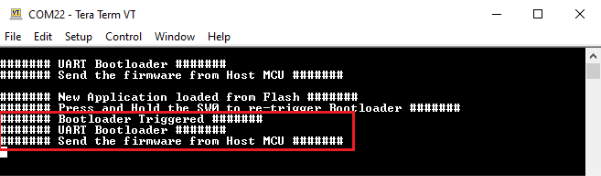
- Press the RESET button on the Host Evaluation Board and followed by switch SW0 to reprogram the application.
Loading Test Application Firmware
Follow these steps to update the target firmware using the MPLAB Harmony v3.
- Open the Target Application project
group (path:
pic32cm_ls60_secure_firmware_upgrade/firmware/test_app/test_appgroup) using the MPLAB X IDE. - Launch the
test_app_secureproject by double-clicking the secure project. - Modify the
test_app_secureand build the project. - The updated target application (.bin file) is automatically retrieved from the hex/test_app folder during the client firmware upgrade process.
- No need to update the configuration
bits of the target firmware. The Host MCU will automatically uses already generated the
configuration bits (
application_user_configurations_out.txt) of the target firmware.
Follow these steps to update the target firmware configuration bits.
- Open the
application_user_configurations_in.txtin a file editor, such as Notepad or Visual Studio Code. - Edit the configuration bits as per the
peripheral usage in the
test_app_secureproject.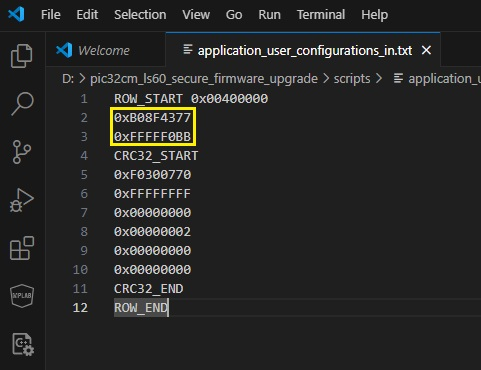 Note:
Note:- The Host MCU stores the Client’s Configuration Bits values in the secure data memory region (0x0040_0000).
- For additional information, refer to the NVM Configuration Rows section in the Memories chapter on the device data sheet.
- Open the command prompt and run the
python script (
btl_dev_cfg_gen.py) to create theapplication_user_configurations_out.txtconfiguration file will be used by thebtl_host.pyscript to update the configuration bits while programming the target/client application.
Comments
- Getting Started with the PIC32CM LE00/LS60/LS60 Curiosity Pro Board (DS00004511)
- Secure Boot on PIC32CM LS60 Curiosity Pro Evaluation Kit using MPLAB® Harmony v3 Software Framework
- PIC32CM LS00/LS60 Security Reference Guide
- Dual Developer Application Development Use Case with
TrustZone on SAM L11 Using MPLAB Harmony v3 (DS90003306)Note: Though this technical brief is on SAM L11 MCUs, the TrustZone concepts it describes applies to PIC32CM MC LS60 MCUs.
- This application demo builds and
works out of box by following the instructions in Running the Demo section. If the
user needs to enhance/customize this application demo, should use the MPLAB Harmony v3
Software framework. Refer to the following links to setup and build the applications
using MPLAB Harmony.
- How to Setup MPLAB Harmony v3 Software Development Framework (DS90003232).
- How to Build an Application by Adding a New PLIB, Driver, or Middleware to an Existing MPLAB Harmony v3 Project (DS90003253).
- Video - How to Set up the Tools Required to Get Started with MPLAB® Harmony v3 and MCC
- Create a new MPLAB Harmony v3 project using MCC
- Update and Configure an Existing MHC-based MPLAB Harmony v3 Project to MCC-based Project