
3.8.4 Secure IoT Gateway on PIC32CM LS60 Curiosity Pro Evaluation Kit
Description
This application demonstrates the anti-cloning feature on the PIC32CM LS60
microcontroller (MCU). The application has three projects pertaining to Secure and
Non-Secure modes of PIC32CM LS60 that work between the Host and Client devices (PIC32CM
LS60/LE00) and offers security isolation between the trusted and the non-trusted resources
in the device.
- The application includes host and
client projects.
- PIC32CM LS60 Host
application:
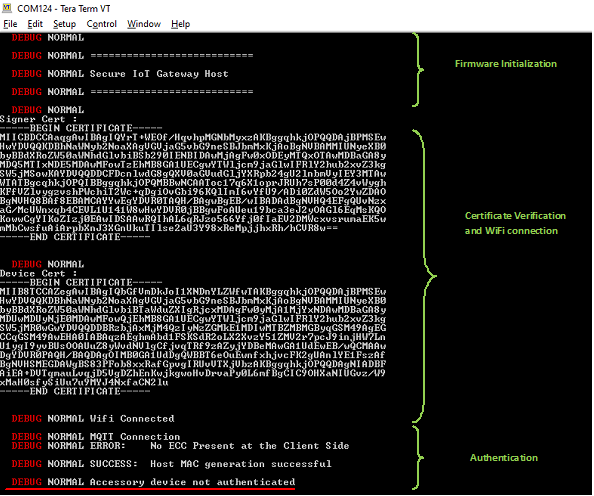
- The host project initiates the symmetric authentication process of the client connected to it. The host connects to the AWS IoT cloud. Once the switch SW0 on the host device is pressed, the random number from the inbuilt ATECC608B is sent across the USART pins to the client and awaits the result. Once the client is authenticated, the sensor data is received and displayed on the MIKROE OLED C Click board. The data is published to the AWS IoT Core at timely intervals. The LED0 on the host toggles each time the data is published to the cloud. The host's connection to the PIC32CM LS60 client would be successful as the authentication (through the ATECC608B) would be successful. However, the PIC32CM LE00 client would fail the authentication process as there is no inbuilt ATECC608B. If the authentication fails, the data is not displayed on the host side or published to the cloud.
- PIC32CM LS60 Client
application:
- The PIC32CM LS60 Client reads the sensor data from the temperature and light sensors on the I/O1 Xplained Pro board connected to the EXT2 Xpro connector. The client waits for the host to initiate the authentication process. Once the authentication is completed successfully, the sensor data is sent to the host through the USART. The MAC calculation and SERCOM transmission are placed securely in the secure region of the PIC32CM LS60.
- PIC32CM LE00 Client
application:
- The PIC32CM LE00 Client reads the sensor data from the temperature and light sensors on the I/O1 Xplained Pro board connected to the EXT2 XPRO connector. The client waits for the host to initiate the authentication process. Since the authentication fails, the sensor data is not sent across the host through USART.
- PIC32CM LS60 Host
application:
Modules/Technology Used
- For PIC32CM LS60 Host, see Secure IoT Gateway Application Host on PIC32CM LS60 Curiosity Pro Evaluation Kit
- For PIC32CM LS60 Client, see Secure IoT Gateway Application Client on PIC32CM LS60 Curiosity Pro Evaluation Kit
- For PIC32CM LE00 Client, see Secure IoT Gateway Application Client on PIC32CM LE00 Curiosity Pro Evaluation Kit
Hardware Used
Software/Tools Used
This project has been verified to work with the following versions of software tools:
- For Host, refer to the Project
Manifest for Secure and NonSecure projects present in
harmony-manifest-success.yml under the project folder
firmware/pic32cm_ls60_cpro_sg_host/{Secure or
                NonSecure}/firmware/src/config/pic32cm_ls60
. - For LS60 Client, refer to the
Project Manifest for Secure and NonSecure projects present in
harmony-manifest-success.yml under the project folder
firmware/pic32cm_ls60_cpro_sg_host/{Secure or
              NonSecure}/firmware/src/config/pic32cm_ls60
. - For LE00 Client, refer to the Project Manifest for project present in
harmony-manifest-success.yml under the project folder
firmware/pic32cm_le00_cpro_sg_client/firmware/src/config/pic32cm_le00. - Refer to the Release Notes to know the MPLAB X IDE and MCC Plug-in version.
- Any Serial Terminal application, such as Tera Term terminal application.
- Trust Platform Design Suite v2.3.5 or above click here.
Due to Microchip regularly updates tools, occasionally issue(s) could be discovered while using the newer versions of the tools. If the project does not seem to work and version incompatibility is suspected. It is recommended to double-check and use the same versions that the project was tested with. To download original version of MPLAB Harmony v3 packages, refer to the document How to Use the MPLAB Harmony v3 Project Manifest Feature (DS90003305).
Hardware Setup 1: PIC32CM LS60 Host to PIC32CM LS60 Client
PIC32CM LS60 Host- Connect the MIKROE OLED C Click to the mikroBUS extension in the PIC32CM LS60 Curiosity Pro evaluation kit.
- Connect the ATWINC1500-XPRO to the EXT3 of the PIC32CM LS60 Curiosity Pro evaluation kit.
- Connect the jumper wires from PA22/PA23 for SERCOM UART RX/TX to communicate with the client.
- Connect the PIC32CM LS60 Curiosity Pro evaluation kit to the host PC as a USB device through a Type-A male to micro-B USB cable connected to Micro-B USB (Debug USB) port.
- The PIC32CM LS60 Curiosity Pro evaluation kit allows the Embedded Debugger (EDBG) to be used for debugging.
- Connect the MIKROE OLED C Click to the mikroBUS extension in the PIC32CM LS60 Curiosity Pro evaluation kit.
- Connect the I/O1 Xplained Pro Extension Kit to the EXT2 in the PIC32CM LS60 Curiosity Pro evaluation kit.
- Connect the jumper wires from PA22/PA23 for SERCOM UART RX/TX to communicate with the host.
- Connect the PIC32CM LS60 Curiosity Pro evaluation kit to the host PC as a USB device through a Type-A male to micro-B USB cable connected to Micro-B USB (Debug USB) port.
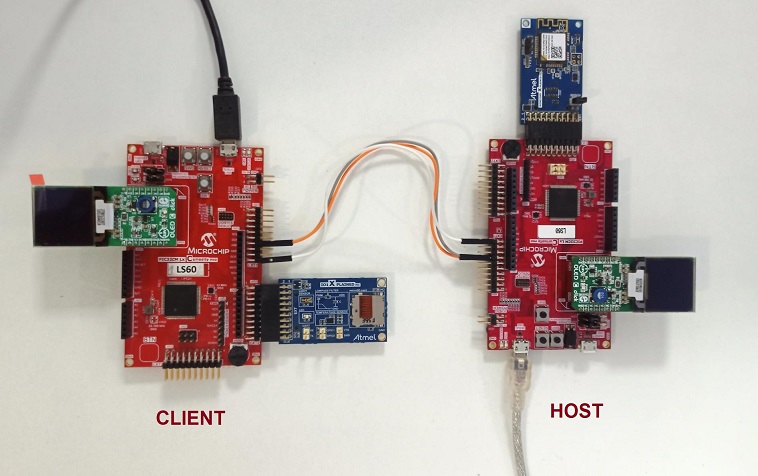
Note: Connect the USART RX/TX of the host to the USART TX/RX of
the client.
Hardware Setup 2: PIC32CM LS60 Host to PIC32CM LE00 Client
PIC32CM LS60 Host- Same setup as mentioned in PIC32CM LS60 Host under Harware Setup 1.
- Connect the MIKROE OLED C Click to the mikroBUS extension in the PIC32CM LE00 Curiosity Pro evaluation kit.
- Connect the I/O1 Xplained Pro Extension Kit to the EXT2 in the PIC32CM LE00 Curiosity Pro evaluation kit.
- Connect the jumper wires from PA22/PA23 for SERCOM UART RX/TX to communicate with the host.
- Connect the PIC32CM LE00 Curiosity Pro evaluation kit to the host PC as a USB device through a Type-A male to micro-B USB cable connected to Micro-B USB (Debug USB) port.
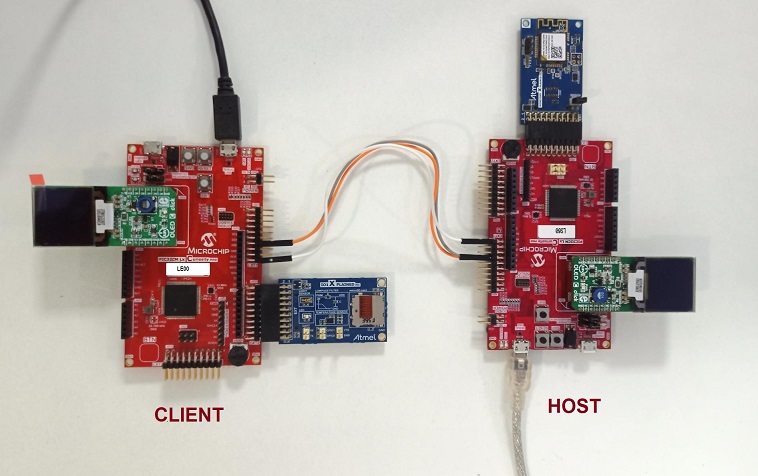
Note: Connect the USART RX/TX of the host to the USART TX/RX of
the client.
Prerequisites
- Ensure PIC32CM LS60 host is provisioned on AWS cloud as mentioned under the heading AWS Cloud IoT Provisioning Guide in the PIC32CM LS60 Host project's.
Programming Methods
- The device can be programmed in two
ways:
- Refer Method 1: Programming using the prebuilt hex file
- Refer Method 2: Programming by building the application project
Method 1: Steps for Programming Prebuilt Hex File
Steps to program the hex file- Perform Prerequisites steps mentioned above, if not done already
- Open MPLAB X IDE
- Close all existing projects in IDE, if any project is opened
- Go to
File>Import>Hex/ELF File - In the Import Image File window,
- Create Prebuilt Project,
- Click the Browse button to select the prebuilt hex file
- Select Device as PIC32CM5164LS60100
- Ensure the proper tool is selected under Hardware Tool and click the Next button
- Select Project Name and Folder,
- Select appropriate project name and folder and click the Finish button
- Create Prebuilt Project,
- In MPLAB X IDE, click the Make and Program Device button to program the device
- Follow the steps in Running the Demo under PIC32CM LS60 Host section
Method 2: Programming/Debugging Application Project
PIC32CM LS60 Host
- Open the project
(
pic32cm_ls60_secure_iot_gateway/firmware/pic32cm_ls60_cpro_sg_host) in MPLAB X IDE - Open both Secure and NonSecure project inside the project group and set the NonSecure as the main project
- Ensure
PIC32CM LS60 Curiosity
                Xpro
is selected as hardware tool to program/debug the application. - Build the code and program the device by clicking on the Make and Program button in MPLAB X IDE tool bar
- Follow the steps in Running the Demo under PIC32CM LS60 Host section
- Open the project (pic32cm_ls60_secure_iot_gateway/firmware/pic32cm_ls60_cpro_sg_client) in MPLAB X IDE
- Open both Secure and NonSecure project inside the project group and set the NonSecure as the main project
- Ensure
PIC32CM LS60 Curiosity
                Pro
is selected as hardware tool to program/debug the application - Build the code and program the device by clicking on the Make and Program button in MPLAB X IDE tool bar
- Follow the steps in Running the Demo under PIC32CM LS60 Client section
- Open the project
(
pic32cm_ls60_secure_iot_gateway/firmware/pic32cm_le00_cpro_sg_client) in MPLAB X IDE - Ensure
PIC32CM LE00 Curiosity
                Pro
is selected as hardware tool to program/debug the application - Build the code and program the device by clicking on the Make and Program button in MPLAB X IDE tool bar
- Follow the steps in Running the Demo under PIC32CM LE00 Client section
Wi-Fi Configuration Through CLI
- Open a terminal application on the host PC for the virtual COM port of the connected PIC32CMLS60 Curiosity Pro evaluation kit, with 115200-8-None-1 settings
- Just enter the below command to set the
Wi-Fi credentials
wifi < SSID >,< PASSWORD >,< SECURITY TYPE
                >
For example,
wifi MCHP_test_,Asdfghjk,2.Note: No need of repeating this step every time while running the demo, device remembers last used Wi-Fi credentials and try to connect to it. If Wi-Fi credentials changes, this step should be performed.
Running the Demo
PIC32CM LS60 Host
- Open the Tera Term terminal application on the PC (from the Windows® Start menu by pressing the Start button).
- Change the baud rate to 115200.
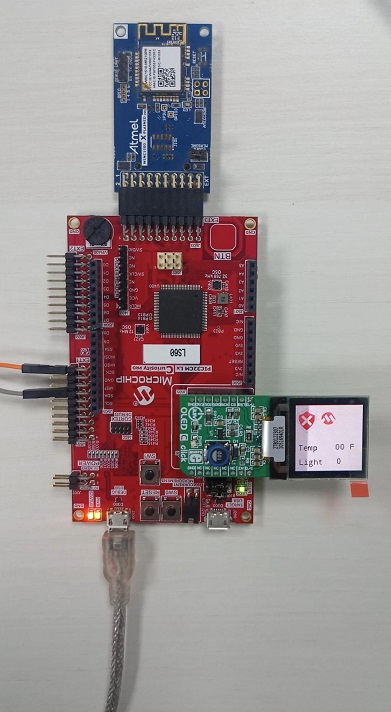
- The MIKROE OLED C Click board does not display any value yet.
- Press SW0 on the PIC32CM LS60 Curiosity Pro evaluation kit to start the authentication process.
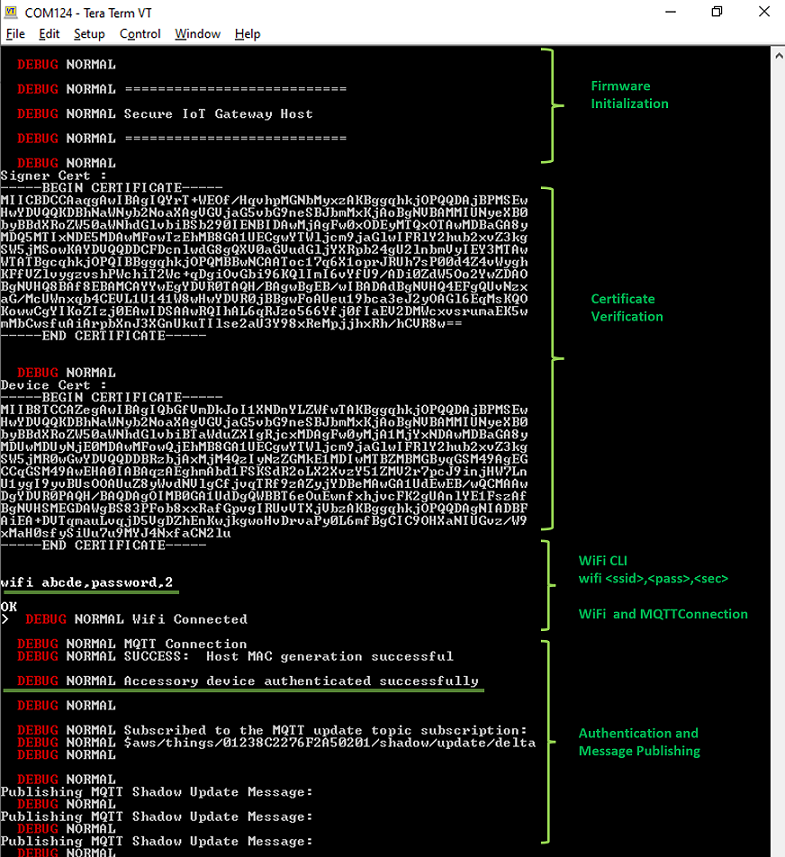
- The LED (LED1) will be on if there is no active Wi-Fi connection. Once the certificate verification is done, follow the steps in section Wi-Fi configuration through CLI to enter the Wi-Fi credentials.
- Once Wi-Fi and MQTT connection is
successful, the LED1 will be
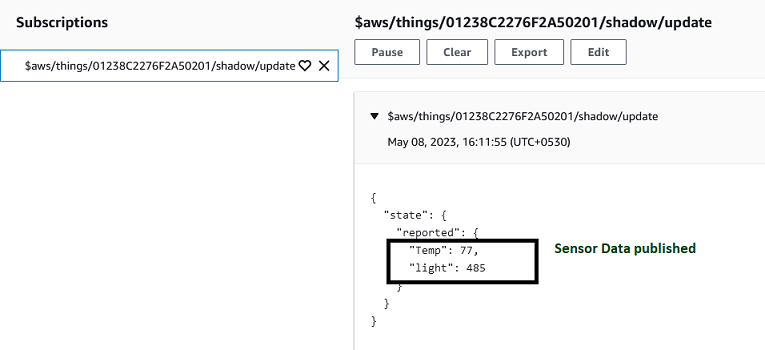
Offand LED0 will beOn. - Once authentication is successful, the MIKROE OLED C Click will display the sensor values and the cloud will be updated with the sensor values periodically.
- An LED (LED0) on the PIC32CM LS60 Curiosity Pro evaluation kit toggles every time the sensor values are published.
- The WINC1500 Initialization messages and MQTT connection details would be displayed in the terminal.
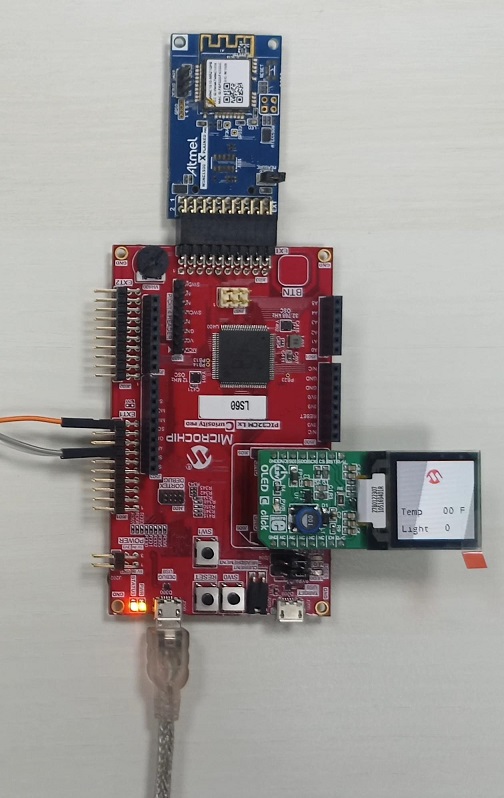
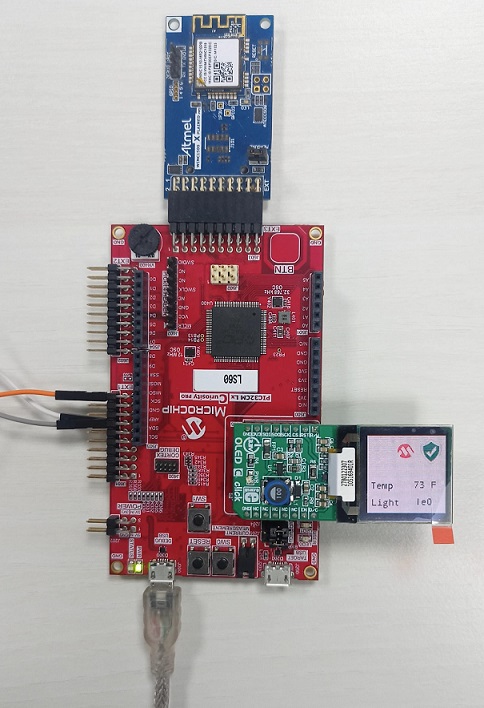
- Perform Programming/Debugging Application Project steps under PIC32CM LS60 Client mentioned above, if not done already.
- After the device is successfully programmed and authenticated, the display on OLED C board at the Host indicates successful authentication as shown below.
- Perform Programming/Debugging Application Project steps under PIC32CM LE00 Client mentioned above, if not done already.
- After the device is successfully programmed and authentication procedure completes, the display on OLED C board at Host indicates unsuccessful authentication as shown below.
Comments
- Getting Started with the PIC32CM LE00/LS60/LS60 Curiosity Pro Board (DS00004511)
- Dual Developer Application Development Use Case with
TrustZone on SAM L11 Using MPLAB Harmony v3 (DS90003306)Note: Though this technical brief is on SAM L11 MCUs, the TrustZone concepts it describes applies to PIC32CM MC LS60 MCUs.
- This application demo builds and
works out of box by following the instructions in Running the Demo section. If the
user needs to enhance/customize this application demo, should use the MPLAB Harmony v3
Software framework. Refer to the following links below to setup and build the
applications using MPLAB Harmony.
- How to Setup MPLAB Harmony v3 Software Development Framework (DS90003232)
- How to Build an Application by Adding a New PLIB, Driver, or Middleware to an Existing MPLAB Harmony v3 Project (DS90003253)
- Video - How to Set up the Tools Required to Get Started with MPLAB® Harmony v3 and MCC
- Create a new MPLAB Harmony v3 project using MCC
- Update and Configure an Existing MHC-based MPLAB Harmony v3 Project to MCC-based Project