
6.6.2.1 Zigbee Distributed Network Formation by Dimmable Light
WBZ351 Curiosity Board
Devices (Device): | PIC32CX5109BZ31048(MCU) on WBZ351 module |
Peripherals (Used, On-Board): | User Button| UART-USB Converter|
Introduction
Though zigbee lights are Router device types, they have the capability of creating its own distributed network. Other routers and end-devices can enter into the network once it is formed. The demo steps explained here can be followed for any devices like color scene controller to get into the light formed distributed network.GitHub Repository
The firmware, .hex, and accompanying readme.md file
for the application can be found in the GitHub repository – dim_light_touch
Hardware Requirement
| S. No. | Tool | Quantity |
|---|---|---|
| 1 | WBZ351 Curiosity Boards | 1 |
| 2 | Micro USB cable | 1 |
| 3 | Personal Computer | 1 |
SDK Setup
Refer to Getting Started with Software Development from Related Links.
Software Requirement
To install Tera Term tool, refer to the Tera Term web page in Reference Documentation from Related Links.
Programming the Precompiled Hex File or Application Example
Using MPLAB® X IPE:
-
Import and program the precompiled hex file:
<Discover Path>\wireless_apps_pic32cxbz3_wbz35\apps\zigbee\dim_light_touch. - For detailed steps, refer to Programming a Device in MPLAB® IPE in Reference Documentation from Related Links.Note: Ensure to choose the correct Device and Tool information.
Using MPLAB® X IDE:
-
Perform the following the steps mentioned in Running a Precompiled Example. For more information, refer to Running a Precompiled Application Example from Related Links.
-
Open and program the Application Example
dim_light_touch.xlocated in<Discover Path>\wireless_apps_pic32cxbz3_wbz35\apps\zigbee\dim_light_touch\firmware. - For more details on how to find the Discover path, refer to Download Application Example from Discover in Running a Precompiled Application Example from Related Links.
Demo Description
The demo applications demonstrates the Zigbee protocol functionality of PIC32CXBZ/WBZ family of devices and modules. It consists of a ZigBee 3.0 Coordinator and Router implemented as shown below :
| Application | Zigbee Logical Device Type | Functionality |
|---|---|---|
| Dimmable Light | Router | Is a lighting device that can form the distributed network. |
Demo Steps:
- Supply power to WBZ351 Curiosity Board consisting of Dimmbale Light
application by connecting a USB cable. Power Supply (PS) Green LED will turn on
when connect to PC.
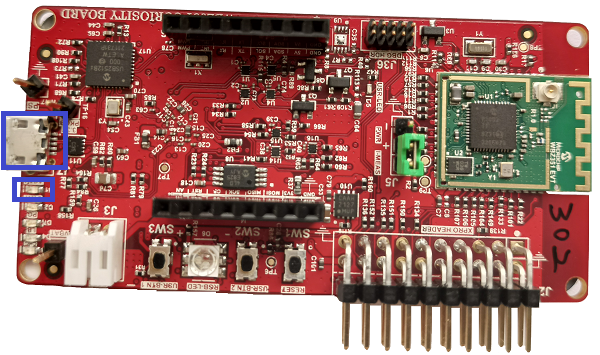
- The application activity is shown
as “Console Log” through on board UART-USB converter
-
Open Terminal (Example: Tera Term) with the setup as shown below to look for these logs
-
On the PC side virtual COM port connection that corresponds to the board shall have following settings:
BAUD RATE: 115200 (as configured in SERCOM configuration)
PARITY: None
DATA BITS: 8
STOP BITS: 1
FLOW CONTROL: None
Distributed Network Formation with Light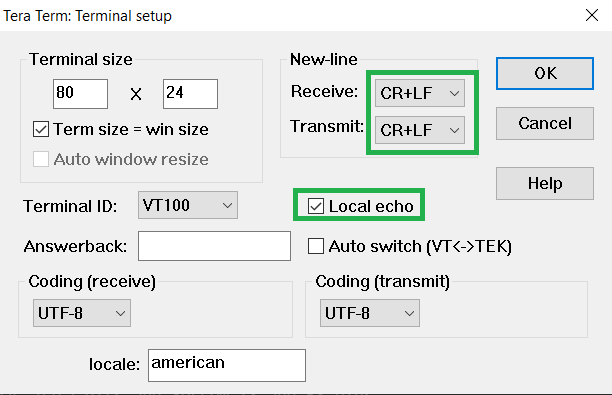
-
- Input command : resetToFN
-
If light device wouldn't be able to find any network to join, it will create a distributed network. Any device shall be able to join the network via appropriate authentication process. It will open up the network for other zigbee devices to join for first 180 seconds from the first powerON.
Shows the success console output from a Dimmable Light Application which is a Zigbee router and establishes a Distributed Network.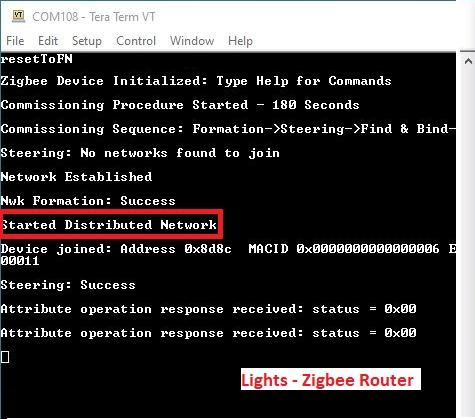
To open up the network after 180 seconds to allow other devices to join, we have to input the below commands in light, before commissioning is initiated in another device.
Input command: setPermitJoin 180 -> This command opens up the network for next 180seccommand: invokeCommissioning 8 0 -> This command opens up the network for "finding and binding procedure"
Creating Application Device Types From Scratch Using MCC
All the supported device types including this Dimmable light projects can be generated by following the steps in Generating project from MCC. For more information, refer to the Zigbee Project Generation from Related Links.