
1.1.4 SAM E54 Xplained Pro Evaluation Kit: Building and Running the OTA Bootloader Applications
Downloading and Building the Application
To clone or download this application from Github, go to the main page of this repository and then click Clone button to clone this repo or download as zip file. This content can also be download using content manager by following these instructions.
Path of the application within the repository is apps/ble/dual_bank/.
To build the application, refer to the following table and open the project using its IDE.
OTA Bootloader
| Project Name | Description |
|---|---|
| ota_bootloader/firmware/sam_e54_xpro.X | MPLAB X Project for SAM E54 Xplained Pro Evaluation Kit |
OTA Application
| Project Name | Description |
|---|---|
| ota_app/firmware/sam_e54_xpro.X | MPLAB X Project for SAM E54 Xplained Pro Evaluation Kit |
Setting Up SAM E54 Xplained Pro Evaluation Kit
- To run the demo, the following additional hardware are required:
- Short J2-1 and J2-2 using jumper in the RNBD451 Add-on Board
- Install an RNBD451 Add-on Board on to the mikroBUS Xplained Pro board
- Connect mikroBUS Xplained Pro board to the EXT1 header
- Connect the Debug USB port on the board to the computer using a micro USB cable
Setting up the host scripts
- Refer to the OTA Bootloader Host Script Help for settings up python scripts which are used in order to update the application binary image
Running the Application
- Open the OTA bootloader project ota_bootloader/firmware/sam_e54_xpro.X in the IDE.
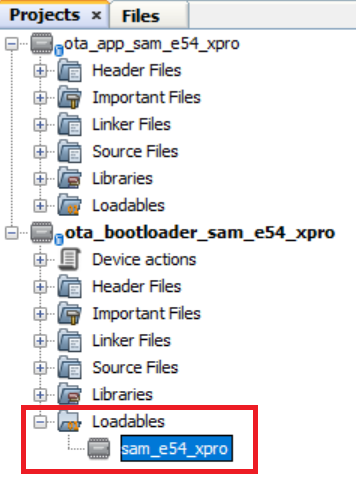
- Ensure that the ota_app/firmware/sam_e54_xpro.X is added as a loadable
project to OTA bootloader project.
- As the Dual Bank Flash memory may not have any valid binary required by
OTA bootloader for the first time. Adding the ota_app as
loadable allows MPLAB X to create a unified hex file
and program both these applications in their respective memory locations
based on their linker script configurations.
- As the Dual Bank Flash memory may not have any valid binary required by
OTA bootloader for the first time. Adding the ota_app as
loadable allows MPLAB X to create a unified hex file
and program both these applications in their respective memory locations
based on their linker script configurations.
- Build the OTA bootloader application using the IDE (Do not program).
- Go to the
<harmony3_path>/bootloader_apps_ota/apps/ble/dual_bank/ota_bootloader/firmware/sam_e54_xpro.X/dist/sam_e54_xpro/production/
directory and open the command prompt to run the below
command.
python <harmony3_path>/bootloader_apps_ota/tools/hex_merge.py -o sam_e54_xpro.X.production.unified.hex -a sam_e54_xpro.X.production_inactive_bank.hex
- sam_e54_xpro.X.production_inactive_bank.hex is created through post build command in the OTA bootloader project to create additional Bootloader HEX file for the inactive bank. The hex_merge python script is used to combine unified HEX file (Bootloader and application in active bank) and bootloader inactive bank HEX file (Bootloader in inactive bank). Once command is executed successfully then sam_e54_xpro.X.production.unified.hex is updated and it contains bootloader inactive bank hex file along with active bank bootloader hex file and active bank application hex file.
- Open the Terminal application (e.g., Tera Term) on the computer.
- Connect to the Virtual COM port and configure the serial settings as follows:
- Baud: 115200
- Data: 8 Bits
- Parity: None
- Stop: 1 Bit
- Flow Control: None
- Program updated sam_e54_xpro.X.production.unified.hex using MPLAB X IPE or MPLAB X IDE.
- Once programming is done, OTA
bootloader starts execution and directly jumps to application space to run the
OTA application.
- LED0 starts blinking indicating that the OTA application is running
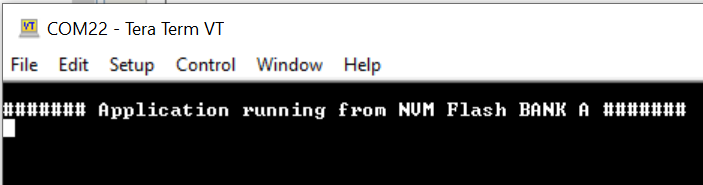
- Observe the below message
on console
- Go to the
<harmony3_path>/bootloader_apps_ota/apps/ble/dual_bank/ota_app/firmware/sam_e54_xpro.X/dist/sam_e54_xpro/production/
directory and open the command prompt to run the below
command.
python <harmony3_path>/bootloader_apps_ota/tools/ota_host_mcu_header.py -p 0x82000 -j 0x2000 -f sam_e54_xpro.X.production.bin
- This command adds OTA Host MCU Header to the application binary. If command executed successful then "image.bin is generated successfully" message display on the command prompt.
- Run the below
command.
python <harmony3_path>/bootloader_apps_ota/tools/ota_rnbd_header.py -f image.bin
- This command adds OTA RNBD Header to the image.bin and generates RNBD_image.bin application binary. If command executed successful then "RNBD_image.bin is generated successfully" message display on the command prompt.
- Refer to the Send application binary using MBD App to program RNBD_image.bin application binary to the target.
- Once Firmware Update is successful:
- LED0 still blinking indicating that the OTA application is running
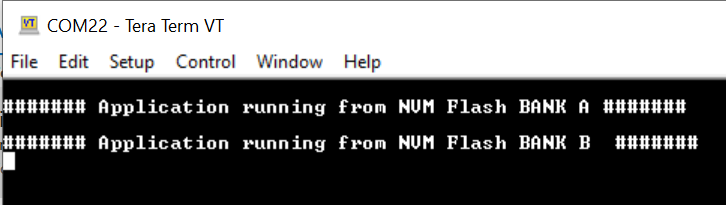
- Observe the below message on console
- Repeat Steps 11-12.
- Observe LED0 still blinking
- Observe message printed on console ####### Application running from NVM Flash BANK A ####### or ####### Application running from NVM Flash BANK B ####### alternatively