
1.3.8 PIC32CM LS60 Trust Zone based Example using QT7 Xplained Pro Self
Path of the application within the repository is apps/qt7_selfcap_xpro_board/pic32cm_ls60_cpro_trust_zone/
To build the application, refer to the following table and open the project using its IDE.
| Project Name | Description |
|---|---|
| firmware\qt7ls60\qt7ls60group.X | MPLABX Project for PIC32CM LS60 Curiosity Pro Evaluation Kit |
| firmware\qt7ls60\qt7ls60.X | Non - Secure Project |
| firmware\qt7ls60_secure\qt7ls60_secure.X | Secure Project |
Hardware Setup
- Project uses PIC32CM LS60 Curiosity Pro Evaluation Kit and QT7 Xplained Pro Evaluation Kit
- Connect EXT1 of QT7 Xplained Pro to EXT1 of PIC32CM LS60 Curiosity Pro
- Connect the Debug USB port on the board to the computer using a micro USB Cable
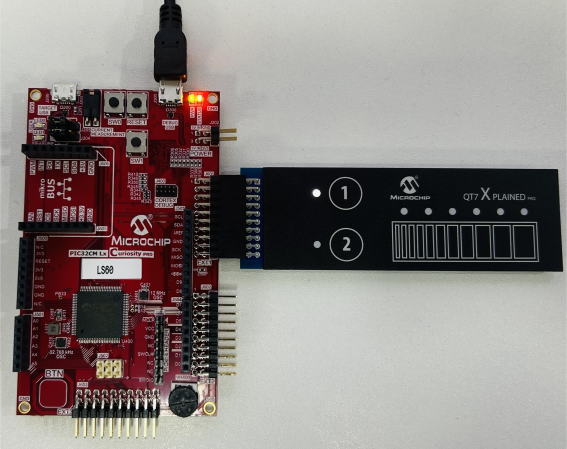
Running the Application
- Open the project group qt7ls60group.X in the IDE
- To open both secure and non
secure projects
- Right click qt7ls60.X and open the non secure project
- Right click on the qt7ls60_secure.X and open the secure project
- Build the secure project and program the target board
Monitoring Touch Data in MPLAB DV Touch Plugin
Prerequisite: MPLAB Data Visualizer and Touch Plugin. Procedure for Installation is available in Touch Plugin Installation.
- Configure COM Port
- Select the correct COM port in Connection tab
- Update the Baud Rate to 115200 in COM Settings
- Start Streaming for COM data
- COM Port on Touch
- Select Touch in Connection tab
- For data source, from drop-down menu, select configured COM port as source
- Start Streaming on Touch
Detailed procedure can be found in Guide to view Touch Tune Data using MPLAB® Data Visualizer page.