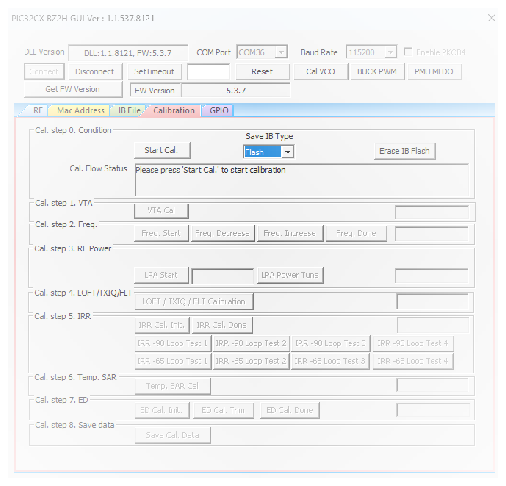
4.3.3 Calibration Flow Demonstration
In this demonstration, the user can calibrate TX parameters and RX parameters of the PIC32CX-BZ2H using a PC with the installed MCHPRT3 tool.
Perform the following steps for the demonstration of the calibration flow (see the following figure):
- Set up the connection between the PIC32 WBZ451HPE Curiosity Board and PC. For more details, refer to Getting Started with MCHPRT3.
- Connect the u.FL connecter on the PIC32CX-BZ2H to Bluetooth/Zigbee tester (IQxel or others) to measure the RF power from the PIC32CX-BZ2H.
- Check the cable loss between the PIC32CX-BZ2H u.FL connecter to tester.
- MLDO is the preferred mode of calibration. Click PMU MLDO to use the MLDO mode to perform calibration.
- Select Save IB type (Flash/OTP). CAUTION: OTP is limited in memory of 4k, and it can only be calibrated for 10 to 15 times.
- Click Start Cal. to start the new calibration.
- Click VTA Cal in Cal. step 1. VTA and wait for done.
- Click Freq. Start in Cal. step 2. Freq., the DUT transmits the Bluetooth Low Energy packet at 2440 MHz.
- Check the carrier frequency at the tester and click Freq. decrease or Freq. increase to change the carrier frequency.
- Once the carrier frequency is close to 2440 MHz, click Freq. Done.
- Click LPA Start in step 3; read the power level in the tester, then enter it in the tool.
- Click LPA Power Tune in step 3; repeat steps 11 and 12 until the power level reaches the target power, 19.5 dBm ± 0.5 dB.
- Click LOFT/TXIQ/FLT Calibration in step 4 then wait for done.
- Click IRR Cal. Init. in step 5.
- Generate 2440 MHz CW tone at -90 dBm by using the tester, then feed it into DUT and click IRR -90 Loop Test 1.
- Generate 2436 MHz CW tone at -65 dBm by using the tester, then click IRR -65 Loop test 1.
- Repeat the steps 15 and 16, clicking IRR -90 Loop Test 2 – 4 and IRR -65 Loop test 2 – 4.
- Click IRR Cal. Done.
- Click Temp. SAR Cal in step 6 and wait for done.
- Click ED Cal. Init., generate 2440 MHz CW tone at -70 dBm by using the tester ED Cal. Trim in step 7.
- Click ED Cal. Done.
- Click Save Cal. Data in step 8 to save the calibration data into the file and the DUT.