In this demonstration, the user can transmit Zigbee packets, enter RX mode and CW mode with the
PIC32CX-BZ2H by using the MCHPRT3.
Perform the following steps for the demonstration of Zigbee packet transmission:
Set up the connection between the PIC32 WBZ451HPE Curiosity Board and PC. For more
details, refer to Getting Started with MCHPRT3.
In the RF ZB tab, perform the following steps:
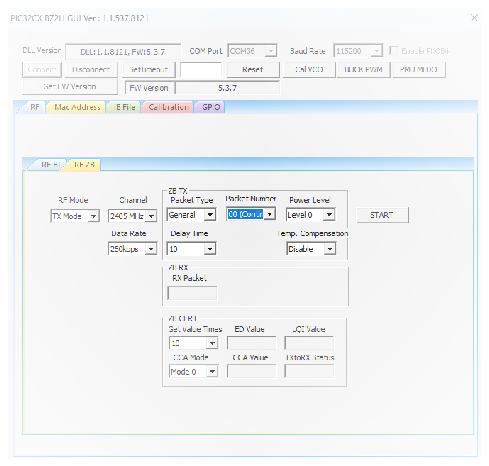
From the “RF Modes” drop-down list, select TX Mode.
From the “Channel” drop-down list, select 2405
MHz for channel 11.
From the “Packet Type” drop-down list, select
Packet Type as General (default value) or
Smallest.
From the “Power Level” drop-down list, select
output power level (Level 0 is the default value).
From the “Delay Time” drop-down list, select the
Packet Delay Time (00-250) (the default value is 10).
From the “Packet Number” drop-down list, select
the Number of Transmitting Packet (00-250) (the default value is
00, Continuous Packet Transmission).
Temp. compensation is a function that compensate
the output power into the target power set in the power setting with the
temperature when the transmission starts.
3. Click START to transmit the Zigbee packet.
Note: "Data Rate" is
fixed at 250 Kbps, and "Delay Time" is 10.
Figure 4-10. MCHPRT3PIC32CX-BZ2H GUI for Zigbee RF TX Modulation Test
Demonstration
Perform the following steps for the demonstration of the Zigbee RX mode:
Set up the connection between the PIC32 WBZ451HPE Curiosity Board and PC. For more
details, refer to Getting Started with MCHPRT3.
In the RF ZB tab, perform the following steps:
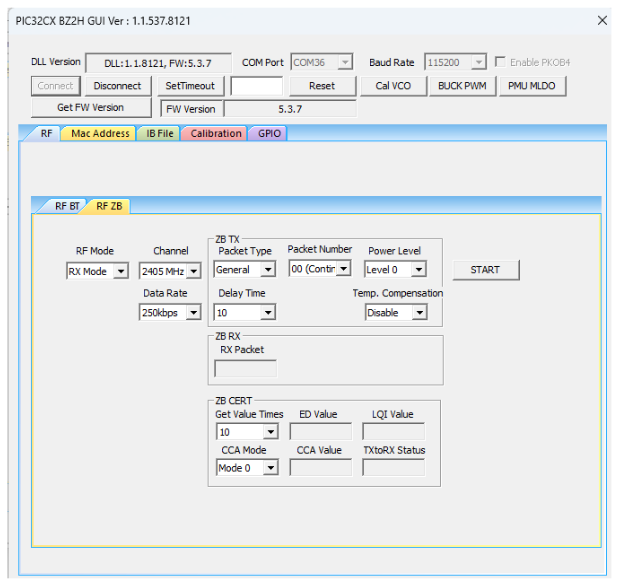
From the “RF Modes” drop-down list, select RX Mode.
From the “Channel” drop-down list, select 2405 MHz for channel 11.
From the “RX Data Rate” drop-down list, select Data Rate (250K, 500K, 1M and 2M), for example, select 250K.
Click START to receive the Zigbee packet. The total number of received packets are available under the “RX Packet” drop-down list.
Figure 4-11. MCHPRT3PIC32CX-BZ2H GUI for Zigbee RF RX Mode
Demonstration
Perform the following steps for the demonstration of the Zigbee CW mode to transmit CW tone:
Set up the connection between the PIC32 WBZ451HPE Curiosity Board and PC. For more
details, refer to Getting Started with MCHPRT3.
In the RF ZB tab, perform the following steps:
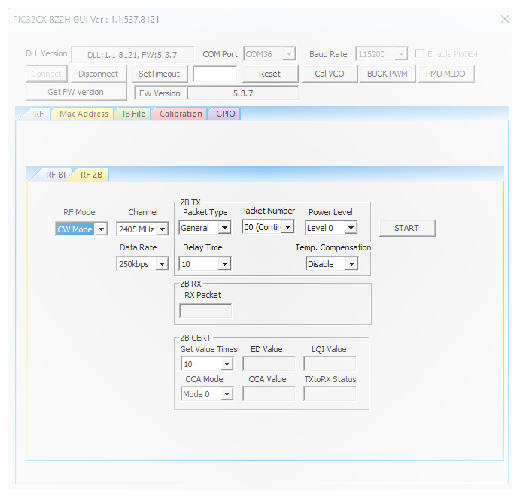
From the “RF mode” drop-down list, select CW Mode.
From the “Channel” drop-down list, select 2405 MHz for channel 11.
From the “Power Level” drop-down list, select
output power level (Level 0 is the default value).
Click START to transmit the CW tone.
Figure 4-12. MCHPRT3PIC32CX-BZ2H GUI for Zigbee CW Mode
Demonstration
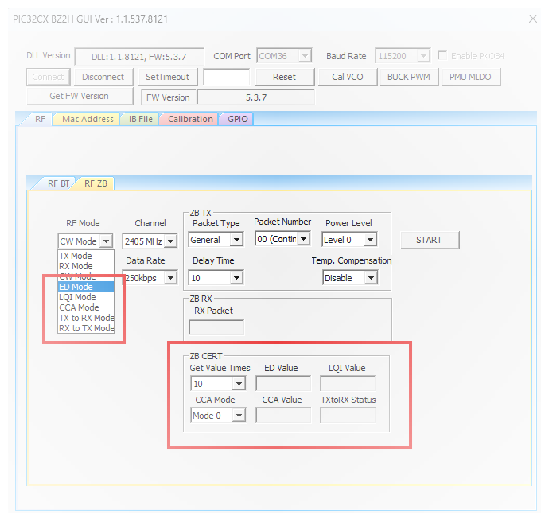
ED mode, LQI mode, CCA mode, TX to RX mode, and RX to TX mode, as well as the area of ZB CERT,
are used in Zigbee PHY certification. Figure 4-13. MCHPRT3PIC32CX-BZ2H GUI for Zigbee PHY Test
The online versions of the documents are provided as a courtesy. Verify all content and data in the device’s PDF documentation found on the device product page.