
19.2.2 Steps for Porting an MCC Project
- Open an latest released existing WBZ351 MCC project in MPLABx.
- Access the project properties option
in MPLABX IDE. From the “default” drop-down list, select Customize.
Figure 19-16. Customizing the PIC32CX5109BZ31048 Project Properties 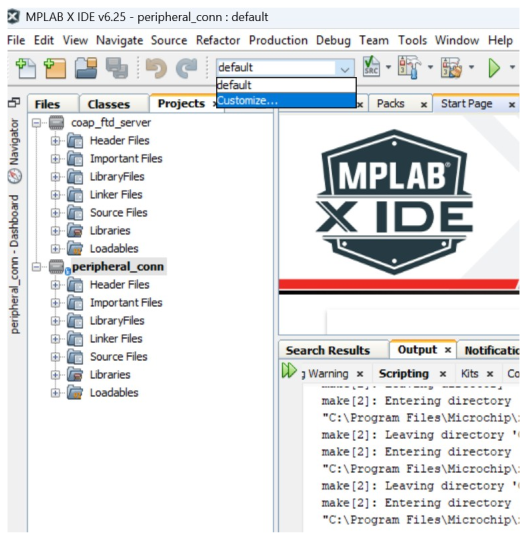
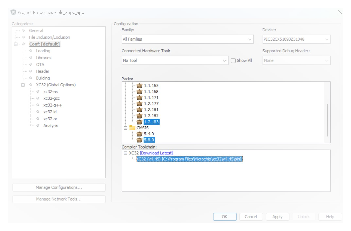
- Change the Device name to PIC32CX5109BZ31048 and select the respective packs and
compiler versions.
- Open the MCC by pressing the MCC button available at top in MPLABx and Accept (“Yes”) the project migration confirmation.
-
Once MCC is opened the DFP will be available for the selected device, can be seen by clicking on the DFP from project graph.
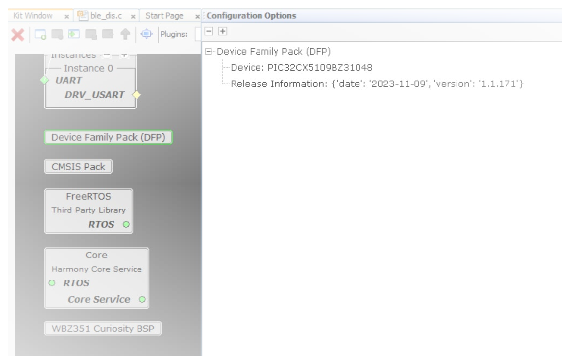 Note: The DFP updates according to the device selected. If MCC project graph window is not visible or the selected DFP does not match with the device selection, in that case, choose the correct DFP path (see step 6).
 -
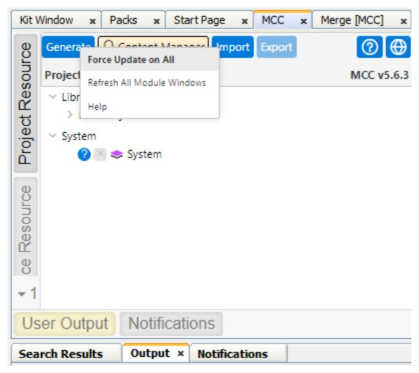
Save MCC configuration and enable Force update on All option (by right clicking onto the Project Resources Tab). Press Generate.
-
Do not merge all the code differences displayed in the merge window. Do not merge the application files or the
freeRTOS_hook.cfile. If any specific changes are required, merge only those necessary parts. Avoid merging unrelated code to prevent potential build errors. - Build and Flash the Project onto the device.