19.4.2 Steps for Porting an MCC Project
- Follow the steps outlined in the Porting Guide to migrate the application from WBZ351 to WBZ350.
- After successfully porting the application to WBZ350, proceed with porting it to PIC32CX5109BZ31032.
- Run the MPLAB® X IDE tool.
- In the opening window of the MPLAB X IDE, the user must locate the WBZ350 application intended for migration.
- Access the project properties option
in MPLABX IDE. From the “default” drop-down list, select Customize.
Figure 19-27. Customizing the WBZ350 Project Properties 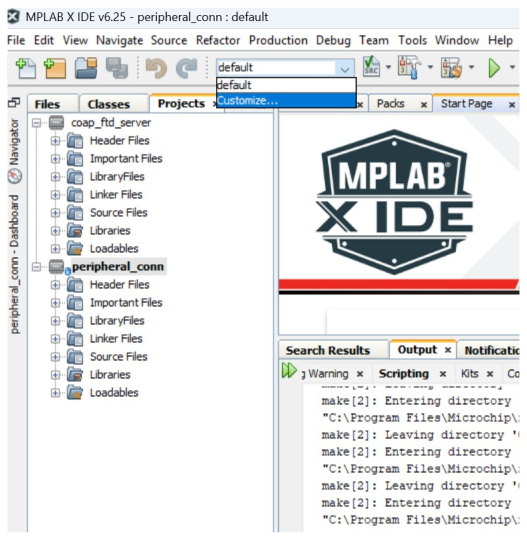
- In the Project Properties window,
perform the following steps:
- The user must update the device name. From the “Device:” field drop-down list, select PIC32CX5109BZ31032.
- From the Packs window, choose
the latest version of the Device Family Pack (DFP). Note: The user must select the suggested DFP version.
-
The user must opt for the latest CMSIS version. From the CMSIS folder, select 5.9.0.
-
The user must select the recommended compiler version. From the “Compiler Toolchain:” field, select XC32 (v4.46) [
C:\Program
                                Files\Microchip\xc32\v4.46\bin
]. -
Click Apply, then click OK to ensure successful implementation of the configuration adjustments.
Figure 19-28. PIC32CX5109BZ31032 Project Properties 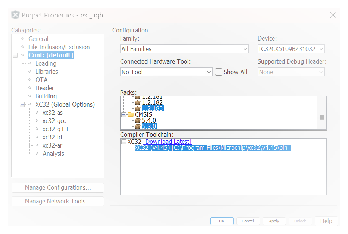
-
Go to
application_name\firmware\src\config\default\default.mhc\settings.ymlfile. In thesettings.ymlfile, perform the following steps:Note: If thesettings.ymlfile is not available, skip this step and proceed to step 9.-
Change the processor name. For example, change it to PIC32CX5109BZ31032.
-
Change the DFP path. For example, change it to
dev_packs\Microchip\PIC32CX-BZ3_DFP\1.1.171\BZ3\atdf\PIC32CX5109BZ31032.atdf.Figure 19-29. PIC32CX5109BZ31032 Name and DFP Path 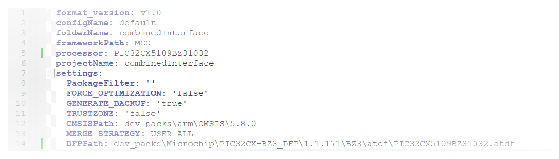
- Save the
settings.ymlfile.
-
- After configuring the project
properties, the
.mc4file as per the requirements, run the Microchip Code Configurator (MCC) to begin the code configuration process.- In the MPLAB X IDE window
opening, click MCC.
Figure 19-30. MPLAB X IDE Code Configurator 
- In the MPLAB X IDE window
opening, click MCC.
- The MCC now generates the project
graph, which the user can view in the Project Graph tab. Note: The user must wait until the MCC generates the project graph.
Figure 19-31. Project Graph 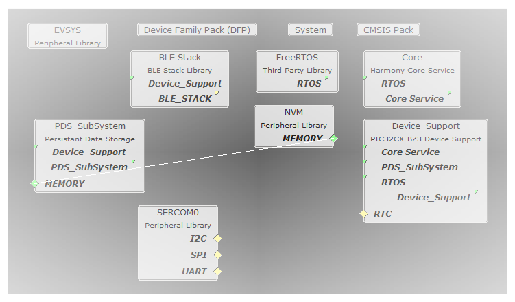
- The DFP will be available for the
selected device, can be seen by clicking on the DFP from project graph.
Figure 19-32. DFP Confirmation 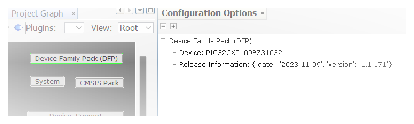
- The user must perform a force update
on all components. The following are the steps to perform a force update:
-
In the Resource Management [MCC] tab, under the “Project Resources” field, right-click on the Generate tab, then select Force Update on All.
-
Click Generate to start the process.
Figure 19-33. Force Update on All Components 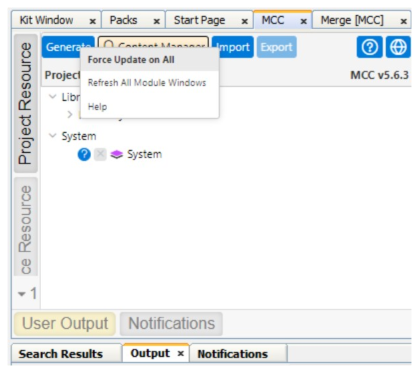
-
-
After generating the code, the MCC initiates a merging process, The merging process is not going to make changes to the application files containing customized code. However, some applications do not require certain mergers.Note: The merging process does not modify any application files with names beginning with app_ and does not merge the user modified files like
FreeRtos_hook.c file, etc. - The user must perform a thorough
check to ensure the generation process is complete.
Figure 19-34. Project Generation Complete 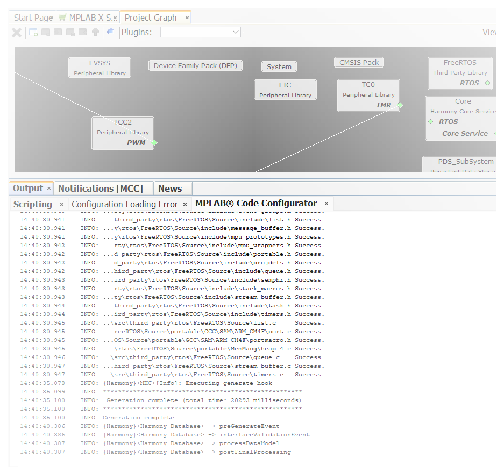
- After completing the project
generation, the user must initiate the process of building the main application. In
the MPLAB X IDE tool bar, click Clean and Build. From the drop-down list,
select Clean and Build Main Project.
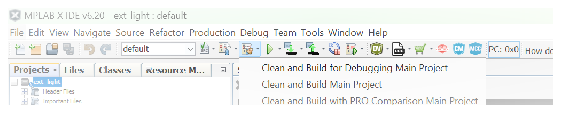
- Clean and build the main application,
ensuring that the build is successful.
Figure 19-35. Main Application Build Successful