
19.5.2 Steps for Porting an MCC Project
- Run the MPLAB® X IDE tool.
- In the opening window of the MPLAB X
IDE, the user must locate the WBZ351 application
intended for migration.Note: It is important to select the correct application to ensure a smooth and targeted migration.
- Access the project properties option
in MPLABX IDE. From the “default” drop-down list, select Customize.
Figure 19-36. Customizing the PIC32CX5109BZ36032 Project Properties 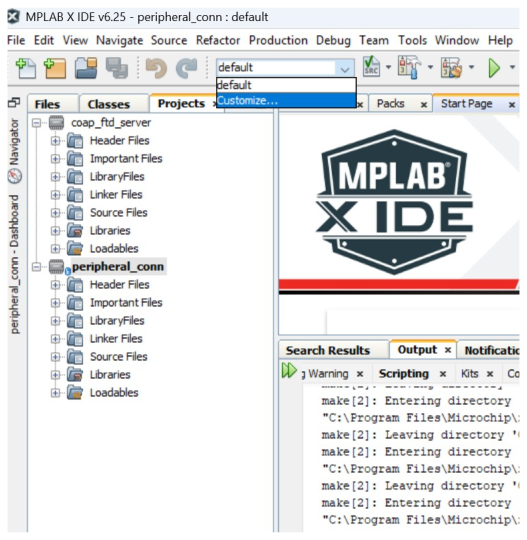
- In the Project Properties window,
perform the following steps:
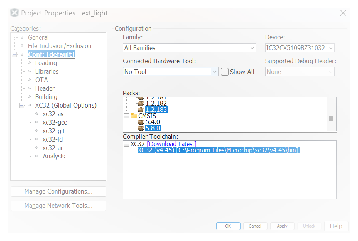
- The user must update the device name. From the “Device:” field drop-down list, select PIC32CX5109BZ36032.
- From the Packs window, choose
the latest version of the Device Family Pack (DFP).Note: The user must select the suggested DFP version.
- The user must opt for the latest CMSIS version. From the CMSIS folder, select 5.9.0.
- The user must select the
recommended compiler version. From the “Compiler Toolchain:” field, select
XC32 (v4.46) [
C:\Program
                            Files\Microchip\xc32\v4.46\bin
]. - Click Apply, then
click OK to ensure successful implementation of the configuration
adjustments.
-
To verify the availability of the BSP component, the user must navigate to the designated application directory. For example, go to
H3\wireless_apps_pic32cxbz3_wbz35\apps\ble\building_blocks\central\central_conn\firmware\src\config\default.Note: If the BSP folder is not available, skip this step and proceed directly to step 7.Figure 19-37. BSP Component 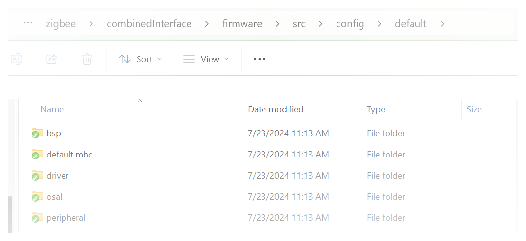
- Modifying BSP Component in
.mc4file.- After finding the BSP
component, the user can proceed to modify the
.mc4file to include support for the WBZ350 module. -
To achieve this, the user must manually edit the
.mc4file either. -
To manually edit the
.mc4-
Navigate the location of the
.mc4 -
In the
.mc4BSP_WBZ351_CuriositywithBSP_WBZ350_Curiosity.Figure 19-38. .mc4updating withBSP_WBZ350_Curiosity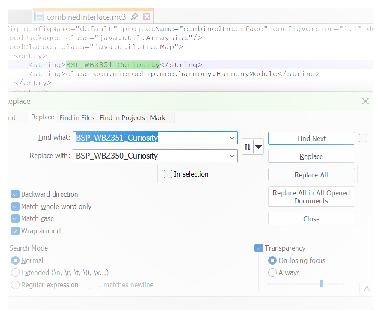
- Save the
.mc4file.
-
- After finding the BSP
component, the user can proceed to modify the
- Modifying BSP Component in
ble_ancs_app_default\components\BSP_WBZ351_Curiosity.yml.- Find and replace from
BSP_WBZ351_CuriositytoBSP_WBZ350_Curiosity - Save the
BSP_WBZ351_Curiosity.yml - Rename the
BSP_WBZ351_Curiosity.ymltoBSP_WBZ350_Curiosity.yml
- Find and replace from
- Modifying BSP Component in
ble_ancs_app.X/nbproject/configurations.xml.- Find and replace from
BSP_WBZ351_Curiosity.ymltoBSP_WBZ350_Curiosity.yml - Save the
configurations.xml
- Find and replace from
- Modifying BSP Component in
- After configuring the project
properties, the
.mc4file as per the requirements, run the Microchip Code Configurator (MCC) to begin the code configuration process.- In the MPLAB X IDE window
opening, click MCC.
Figure 19-39. MPLAB X IDE Code Configurator 
- In the MPLAB X IDE window
opening, click MCC.
- The MCC now generates the project
graph, which the user can view in the Project Graph tab. Note: The user must wait until the MCC generates the project graph.
Figure 19-40. Project Graph 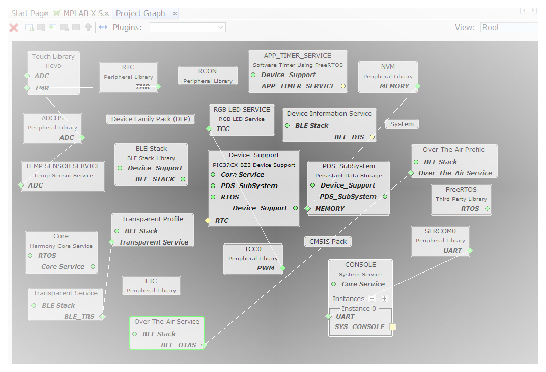
- The DFP will be available for the
selected device, can be seen by clicking on the DFP from project graph.
Figure 19-41. DFP Confirmation 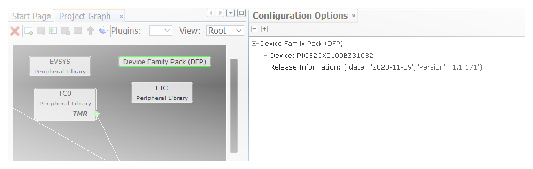
- The user can verify the pin
configurations in the Pin Settings tab. If the application utilizes the RGB
LED, note that there will be differences in pin assignments between the WBZ351 and WBZ350
modules/ PIC32CX5109BZ36032 SoC.
Table 19-3. RGB LED Pin Differences RGB LED Color WBZ350 Pin Assignment WBZ351 Pin Assignment Red PB6 PB0 Green PB7 PB3 Blue PB5 PB5 - After verifying the pin settings, the
user must perform a force update on all components. The following are the steps to
perform a force update:
- In the Resource Management [MCC] tab, under the “Project Resources” field, right-click on the Generate tab, then select Force Update on All.
- Click Generate to
start the process.
Figure 19-42. Force Update on All Components 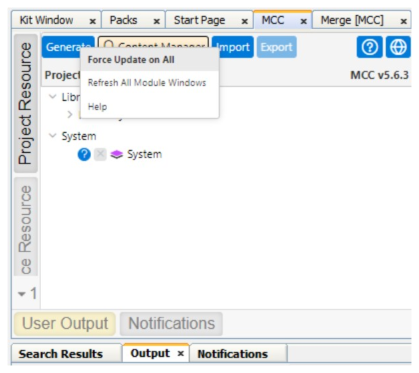
- After generating the code, the MCC
initiates a merging process, The merging process is not going to make changes to the
application files containing customized code. However, some applications do not
require certain mergers. Note: The merging process does not modify any application files with names beginning with app_ and does not merge the user modified files like
FreeRtos_hook.cfile, etc. - The user must perform a thorough
check to ensure the generation process is complete.
Figure 19-43. Project Generation Complete 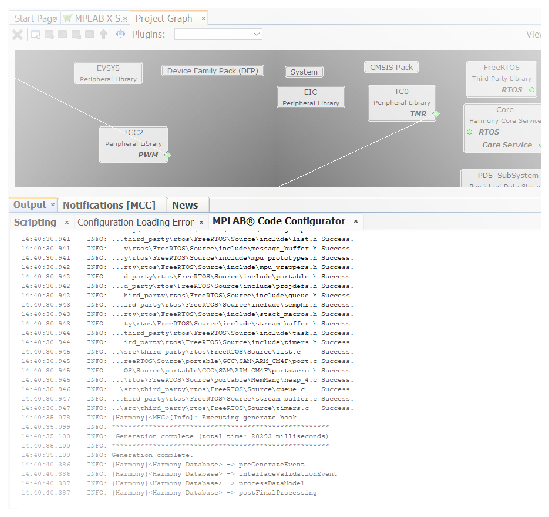
- After completing the project
generation, the user must initiate the process of building the main application. In
the MPLAB X IDE tool bar, click Clean and Build. From the drop-down list,
select Clean and Build Main Project.
Figure 19-44. Clean and Build Main Project 
- Clean and build the main application,
ensuring that the build is successful.
Figure 19-45. Main Application Build Successful 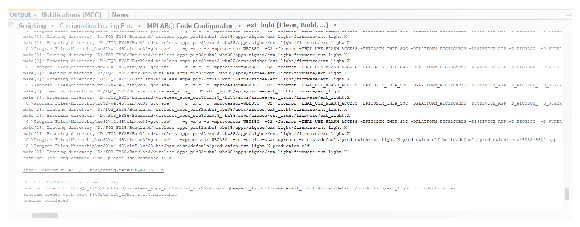
-
If you encounter any build errors related to RGB LED pin mismatches in application files (Example:
app_led.horapp_led.c), ensure that the correct LED pin is specified in the code and rebuild the application.For example, if a WBZ351 application is configured to use the RGB LED Green pin (PB3), but you are working with a WBZ350 application, and a build error occurs due to a pin mismatch, update the RGB LED Green pin to PB7 (as used in WBZ350) in the relevant files to resolve the issue.