2.6.2 MCC Windows
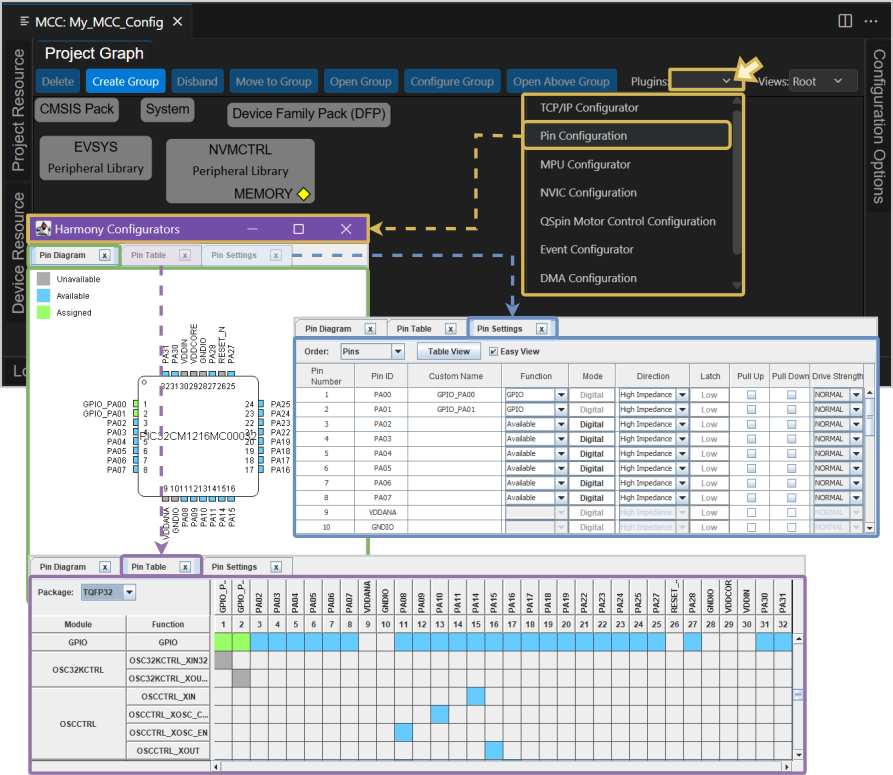
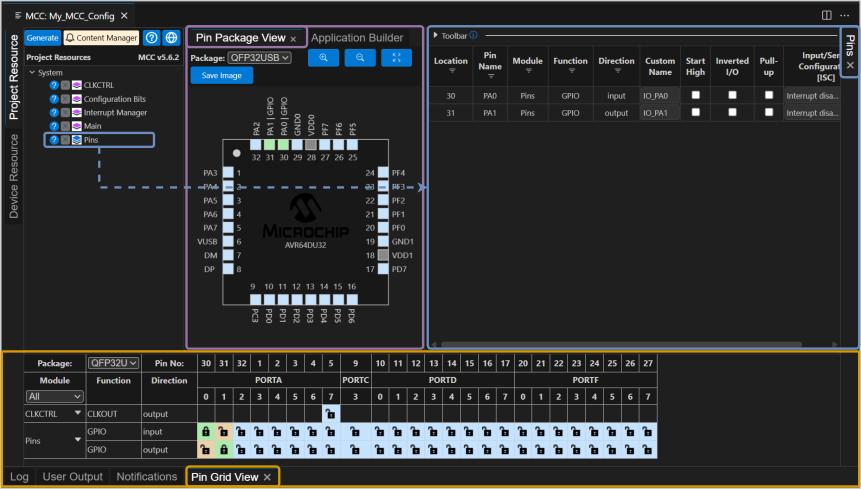
MCC Melody and Harmony offer similar views and arrangements in both MPLAB X IDE and the MPLAB Tools for VS Code. Introductions to their graphical user interfaces (GUIs) are listed below:
While Melody features an Application Builder that provides a visual representation of added content, Harmony uses a Project Graph for the same purpose. Both the Application Builder and Project Graph display which driver and library modules have been added to a project and illustrate how these modules interact with each other. Additionally, both tools automatically add default system modules that are essential for every MCC project.
A key difference between Melody and Harmony is how certain modules are added. In MCC Melody, all modules open from the Project Resources into the Composer Panel. For Harmony, most modules also open from the Project Resources into the Tree View Configuration. However, some Harmony contents that uses other GUIs other than the standard tree view is added through plug-ins that open in separate windows.
- MCC Melody features an Application Builder in the middle panel, which is shared with the Pin Package view. The Pin Package and Pin Grid views automatically open at start-up. The Pin Grid view displays only the pin rows for the added modules. Pin Settings can be accessed from the Project Resource panel and show only the selected pins for the added modules.

- MCC Harmony features a Project Graph in the middle panel. The Pin Configurations - including the Diagram (package), Table (grid), and Settings - manually opened through plug-ins. The Pin Settings and Table views display all pin configurations for all available modules.