6.2.1 Host WBZ451 Curiosity
The PL460-EK is connected to the mikroBUS connector (J4) on the WBZ451 Curiosity board using a mikroBUS to Xplained Pro adapter. The connections details are provided in the following table.
| Pin | Name | WBZ451 Curiosity | PL460-EK + XPRO-Adapter Click |
|---|---|---|---|
| 1 | AN | PB1 | Supply Monitor |
| 2 | RST | PB2 | XPL_TXEN |
| 3 | CS | PA9, SERCOM1_PAD2 | XPL_CS |
| 4 | SCK | PA8, SERCOM1_PAD1 | XPL_SCK |
| 5 | MISO | PA10, SERCOM1_PAD3 | XPL_MISO |
| 6 | MOSI | PA7, SERCOM1_PAD0 | XPL_MOSI |
| 7 | 3.3V | 3.3V | 3.3V |
| 8 | GND | GND | GND |
| 9 | GND | GND | GND |
| 10 | 5V | 5V | — |
| 11 | SDA | PA13, SERCOM2_PAD0 | XPL_NRST |
| 12 | SCL | PA14, SERCOM2_PAD1 | XPL_NTHW0 |
| 13 | TX | PA7, SERCOM1_PAD0 | — |
| 14 | RX | PA8, SERCOM1_PAD1 | — |
| 15 | INT | PA2 | XPL_EXTIN |
| 16 | PWM | PA2 | — |
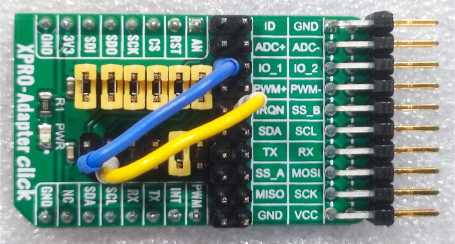
A prototyping board can be used to make this adaptation between the mikroBUS connector and the Xplained Pro connector. Another option is to use the kit together with the XPRO-Adapter click from MIKROE.
The following figure illustrates the schematics of the XPRO-Adapter click with the configuration to be used together with the PL460-EK.
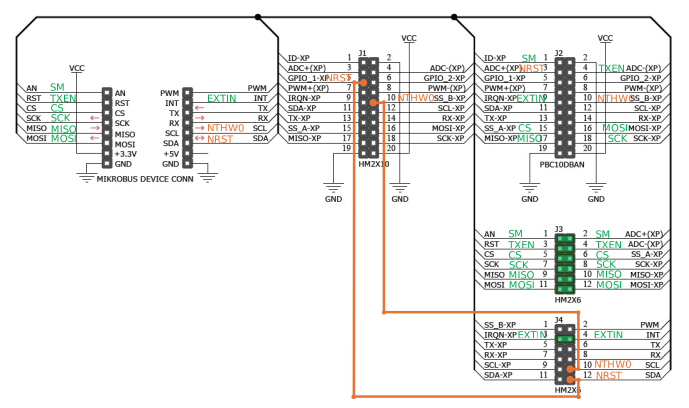
To use the XPRO-Adapter click with the PL460-EK, users need to make the following changes:
- Remove all unused GPIO jumper pins 1-2, 5-6, 7-8, 9-10, 11-12 (PWM, TX, RX, SCL, and SDA signals of mikroBUS connector).
- Add a wire between the pin 5 of J1 (GPIO_1-XP in schematic or IO_1 in silkscreen) and the pin 12 of J4 (SDA signal of mikroBUS connector).
- Add a wire between the pin 10 of J1 (SS_B-XP in schematic or SS_B in silkscreen) and the pin 10 of J4 (SCL signal of mikroBUS connector).