2.2.3 Creating a New MPLAB Project
To create a new MPLAB project, follow these steps:
- Open MPLAB X IDE.
- Create a New Project by clicking the New Project icon or by selecting File>New Project.
- In the New Project window select
Application Project(s) and click Next.
Figure 2-35. New MPLAB Project 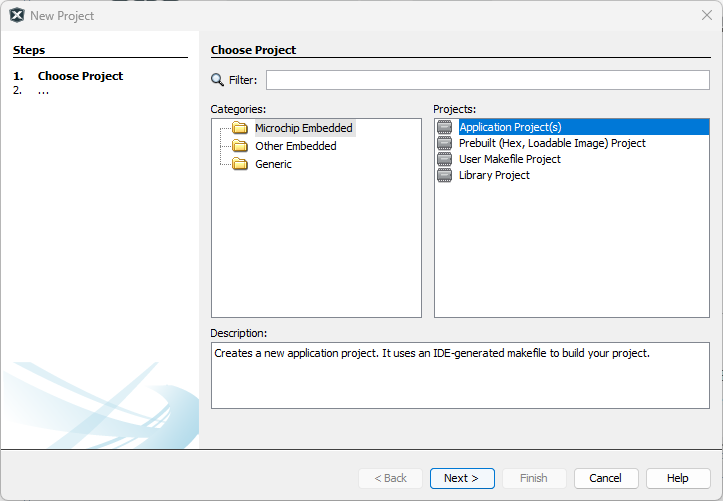
- In Select Device window select
PIC32CX2051MTSH128 (the part mounted on PIC32CXMTSH-DB), and click Next.
Figure 2-36. Select Device 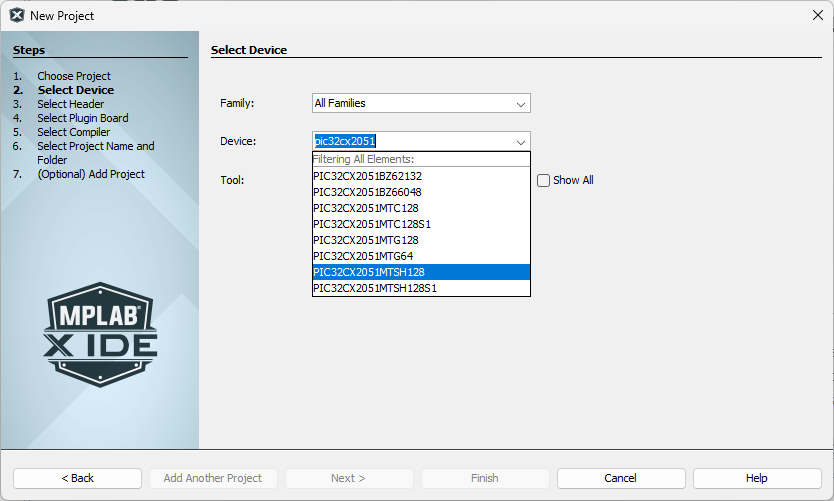
- Select Compiler version on next
window and click Next.
Figure 2-37. Select Compiler 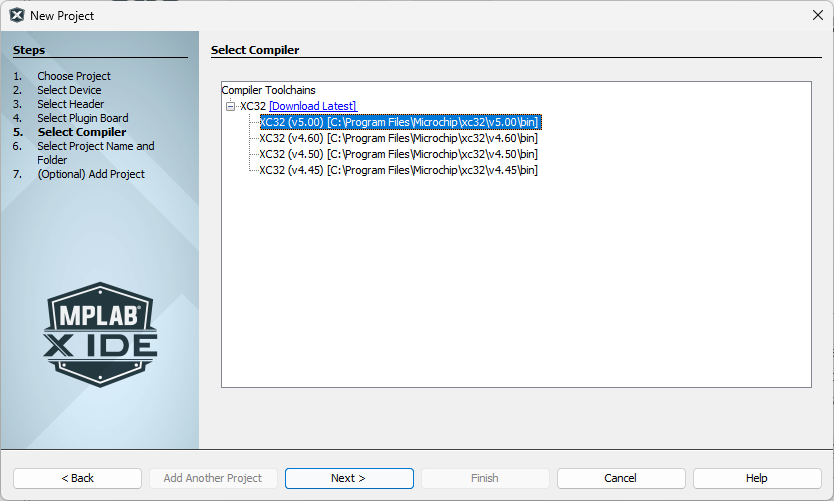
- Last step is setting the Project
Name, select it and click Finish.
Figure 2-38. Select Project Name 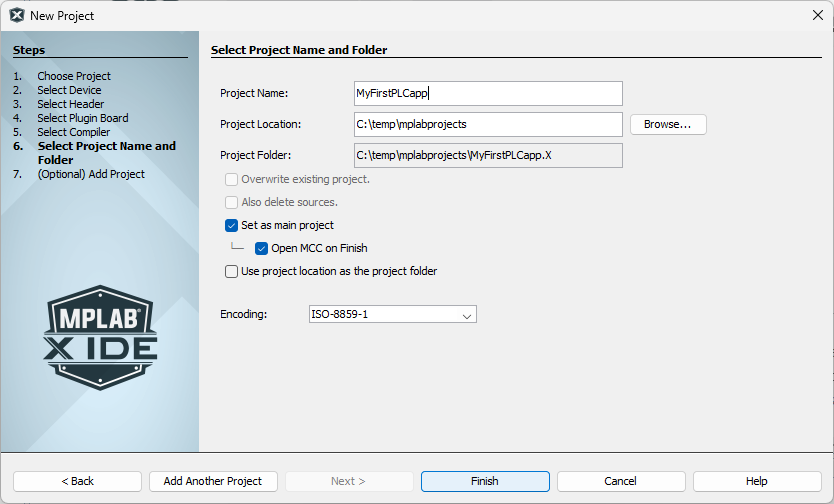
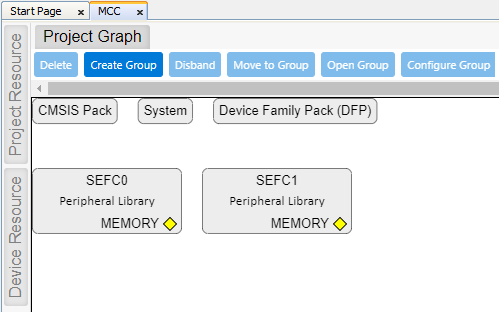
- When clicking Finish, MCC is
automatically opened for the new project (may take a while), and the default
components are shown in Project Graph.
Figure 2-39. MCC for New Project