
5.2.2 BLE Throughput
- Connection with mobile phone via BLE.
- Data transmission between the PIC32CX-BZ3/PIC32CX-BZ36 and WBZ35x and smart phone via BLE and throughput evaluation.
- Data transmission from the PIC32CX-BZ3/PIC32CX-BZ36 and WBZ35x to smart phone via BLE and throughput evaluation.
- Data transmission from smart phone to the PIC32CX-BZ3/PIC32CX-BZ36 and WBZ35x via BLE and throughput evaluation.
Data Format for Advertising
Advertising Data
The Service Data type is used in advertising data. The data format is as illustrated below:

0xFEDA is a 16-bit Service UUID which is purchased by Microchip
from Bluetooth SIG.Scan Response Data
The device name is put in the scan response. the device name is set as “BLE_UART_XXXX”. (XXXX are the last two bytes of the device address.)
Supported Services and Profiles
The supported service and profile are listed in the following section.
- Transparent Service: MCHP proprietary service, see Reference [1] for the detail.
- Device Information Service: Bluetooth SIG standard service, see Reference [3] for the detail.
Profiles
- Transparent Profile (TRP): MCHP proprietary profile, see Reference [4] for the detail.
LED Indication
- Advertising State (No LE link existed): Green LED flashes one time every 500 ms.
- Connected with peer device: Green LED is solid ON.
- Work with iOS MBD App
Scanning and Connecting the Device
The steps to scan and connect to the device via MBD app are described as follows:
-
Tap “BLE UART” feature in MBD App.
Figure 5-210. MBD App iOS Version 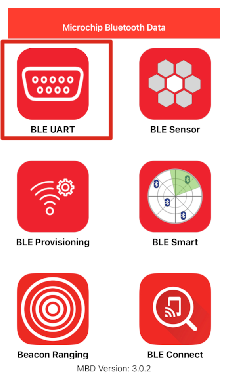
-
Tap on the PIC32CXBZ.
Figure 5-211. BLE UART GUI 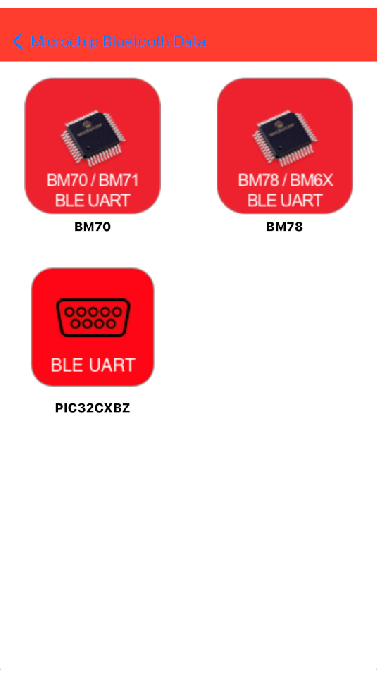
- Tap on START.
Figure 5-212. PIC32CXBZ GUI 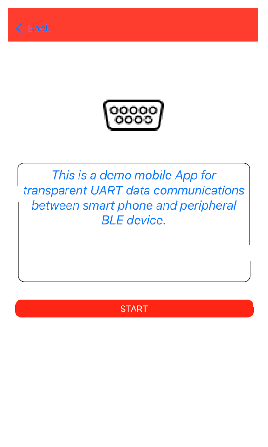
-
Select BLE_UART_XXXX (XXXX are the last two bytes of the device address).
Figure 5-213. “START” Scanning GUI 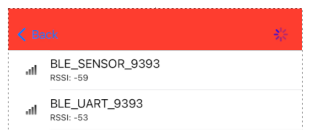
Firmware Version
-
To verify firmware version, once LE is connected, tap the Setting Icon:
Figure 5-214. Settings Icon 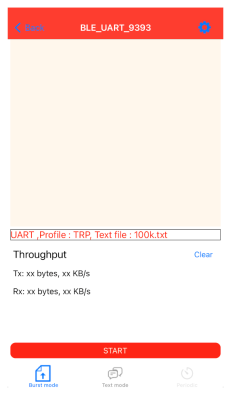
- The firmware version detail will be
listed along with other Device Information as illustrated in the following
figure.
Figure 5-215. Firmware Revision in "Setting" GUI 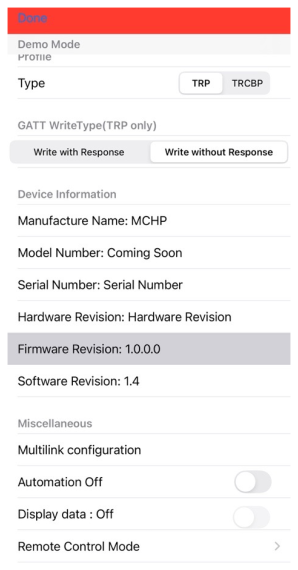
Select Transparent Profile
There are two profiles supported by the MBD “BLE UART” App but “BLE_THROUGHPUT” firmware supports TRP only:
Legacy Transparent Profile (TRP): Supported by “BLE_THROUGHPUT” firmware.
-
Transparent Credit Based Profile (TRCBP): Not supported by “BLE_THROUGHPUT” firmware.
Select GATT Write Type
TRP profile supports both “Write with Response” and “Write without Response”, which is much higher than the former.
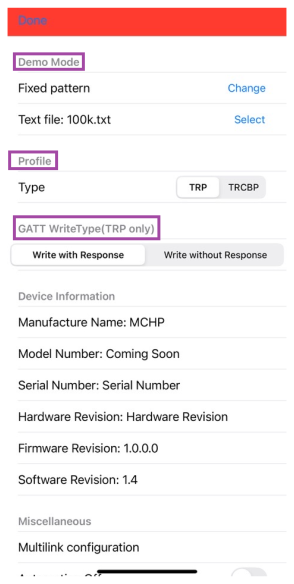
Demo Modes
- Burst Mode: is designed for the throughput evaluation via massive data transmission.
- Text Mode: is designed for the simple text typing.
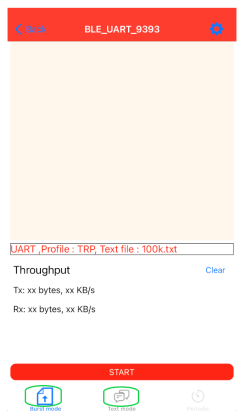
Burst Mode
There are four data transfer modes supported in the Burst mode:
Checksum mode: MBD App to the device (uni-direction).
-
Fixed Pattern mode: Device to MBD App (uni-direction).
-
Loopback mode: MBD App → Device → MBD App (bi-direction).
UART mode: MBD App → Device → UART output to PC; UART input from PC → Device → MBD App (bi-direction). This mode is not supported by “BLE THROUGHPUT” firmware.
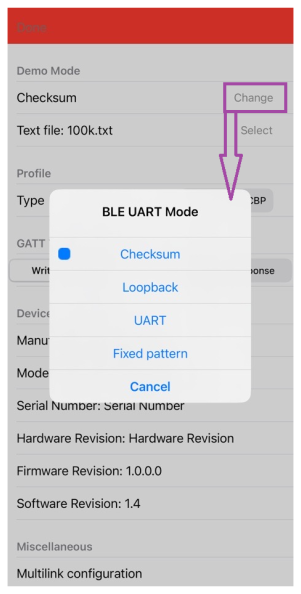
B. Text Mode
- Loopback mode: MBD App > Device > MBD App (bi-direction).
- UART mode: MBD App > Device > UART output. This mode is not supported by “BLE THROUGHPUT” firmware.
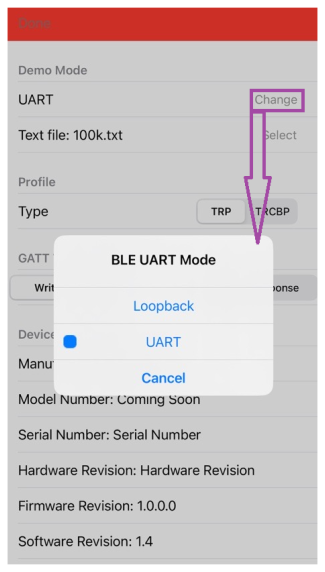
Work with Android MBD App
The operation of Android MBD App is quite the same as the iOS version MBD App.
Throughput Evaluation
This section describes the throughput evaluation steps and a list of throughput figures tested with a list of phone models (for reference only). Additionally, the factors influencing throughput will be examined.
Hardware Requirement
| S. No. | Tool | Quantity |
|---|---|---|
| 1 |
WBZ351 Curiosity Board | 1 |
| 2 |
Micro USB cable | 1 |
| 3 |
Android/iOS Smartphone | 1 |
SDK Setup
Refer to Getting Started with Software Development from Related Links.
Software Requirement
To install Tera Term tool, refer to the Tera Term web page in Reference Documentation from Related Links.
Smart Phone App
Microchip Bluetooth Data (MBD)
Programming the Precompiled Hex File or Application Example
Using MPLAB® X IPE:
- Import and program the
precompiled hex file:
<Discover Path>\wireless_apps_pic32cxbz3_wbz35\apps\ble\advanced_applications\ble_throughput\hex. - For detailed steps, refer to
Programming a Device in MPLAB® IPE in
Reference Documentation from Related Links.Note: Ensure to choose the correct Device and Tool information.
Using MPLAB® X IDE:
- Perform the following the steps mentioned in Running a Precompiled Example. For more information, refer to Running a Precompiled Application Example from Related Links.
- Open and program the application
example
ble_throughput.Xlocated in<Discover Path>\wireless_apps_pic32cxbz3_wbz35\apps\ble\advanced_applications\ble_throughput\firmware. - For more details on how to find the Discover path, refer to Download Application Example from Discover in Running a Precompiled Application Example from Related Links.
Throughput Evaluation Steps
- Connect a USB cable to the WBZ351 Curiosity board.
- Download the “BLE_THROUGHPUT” firmware.
- Run a terminal tool like “Tera Term”.
Open the serial port connecting to the WBZ351 Curiosity board and configure the setting as below:
Figure 5-220. Serial Port Setup 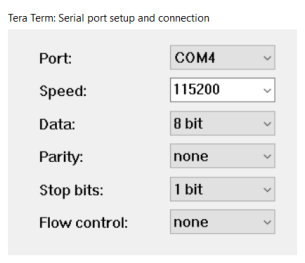
-
Press the Reset button on the WBZ351 Curiosity board, the initialization string will be displayed as illustrated in the following figure.
Figure 5-221. Initialization Output 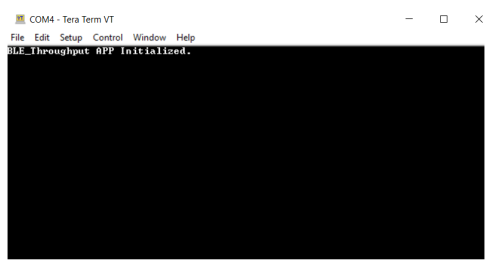
- Using “BLE UART” feature of MBD App, connect to the WBZ351 Curiosity board.
- Select the Burst mode.
Figure 5-222. Burst Mode - Select the Demo mode in setting page.
Except the UART mode, all the other modes are supported by “BLE_THROUGHPUT”.
Figure 5-223. BLE UART Mode 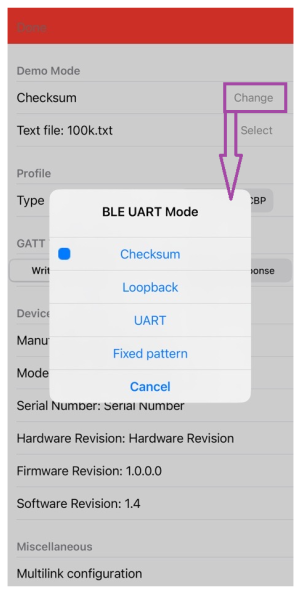
- Select Text file size in the Setting
page.
Figure 5-224. Text File “Select” 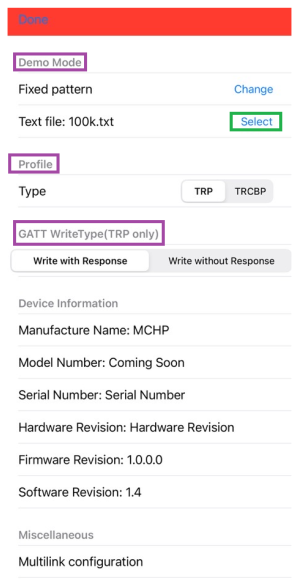
- The TRP profile is automatically
selected.
Figure 5-225. TRP Profile 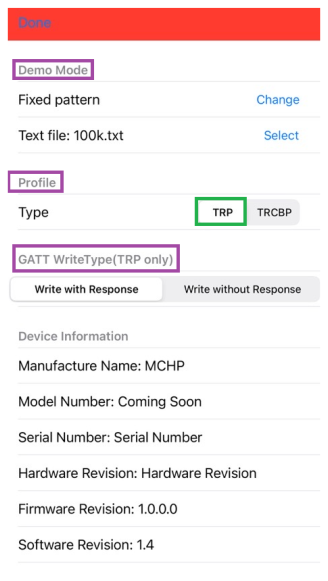
- Select GATT Write
Type
“Write without Response” will achieve much higher throughput.
Figure 5-226. Write Without Response 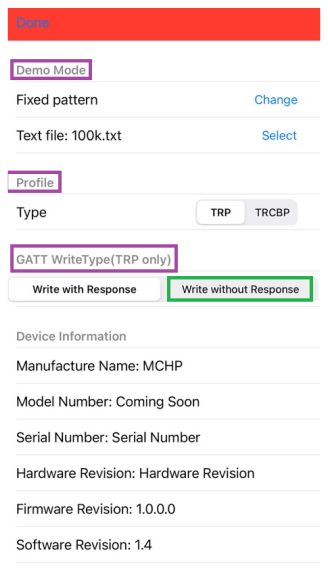
- Tap Done and back to the previous page.
- Tap START
After sending the file, the throughput is evaluated as illustrated below:
Figure 5-227. Throughput Evaluation GUI 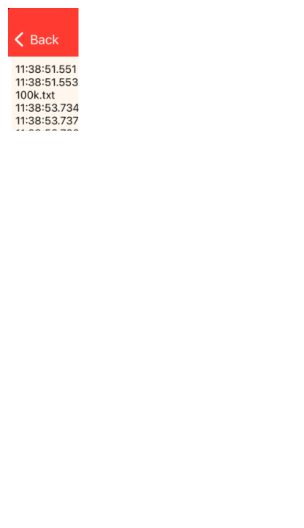
Throughput Test Report
The following tables describe the throughput test result with iOS and Android devices with the configuration as
Profile
TRP
GATT Write Type
Write without Response
Downlink
Tested with "Checksum" data transfer mode
Uplink
Tested "Fixed pattern" data transfer mode
-
iOS Devices.
Table 5-39. Reference Throughput with iOS Devices Phones Downlink (Kbytes/sec) Uplink (Kbytes/sec) iPhone 6 Plus / iOS 12.4.8 5.61 5.62 iPhone 7 / iOS 13.5.1 18.64 19.23 iPhone 8 / iOS11.1 47.08 47.62 iPhone X / iOS 12.3 57.93 58.82 iPhone X MAX / iOS 14.0.1 55.17 62.5 iPhone 11 / iOS 14.0.1 60.29 62.5 iPad Air 3rd / iOS 13.3 58.62 58.82 iPhone 13 Pro / iOS 15.6.1 53.11 56.89 - Android Devices.
Table 5-40. Reference Throughput with Android Devices Phones Downlink (Kbytes/sec) Uplink (Kbytes/sec) Samsung S10 / Android 10 46 65 OPPO RENO / Andoid 9 36 66 Sony Xperia XZ / Android 8 4 4 Vivo V11 / Android 9 32 66 Nokia 7.2 / Android 10 35 64 OPPO R15 / Android 9 42 66 OnePlus 3 / Android 9 33 41 Google Pixel 2 / Android 10 50 67
Factors Affecting Throughput
In BLE_THROUGHPUT example, the WBZ351 is the GATT server while the MBD App is the GATT client. There are 7 main factors affecting the throughput. Some factors are negotiated and determined by the BLE stack of the GATT client and server. And some factors can be modified or requested by the user level application code using the APIs exposed by underneath BLE stack.
ATT MTU size
Larger MTU size achieves higher throughput. Assuming the MTU size is x, then the Max application data payload in one operation is of x minus 3 (excluding 1byte of GATT operation code and 2 bytes of the attribute handle ).
In PIC32CX5109BZ31048 BLE stack, the Max MTU is set to 247 bytes. The final MTU used by the GATT client and server will depends on the negotiation initiated by the GATT client. For iOS, the MTU size is determined by the underneath BLE stack while the user level application can use API to learn the determined MTU. For Android, the MTU size can be requested by the user level application code using API of “
requestMtu (int mtu)” and the user application code should observe the result from “onMtuChanged” callback.Operation Type
For downlink operation, the “Write without Response” (Write Command) is always faster than the “Write with Response” (Write Request).
For uplink operation, the Notify operation is always faster than the Indication operation which requires a confirm from peer device.
It's the responsibility of BLE_THROUGHPUT firmware to define the property of the GATT characteristics. The property in turn defines the permitted operation type.
Data Length Extension(DLE)
Link layer data packet length by default is 27 bytes. From BLE 4.2 onward, the link layer data packet length can be extended to as long as 251bytes. This feature is called Data Length Extension (DLE).Note: Some phone models might not support DLE while PIC32CX5109BZ31048 BLE stack supports it DLE negotiation is conducted by underneath BLE stack of both the client and the server. User level application code has no API to modify the link layer data packet length.Connection Interval (CI)
The CI defines the frequency of the Connection Event. Shorter CI causes higher frequency of the Connection Event. Certain number of data packets can be sent during one connection event. It is obvious that the shorter CI the lesser number of data packets can be sent in one Connection Event. In contrast, the longer CI the higher opportunity to send larger number of data packets in one Connection Event. The iOS device might limit the CI parameter according to the peripheral type. See reference[6] for more details.
PIC32CX5109BZ31048 BLE stack provides API of “
BLE_DM_ConnectionParameterUpdate” to update the connection parameter. The final connection parameter is decided by negotiation of both the client and the server stack.On Android the equivalent API is “
requestConnectionPriority” while there is no such similar API available on iOS.Number of Data Packets per Connection Event
The number varies from iOS to Android and from revision to revision. There is no direct API available on either iOS or Android to define this number. User can fine tune the CI to get ideal value and verify the result in the air log.
-
PHY Selection
From BLE 5.0 onward, LE 2M PHY is introduced. It is 2x faster than the former LE 1M PHY. Gradually the phone models in the market will embrace this new feature. Either the GATT client or server might request to update the PHY to LE 2M according to PHY Update Procedure defined by SIG, see reference [7] for details. WBZ351 is born to support this feature and the API of “BLE_GAP_SetPhy” is available to user level application code to change the PHY selected.- PHY Update
Procedure
In BLE_THROUGHPUT example, the API “
BLE_GAP_SetPhy” is called on writing the handle of TRP TX characteristic CCCD (Client Characteristic Configuration Descriptor) operated by peer device illustrated as below image. For more details on TRP, see reference[1].Figure 5-228. PHY Update Procedure in Example Firmware 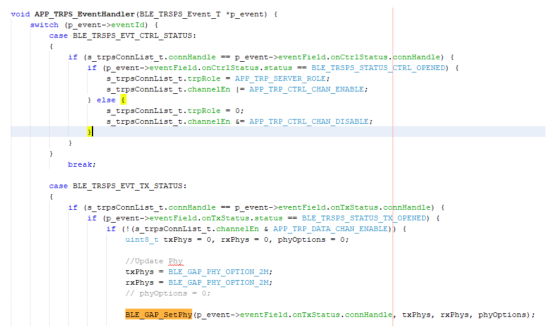
A event of
BLE_GAP_EVT_PHY_UPDATEwill be generated on the completion of this procedure then the user can check the result in this event. This event is handled byAPP_BleGapEvtHandler( )of GAP handler in this example.
- PHY Update
Procedure
- The RF Factor
The noisy RF environment can decrease the throughput. The well designed RF circuit can achieve higher throughput. Finally, the casing condition of the end product containing the BLE device can also affect the throughput.
4. The BLE_THROUGHPUT Example Firmware Diagram
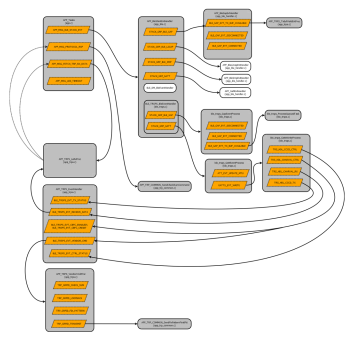
The BLE_THROUGHPUT firmware is designed for the WBZ351 Curiosity board. The firmware is based on TRP service. There are three data transfer modes supported by the BLE_THROUGHPUT firmware, including Checksum mode, Fixed pattern mode and Loopback mode. To simplify, the UART mode is not implemented in this example. The firmware diagram below illustrates the main part of the firmware.
Verifying MCC Configurations
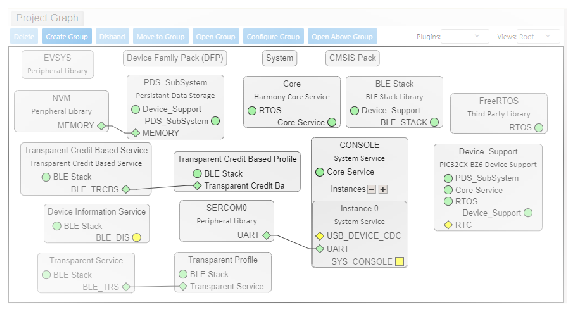
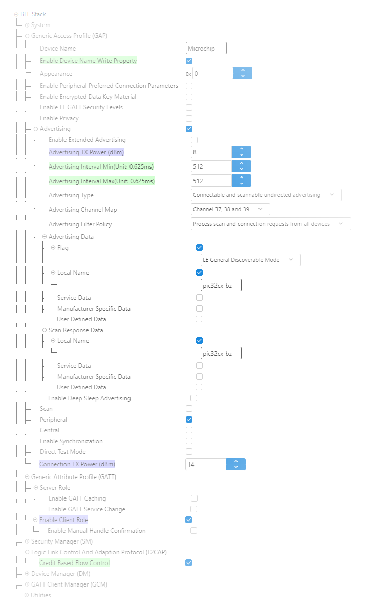
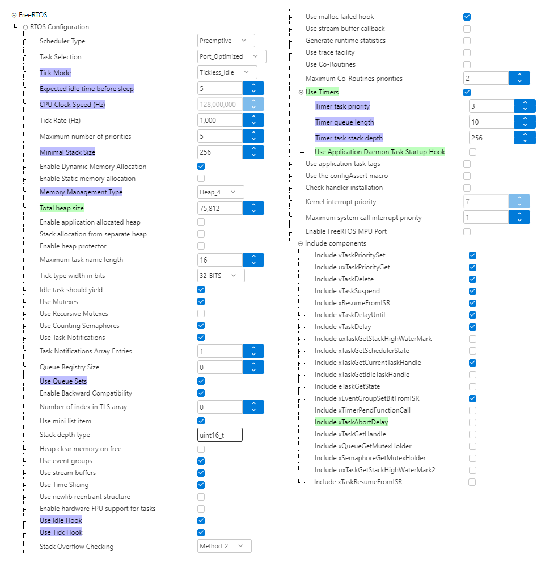
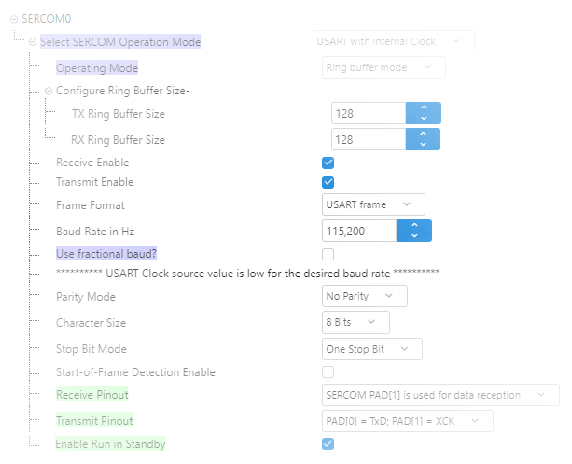
- Verify the Project Graph
- Select BLE Stack and verify
the configuration
- Select FreeRTOS and verify
the configuration
- Select SERCOM0 and verify the
configuration
- Select Transparent Credit
Based Profile and verify the configuration

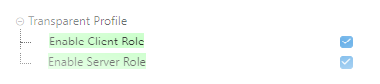
- Select Transparent Profile
and verify the configuration
References
- Microchip Transparent Service_v1.1
- Microchip Transparent Credit Based Service v1.0
- www.bluetooth.com/specifications/gatt/
- Microchip Transparent Profile_v1.1
- Microchip Transparent Credit Based Profile_v1.0
- developer.apple.com/accessories/Accessory-Design-Guidelines.pdf
- www.bluetooth.com/specifications/specs/core-specification-5-3/