5.2.1.3 BLE Sensor App with RGB LED (without Touch)
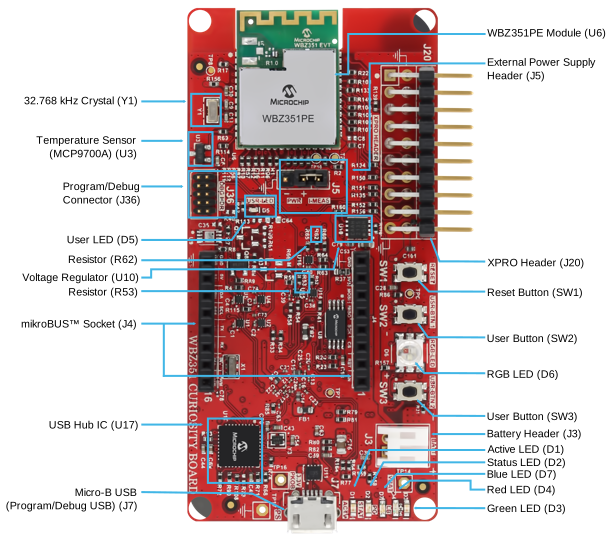
WBZ351 Curiosity Board
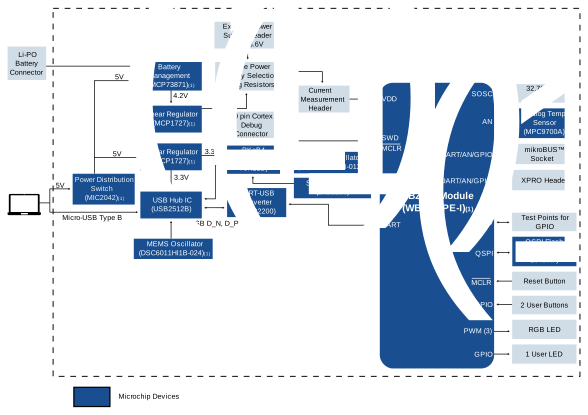
Devices (Device): PIC32CX5109BZ31048(MCU) on WBZ351 module
Devices (Used, On-Board): Analog Temperature Sensor, RGB LED, User Button, User LED, USB-UART converter
Hardware Required
| S. No. |
Tool |
Quantity |
|---|---|---|
| 1 |
WBZ351 Curiosity Board |
1 |
| 2 |
Micro usb cable |
1 |
| 3 |
Andrioid/iOS Smartphone |
1 |
Hardware Modification
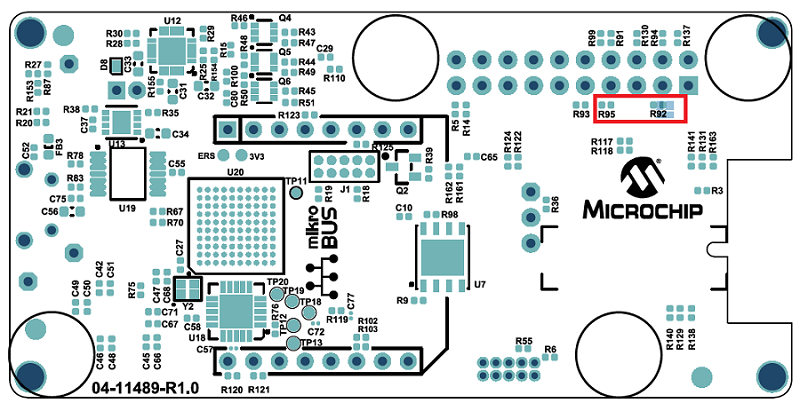
A simple hardware modification is needed to run this demo. WBZ351 Curiosity boards has on-board RGB LED on PB0, PB3, PB5 pins. But, these pins are multiplexed with CVD Touch functionality. Hence the connection to R and B LED's are disconnected by default on the board. Mount 0 ohm resistor or make the solder connection on R92 and R95 resistor position as shown below.
Software
To install Tera Term tool, refer to the Tera Term web page in Reference Documentation from Related Links.
Smrtphone App
Microchip Bluetooth Data (MBD) iOS/Android app available in stores.Programming the Precompiled Hex file or Application Example
Using MPLAB® X IPE:
-
Import and program the precompiled hex file:
<Discover Path>\wireless_apps_pic32cxbz3_wbz35\apps\ble\advanced_applications\ble_sensor_touch\precompiled_hex\ble_sensor_rgb.X.production.signed.hex. - For detailed steps, refer to
Programming a Device in MPLAB® IPE in
Reference Documentation from Related Links.Note: Ensure to choose the correct Device and Tool information.
Using MPLAB® X IDE:
- Perform the following the steps mentioned in Running a Precompiled Example. For more information, refer to Running a Precompiled Application Example from Related Links.
-
Open and program the application example
ble_sensor_touch.x<Discover Path>\wireless_apps_pic32cxbz3_wbz35\apps\ble\advanced_applications\ble_sensor_touch\firmware - Comment out the ENABLE_TOUCH compile time switch in app.h to disable Touch functionality.
- Program the application.
- For more details on how to find the Discover path, refer to Download Application Example from Discover in Running a Precompiled Application Example from Related Links.
Demo Description
This application demonstrates the capability of WBZ351 module to connect to a mobile phone through Bluetooth Low Energy(BLE). The RGB LED on the Curiosity board can be controlled by mobile app. The WBZ351 device will also report the temperature data periodically to mobile phone through Bluetooth low energy (BLE).-
The WBZ351 module will be a BLE peripheral device and will advertise on startup. The user can initiate the connection through mobile application. The advertisement payload holds the temperature information and the RGB On/Off status, for more information refer to Protocol Exchange from Related Links.
-
Uses “BLE Sensor” sub app from the Microchip Bluetooth Data (MBD) mobile app for BLE demonstration.
-
Application is supported by iOS and Andrioid OS
-
Available in respective app stores/play stores
-
-
When Connected(ING) to the application the BLUE color “User LED” will turn on
-
Blinks the “User LED” with 500 ms blink interval when the device sending advertisement packets
-
Once connected, the “User LED” turns on solid
-
-
From the Smartphone App the following actions can be performed
-
The RGB LED can be switched On/Off from MBD mobile app
-
When LED is switched On, the RGB color can be changed from mobile app color wheel
- The RGB color value is received as HSV (Hue, Saturation, Value) from mobile app through TRPS. For more information, refer to the Transparent Profile and Service (TRP/TRS) in Protocol Exchange from Related Links.
-
The HSV value is converted to RGB equivalent value in the device. The corresponding PWM duty cycle for R,G,B will be calculated and the PWM pulse is provided on R,G,B LEDs.
-
-
From the WBZ351 module the following actions can be performed
-
The RGB LED can be switched on/off by pressing the On board “User Button”
-
When the “User Button” is pressed and released the RGB LED is switched ON with default color GREEN or the last stored color.
-
When the “User Button” is pressed and released again, then the RGB LED will be toggled from the previous state.
-
-
Read the temperature sensor every 1 sec once and send the temperature value to mobile app when the temperature changes about 1oC
-
Demo
-
Install the Microchip Bluetooth Data (MBD) Smartphone App
-
iOS/Android users can search for “Microchip Bluetooth Data” App in App Store and install
-
Enable Bluetooth on the Smartphone
-
-
Launch the MBD Smartphone App
-
Supply power to WBZ351 Curiosity Board
-
Connect a USB cable to the kit or a 4.2V Li-ion/Li-Po Battery. For more information refer to the Power Supply section of the WBZ351 Curiosity Board User's Guide.
-
The user-programmable blue LED starts blinking on the Curiosity Board when the board is in advertisement mode.
-
-
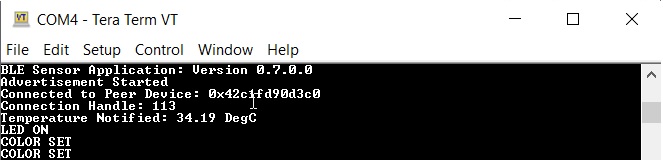
UART Console Behavior
- The application activity is shown as “Console Log” through on board UART-USB converter
- Open Terminal (Example: Tera Term) to look for these logs - UART baud settings: 115200 8-N-1 without flow control
-
Monitor RGB LED state and Temperature
-
WBZ351 Curiosity Board starts in advertisement mode to advertise its presence on a smartphone and to allow access to RGB LED on/off state and temperature sensor data.
-
Navigate through the Smartphone App as shown in the following figure to access the advertisement information.
Figure 5-207. . 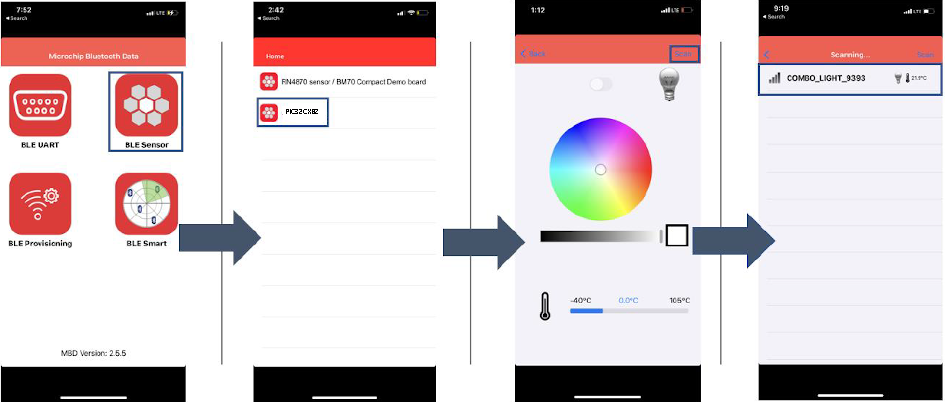
-
-
Control RGB LED state on/off as well as intensity and color
-
Click the device that shows up after initiating a scan to establish a connection with WBZ351 module.
-
The user programmable blue LED becomes solid once connection is established between the smartphone and WBZ351 module
-
 Controls the RGB LED state on/off.
 -
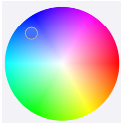 Controls the color of RGB LED when the
LED is “on”.
Controls the color of RGB LED when the
LED is “on”. -
 Controls the intensity of RGB LED when
the LED is “on”.
Controls the intensity of RGB LED when
the LED is “on”. -
 Additional information
Figure 5-208. . 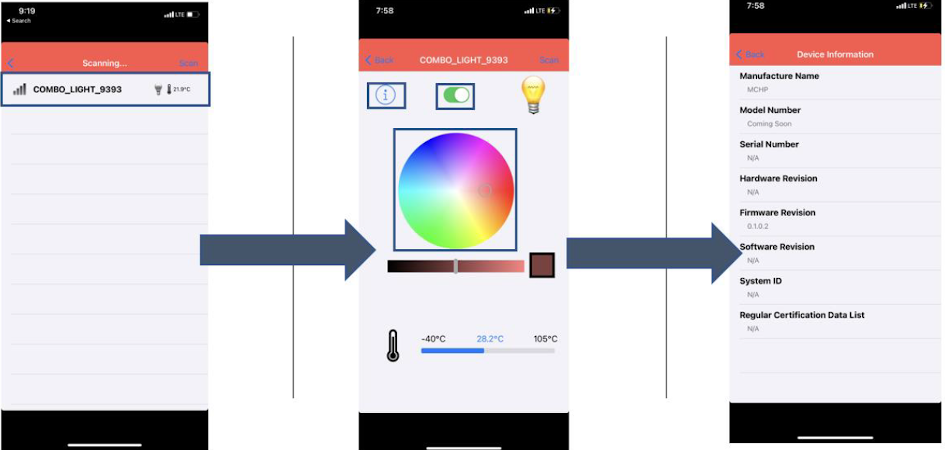
-
-
To disconnect the MBD Application running on your smart phone, you can do one of the following:
-
Press the reset button on WBZ351 Curiosity Board
-
Initiating a “Scan” on Smartphone App
-
Upon successful disconnection, the WBZ351 module starts in Advertisement Mode.
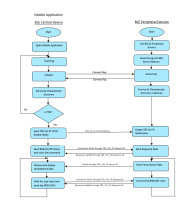
Protocol Exchange
The communication protocol exchange between BLE sensor mobile app (BLE central) and WBZ351 module (BLE peripheral) is explained in Protocol Exchange, for more information refer to Protocol Exchange from Related Links.Application Flow Diagram