
9.10.2 Change Controller Password
This operation allows the user to change the currently configured controller password. The existing password is not required—enter the new password directly. A maxCrypto Crypto Officer (Admin) session is required and the controller must not be in the locked state.
To change the controller password:
- In the Enterprise View, select a system, then select a controller on that system.
- On the ribbon, in the Controller group, click Security Settings.
- In the Set maxCrypto
Configuration window, click the Additional Settings tab.
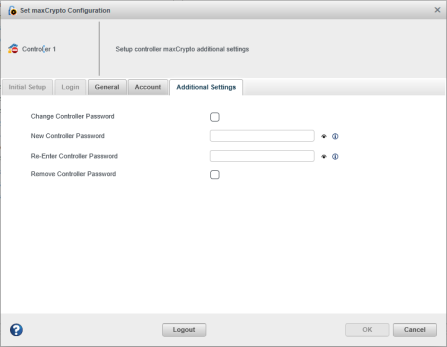
- Select the Change Controller Password check box.
- In the New Controller Password field, enter the new controller password (8–32 ASCII characters).
- In the Re-Enter Controller Password field, re-enter the same password.
- Click OK.