3.1.1 Create New Project
In WinCUPL II, select File ➔ New Project or click on the New Project shortcut button to open the New Project Wizard to create a new project.
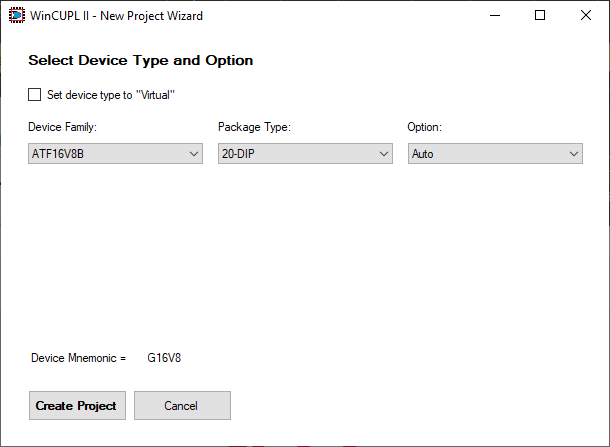
In the New Project Wizard, select ATF16V8B in the Device Family field, 20-DIP in the Package Type field and Auto in the Option field, as shown below.
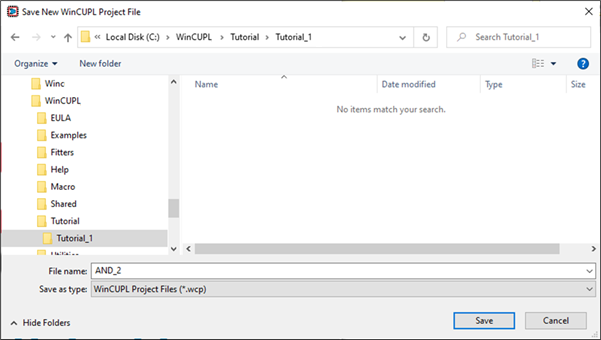
In the New Project Wizard, select the Create Project button to launch the Save New WinCUPL Project File browser window. In this window, click the New Folder button and create a new folder named Tutorial under the WinCUPL II installation directory (for example, C:\WinCUPL\Tutorial). Click the New Folder button again and create a new folder named Tutorial_1. Open the newly created Tutorial_1 folder, enter AND_2 in the File name field, and click the Save button to create a new project file (AND_2.wcp) for this design.
Path and file names for WinCUPL II projects cannot exceed 127 characters or contain spaces.