Open the Xear audio center
application and select the input and output options to configure the USB audio
extender.
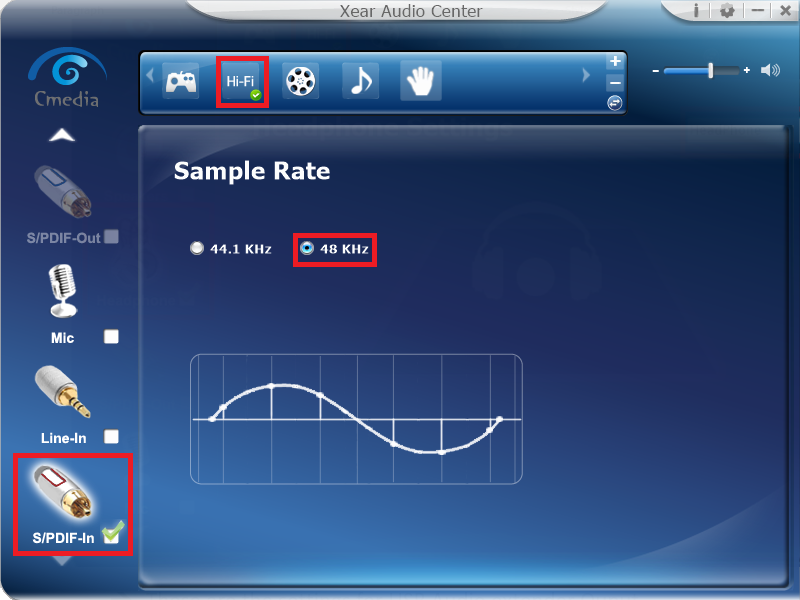
Select the S/PDIF-In as the input for
the USB audio extender in the application, set the sample rate to 48 kHz and select
the HiFi mode as shown in the following figure.
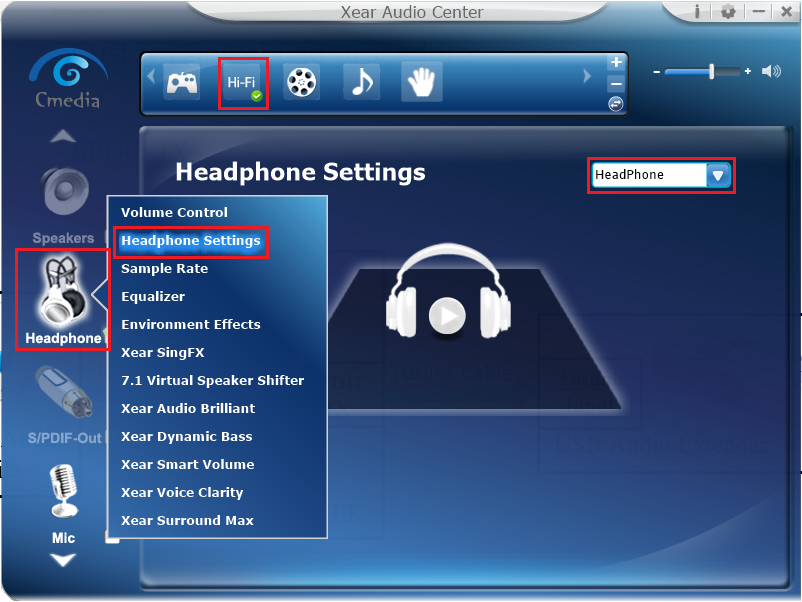
Right click on Headphone and
select Headphone Setting to configure the headphone as the output for
the USB audio extender.
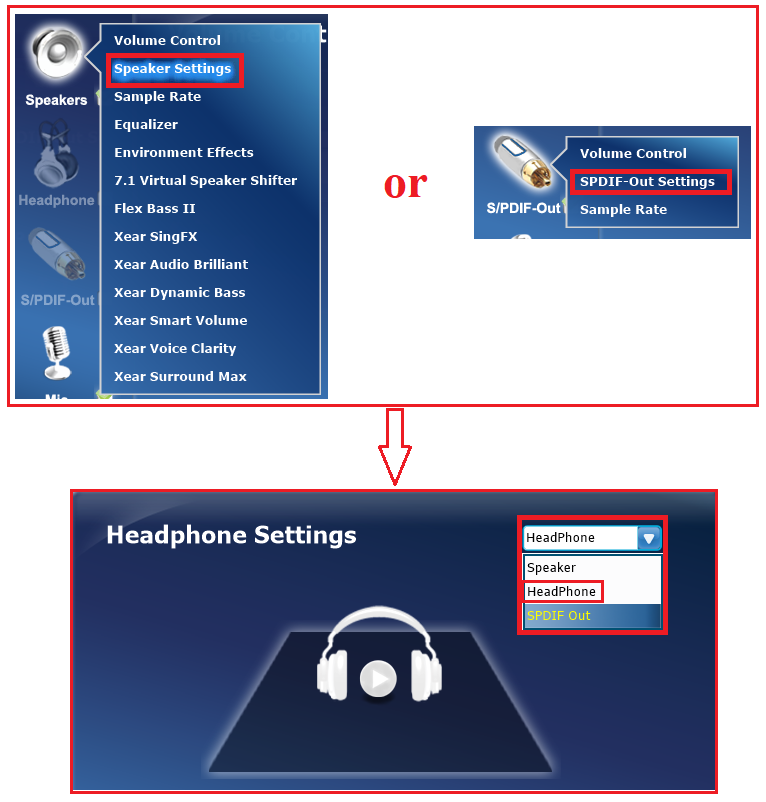
If the headphone is enabled by
default, right-click on the S/PDIF-Out or Speakers icon, then navigate
to Settings and select Headphone.
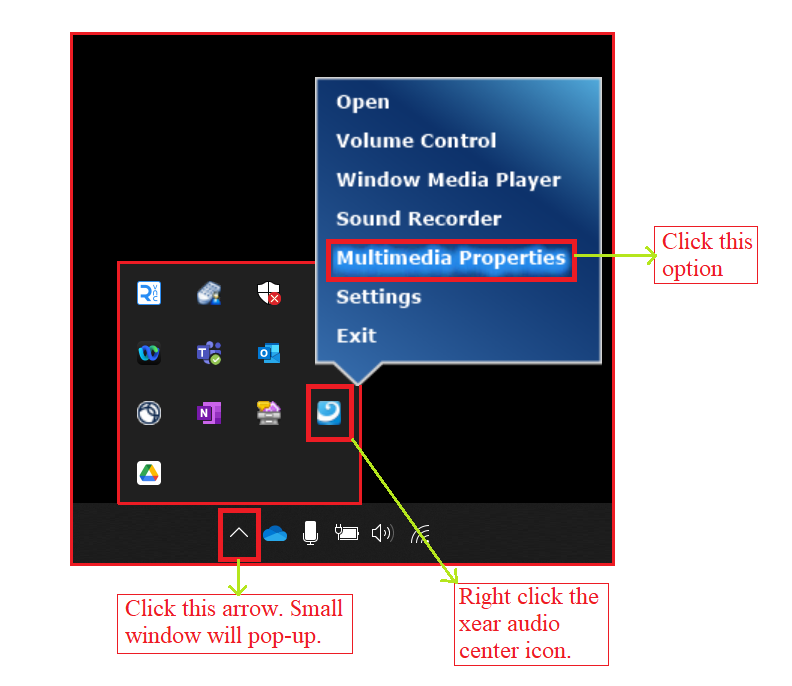
Move to the lower-right corner of the
Windows desktop and click on the upward-pointing arrow to reveal the hidden software
icons. Then, right-click on the Xear audio center icon and select
Multimedia Properties.
Note: If the Xear audio
center icon is not present, refer to the CM6206
Software_User_Manual_Xear_Audio_Center, available in the download
folder.
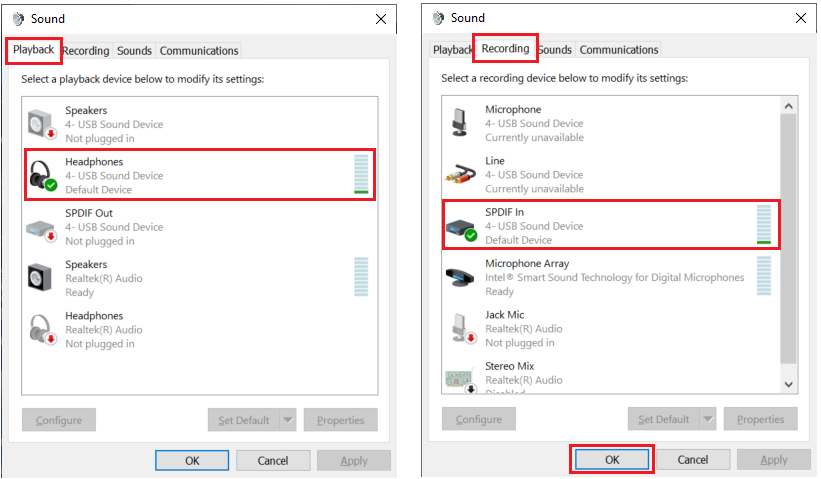
In the Media Properties page on the
Playback tab, ensure that Headphones is selected. In the Recording tab,
verify that SPDIF In is chosen. Then, double click SPDIF In to open
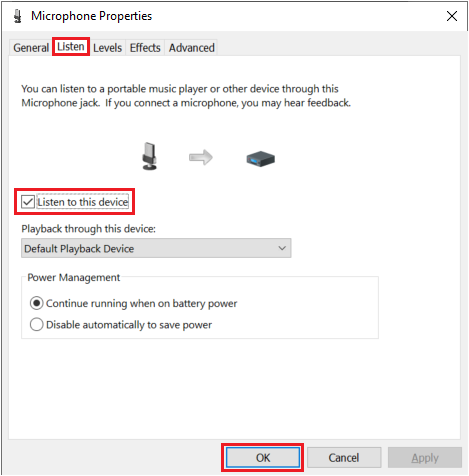
the SPDIF In Properties dialog box.
In the SPDIF In Properties window, go to the Listen tab. Then, enable
the Listen to this device feature by checking the corresponding checkbox and
click OK.
The online versions of the documents are provided as a courtesy. Verify all content and data in the device’s PDF documentation found on the device product page.