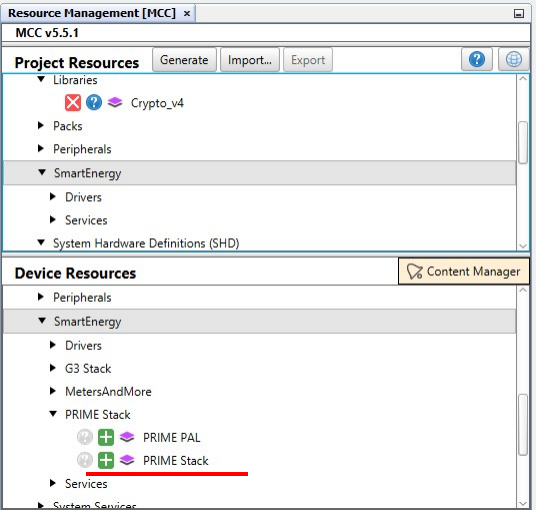
On Device Resources, navigate to
SmartEnergy>PRIME Stack and click the + sign next to PRIME StackFigure 2-40. Add PRIME Stack
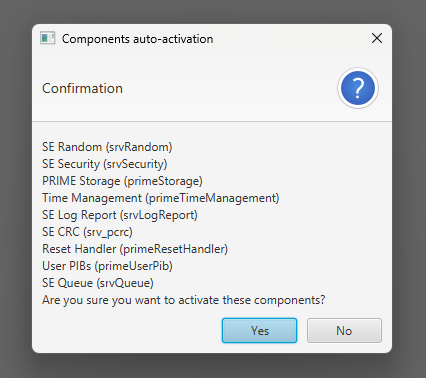
This triggers the Auto Activation of
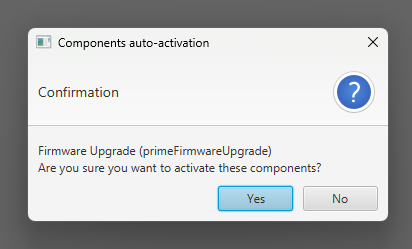
auxiliary services and PAL moduleFigure 2-41. Auxiliary Services Auto
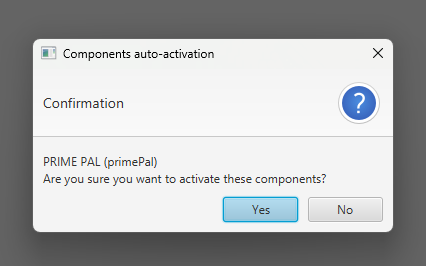
ActivationFigure 2-42. Firmware Upgrade Service Auto
ActivationFigure 2-43. PAL Module Activation
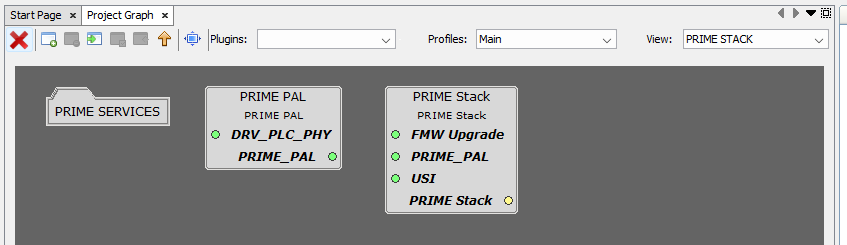
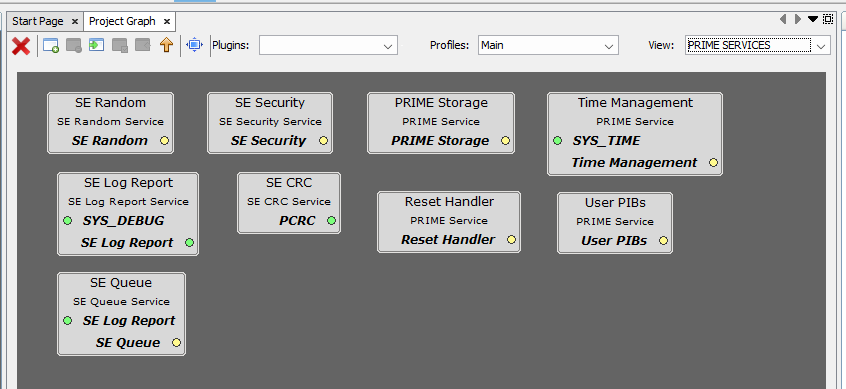
Double-click the PRIME Stack folder just added, or select PRIME STACK on the View Selector
in Project Graph window. This opens a new Project Graph view, where PRIME Stack components
have been added.Figure 2-44. PRIME Stack FolderFigure 2-45. PRIME Services Folder
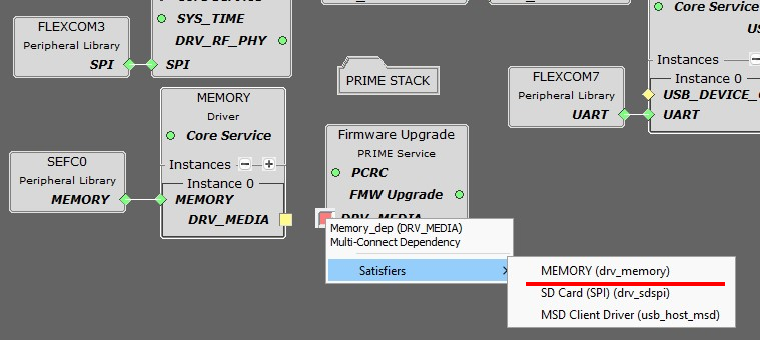
Connect PRIME Firmware Upgrade Service to Memory Component in Project Graph window.
Right-click the DRV_MEDIA dependency
and select Satisfiers>MEMORY (drv_memory)Figure 2-46. Connect FU
The PRIME Stack is configured by default
with PRIME mode set to SN and Type of PRIME project set to application project.
Configure PRIME PAL component. Follow the
indications in section Configuring the PRIME PAL Module. It is important to enable the PVDD Monitor in the PLC PHY interface.
Every other component configuration will use their default values.