Jump to main content
2.4 Creating a New Harmony Project
- Open the MPLAB X IDE.
- Create a New Project by clicking the New Project icon or by selecting
File>New Project.
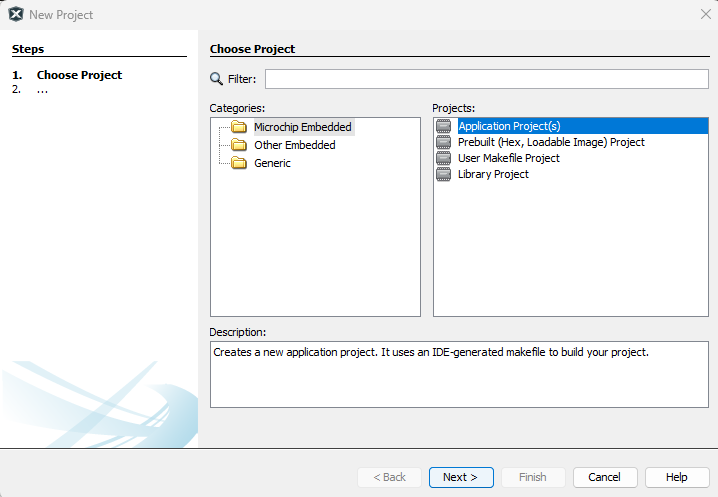
- In the New Project window select Application Project(s) and click
Next.Figure 2-1. New
Project
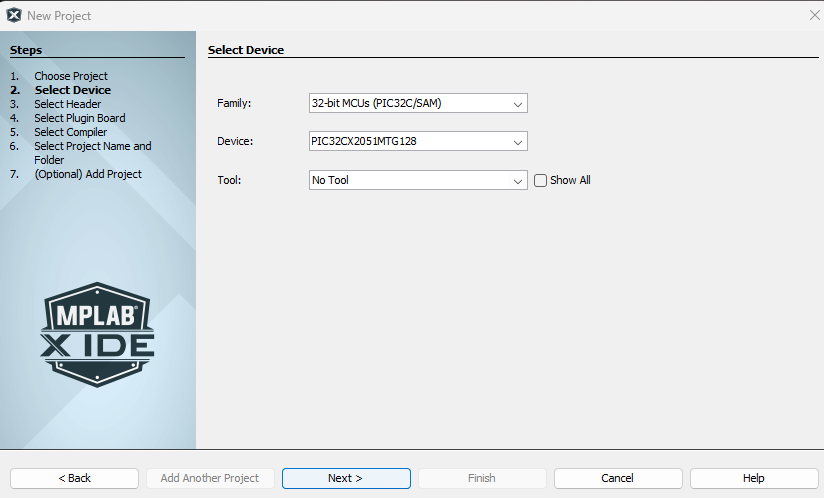
- Select the device. For this example, select PIC32CX2051MTG128.
Then, click Next.Figure 2-2. Device
Selection
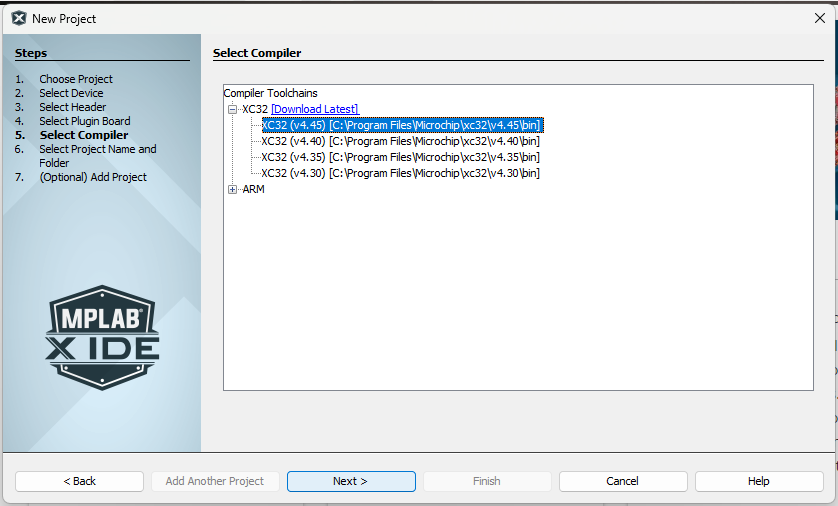
- Select the compiler toolchain and click Next.Figure 2-3. Compiler Toolchain Selection
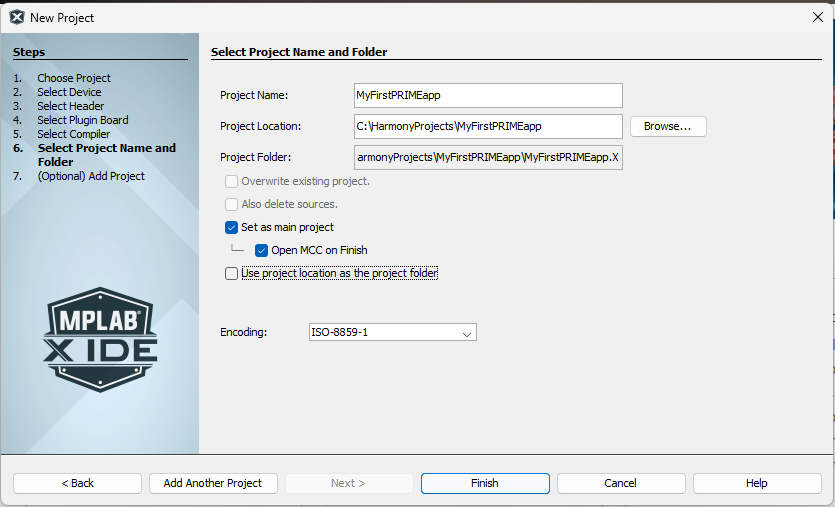
- Fill in the needed project information as follows:
- Name:
Enter Project Name (e.g.,
MyFirstPRIMEapp)
- Location:
Enter a valid path to store the application
project
- Folder:
Selecting the above fields auto populates the
Project Folder
- Mark
Set as main project and Open MCC on
Finish
- Click
Finish
Figure 2-4. Project Information
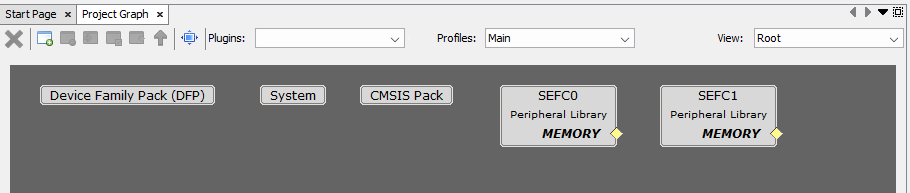
- The above step will open MCC Project Graph.Figure 2-5. MCC
Project Graph