
7.8 Batch Read or Write Multiple Variables
Read/Write Table Toolbar Button Behavior
Batch reads and writes are useful when multiple values need to be read or written in sequence, such as for configuring a specific test or development scenario. For batch writes, feedback from the target will indicate the success or failure of each individual write command. For batch reads, these are controlled by the table row selections and Read toolbar button.
Multiple rows may be selected or deselected by moving the mouse cursor over the leftmost column in the table, holding the ctrl key (Windows/Linux) or the cmd key (macOS), and clicking the checkbox so that it adds or removes a check mark. Rows may be rearranged by clicking and dragging the move handle in the leftmost column, next to the checkbox.
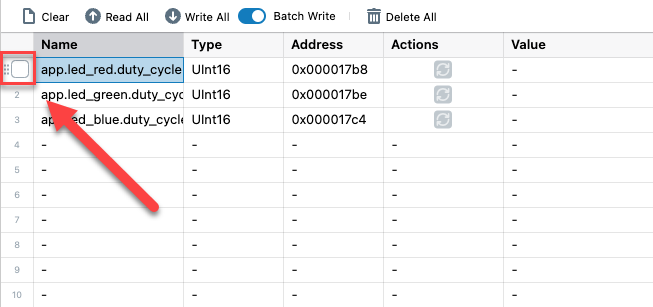
If multiple rows are selected, automatically enable batch write:
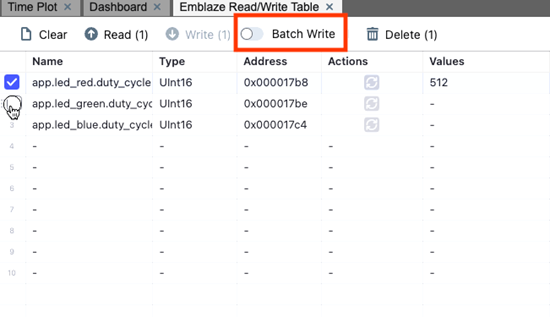
The Read/Write toolbar button titles indicate how many rows are selected. When no rows are selected, the behavior of these buttons is to operate on all rows.
Read/Write Table Cell Behavior
When a value is changed in batch write mode, the background color of the cells changes to yellow to indicate pending writes.
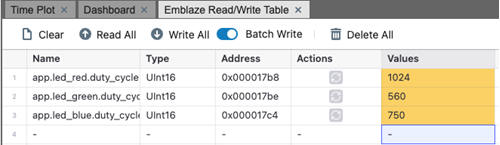
When the write button is pressed in batch write mode, write commands will be issued for each selected row in ascending order from top to bottom sequentially (table row index 1 to N).
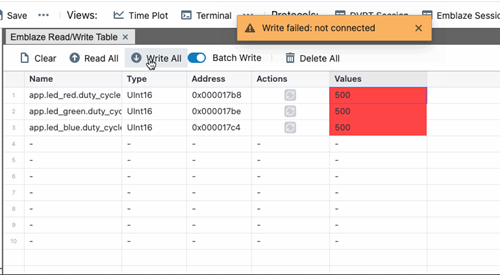
When a value is written, the cell will turn green to indicate success or red to indicate failure.
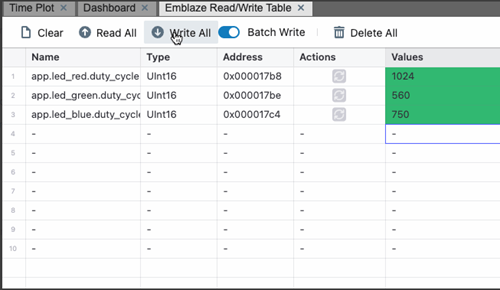
In the event of a write failure, a popup will show an error message. Refer to the Messages view for error details.
When batch mode is disabled by toggling the switch to off, it will clear the cell colors and revert pending cell values to the last read values (non-batch mode).