
1.3.1 Project Files and Folder
The first set of actions creates new files and projects, opens existing projects in the IDE, and enables developers to save, undo, or redo any action. The VS Code tools handle these actions in different ways.
Create New Projects
| MPLAB X IDE | MPLAB Tools for VS Code |
|---|---|
|
To create a new project in MPLAB X, use either:
A pop-up window will prompt users to enter the new project details. 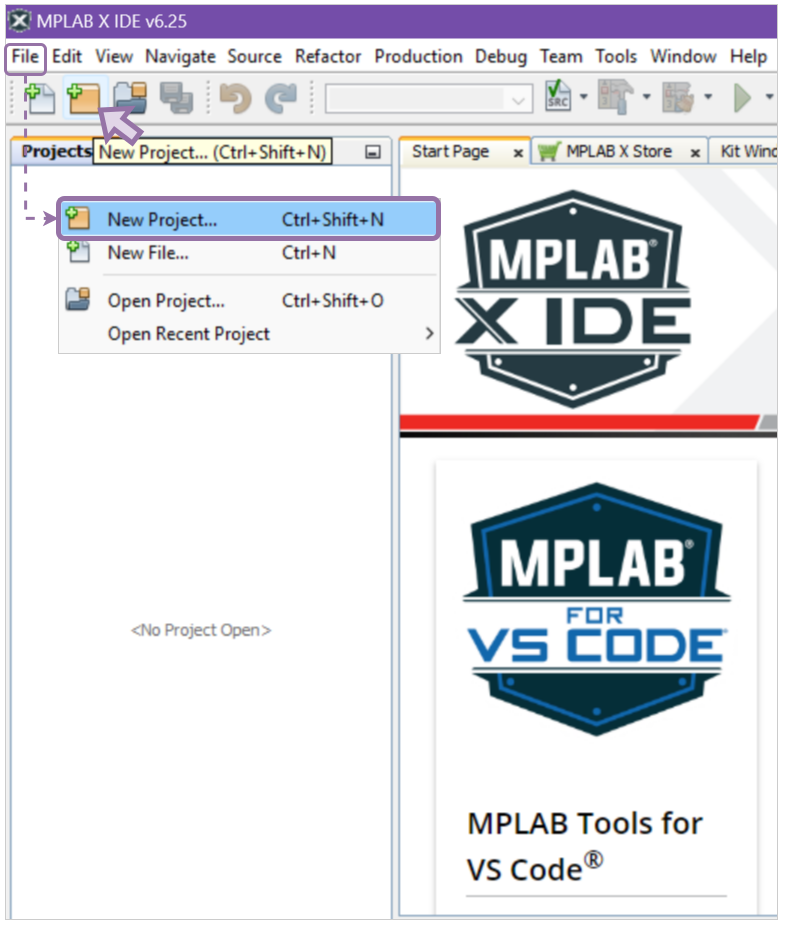 |
To create or add a new project in the VS Code workspace, use either:
The command palette will then prompt users to enter the new project details. 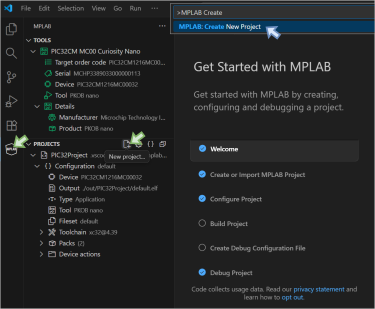 Refer to this video for a quick tutorial in VS Code: Creating a New MPLAB® Project in Microsoft® VS Code®. |
Open Existing Projects
There are various ways of opening existing MPLAB projects in MPLAB X and VS Code. Here are some use cases:
- From a file browserIn any file browser, right-click the project folder and select Open with Code. This option will open the project folder in a new VS Code window.
Figure 1-7. Open with Code 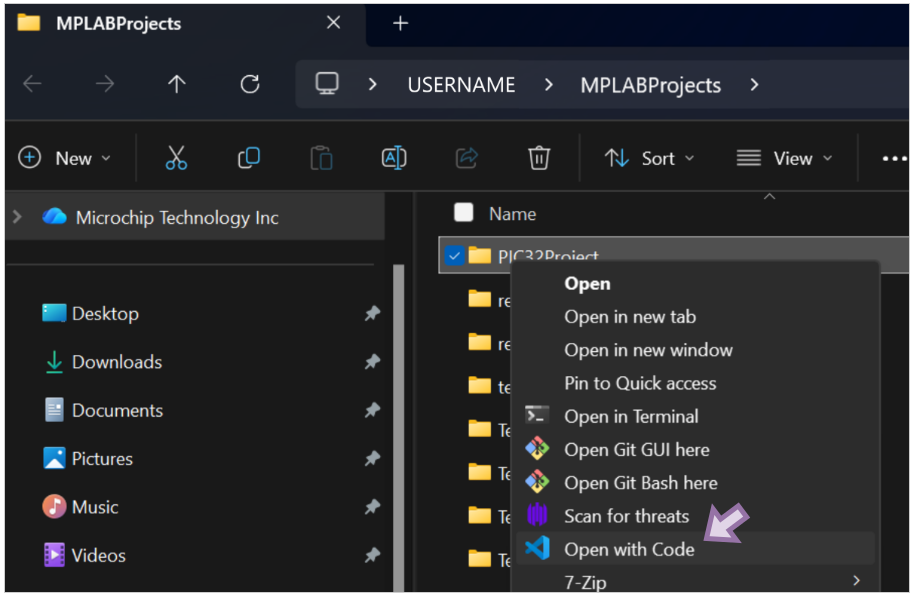
- From within MPLAB X or VS
Code
Table 1-3. Opening Projects From Within MPLAB X or VS Code MPLAB X IDE MPLAB Tools for VS Code MPLAB X can add multiple projects within a single instance of the IDE by using either:
-
The File menu, or
-
The Open Project... icon on the toolbar
Figure 1-8. Open Project in MPLAB X IDE 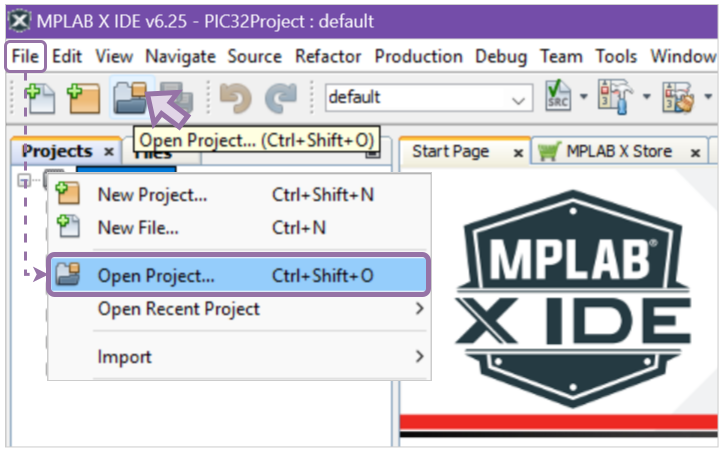
If a VS Code window is already open, use the File menu and select either:
-
Open Folder…, or
-
Add Folder to Workspace…
Figure 1-9. Open Project in MPLAB Tools for VS Code 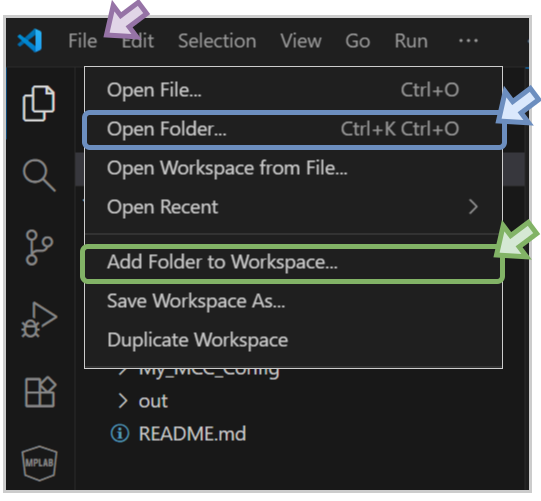
The toolbar icons will only work for the project currently set as the Main Project.
Alternatively, users can right-click any open project to utilize the tools.
Figure 1-10. Set as Main Project 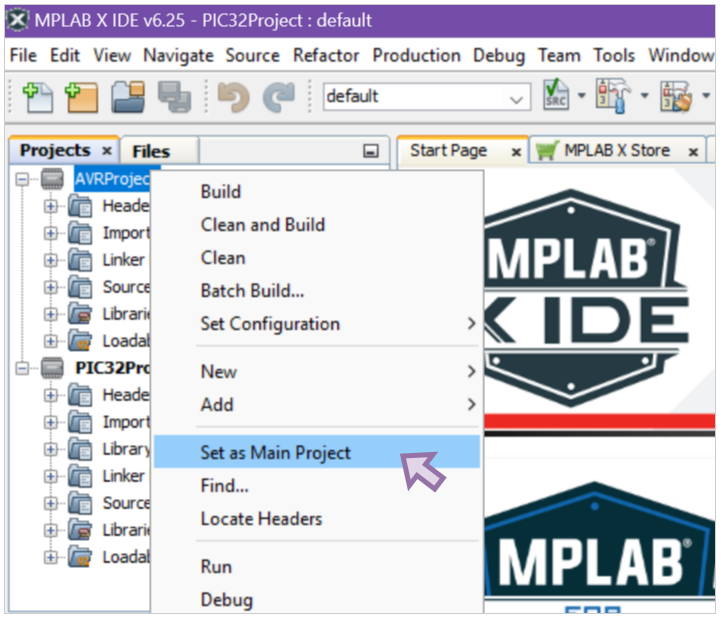
Open Folder… reopens the current VS Code window with the selected project folder.
Figure 1-11. Open Folder in VS Code 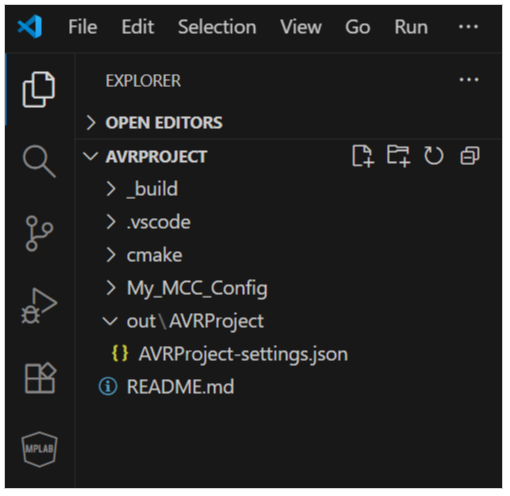
Add Folder to Workspace… allows another project folder to be added to the workspace and does not close or remove any project that is already open in the current workspace.
Figure 1-12. Add Folder to VS Code Workspace 
If there is more than one project in the workspace, the command palette will prompt users to choose for which project the command will be executed.
-
- Importing an MPLAB X IDE
Project in VS Code
MPLAB Tools for VS Code can detect MPLAB X projects. Once an MPLAB X project is identified by opening a folder with a .X extension, users will be prompted to import the project and include related files.
Figure 1-13. Import MPLAB X Project within VS Code 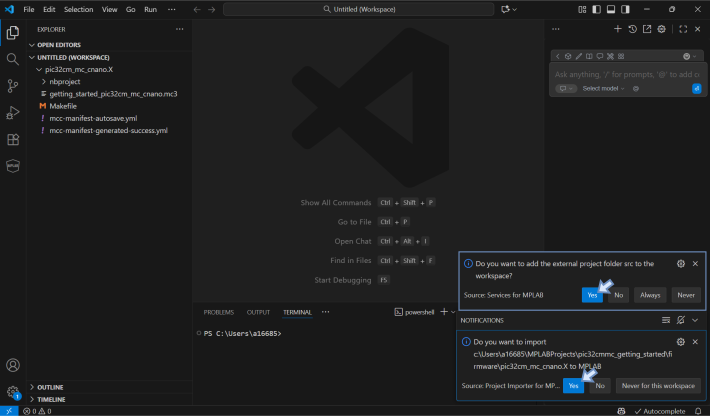 Note: MPLAB X projects can be imported into VS Code. However, VS Code MPLAB projects cannot be imported into MPLAB X due to differences in the file format and extensions.
Refer to these videos for quick tutorials in VS Code:
New File/Folder
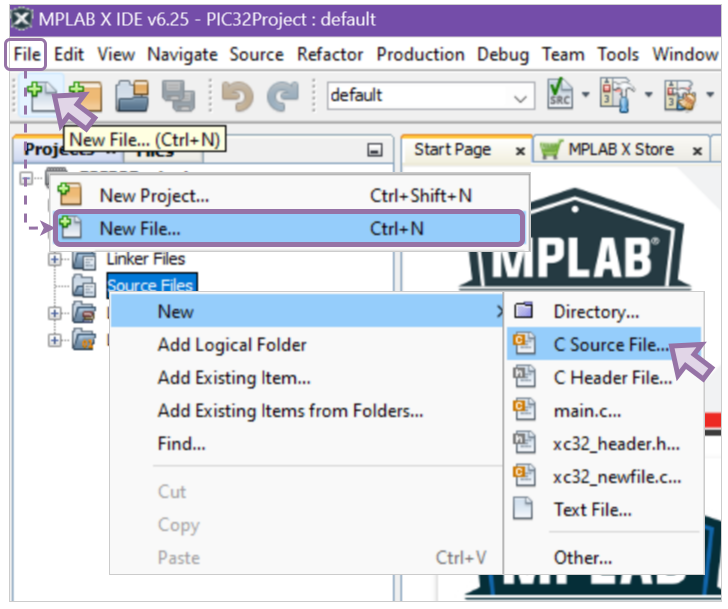
To add a new file or folder, use either the File menu or the New File/Folder… icons in the MPLAB X toolbar or the VS Code workspace sidebar. Users can also right-click any folder or container and select New, then select <file type>.
| MPLAB X IDE | MPLAB Tools for VS Code |
|---|---|
 |
|
Undo/Redo Actions
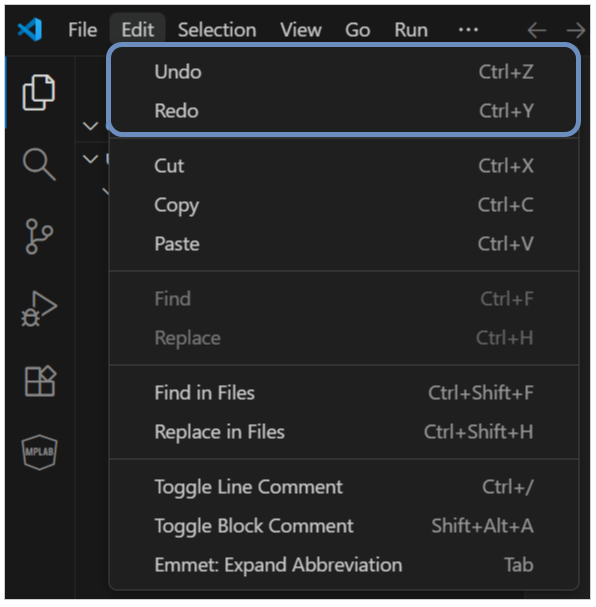
To undo or redo any action, use the Edit menu and select the appropriate action. The Edit menu includes common editing actions, with familiar keyboard shortcuts.
| MPLAB X IDE | MPLAB Tools for VS Code |
|---|---|
|
MPLAB X has Undo and Redo icons on the toolbar. 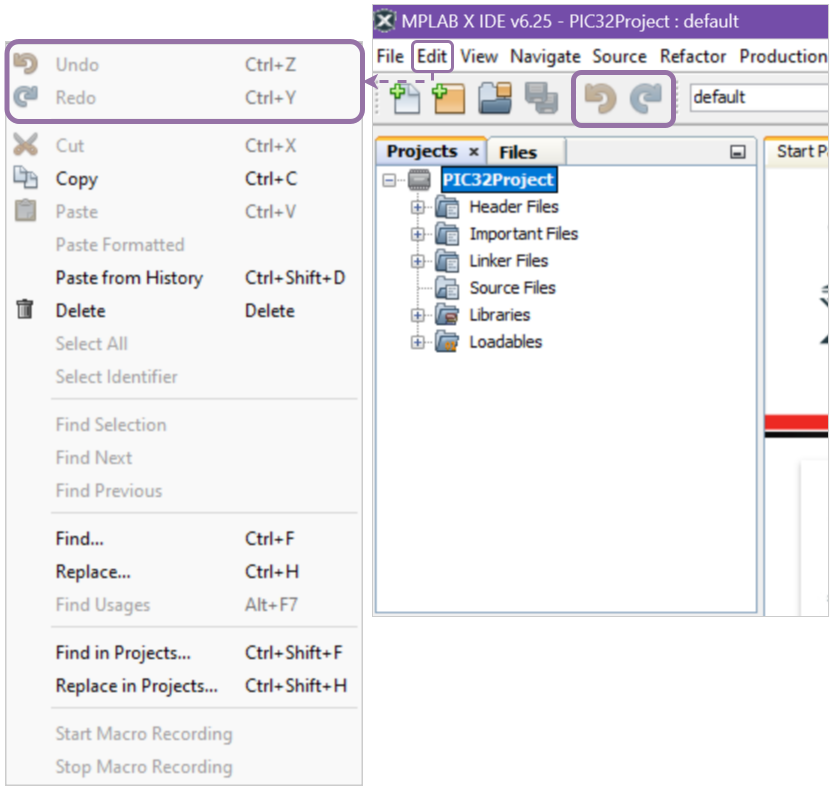 |
 |