
1.3.4 Run/Debug
| MPLAB X IDE | MPLAB Tools for VS Code |
|---|---|
|
To debug a project, use one of the following methods:
Afterwards, the debug functions (e.g., Continue, Step Over/Into/Out, Restart, and Stop) will be added to the toolbar. 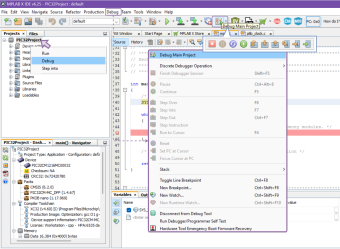 Users can add breakpoints by clicking on a line of code and access other debug functions by right-clicking in the Editor window. 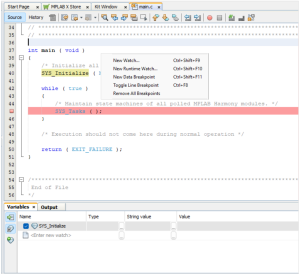 |
To start a debug session:
Users will be prompted to choose which debugger and target tool to use to run the code. Afterwards, the debug functions (e.g., Continue, Step Over/Into/Out, Restart, and Stop) will appear within the VS Code window. Users can add breakpoints by clicking on a line of code and access other debug functions by right-clicking in the Editor window.  Users can also program and debug from the MPLAB Tools view and command palette. Program the target tool with:
Initiate the debug session by:
|
|
To run the program on a connected device, use either:
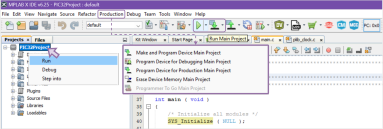 |
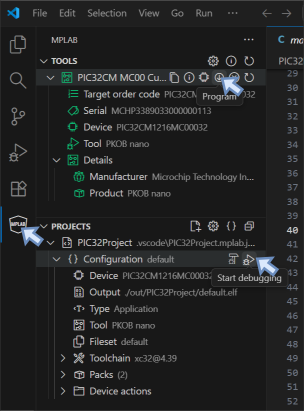 Another option is to click the drop-down arrow beside the Debug icon in the editor window and select any of the Debug or Run options. 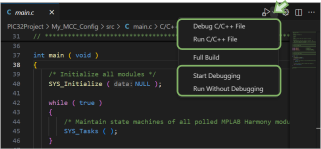 Refer to this video for a quick tutorial in VS Code: Configuring and Running a Debug Session in Microsoft® VS Code®. |