7.2 USART with Peripheral Pin Select (PPS)
The Peripheral Pin Select (PPS) feature allows digital signals to be moved from their default pin location to another location. To enable a digital peripheral’s input and/or output signals, the appropriate PPS registers must be configured.
This can be extremely handy for routing circuit boards. There are cases where a change of I/O position can make a circuit board easier to route. Sometimes mistakes are found too late to fix so having the option to change a pinout mapping in software rather than creating a new printed circuit board can be very helpful.
SERCOM0 USART with PPS
- Create a new project and add SERCOM0 device resource as explained in USART with Direct Pin Enable (See USART with Direct Pin Enable from Related Links) mode.
- Find SERCOM0 Pin description from Curiosity Board User's Guide (EV60G68A).
Table 7-1. USB Serial Converter Pin Assignment Pin on MCP2200 Pin on PIC32WM-BW1002UC Module Description TX
PA6, SERCOM0_PAD1
UART RX pin of the PIC32WM-BW1002UC Module
RX
PA5, SERCOM0_PAD0
UART TX pin of the PIC32WM-BW1002UC Module
RTS
PA4, SERCOM0_PAD3
UART CTS pin of the PIC32WM-BW1002UC Module
CTS
PA3, SERCOM0_PAD2
UART RTS pin of the PIC32WM-BW1002UC Module
- Assign a new pin for
SERCOM0_PAD0,SERCOM0_PAD1,SERCOM0_PAD2,SERCOM0_PAD3from PPS input/output group tables as mentioned in Datasheet (see PIC32WM-BW1 Wi-Fi® and Bluetooth® Low Energy Combo MCU Module Data Sheet under Referenced Documentation from Related Links.As per the following table,
SERCOM0_PAD1input pin can be mapped to any of the given RPn listed on this table. Similar tables are present in Datasheet forSERCOM0_PAD1,SERCOM0_PAD2,SERCOM0_PAD3Figure 7-10. Input Pin Selection Group 3 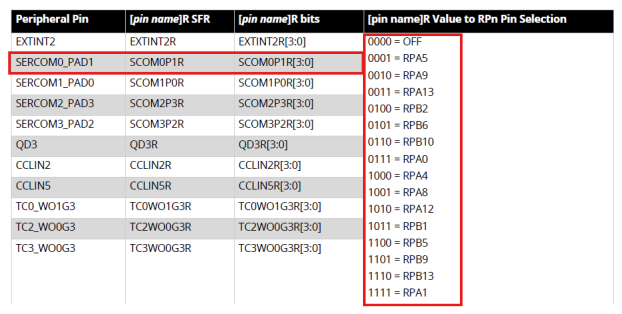
- Open Pin settings from Window>MPLAB Code Configuratior v5>Harmony>Pin Configuration
tab and select desired pin functions
Figure 7-11. Pin Configuration 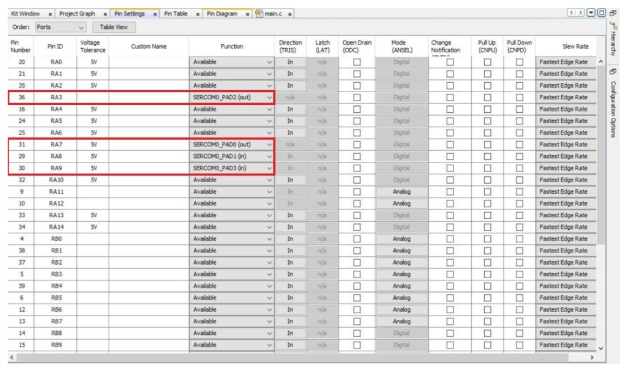
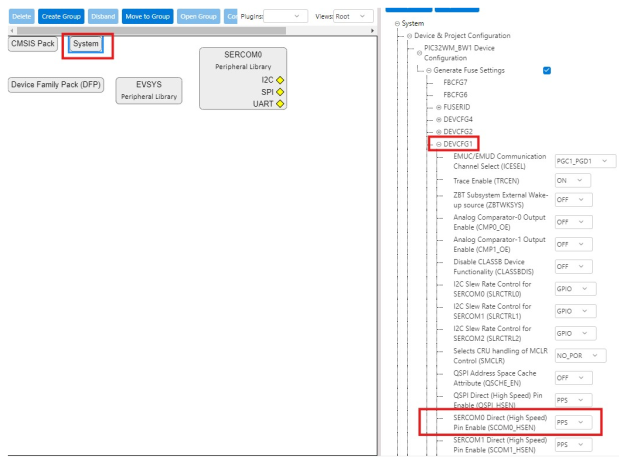
- Open project graph from MCC and go to “System” configuration options and select
SERCOM0 in PPS mode.
Generate Code
For instructions on code generation, refer to MPLAB Code Configurator (MCC) Code Generation section from Related Links.
PPS input/output remaping code can be found in this generated plib_gpio.c
file.
plib_gpio.c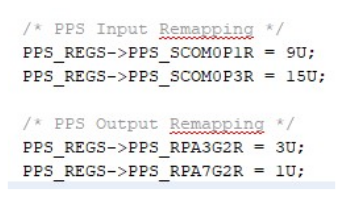
SERCOM0_PAD3(in)- RA9 Pin setting will setPPS_SCOM0P3Rto 15 (binary value 1111)SERCOM0_PAD1(in)- RA8 Pin setting will setPPS_SCOM0P1Rto 9 (binary value 1001)SERCOM0_PAD0(out)- RA7 Pin setting will setPPS_RPA7G2Rto 1 (binary value 00001)SERCOM0_PAD2(out)- RA3 Pin setting will setPPS_RPA3G1Rto 2 (binary value 00010)
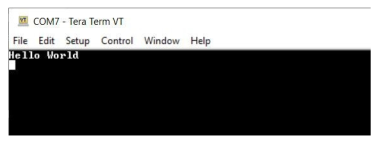
Create a “hello world” application as mentioned in USART with Direct Pin Enable section (See USART with Direct Pin Enable from Related Links.
Testing
- Connect the PIC32WM-BW1 Curiosity board to PC, program the application example.
- Disconnect the board from USB Type-C COM Port and connect it from mikroBUS UART.
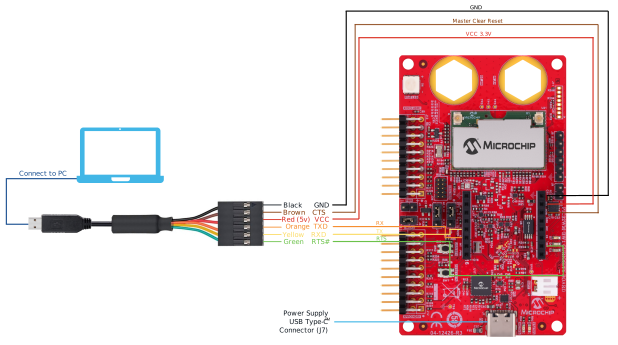
- The above mentioned pins are brought out to mikroBUS in following manner:
Table 7-2. mikroBUS Pins UART to FTDI Pins mikroBUS Pins TX SDA (RPA7) RX SCL (RPA8) CTS MOSI (RPA9) RTS RST (RPA3) VCC 3.3V GND GND Figure 7-13. Setup