3 Getting Started with Software Development
This section gives a detailed information on the steps to install IDE, compiler, tool chain, wireless stacks and application examples on the PC. Prior to each release, the wireless stack and application examples are thoroughly tested against a snapshot of tool versions and other software dependencies. This chapter provides information on setting up the development environment with all the required dependency versions and provide detailed steps to fulfill all the dependencies.
If the user is already familiar with Microchip Tools, then the following table summarizes the dependencies.
Tools and Harmony Component Versions
|
IDE, Compiler and MCC plugin |
Version |
Location |
|---|---|---|
|
MPLAB X IDE |
6.25 or above | |
|
XC32 Compiler |
4.60 or above | |
|
Microchip Code Configurator (MCC) |
5.6.2 or above | MPLAB X IDE > Tools >Plugins(1) |
| Device Family Part Pack (DFP) |
1.0.29 | MPLAB X IDE > Tools >Packs(2) |
|
Note:
| ||
Harmony Components

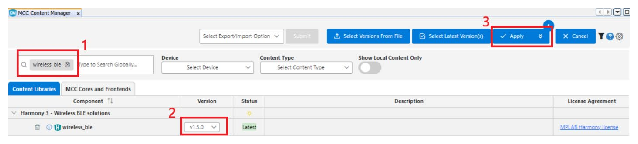
Use Content Manager (CM) to download the following Harmony components.
It will download the Harmony components to
C:\Users\XXX\.mcc\harmony\content.
|
Harmony Components to be Cloned with MCC Content Manager |
Version |
|---|---|
|
wireless_system_rnwf |
3.1.0 |
|
wireless_wifi |
3.12.2 |
|
csp | 3.23.0 |
| core | 3.15.5 |
|
wireless_ble | 1.5.0 |
|
wireless_pic32cxbz_wbz |
1.6.0 |
|
wireless_system_pic32cxbz_wbz | 1.8.0 |
|
CMSIS_5 | 5.9.0 |
|
FreeRTOS-Kernel | 11.2.0 |
| wolfssl | 5.4.0 |
| crypto | 3.8.2 |
- Input “wireless_ble” in Content Manager and press <Enter>.
- Then choose the version specified in the above table.
- Finally, press “Apply” to download it.
- Ensure to download all the required components specified in the above table.
.mcc/harmony/content/. For example, the wireless_ble v1.5.0
will be in the following directory. 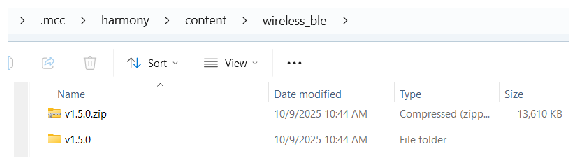
Application Example
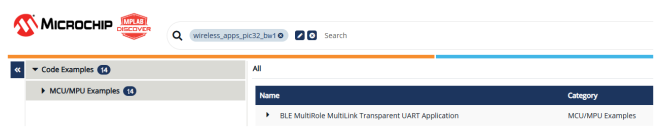
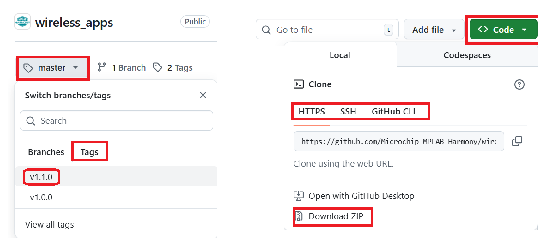
Use Microchip Discover to download the following example code.
C:\Users\XXX.mcc\harmony\content. Therefore, users can decide on
their own folder and download the code. There are different categories of
application code. This user guide only describes wireless_apps_pic32_bw1. Users can
find the user guide of other application code when they click the link provided in
the table. | Name | Version | Applications |
|---|---|---|
| wireless_apps_pic32_bw1 | v1.0.0 | Wireless with below applications |
| core_apps_pic32wm_bw1 | v1.0.1 | Peripheral driver |
| csp_apps_pic32wm_bw1 | v1.0.1 | System Middleware |
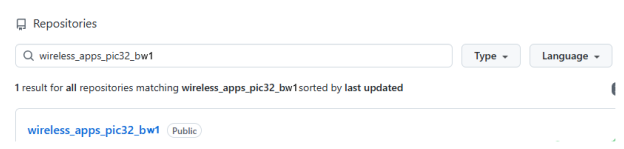
Insert the above “Name” in the search field to find the example in Microchip Discover.
For more details, refer Download Application Example from Discover in Running a Precompiled Application Example from Related Links.