
2.1.1 Bluetooth® LE and Wi-Fi® Combo Demo Experience
This pre-programmed Out-of-the-Box (OOB) demo demonstrates Bluetooth® LE provisioning, simultaneous data transfer over Bluetooth® LE and Wi-Fi ®, in a single application.
Hardware Requirement
| Tool | Qty |
|---|---|
| PIC32WM-BW1 Curiosity Board | 1 |
| USB Type-C™ cable | 1 |
| Android / iOS Smart phone | 1 |
Software Requirement
PC Tools
- To install Tera Term tool, refer to the Tera Term web page listed in the Reference Documentation from Related Links.
- To install Postman tool, refer to the Postman web page listed in the Reference Documentation from Related Links.
Smart phone Application
Install the MBD mobile application:
- Android: Version 7.3.3 or later
- iOS: Version 4.0.2 or later
Demo Procedure
- Connect the PIC32WM-BW1 Curiosity Board to a PC using a USB Type-C™ cable. The Power (Green) LED turns ON when power is applied.
- Open Tera Term:
Configure the serial terminal using the following settings:
Terminal Settings- Baud Rate/Speed – 115200
- Parity – None
- Data Bits – 8
- Stop Bits – 1
- Flow Control – None
Figure 2-1. Log Alignment 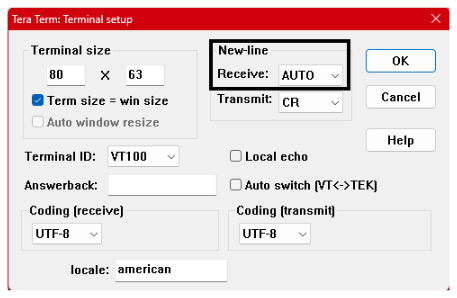 Note: For more details, refer to the COM Port Setup section in Running Precompiled OOB Demo from Related Links.
 - Press the Reset switch on the Curiosity board. The boot logs appear on the Tera Term console.
Figure 2-2. Tera Term Logs 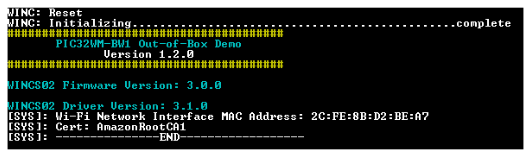
- The PIC32WM-BW1 Curiosity Board (DUT) operates as a Bluetooth LE Peripheral, while the smart phone acts as a Bluetooth LE Central device.
- After boot-up, the DUT starts advertising for Bluetooth LE provisioning.
- Launch the MBD mobile app and select BLE Provisioner>PIC32WM-BW1 option.
- Scan and connect “BW1_BLE_Sensor” device from the scan results list.
- Connect with this device name by entering the pairing key displayed on Tera Term
- After a successful pairing, enter the Wi-Fi SSID, Password, and Security settings in the MBD app and tap Provision.
-
After the DUT receives Wi-Fi credentials from the MBD application, the mobile app displays a Provisioning Complete prompt. The DUT then stores the received credentials in non-volatile memory using the Persistent Data Storage (PDS) system.
Next, the DUT establishes a Wi-Fi connection with the configured Access Point (AP), obtains an IPv4 and/or IPv6 address, and simultaneously disconnects the secure Bluetooth LE connection previously established with the Bluetooth LE Central device (mobile phone running the MBD app).
The DUT automatically uses the stored credentials in PDS to reconnect with the configured AP during subsequent restarts.
Note:- To reset Wi-Fi credentials configured on DUT, press USER_BUTTON (SW2) for more than 5 seconds. This action starts Bluetooth LE Provisioning Advertisement mode, allowing new Wi-Fi credentials to be configured. Users may have to wait for 60–90 seconds for credentials to reset after long pressing user button.
- Re-configuring new Wi-Fi credentials will require an additional power reset or pressing the RESET button on board, when DUT fails to connect/re-connect with the provisioned AP. In such case, press USER_BUTTON (SW2) for more than 5 seconds, provide new Wi-Fi credentials using MBD app followed by DUT restart.
Figure 2-3. Console Output: Wi-Fi® Reconnection and Credential Reset Sequence 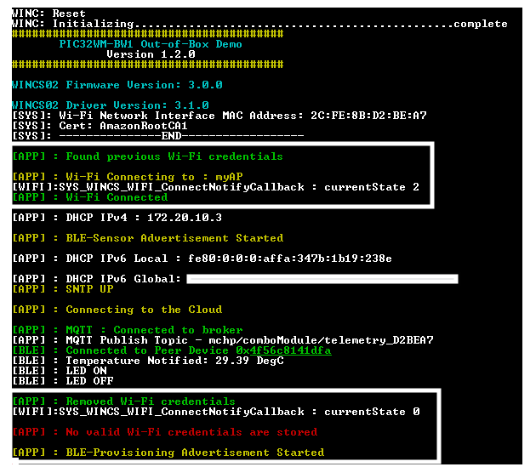
-
After obtaining an IPv4 address, the DUT starts Bluetooth LE advertising with Sensor data, including the temperature sensor value and RGB LED ON/OFF status.
At the same time, the DUT establishes a secure MQTT connection with the pre-configured MQTT broker. Once connected, the DUT transmits the temperature and RGB LED status data to the configured MQTT publish topic over Wi-Fi, and simultaneously updates the MBD application over Bluetooth LE.
Figure 2-4. Bluetooth® LE Provisioning From Microchip Bluetooth Data Application 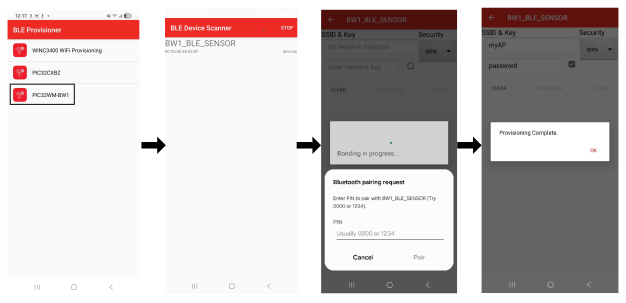
Figure 2-5. Bluetooth® LE Provision logs 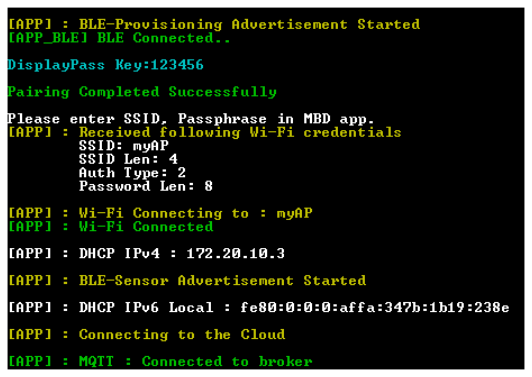
- After the DUT starts advertising
Bluetooth LE sensor data, open the Microchip Bluetooth Data (MBD) mobile application and
select BLE Sensor to establish a Bluetooth LE connection. In the app, navigate to
PIC32CXBZ>Scan> BW1_BLE_SENSOR from the scan results and
initiate the connection.Note: When establishing a BLE connection during the BLE provisioning or BLE Sensor process on Android/iOS devices , the initial connection attempt may fail. If this occurs, retry the connection or manually forget/unpair the BW1_BLE_SENSOR device in the Bluetooth settings before attempting the connection again.
- Once the Bluetooth LE connection is established, control the RGB LED using the toggle button in the MBD application. The app displays the RGB LED ON/OFF status and the temperature sensor reading in degrees Celsius (°C), as illustarted in the following figure. The app also allows adjustments to the RGB color and brightness.
-
Simultaneously, after the DUT connects to Wi-Fi, the RGB LED status and temperature sensor readings are published to a specific MQTT topic on the configured MQTT broker. By default, this demo uses the HiveMQ MQTT broker.Note: The User LED (D5) blinks in blue at 500 ms intervals while the DUT is advertising and waiting to establish a connection with the Bluetooth LE Central device (mobile phone running the MBD app). Once the connection is established, the LED turns solid blue.
Figure 2-6. Establish Connection with PIC32WM-BW1 Curiosity Board and Configuring RGB LED from MBD App 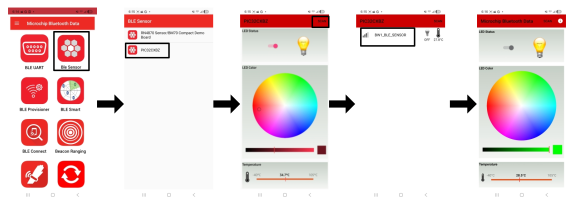
- Install and open the Postman
application. Click on New>MQTT.
Figure 2-7. Create MQTT Client on Postman 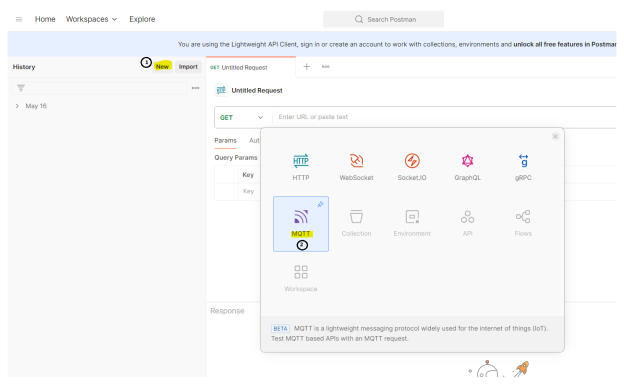
- Enter the following details in the Postman application to configure the MQTT connection:
- URL: mqtt://broker.hivemq.com: 1883
- Protocol: V3
- Click Connect to establish the connection.
- Under Topics, add the topic:
mchp/comboModule/telemetry_<AABBCC>, whereAABBCCrepresents the last three bytes of the Wi-Fi Network Interface MAC address. - Set the Quality of Service (QoS) value to 0.
- The DUT publishes RGB LED status and temperature data to this topic over Wi-Fi.
Figure 2-8. Connect to Mosquitto Server and Subscribe to Topic on Postman 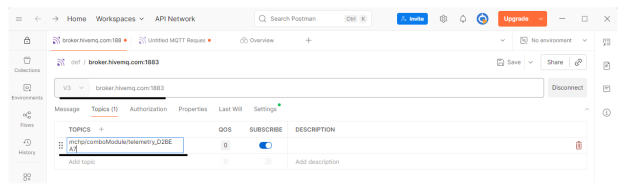
- The RGB LED switches ON or OFF when the User Configurable switch on the PIC32WM-BW1 Board is pressed. The LED status reflects on both the MBD mobile application and the Postman application when connected. When the User Configurable switch is pressed and released once, the RGB LED turns ON with the last stored color. Pressing and releasing the switch again toggles the RGB LED.
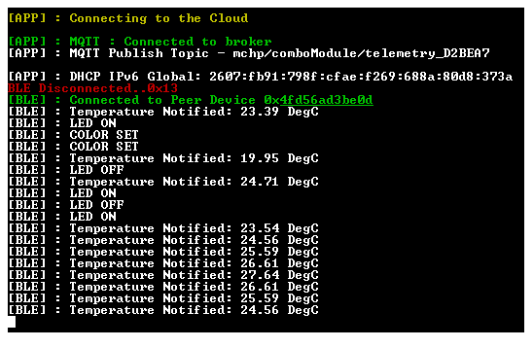
- The on-board temperature sensor measures the temperature every one second. When the
temperature changes by approximately 1°C, the sensor transmits the updated value to the
MBD application and the MQTT Broker.
Figure 2-9. Monitoring Temperature and RGB LED Status from Postman 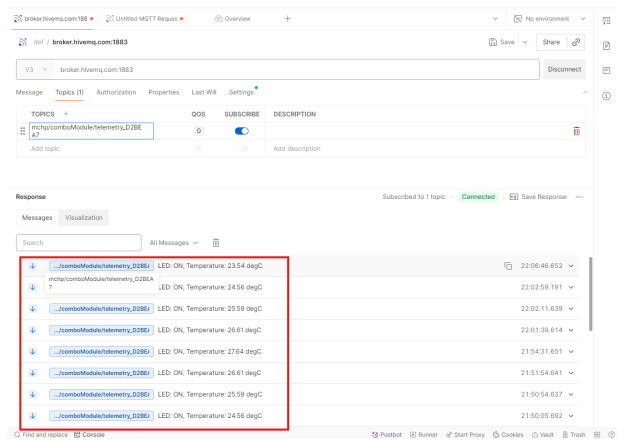
Demo Limitations:
- The current OOB demo implementation supports re-starting Advertisement for Bluetooth LE Provisioning by pressing USER_BUTTON (SW2) for more than five seconds given that DUT does not have an active connection with Bluetooth LE Central Device (mobile running MBD app)
- Re-configuring new Wi-Fi credentials will require an additional power reset or pressing an RST button on board, when DUT fails to connect/re-connect with the provisioned AP. In such case, press USER_BUTTON (SW2) for more than five seconds, provide new Wi-Fi credentials using MBD app followed by DUT restart.
- Occasionally MQTT broker re-connection logs may occur, possibly due to use of Public MQTT Broker. Use a stable MQTT broker or reset the device.
- DUT may intermittently advertise as “PIC32CX” during BLE advertisements.