3.6 Running a Precompiled Application Example
This section gives a detail explanation on how to open, build and program an existing application example.
Prerequisites
- MPLAB® X IDE and MPLAB XC Compilers (for the link to install MPLAB® X IDE and MPLAB XC Compilers, refer to Development Tools and Compilers in Reference Documentation section from Related Links).
- Device Family Pack (for steps to install DFP, refer to the Installing Device Family Pack section from Related Links).
- MPLAB Code Configurator (MCC) Plugin (for steps to install MCC Plugin, refer to the Installing the MCC Plugin section from Related Links).
- Harmony 3 Dependencies (for steps to install Harmony 3 Dependencies, refer to the Installing Harmony 3 Dependencies section from Related Links).
Download Application Example from MPLAB Discover
- Open Microchip MPLAB Discover by clicking the button below as illustrated in the
following figure.
Figure 3-25. Microchip Discover 
- Enter
“
wireless_apps_pic32_bw1”. Then press <enter>.Figure 3-26. wireless_apps_pic32_bw1 
- It will list all application examples.
- Click one of them and then choose “Download”.
- Then it will download the “wireless_apps_pic32_bw1-x.x.x.zip” which contains all the application examples:
- To program a precompiled
.hexfile or newly compiled application hex file, refer to chapter Flashing hex from MPLAB X IPE and MPLAB X IDE.
COM Port Setup
To resolve COM port issues that prevent the output of text to the Tera Term terminal using the PIC32WM-BW1 Curiosity Board, follow these steps:
- Close Tera Term and unplug the PIC32WM-BW1 Curiosity Board from the computer.
- Open Device Manager.
Figure 3-27. Device Manager 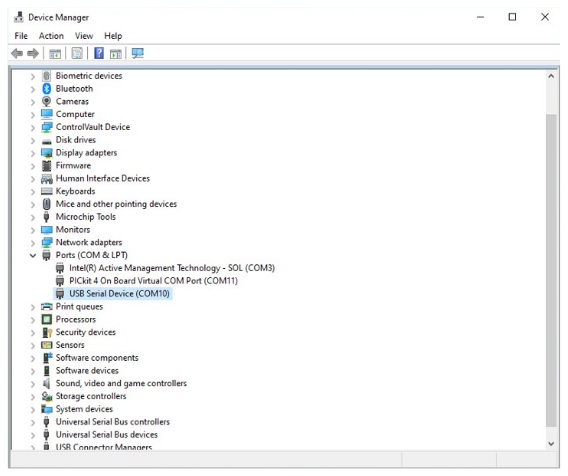
- Plug the Curiosity board back into the computer.
- In the Tera Term window, select
“Serial”.
- From “Port:” drop-down list, select USB Serial Device.
Figure 3-28. USB Serial Port Selection 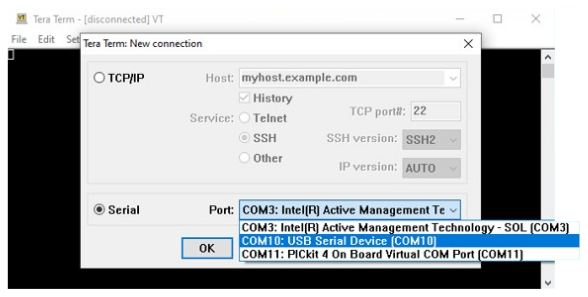
- In the Setup tab, perform
the following steps:
- From “Port:” drop-down list, select the USB Serial Device.
- From the “Speed:” drop-down list, select 115200.
- Click New setting to apply the changes.
Figure 3-29. Serial Port Setup and Connection 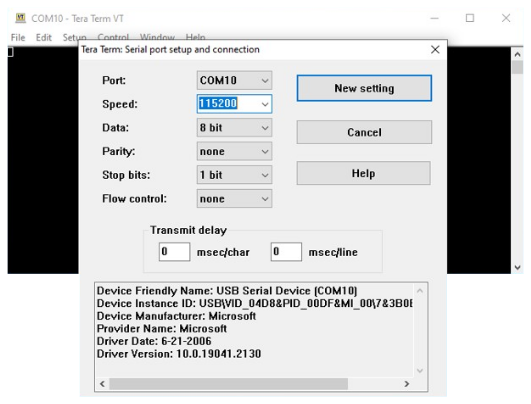
- Press the reset button on the
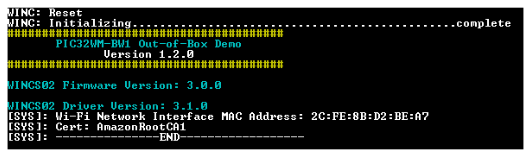
board to see text on the terminal if the curiosity board is programmed.
Figure 3-30. Tera Term Logs