
2.1 Hardware Interface and Display Connectivity
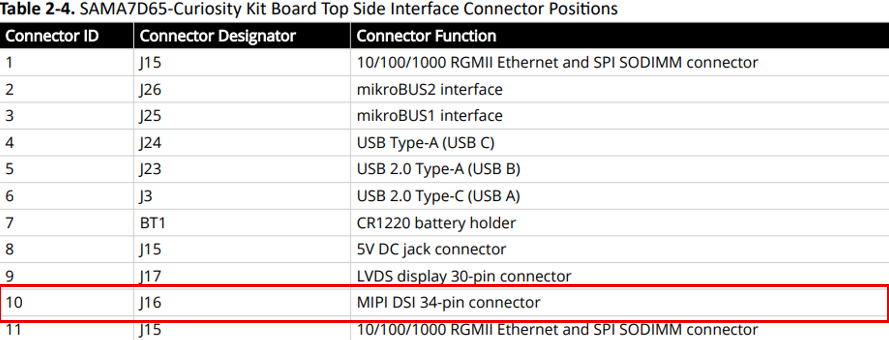
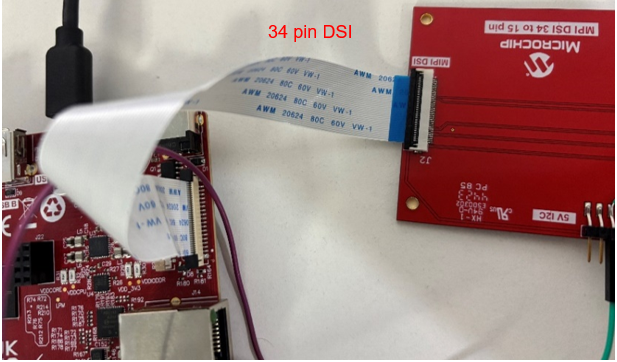
The hardware interface depends on the type of display connector used. The SAMA7D65-Curiosity board is equipped with a 34-pin FPC connector (J16) for MIPI DSI displays. Follow the steps below to connect displays with either matching or non-matching connectors.
Displays with a Matching 34-Pin MIPI Connector
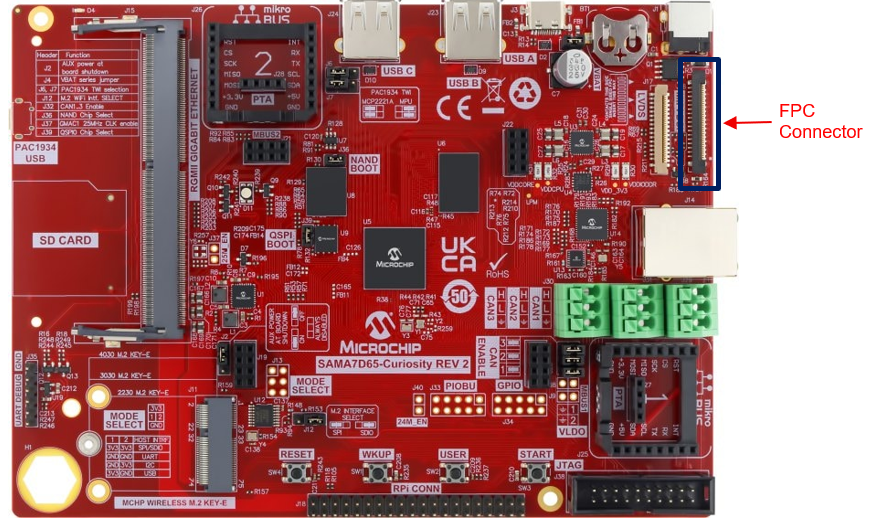
- Locate the 34-pin FPC connector
(J16) on the SAMA7D65-Curiosity board.
- Attach the display’s
34-pin FPC cable to J16, ensuring proper alignment and a secure connection.
- Verify that the display is powered correctly. If the display draws power from the board, ensure the board’s power supply (USB-C or 5V adapter, for example) can support the additional load. Refer to the display’s data sheet for power requirements.
Displays with a 15-Pin DSI Connector (such as the Raspberry Pi Touch Display 2)
- Obtain a 15-pin DSI to 34-pin
MIPI adapter board (refer to Hardware Guide for Waveshare Displays for FFC
orientation).
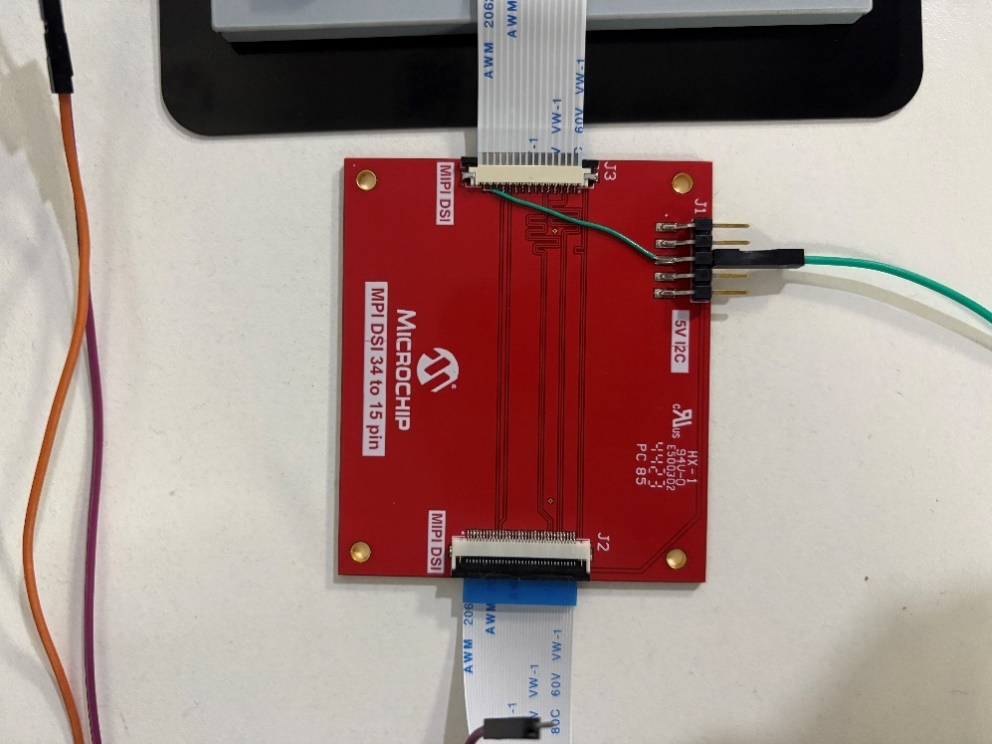
- Connect the
display’s 15-pin FPC cable to the adapter board, ensuring the metal contacts are
oriented correctly (refer to the display documentation if available, for example,
Raspberry Pi Touch Display 2).
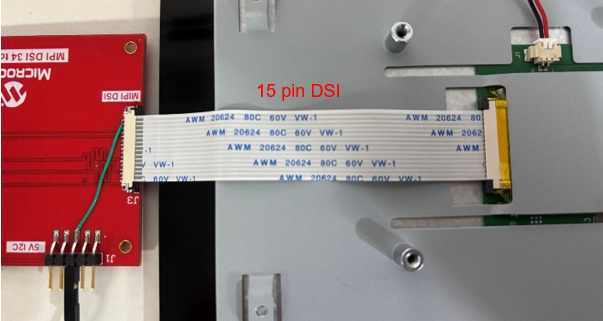
- Attach the adapter’s
34-pin FPC cable to J16 on the SAMA7D65-Curiosity board.
CAUTION: To avoid damage, always power off the
SAMA7D65-Curiosity board before making or modifying hardware connections.