
4 Verifying Display Driver Support in MPLAB Harmony
This section explains how to determine whether the Raspberry Pi Touch Display 2 is supported by the MPLAB Harmony v3 framework for integration with the SAMA7D65-Curiosity board, and provides guidance in case native support is unavailable.
- Review the MPLAB Harmony v3 display driver documentation.
- Look for a list of supported display controllers or panels. Harmony supports a range of Microchip-recommended displays through pre-built drivers. Check the gfx/display/ directory.
- Verify whether the display is
supported.
- Using MCC, check the
available display driver modules:
- Open MCC in the current project Tools > MPLAB Code Configurator).
- Under Available Components, expand Graphics > Display Drivers and look for ILI9881C or compatible drivers for Raspberry Pi Touch Display 2.
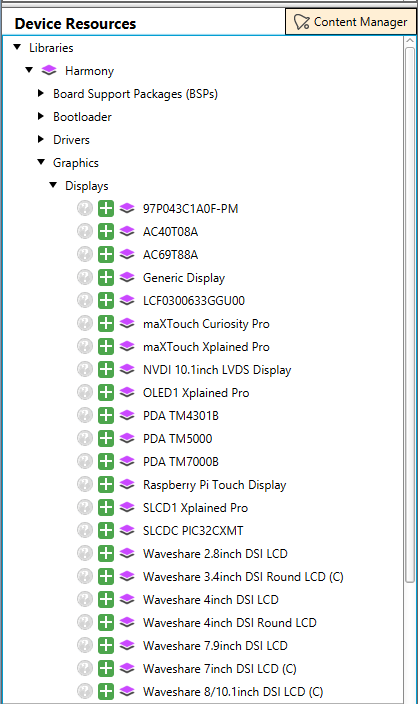
Important: A wide range of displays is supported. The listed Raspberry Pi Touch Display is different from the Raspberry Pi Touch Display 2. Make sure to distinguish between them when adding support. Follow the steps below to add support for the Raspberry Pi Touch Display 2.Note: If your own custom display is already supported, proceed to Integrating the Custom MIPI Display Module. - Using MCC, check the
available display driver modules: